
How to Disable a Patch That Has Been Deployed to Your Site?

Created by Bharath K, Modified on Wed, 29 Jul at 12:04 PM by Bharath K

Step 1 of 6
Select your site
Click on your site to open site management options.
Step 1 screenshot
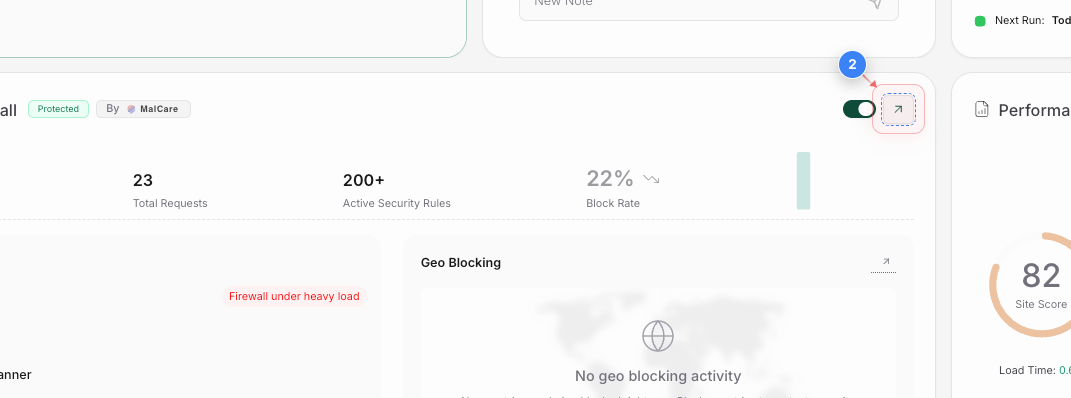
Step 2 of 6
Open security details
Click on the arrow in the security area to view security and firewall protection details.
Step 2 screenshot
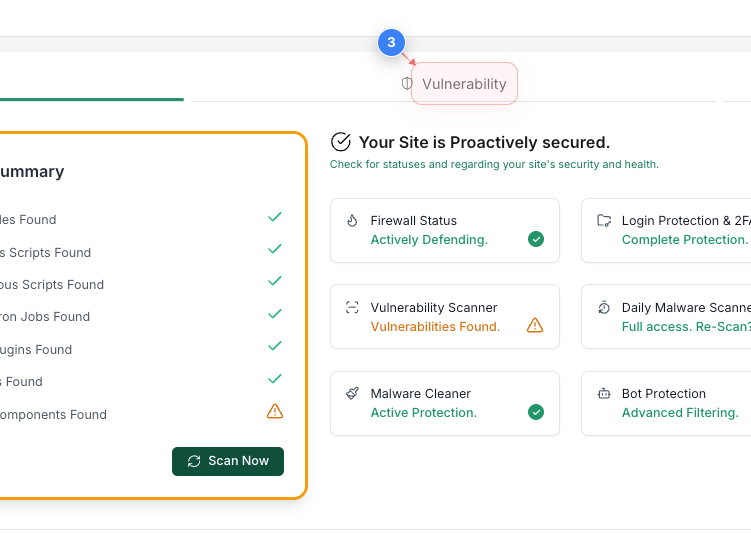
Step 3 of 6
Navigate to the vulnerability tab
Click on the Vulnerability tab in the upper area to check for detected component vulnerabilities.
Step 3 screenshot
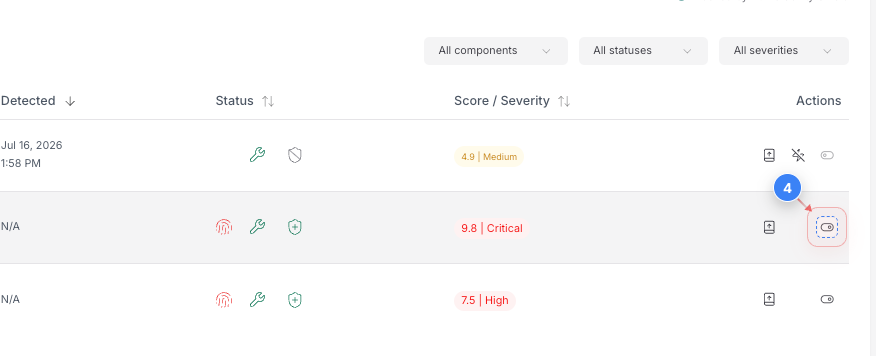
Step 4 of 6
Patching options
Click the disable patching button in the right-side table to manage virtual patching settings.
Step 4 screenshot
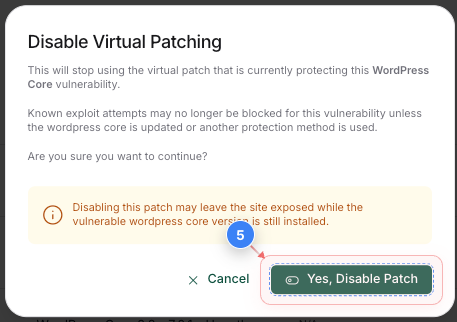
Step 5 of 6
Confirm patch disabling
Click the "Yes, Disable Patch" button to confirm disabling the virtual patching
Step 5 screenshot
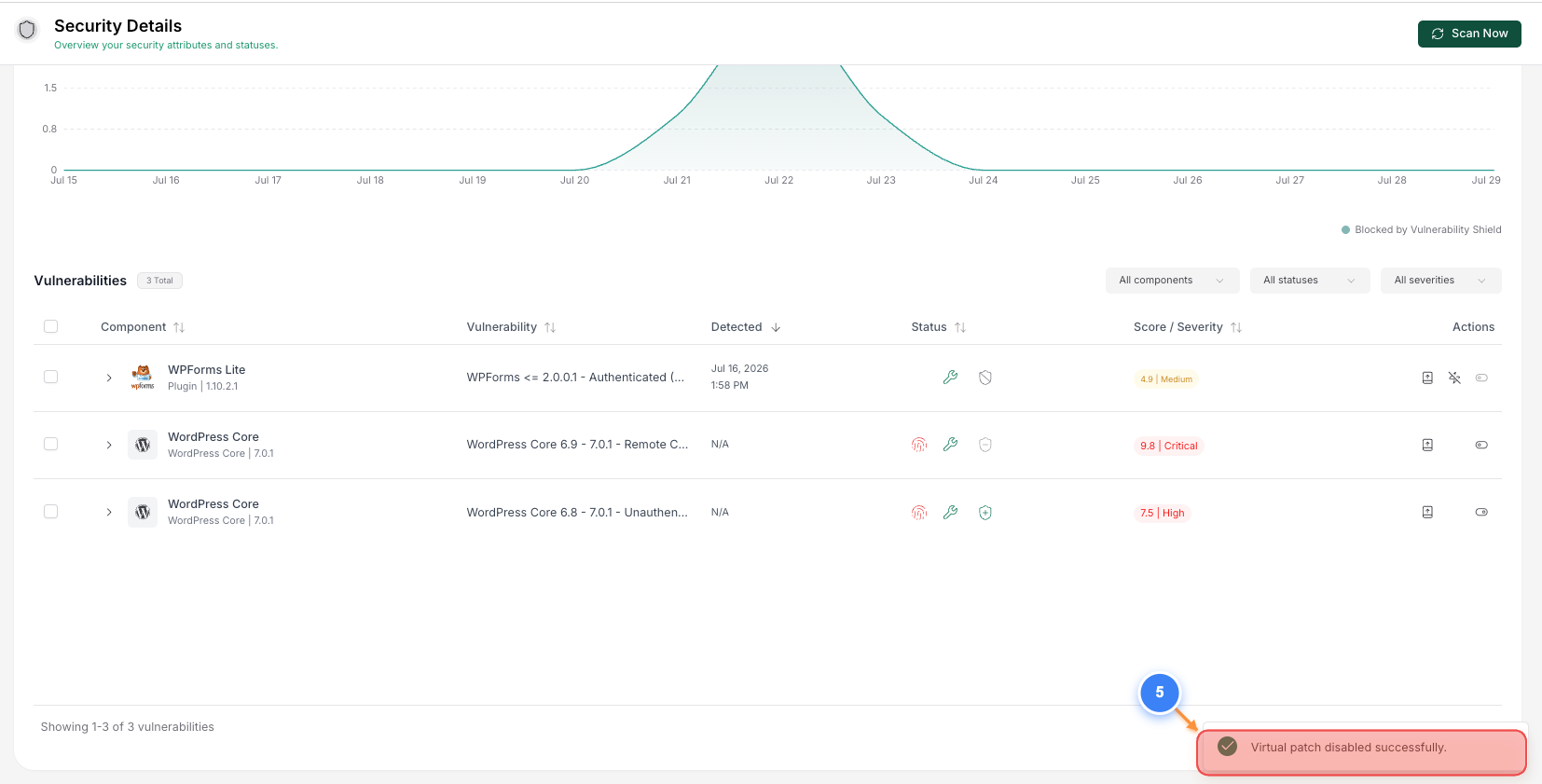
Step 6 of 6
Verify virtual patch disabled
The Security Details page summarizes your vulnerability status and displays a success notification confirming that the virtual patch was disabled successfully.
Step 6 screenshot

Was this article helpful?

That’s Great!

Thank you for your feedback

Sorry! We couldn't be helpful

Thank you for your feedback

Let us know how can we improve this article!

Select at least one of the reasons

Feedback sent

We appreciate your effort and will try to fix the article