
How to Enable/Disable Domain Monitoring

Created by Sachin B, Modified on Sat, 13 Dec at 6:40 PM by Sachin B

Step 1 of 7
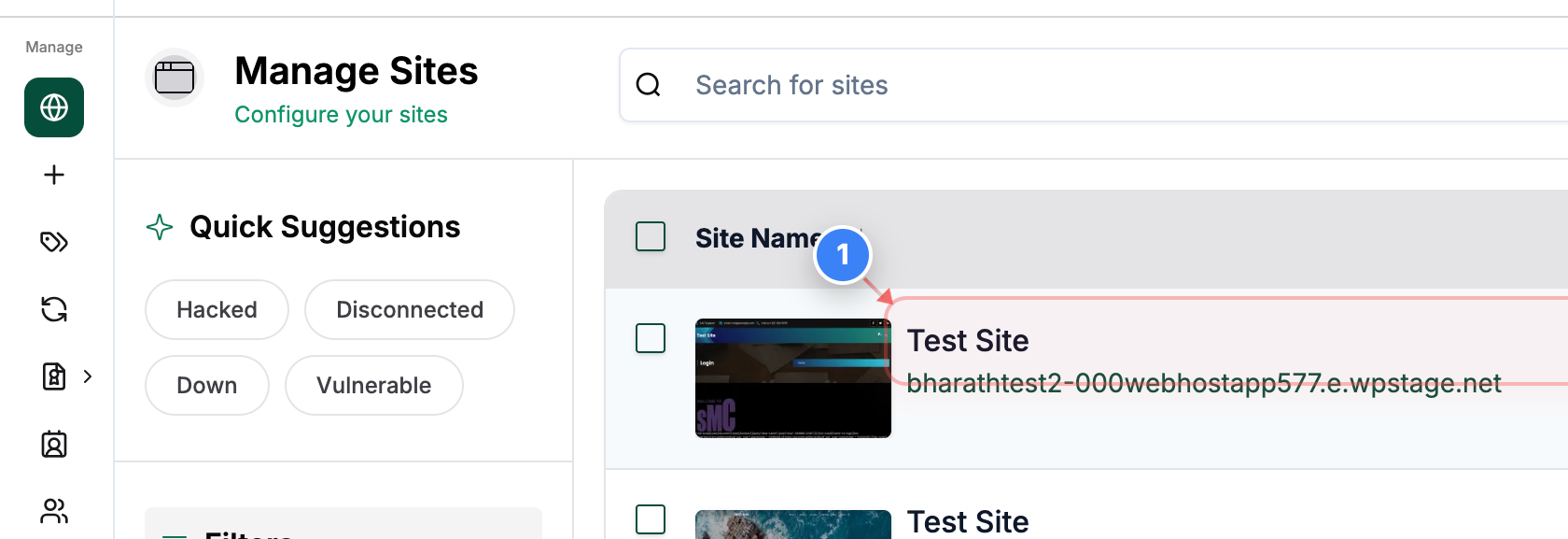
Open site management
Click on your site name in the Sites dashboard to open management options for that site.
Note: Make sure you select the correct site if you manage multiple sites.
Step 1 screenshot
Step 2 of 7
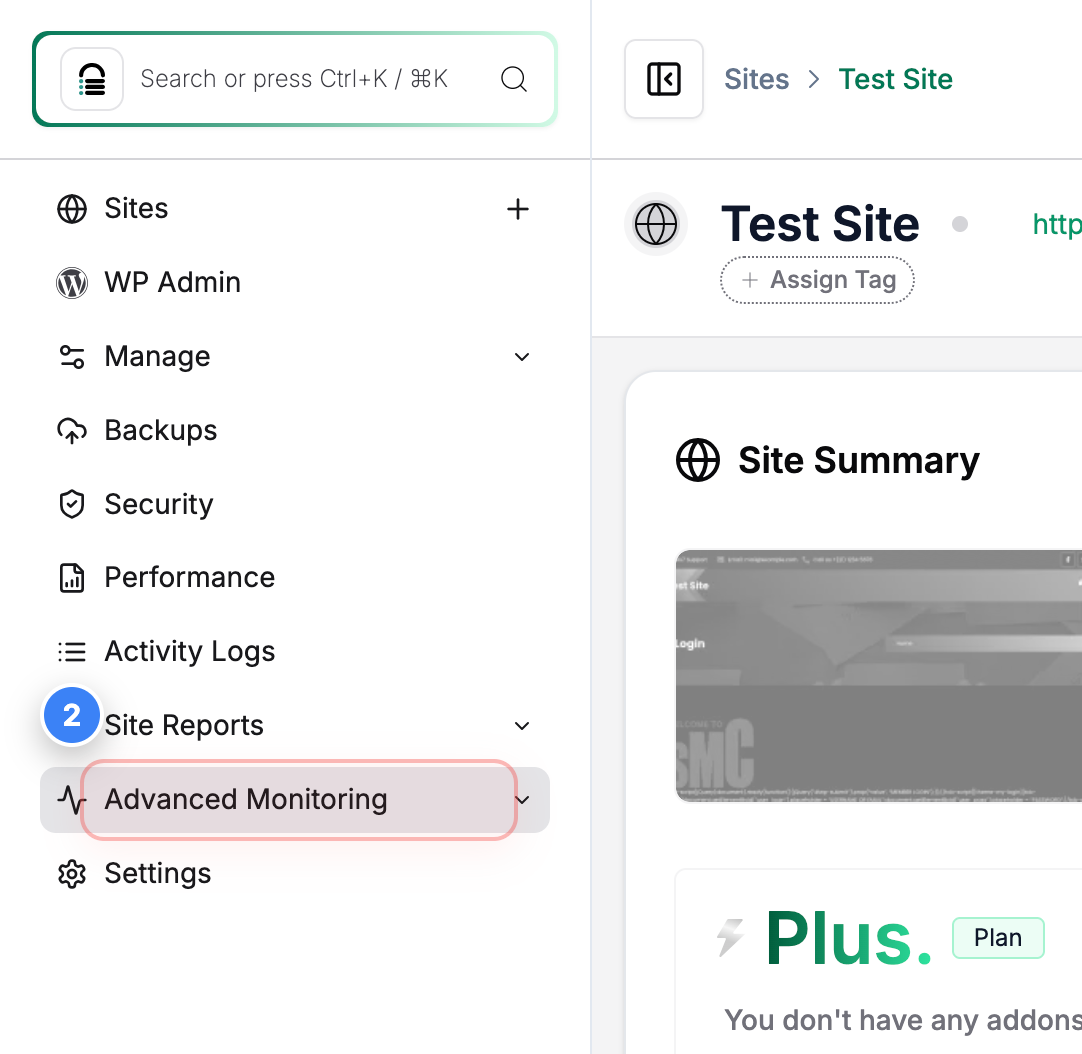
Open Advanced Monitoring
Click Advanced Monitoring in the left sidebar to access monitoring features for your site.
Step 2 screenshot
Step 3 of 7
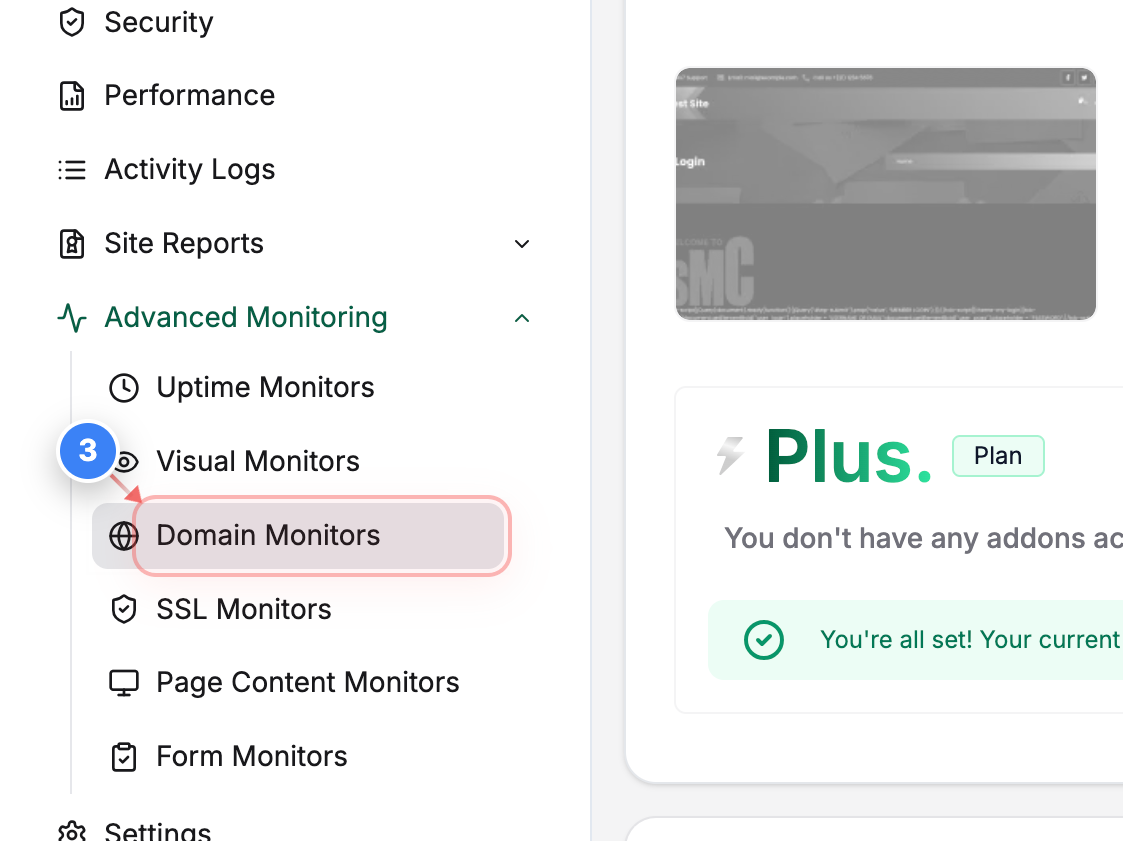
Go to Domain Monitors
Click Domain Monitors in the Advanced Monitoring section to manage domain monitoring status.
Step 3 screenshot
Step 4 of 7
Disable domain monitoring
Click the toggle in the Domain Monitors list on the right side to turn off domain monitoring for the selected domain.
Note: Turning this off stops active monitoring checks for the domain.
Step 4 screenshot
Step 5 of 7
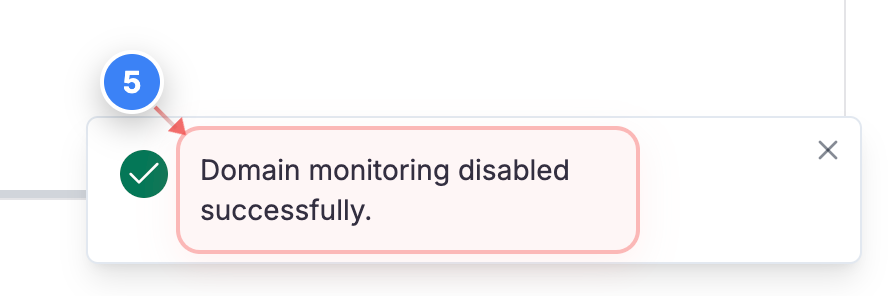
Confirm monitoring disabled
Review the confirmation message in the bottom-right corner to verify that domain monitoring has been disabled.
Step 5 screenshot
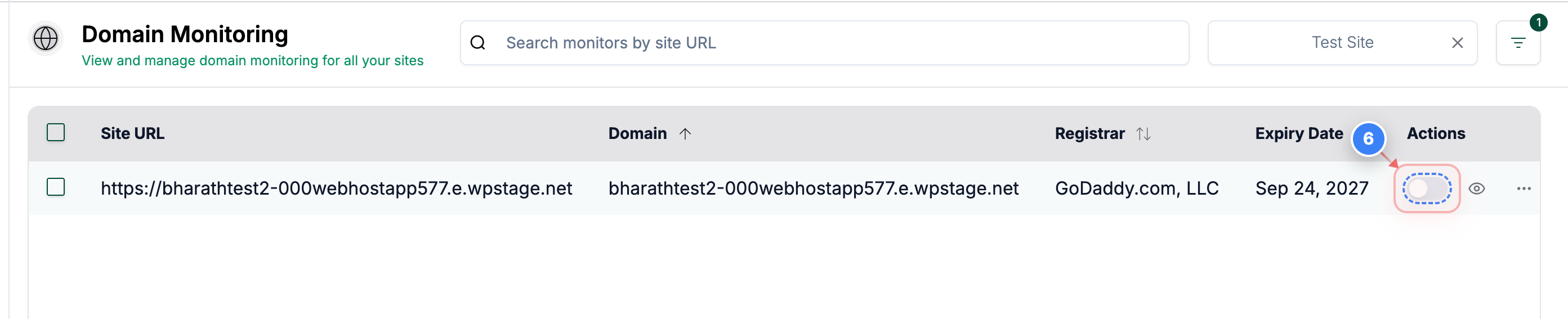
Step 6 of 7
Enable domain monitoring
Click the same toggle in the Domain Monitors list to turn domain monitoring back on.
Note: Use this when you want monitoring checks to resume.
Step 6 screenshot
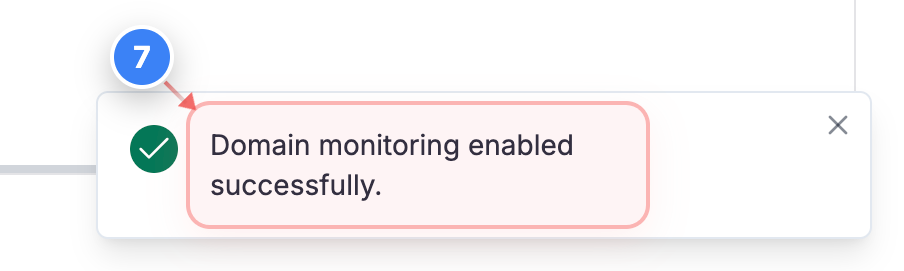
Step 7 of 7
Confirm monitoring enabled
Review the confirmation message in the bottom-right corner to verify that domain monitoring is enabled again.
Step 7 screenshot

Was this article helpful?

That’s Great!

Thank you for your feedback

Sorry! We couldn't be helpful

Thank you for your feedback

Let us know how can we improve this article!

Select at least one of the reasons

Feedback sent

We appreciate your effort and will try to fix the article