SECURITY HARDENING: Control WordPress file editing and modification protections directly from Site Settings.
Security Hardening helps protect a WordPress site from accidental or unauthorized file changes. It allows eligible users to restrict file editing, installations, updates, and deletions directly from Site Settings.
Important: These protections are not enabled automatically. You must enable the required setting under Site Settings → Security Hardening. |
What you can protect
Protection | What it prevents | WordPress constant |
Disable WordPress file editor | Editing plugin and theme files through the WordPress dashboard. | DISALLOW_FILE_EDIT |
Block plugin, theme, and WordPress core modifications | Installing, updating, or deleting plugins, themes, and WordPress core. | DISALLOW_FILE_MODS |
Before enabling file modifications blocking, updates, installations, and deletions will remain unavailable while this protection is active. Disable it temporarily when you need to perform these actions. |
Requirements
Before you begin, confirm that all of the following conditions are met:
- The website has an active, eligible Security plan.
- Security is enabled for the website.
- The website uses BlogVault, MalCare, or the WP Remote plugin version 6.65.
- The website is not in maintenance mode.
- No maintenance or configuration process is currently running.
- The selected setting is not already controlled by a declaration in wp-config.php.
How to enable Security Hardening for a site
You can enable either protection separately or enable both, depending on the level of restriction required.
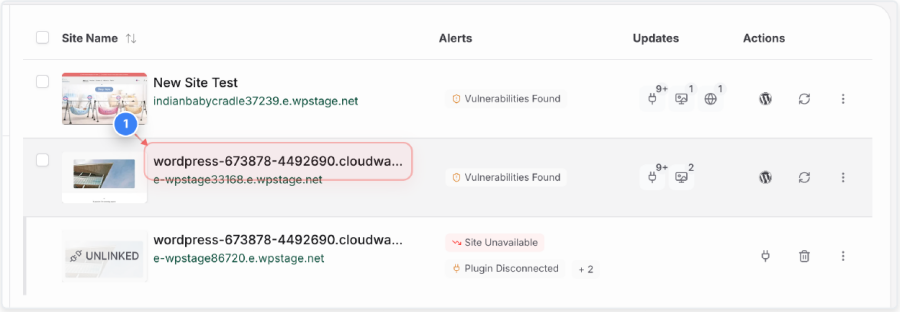
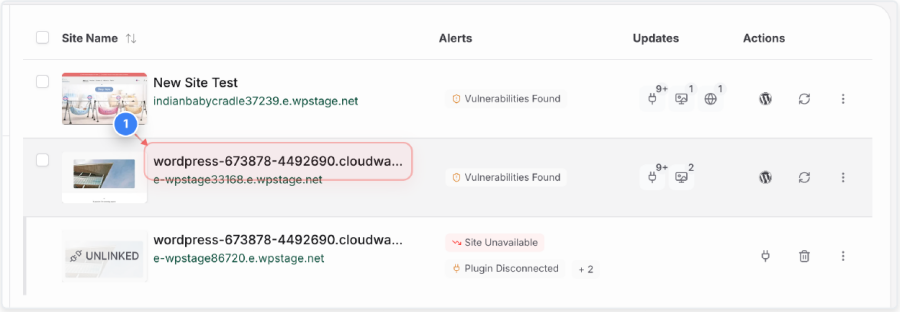
From the Sites list, select the site you want to manage to open its dashboard.
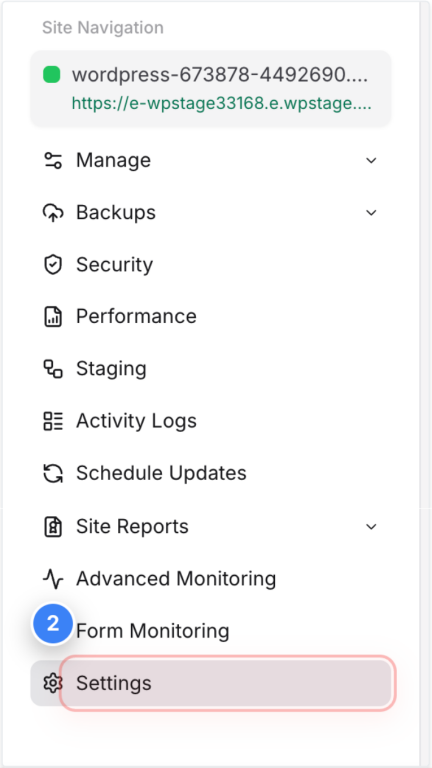
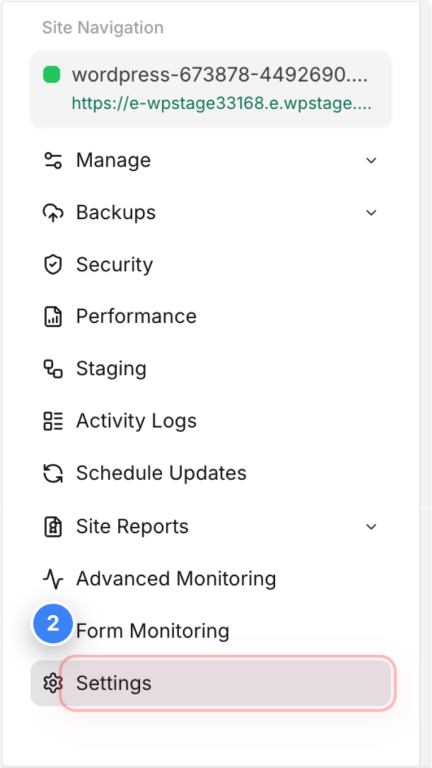
In the site dashboard sidebar, click Settings to open the site's configuration options.
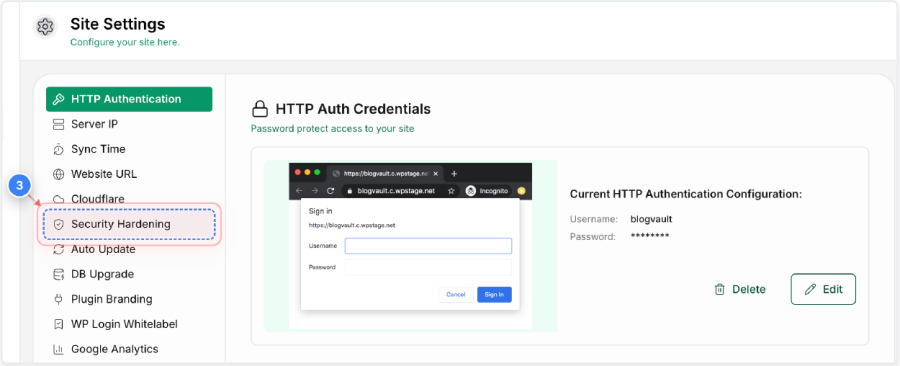
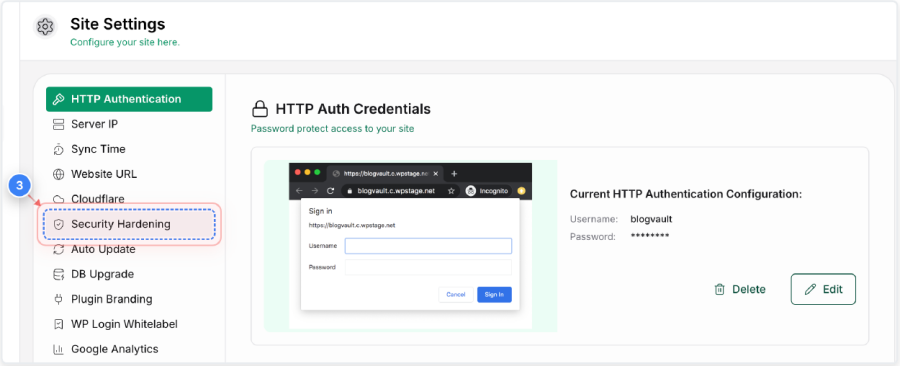
In the Site Settings menu, click Security Hardening to view the available hardening controls.
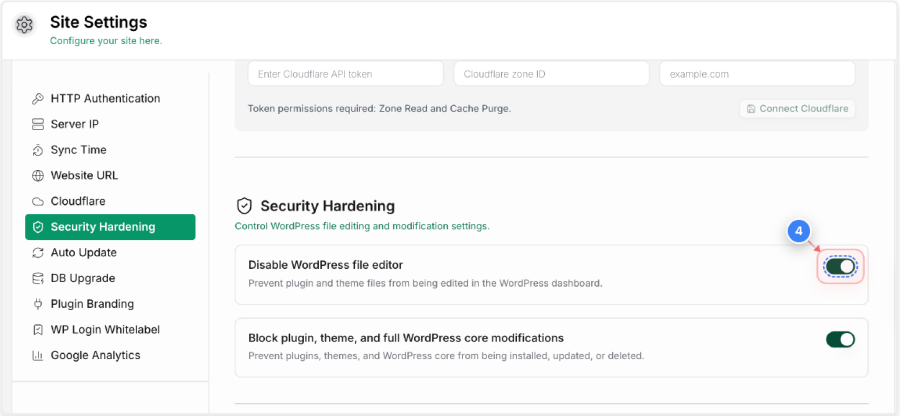
Turn on Disable WordPress file editor to prevent plugin and theme files from being edited through the WordPress dashboard.
Note: This helps prevent attackers who gain dashboard access from using the built-in editor to inject malicious code into plugin or theme files. |
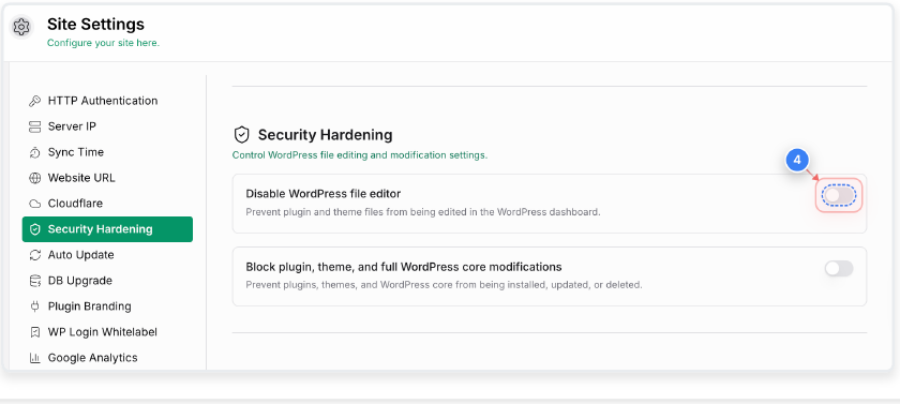
Turn on the Block plugin, theme, and full WordPress core modifications to prevent plugins, themes, and WordPress core from being installed, updated, or deleted.
Note: Temporarily disable this protection whenever you need to install, update, or delete a plugin or theme, or update WordPress core. |
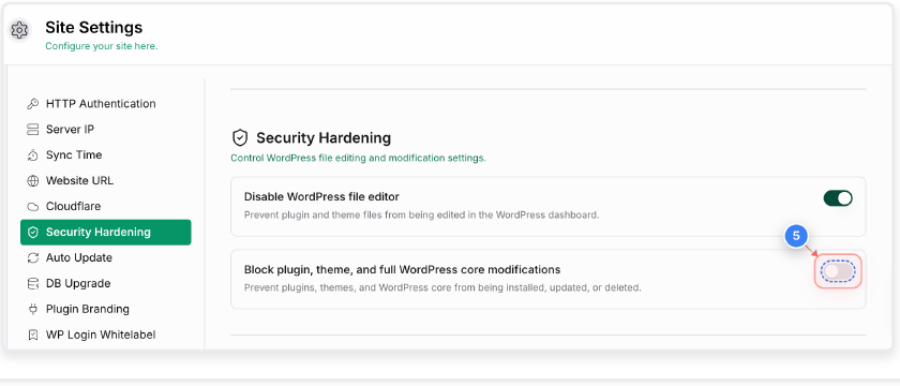
Wait for the Security Hardening preference saved message at the bottom of the screen. This confirms that your preference was saved and is being applied to the site.
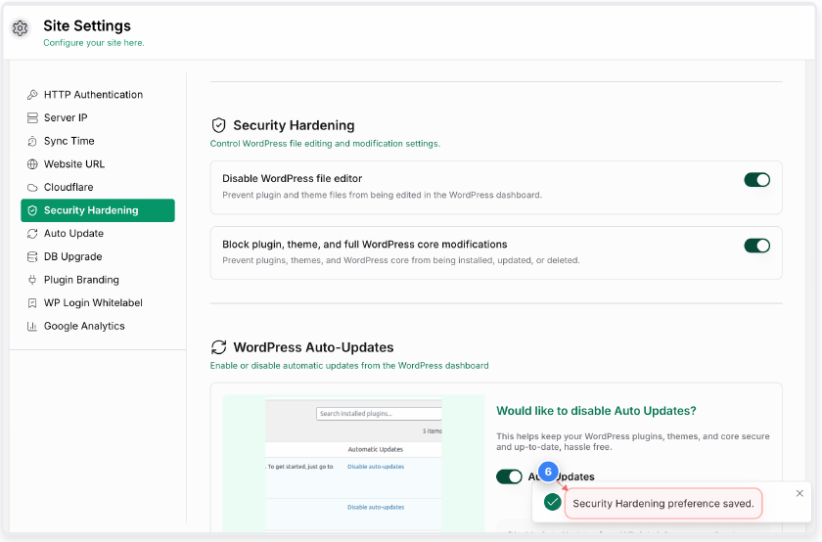
What happens next: Your preference is saved, and a sync sends it to the compatible site plugin. The feature does not edit wp-config.php. |
How to disable Security Hardening for a site
Disable the protection only when you need to restore the corresponding WordPress operation. For example, disable modification blocking before installing or updating a plugin.
From the Sites list, select the site you want to manage to open its dashboard.
In the site dashboard sidebar, click Settings to open the site's configuration options.
In the Site Settings menu, click Security Hardening to view the site's current hardening controls.
Turn off the Disable WordPress file editor to allow plugin and theme files to be edited through the WordPress dashboard again.
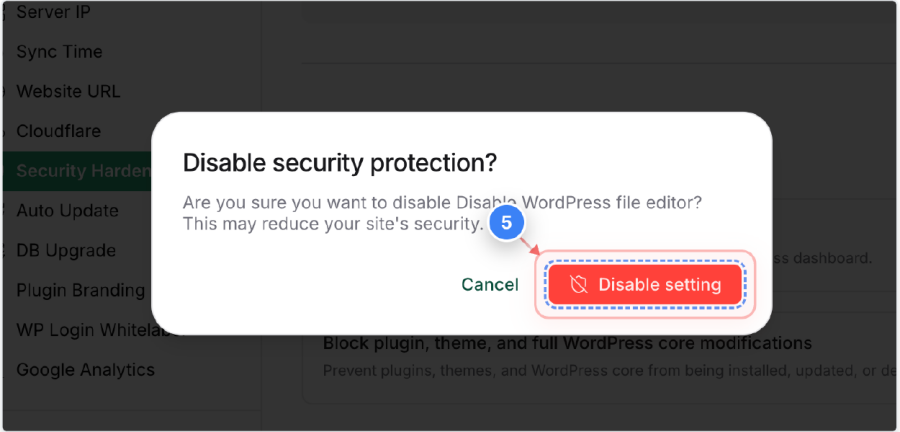
In the confirmation dialog, click Disable setting to turn off the WordPress file editor protection.
Note: Disabling this protection reduces the site's security. Turn it off only when access to the WordPress file editor is specifically required. |
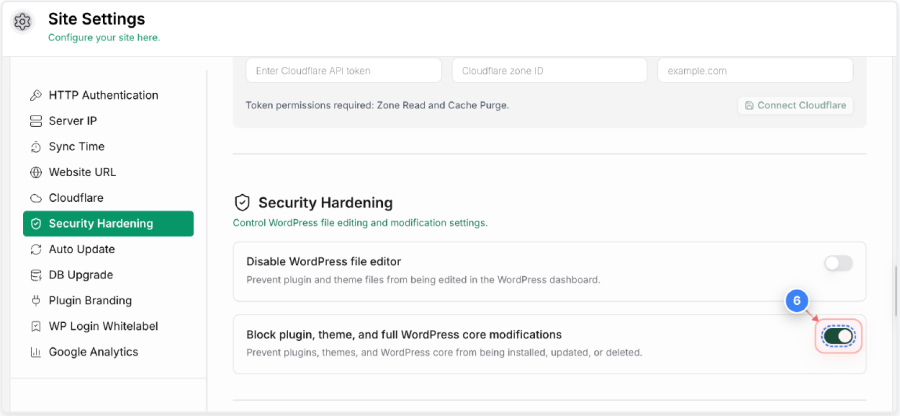
Turn off Block plugin, theme, and full WordPress core modifications to allow plugins, themes, and WordPress core to be installed, updated, or deleted again.
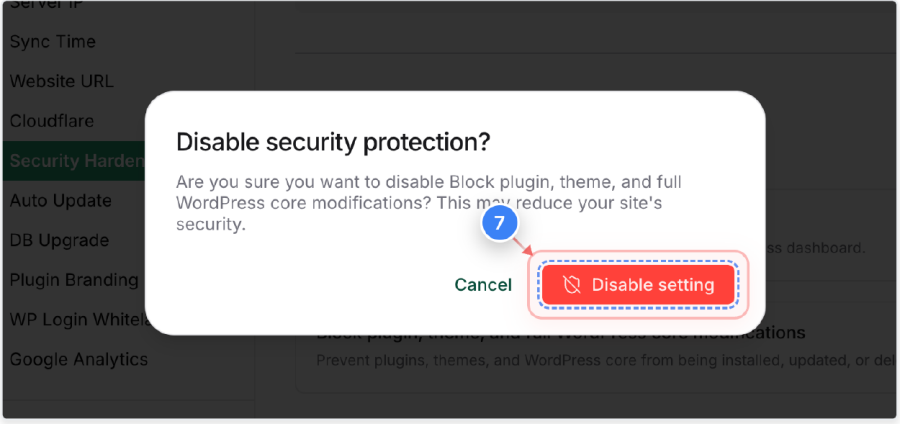
In the confirmation dialog, click Disable setting to turn off the plugin, theme, and WordPress core modification protection.
Note: Disabling this protection reduces the site's security. Turn it off only when you need to install, update, or delete a plugin or theme, or update WordPress core. |
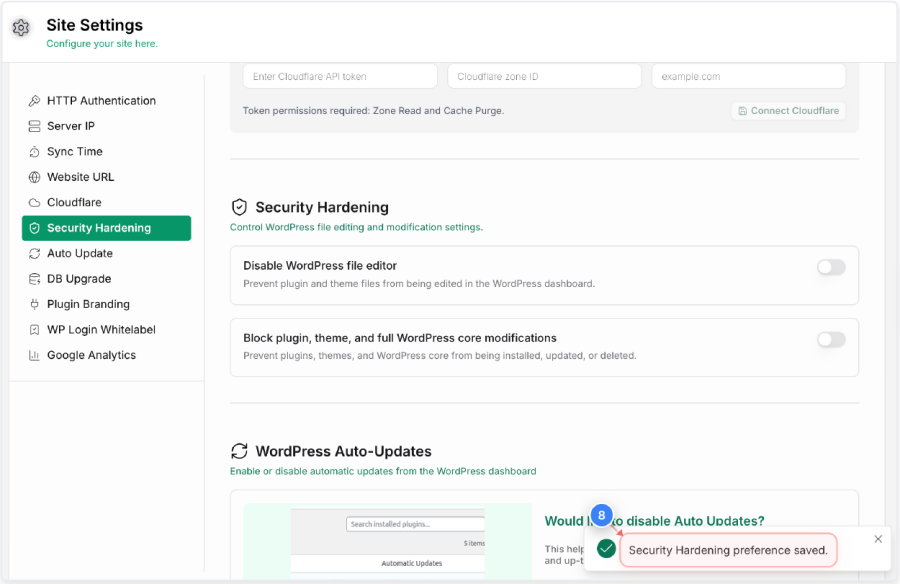
Wait for the Security Hardening preference saved message at the bottom of the screen. This confirms that your preference was saved and is being applied to the site.
Important behavior and limitations
- Existing DISALLOW_FILE_EDIT or DISALLOW_FILE_MODS declarations in wp-config.php remain authoritative. Dashboard settings cannot override them.
- If the WordPress configuration has not yet been observed, enabling the related protection is temporarily unavailable. An already-enabled dashboard preference can still be disabled.
- On WordPress multisite installations, the settings are configured through the primary site and apply across the entire network, not to an individual subsite.
- Every successful change is recorded in the audit log as Security Hardening Settings Updated.
- If the installed plugin is unsupported or outdated, the dashboard prompts you to update it.
- Turning off a dashboard preference does not remove or override the corresponding constant when it is declared in wp-config.php.
Troubleshooting
1: The setting is unavailable
Check the following:

 Your user role is Team/Collaborator or higher.
 The site has an eligible Security plan, and Security is enabled.
 The site plugin is version 6.65 or later.
 The site is not in maintenance mode, and no configuration process is running.
 WordPress configuration data has been observed by the platform.
 wp-config.php does not already declare the selected constant.
2: The setting cannot be changed because of wp-config.php
A DISALLOW_FILE_EDIT or DISALLOW_FILE_MODS declaration in wp-config.php takes precedence over the dashboard. If you want to manage the protection from Site Settings, remove the conflicting declaration manually only after confirming that doing so is appropriate for the website.
3: The setting was changed, but the expected restriction is not active
Confirm that the latest sync completed successfully and that the site is running a compatible plugin. If the issue continues, note the affected setting, the plugin version, whether the site is multisite, and the time of the most recent change before contacting Support.
Frequently asked questions
Does this feature edit wp-config.php?
No. The dashboard stores the selected preference, and the compatible plugin enforces it at runtime.
Does it change the website content or the database?
It does not modify posts, pages, or customer content. The saved preference is used only to apply the selected WordPress protection.
Can dashboard settings override existing wp-config.php declarations?
No. Existing declarations remain authoritative and must be managed directly in wp-config.php.
Can I apply a setting to only one site in a multisite network?
No. On multisite installations, the selected protection applies across the complete network.
Can I enable both protections?
Yes, if the website and your account meet all requirements and neither protection is controlled by wp-config.php.
Where can I confirm that a change was made?
Open the audit log and look for the event Security Hardening Settings Updated.
Was this article helpful?
That’s Great!
Thank you for your feedback
Sorry! We couldn't be helpful
Thank you for your feedback
Feedback sent
We appreciate your effort and will try to fix the article