How to Review Malware Files Before Cleaning?

Created by Kousik M, Modified on Wed, 10 Dec at 12:45 AM by Kousik M

Step 1 of 5
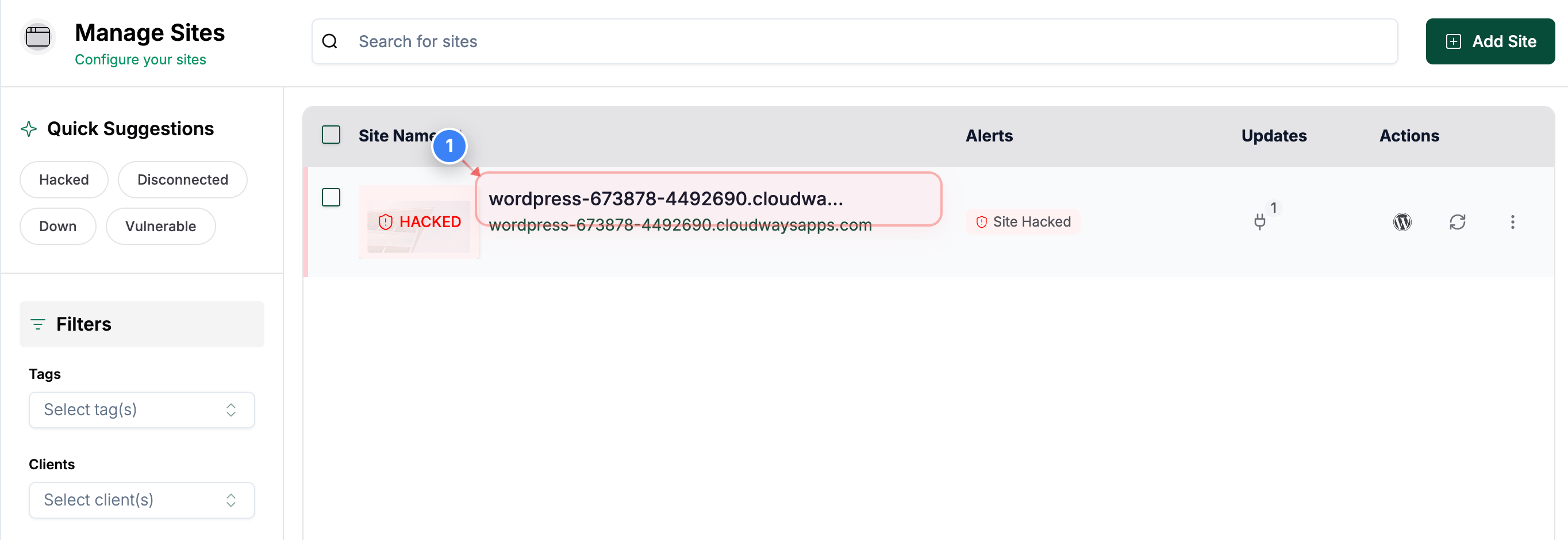
Open Your Site Details page
Click on your site in the Sites page to open the details page
Note: This takes you to the overview page where all tools for the selected site are available.
Step 1 screenshot
Step 2 of 5
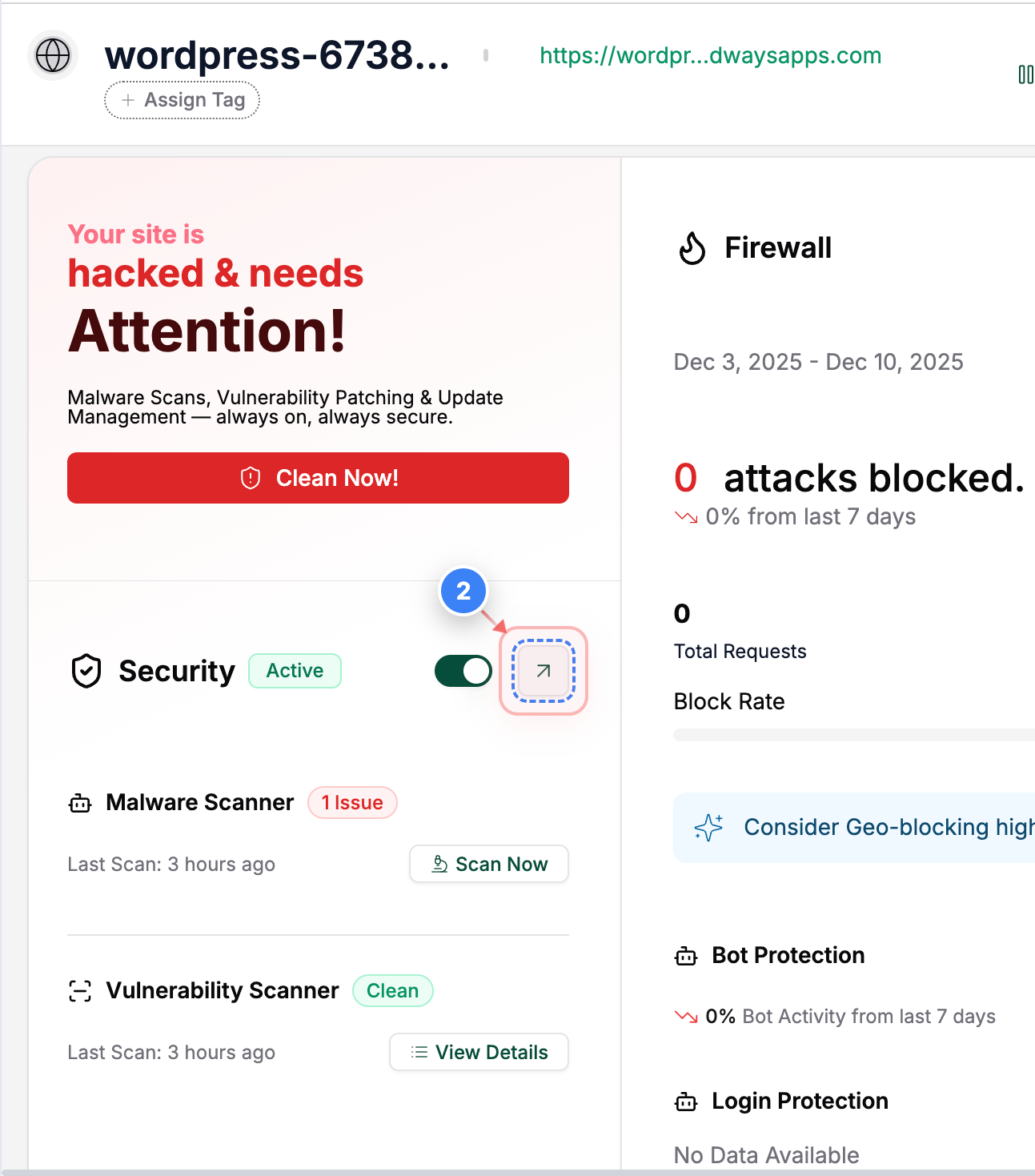
Open Security Section
Click the Security section on this page to access security tools and scan results.
Note: This section shows your site's security status and other security information.
Step 2 screenshot
Step 3 of 5
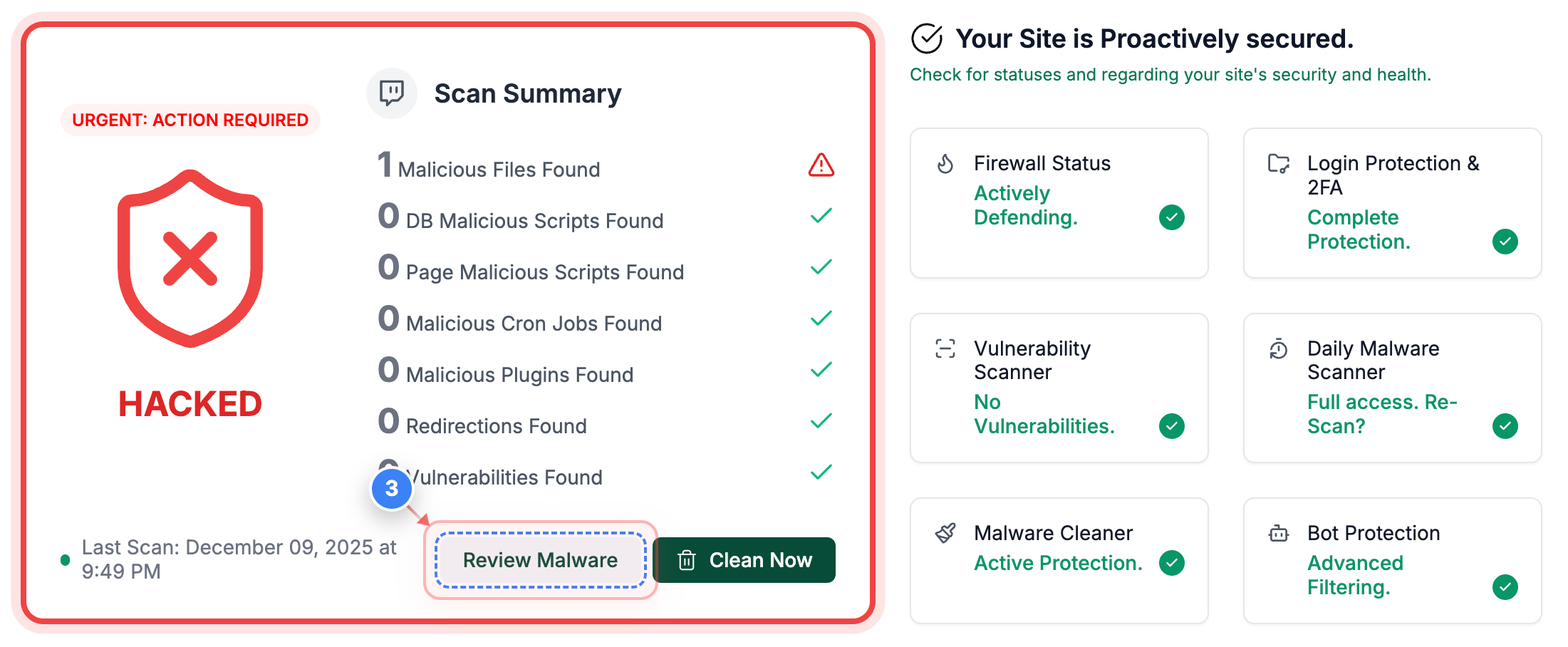
Review Malware Findings
Click the Review Malware button on the Security page to view malicious files.
Note: You will see the latest scan time and all flagged items here.
Step 3 screenshot
Step 4 of 5
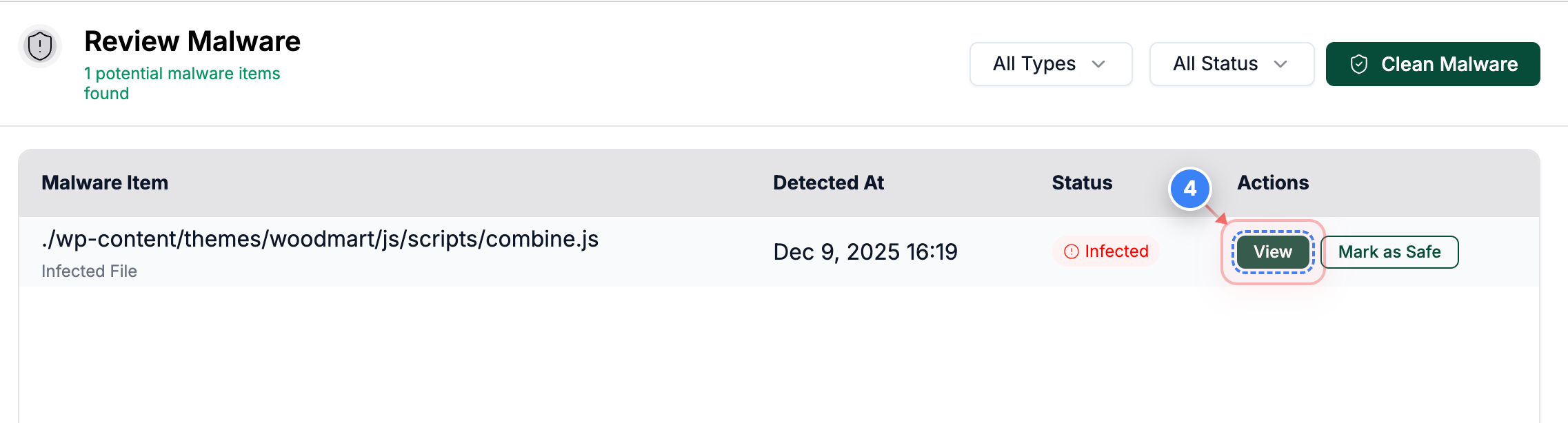
Open File Details
Here you can see all the hacked file names. Click the View button next to a flagged file to inspect its contents
Note: Use this to verify whether a file is truly malicious before taking action.
Step 4 screenshot
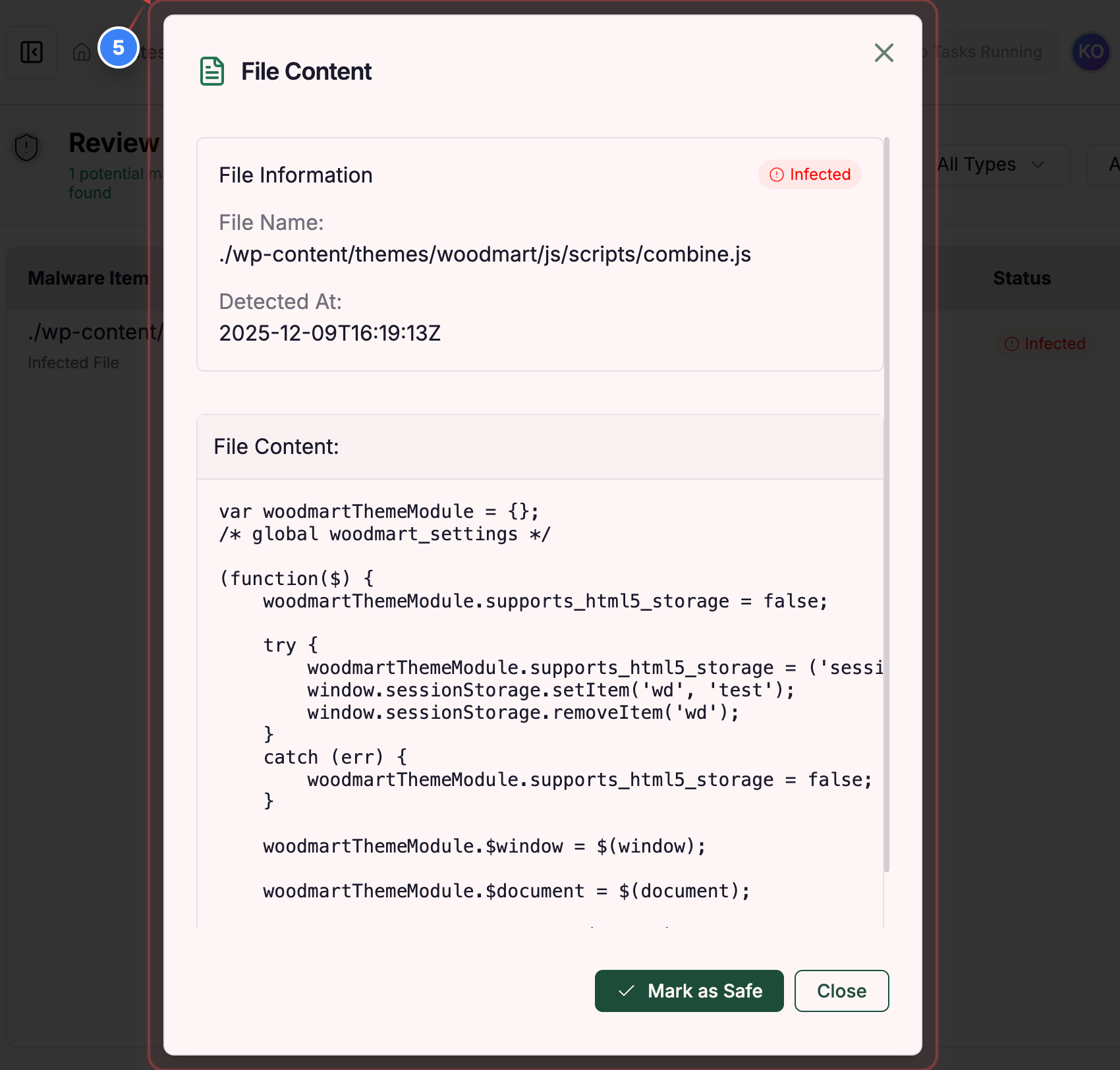
Step 5 of 5
Inspect File Content
This pop-up will show the complete code in that file here
Note: This helps you examine the exact code or injected content within the file.
Step 5 screenshot


Was this article helpful?

That’s Great!

Thank you for your feedback

Sorry! We couldn't be helpful

Thank you for your feedback

Let us know how can we improve this article!

Select at least one of the reasons

Feedback sent

We appreciate your effort and will try to fix the article