How Do I Mark a File as a False Positive?

Created by Sachin B, Modified on Thu, 11 Dec at 1:48 PM by Sachin B

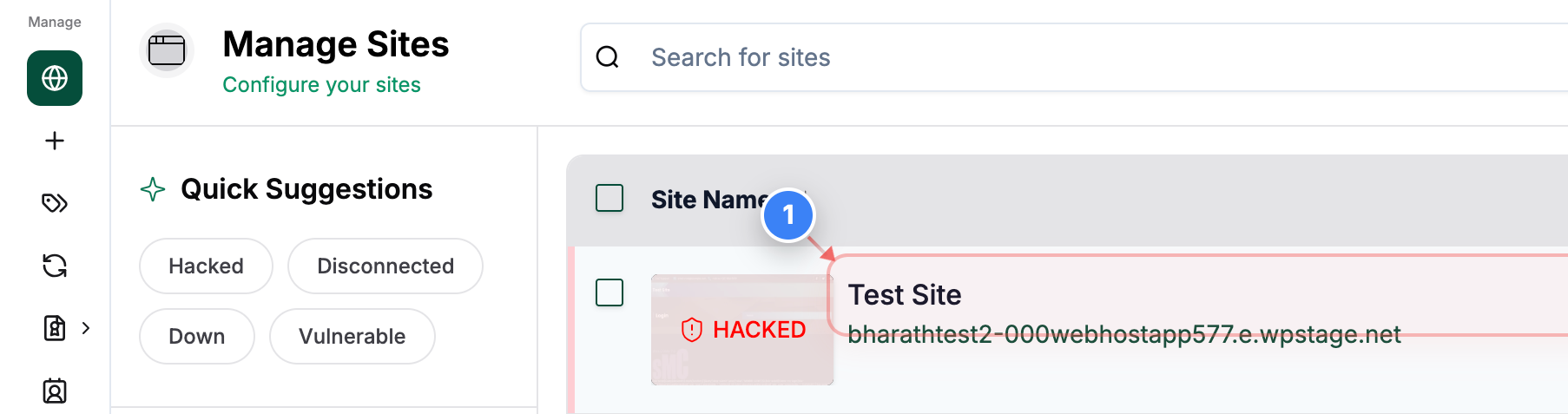
Step 1 of 6
Open the Site Dashboard
Click on your site name in the Sites list to open its dashboard and access management options.
Step 1 screenshot
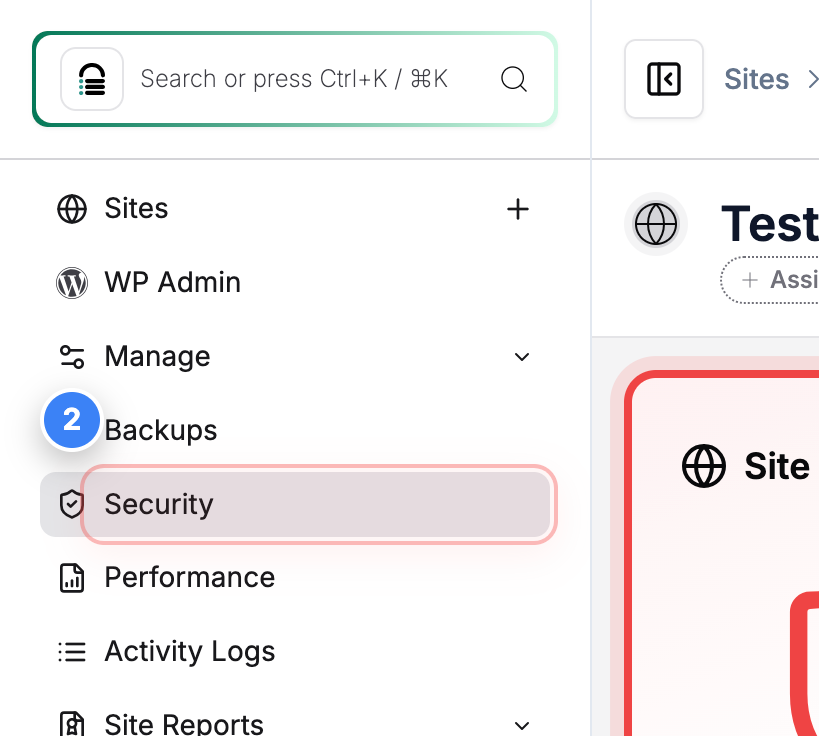
Step 2 of 6
Go to Security Section
Click the Security option in the left sidebar to view security status and available actions for your site.
Step 2 screenshot
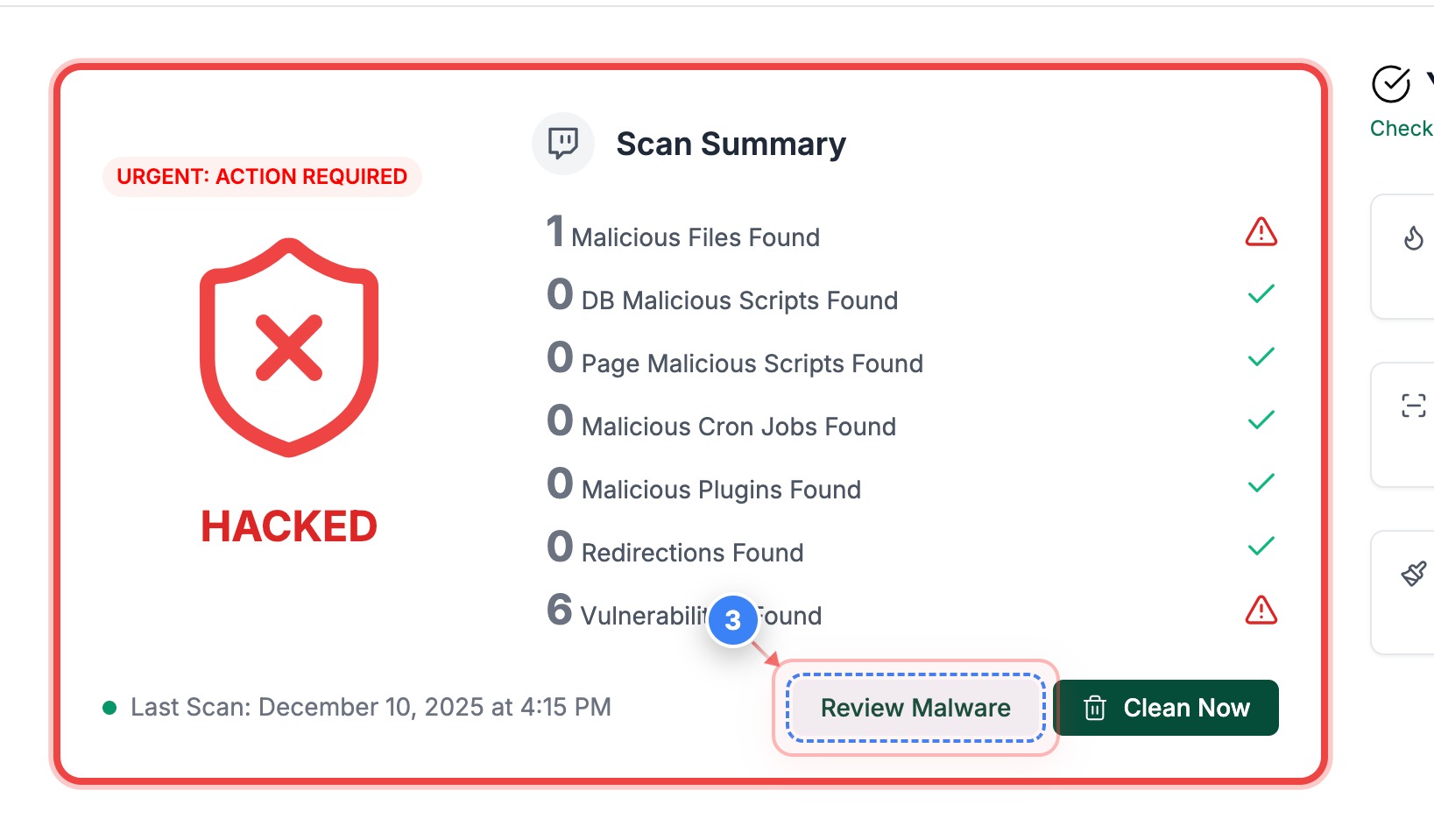
Step 3 of 6
Review Detected Malware
Click the Review Malware button in the Security Details page to inspect files flagged during the latest scan.
Step 3 screenshot
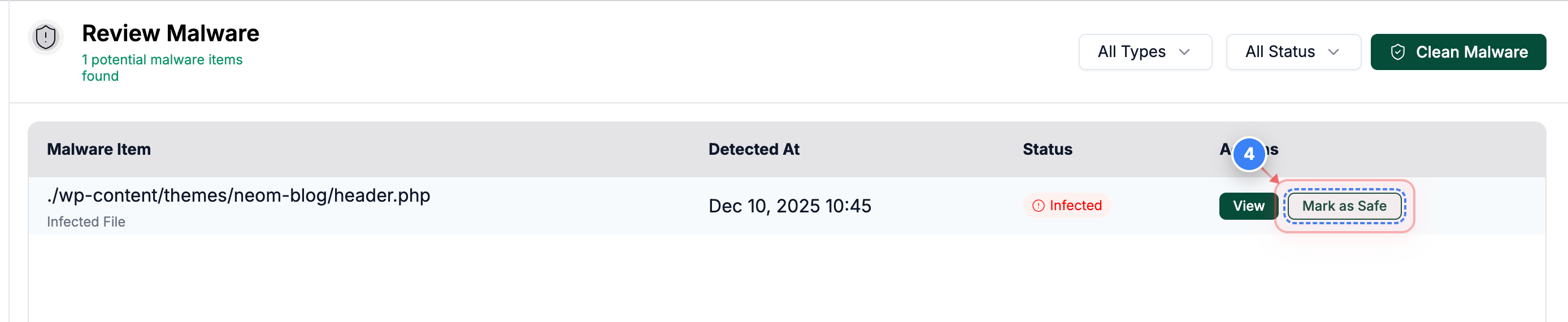
Step 4 of 6
Mark File as Safe
Click the Mark as Safe button next to the flagged file to exclude it from future malware scans.
Step 4 screenshot
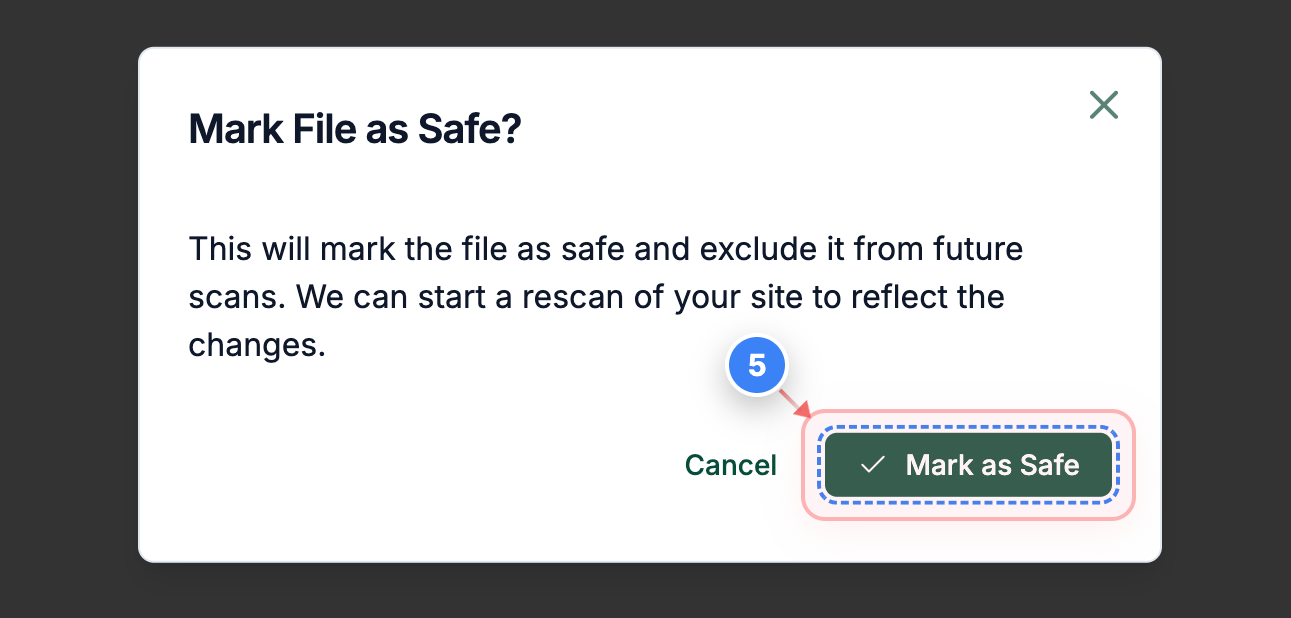
Step 5 of 6
Confirm Safe Status
Click the confirmation option in the dialog to finalize marking the file as safe.
Step 5 screenshot
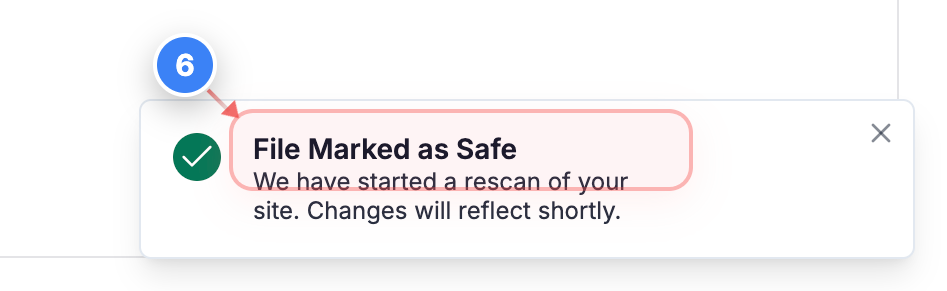
Step 6 of 6
View Confirmation Notice
Check the notification in the lower corner confirming the file has been marked safe and a rescan has begun.
Step 6 screenshot

Was this article helpful?

That’s Great!

Thank you for your feedback

Sorry! We couldn't be helpful

Thank you for your feedback

Let us know how can we improve this article!

Select at least one of the reasons

Feedback sent

We appreciate your effort and will try to fix the article