How Do I Custom Schedule Scans for My Website?

Created by Sachin B, Modified on Fri, 16 Jan at 3:57 PM by Sachin B

Step 1 of 5
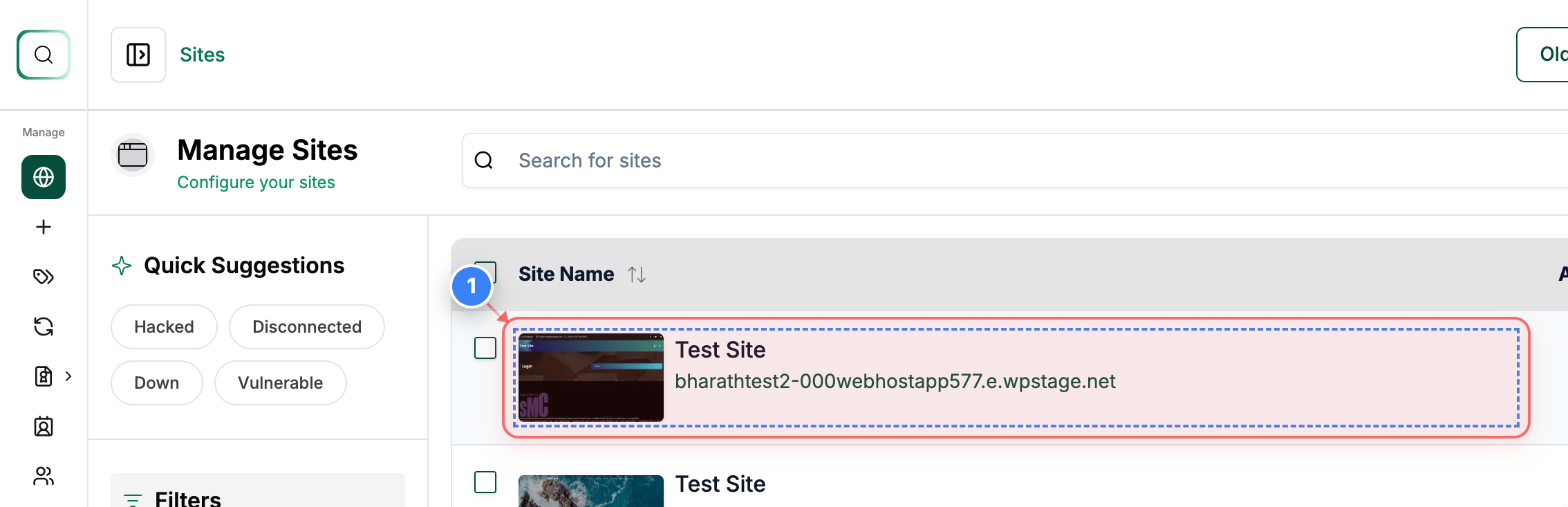
Open your site
Click on your site in the sites list to open its management dashboard.
Note: Make sure you select the correct site if you manage multiple sites.
Step 1 screenshot
Step 2 of 5
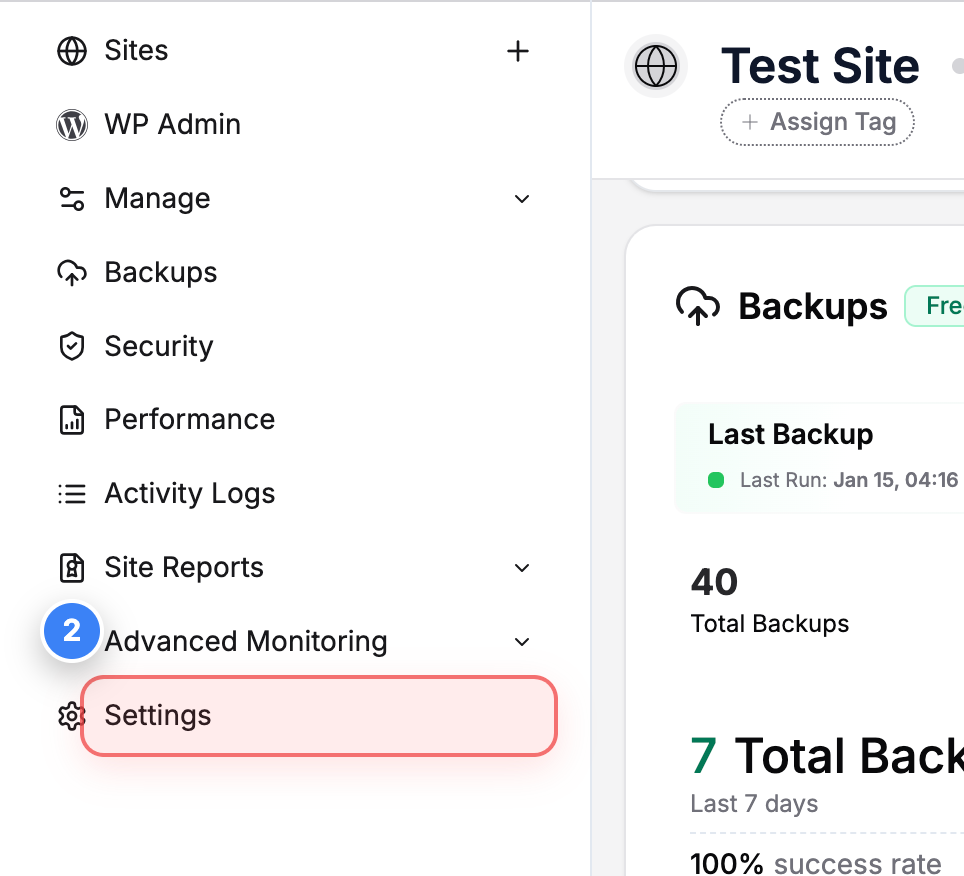
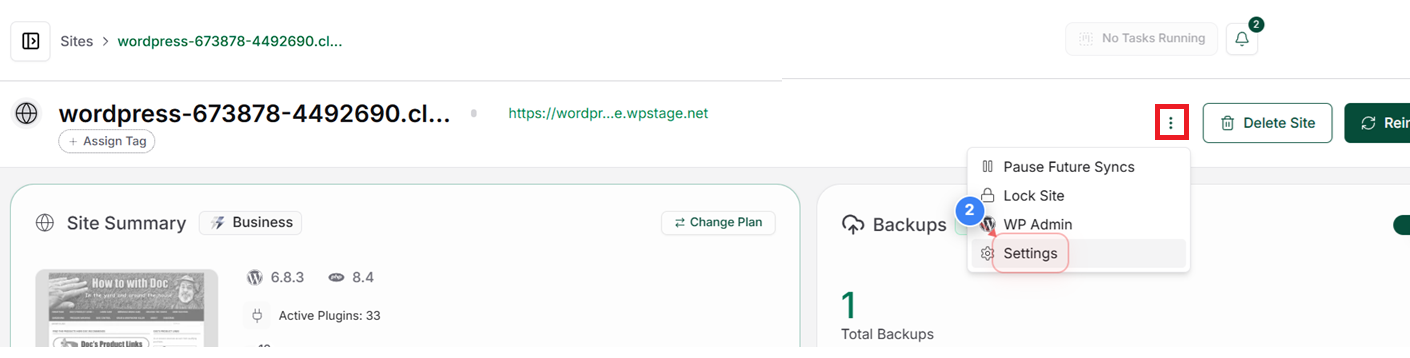
Go to Settings
Click Settings in the left sidebar to access configuration options for your site.
Step 2 screenshot
Step 3 of 5
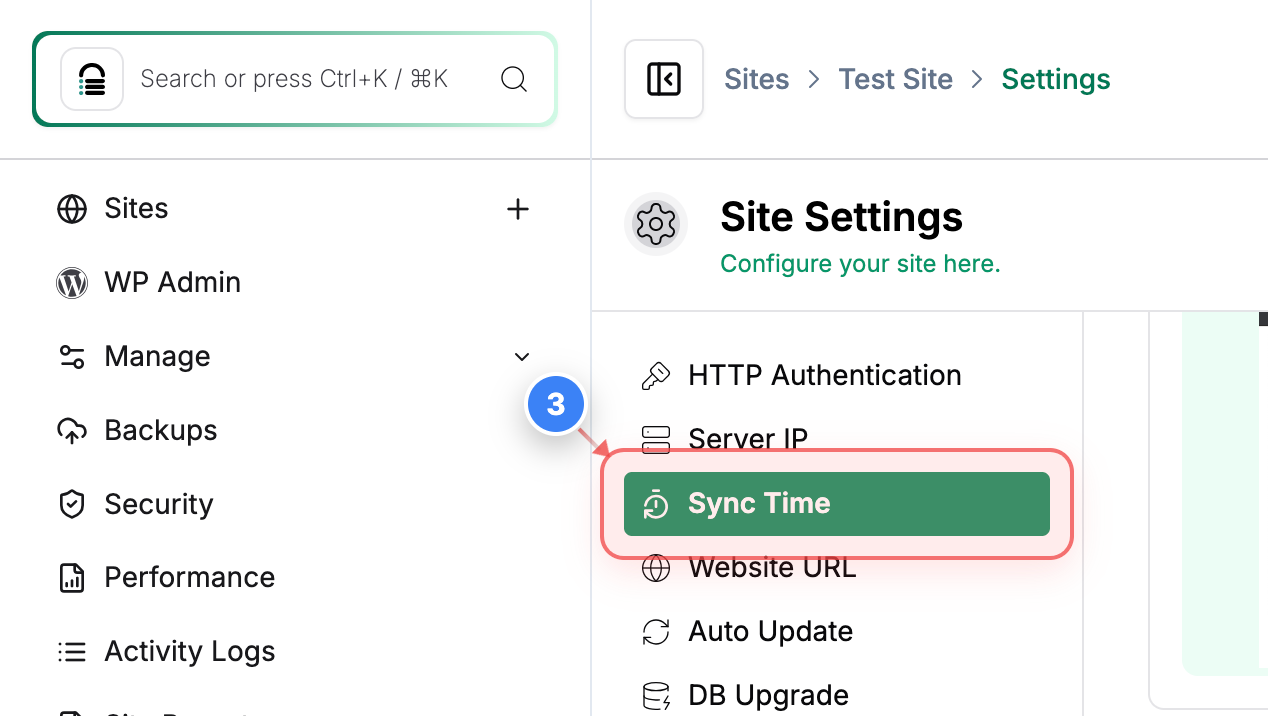
Open sync schedule
Click the Sync Time option in the settings menu to manage when your site syncs.
Note: This section controls the scheduled sync timing for your site.
Step 3 screenshot
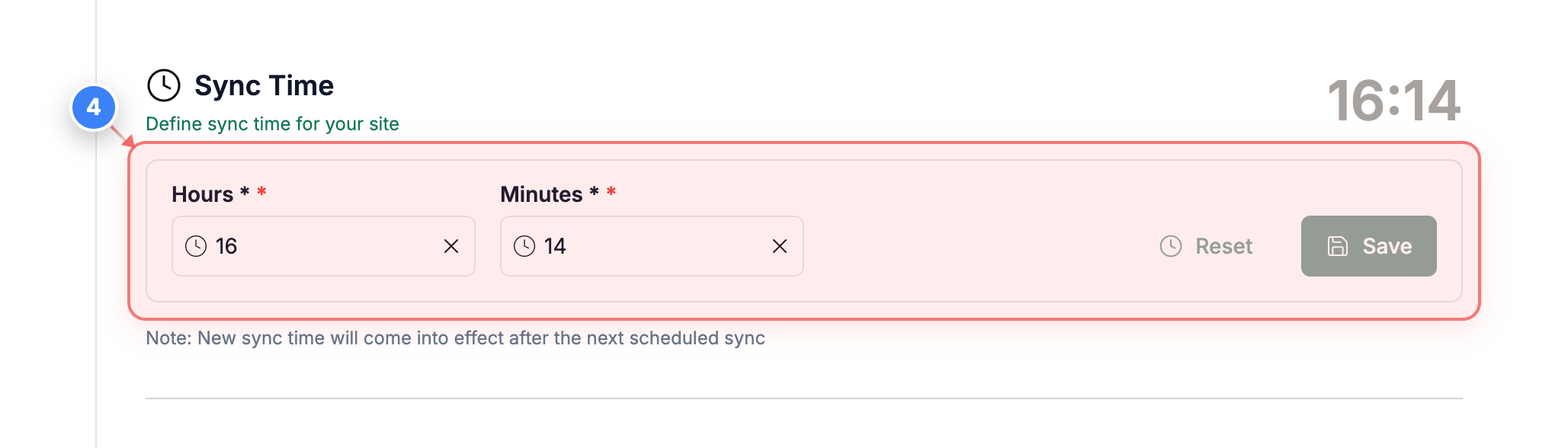
Step 4 of 5
Set sync time
Enter the desired hours and minutes in the Sync Time section to define when the site sync should run.
Note: There is a 24-hour format set. Select the values.
Step 4 screenshot
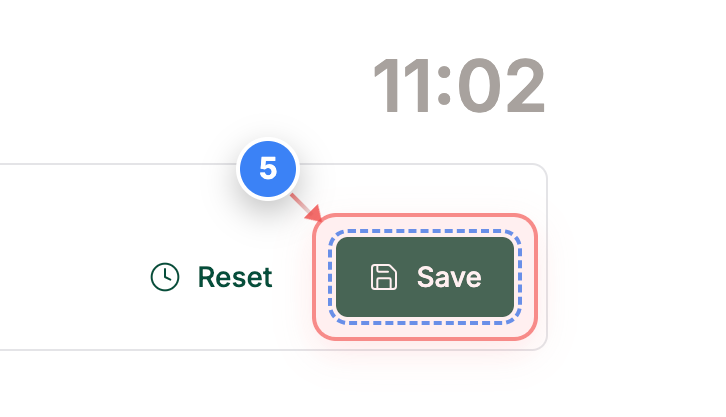
Step 5 of 5
Save changes
Click Save in the Sync Time section to apply and store the updated sync schedule.
Note: Your new sync time takes effect immediately after saving.
Step 5 screenshot

Was this article helpful?

That’s Great!

Thank you for your feedback

Sorry! We couldn't be helpful

Thank you for your feedback

Let us know how can we improve this article!

Select at least one of the reasons

Feedback sent

We appreciate your effort and will try to fix the article