How Do I Scan Non-WordPress Folders?

Created by Sachin B, Modified on Fri, 30 Jan at 11:38 AM by Sachin B

Step 1 of 7
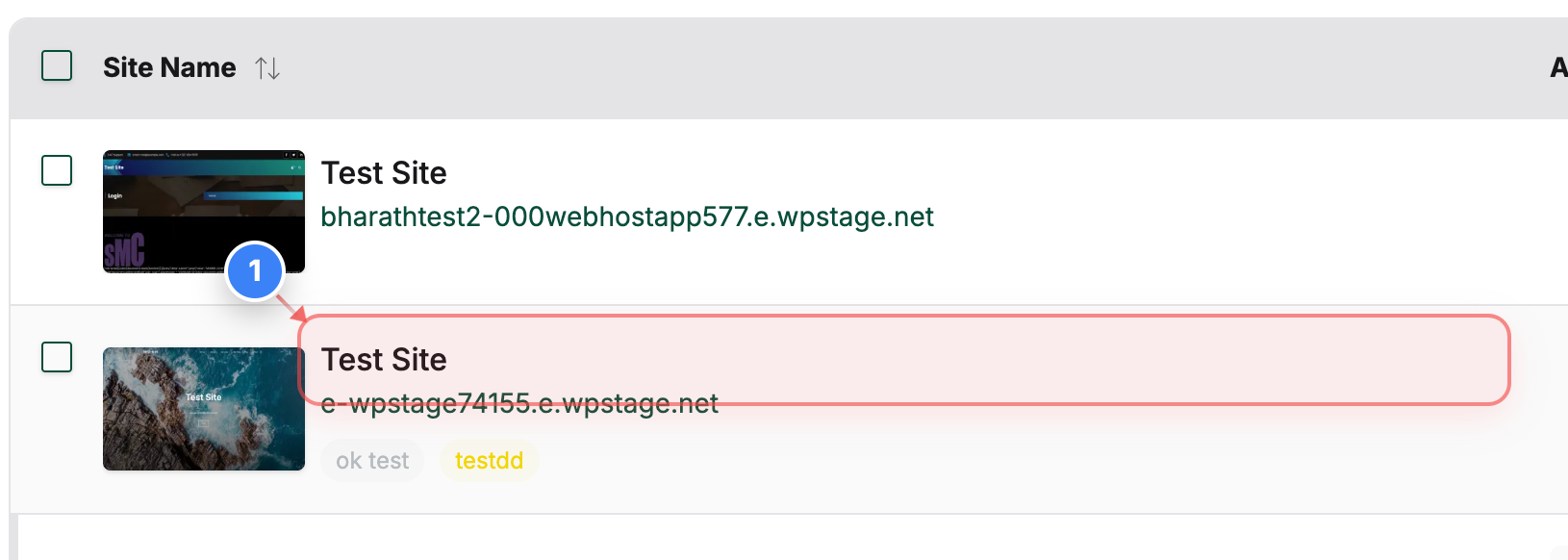
Open Your Site
Click on your site name in the Sites page to open its management dashboard and access backup and file options.
Note: Your site appears in the center of the Sites page along with its domain name.
Step 1 screenshot
Step 2 of 7
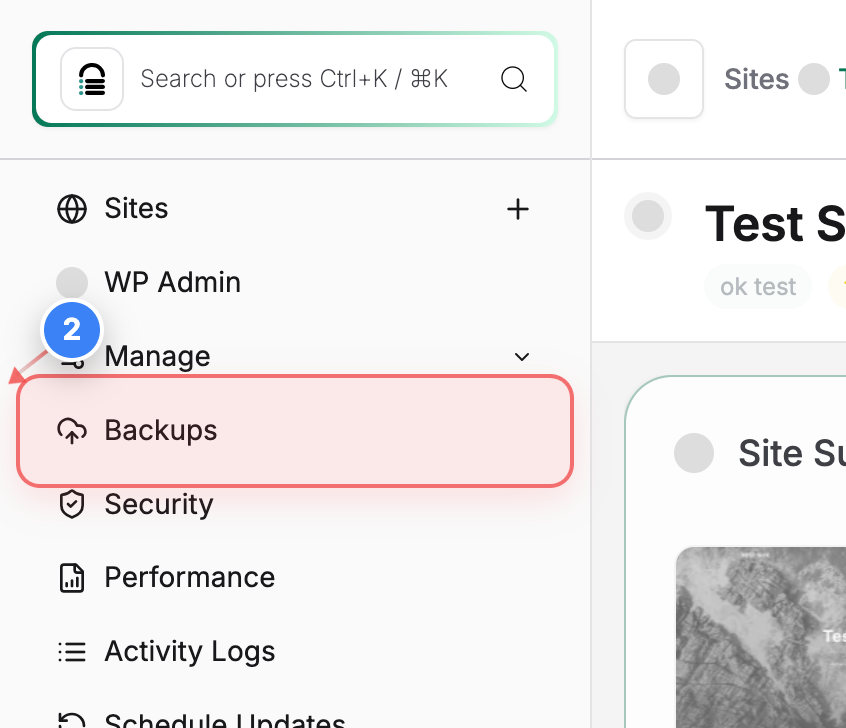
Go to Backups
Click Backups in the left sidebar to view your site's backup details and restore points.
Step 2 screenshot
Step 3 of 7
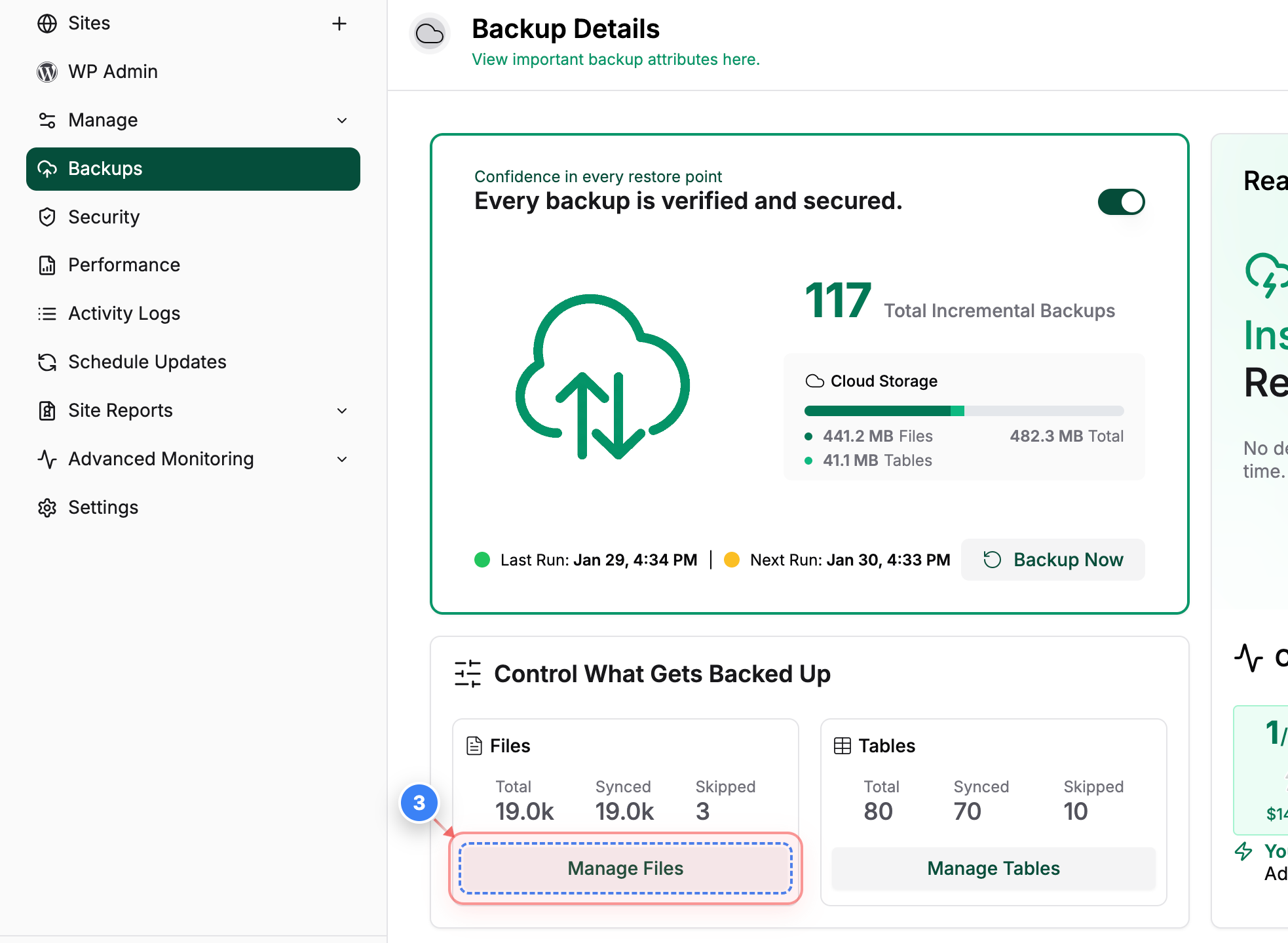
Open File Management
Click the Manage Files button in the Files section of the backup details page to review and control which files are included in sync.
Note: The Files section also shows the total, synced, and skipped file counts.
Step 3 screenshot
Step 4 of 7
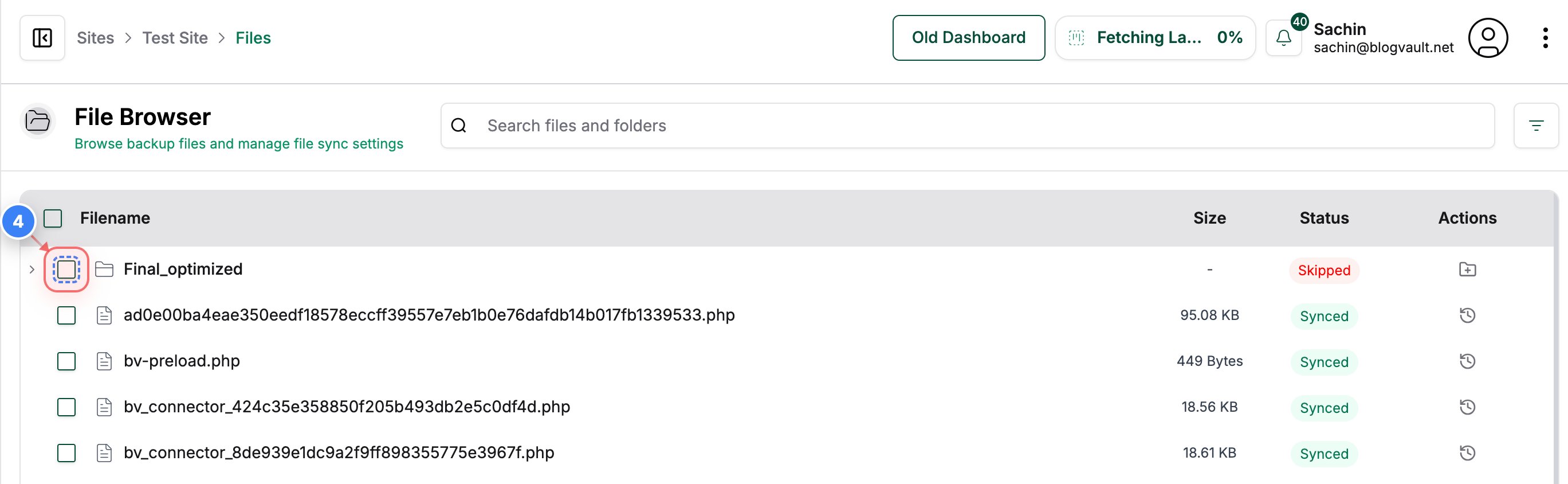
Select the Folder
Click the checkbox next to the folder on the Files page to select it for syncing.
Note: Selecting a folder prepares it to be added to your synced files.
Step 4 screenshot
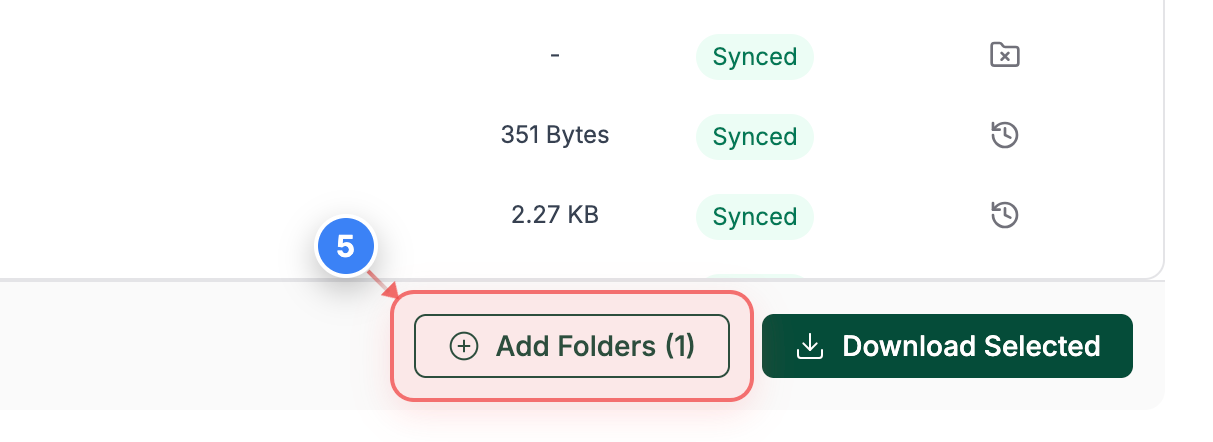
Step 5 of 7
Add Folder to Sync
Click Add Folders (1) at the bottom of the Files page to include the selected folder and its contents in sync.
Note: The bottom bar shows how many items are selected before you proceed.
Step 5 screenshot
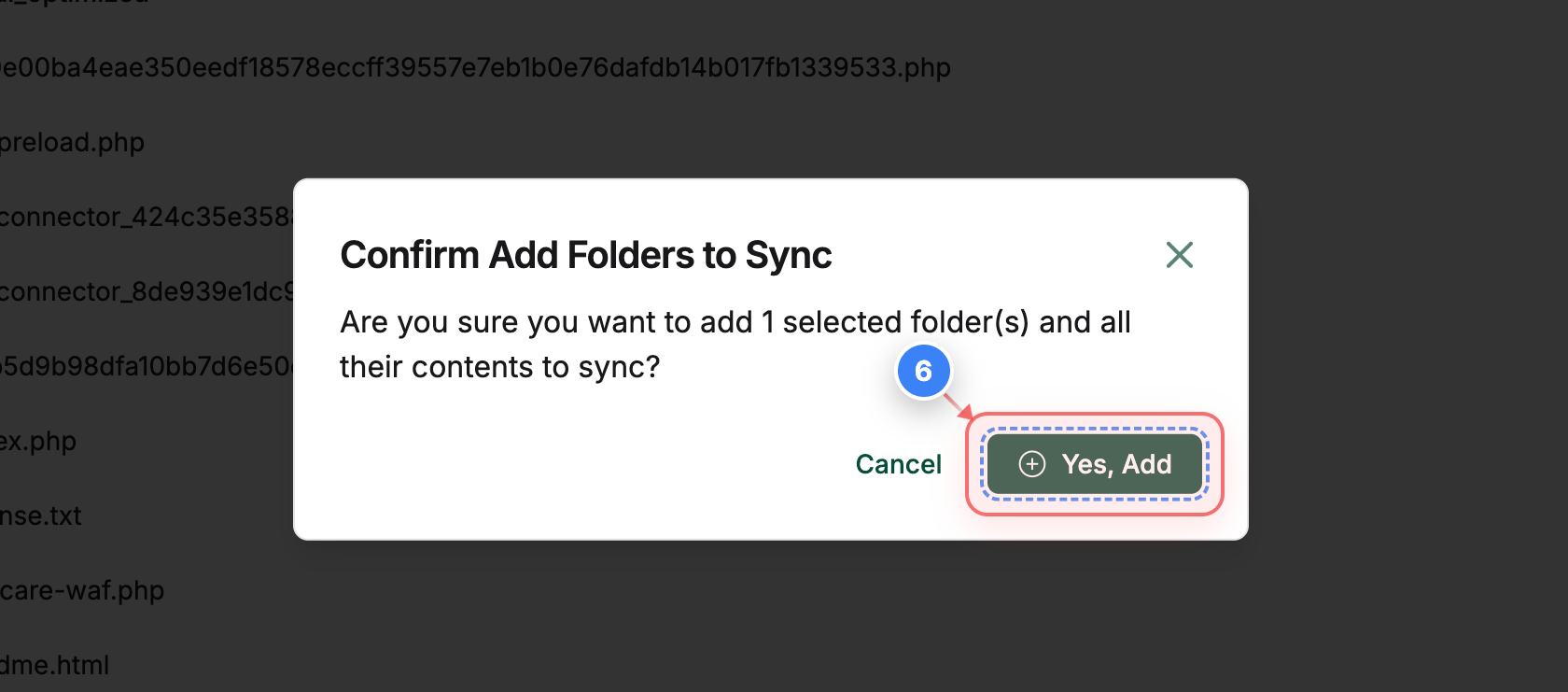
Step 6 of 7
Confirm Folder Addition
Click Yes, Add in the confirmation window to start syncing the selected folder and all its contents.
Step 6 screenshot
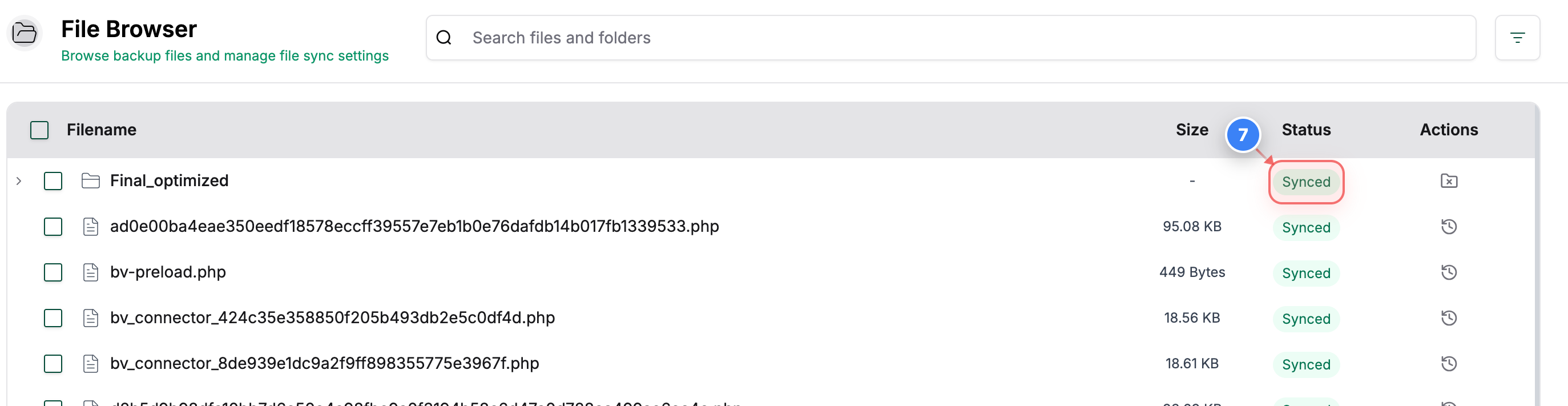
Step 7 of 7
Verify Synced Status
View Synced on the Files page to confirm that the folder is now included in your synced files.
Note: The Synced label appears on the right side of the file list once syncing is enabled.
Step 7 screenshot

Was this article helpful?

That’s Great!

Thank you for your feedback

Sorry! We couldn't be helpful

Thank you for your feedback

Let us know how can we improve this article!

Select at least one of the reasons

Feedback sent

We appreciate your effort and will try to fix the article