How to Find Details of the Vulnerability Identified on the Website?

Created by Bharath K, Modified on Thu, 11 Jun at 4:57 PM by Bharath K

Step 1 of 4
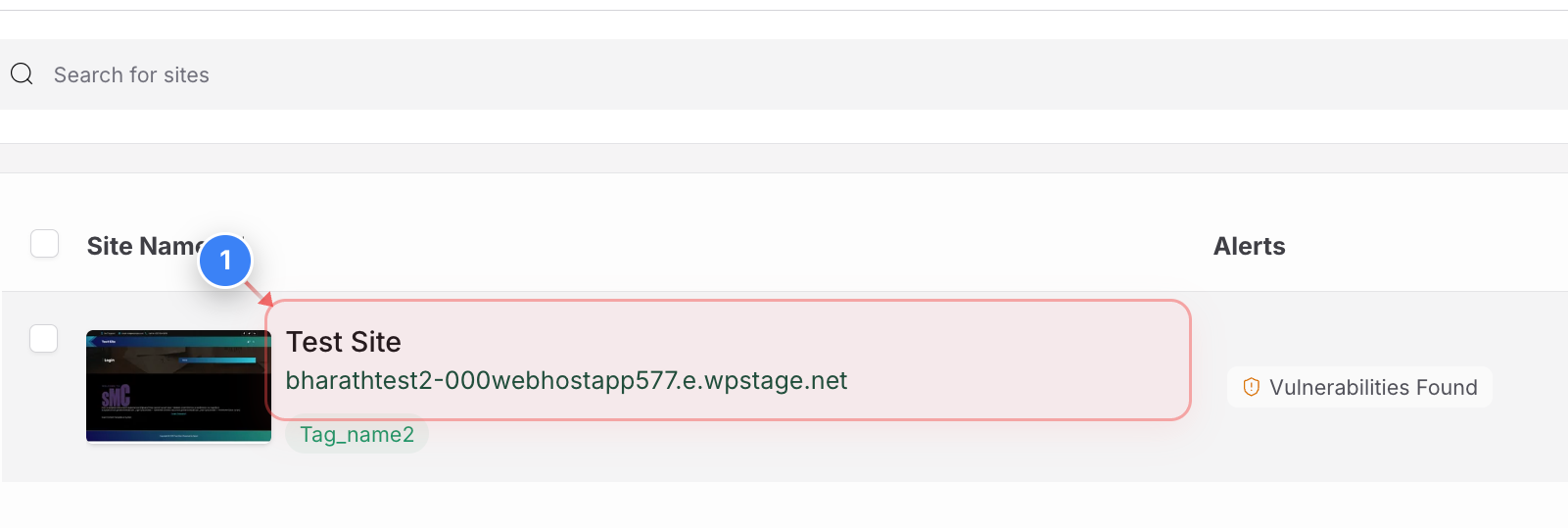
Select Your Website
Click on your website in the main dashboard area to open its management options.


Step 2 of 4
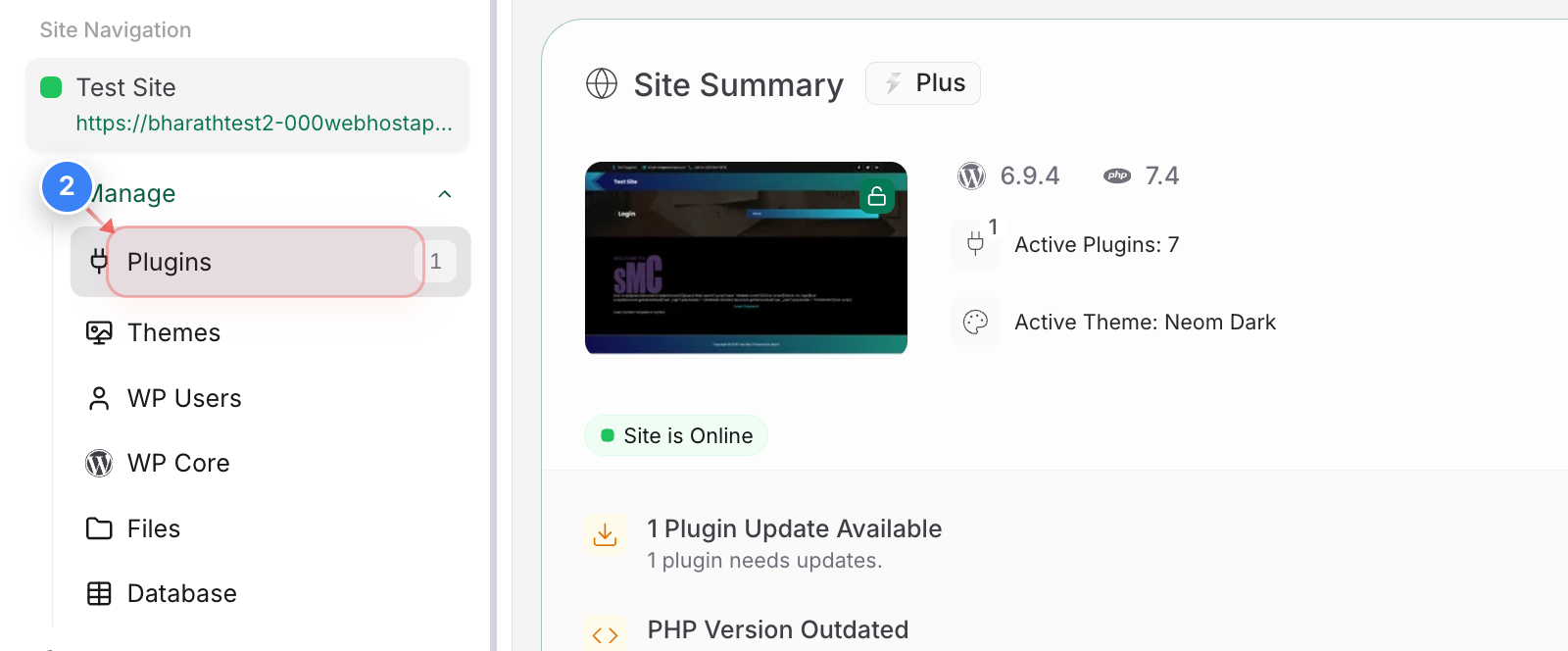
Access Plugin Management
Click on the Manage drop-down and select the "Plugins" option in the left sidebar to view all installed plugins for your website.
Note: A notification badge shows the number of plugins with available updates.
Step 2 screenshot
Step 3 of 4
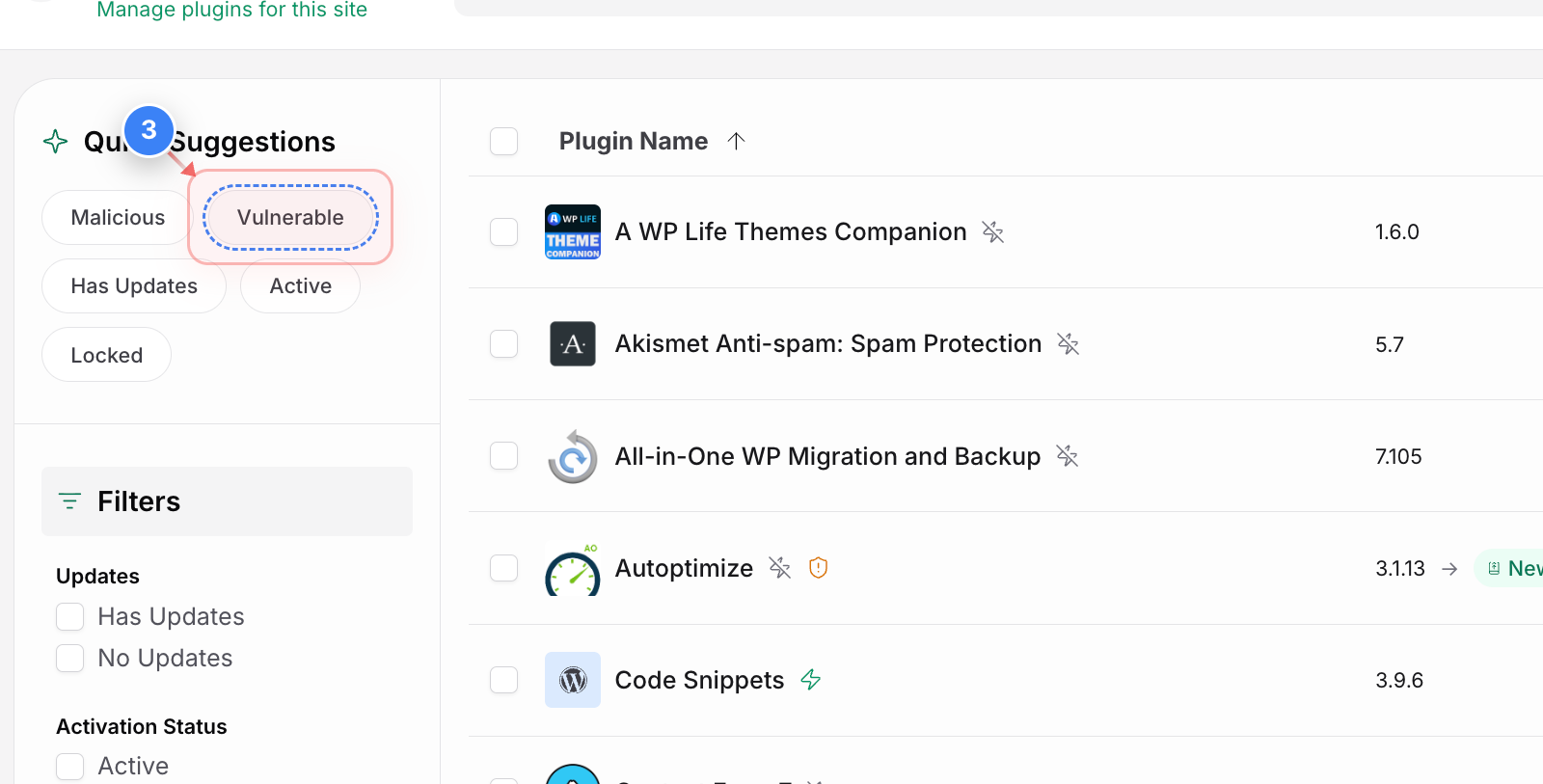
Filter Vulnerable Plugins
Click the "Vulnerable" filter button at the top of the plugins page to display only plugins with known security vulnerabilities.
Note: Other filter options include Malicious, Has Updates, Active, and Locked statuses.
Step 3 screenshot
Step 4 of 4
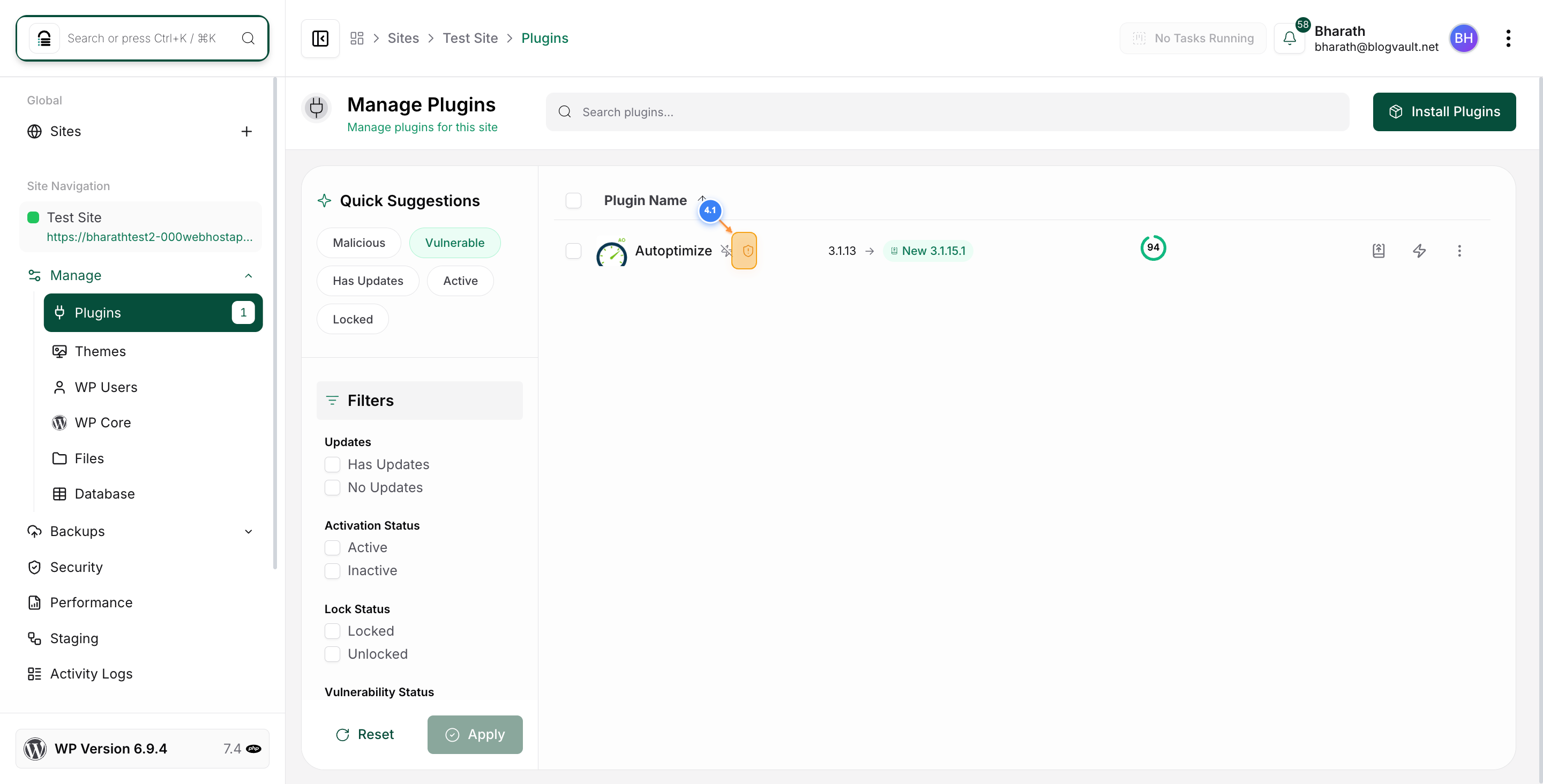
Review Vulnerable Plugins
The plugins page now shows only vulnerable plugins. You can click on the warning icon to find the details of the vulnerabilitiy. Review each plugin's name, current version, available update version, and vulnerability status to determine which need immediate attention.
Step 4 screenshot

Was this article helpful?

That’s Great!

Thank you for your feedback

Sorry! We couldn't be helpful

Thank you for your feedback

Let us know how can we improve this article!

Select at least one of the reasons

Feedback sent

We appreciate your effort and will try to fix the article