How Do I Restore a Plugin from an Older Backup in My Account?

Created by Bharath K, Modified on Mon, 27 Apr at 9:13 PM by Bharath K

Step 1 of 13
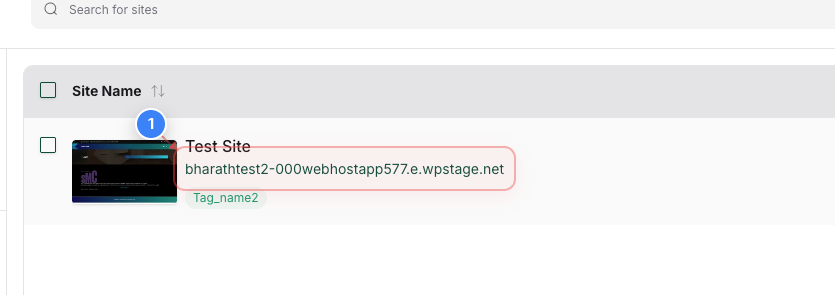
Select your site
Click on your site name in the Sites page to open its management dashboard
Note: This takes you to the site-specific dashboard where you can manage backups, security, and settings
Step 1 screenshot
Step 2 of 13
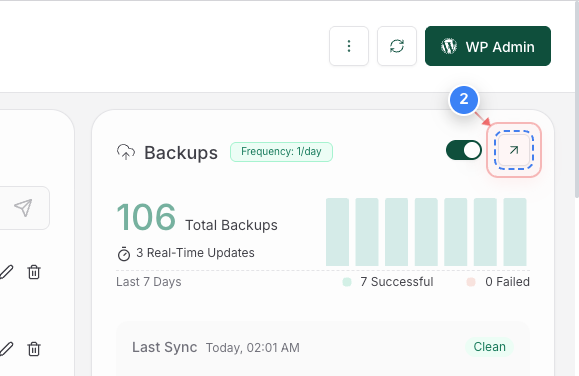
Open backup details
Click on the Backups section link on the right side to view backup settings and history
Note: Here you can see backup frequency and recent backup activity
Step 2 screenshot
Step 3 of 13
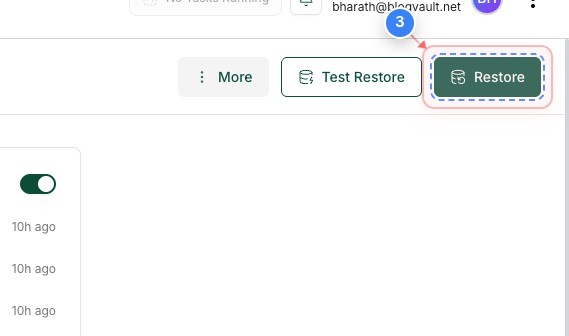
Access restore options
Click on the Restore option
Step 3 screenshot
Step 4 of 13
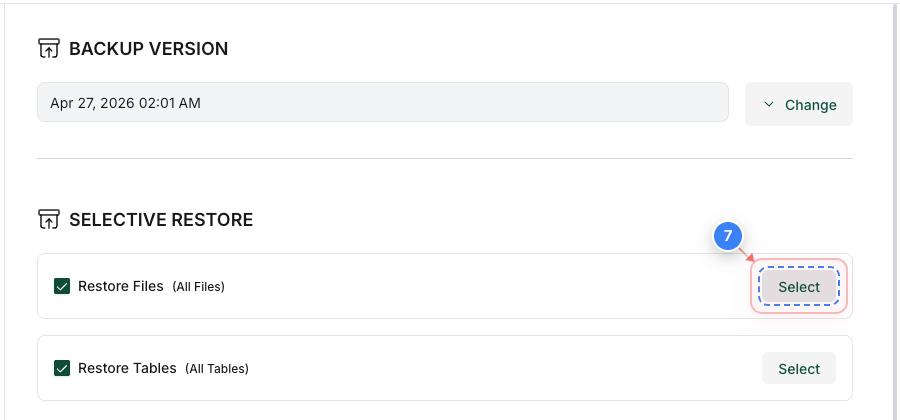
Choose files to restore
Click the "Select" button in the Restore Files section to choose plugin files for restoration
Note: You can restore all files or select specific ones depending on your need
Step 4 screenshot
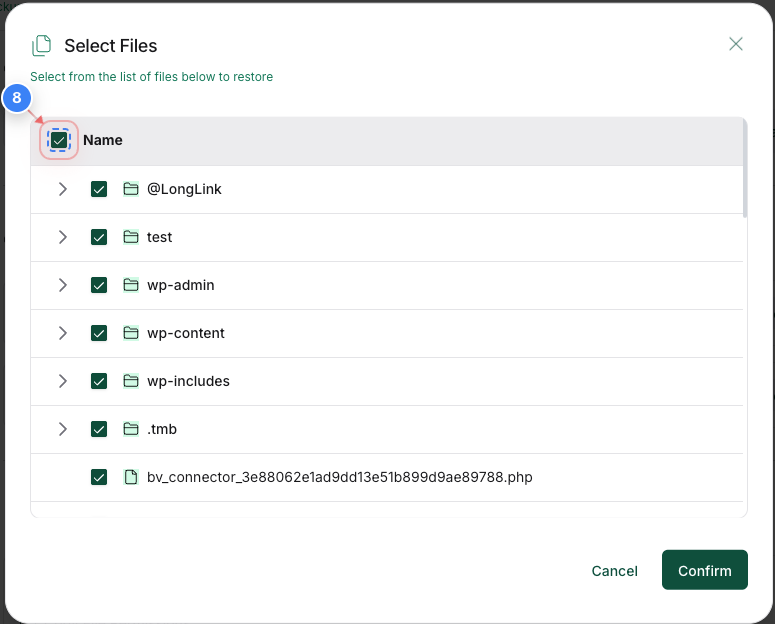
Step 5 of 13
Select all files
Click the checkbox in the file selection table to exclude all files for restoration
Step 5 screenshot
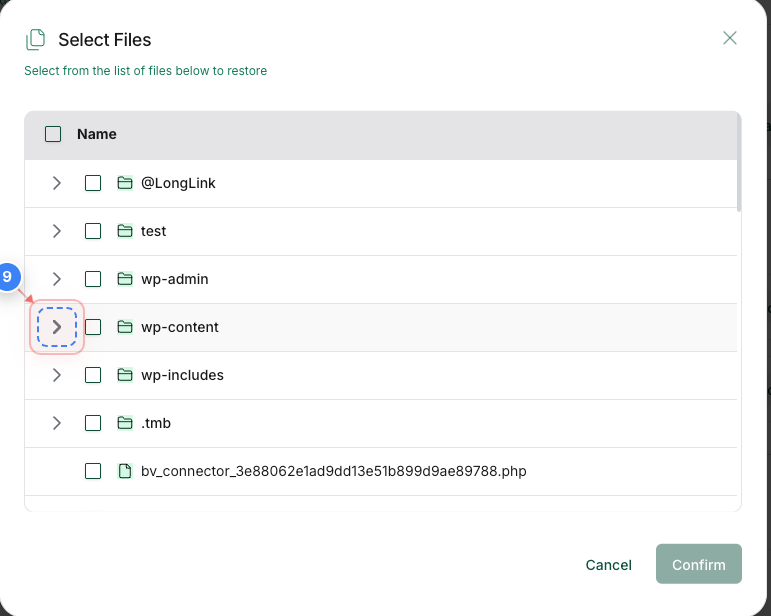
Step 6 of 13
Browse the file structure
Click the expand option next to the wp-content folder to navigate and view file contents
Step 6 screenshot
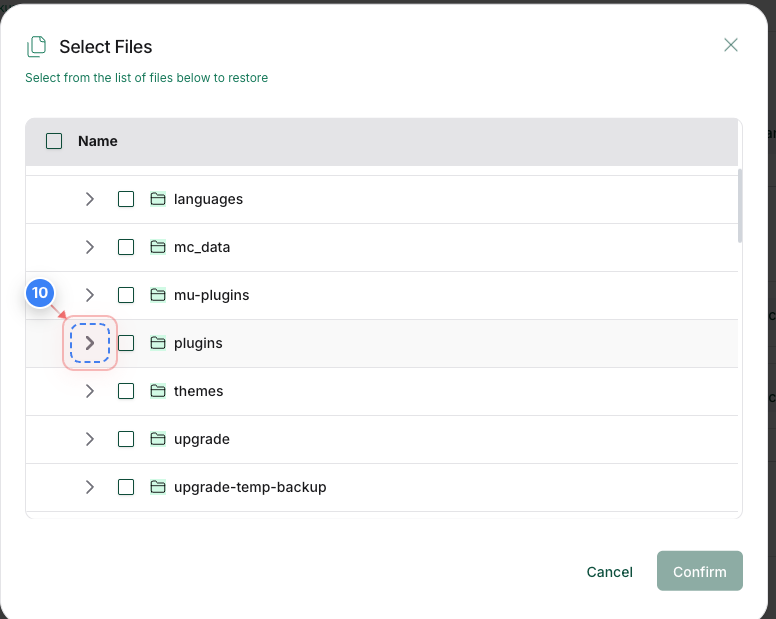
Step 7 of 13
Navigate deeper folders
Click the additional expand options to drill down into subfolders and locate specific files
Step 7 screenshot
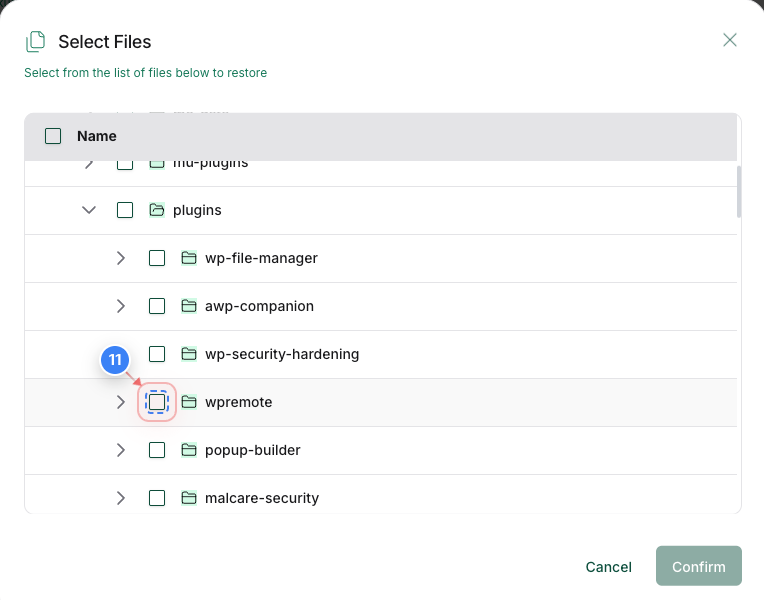
Step 8 of 13
Select specific files
Click the checkbox next to the specific plugin folder to include it in the restore
Step 8 screenshot
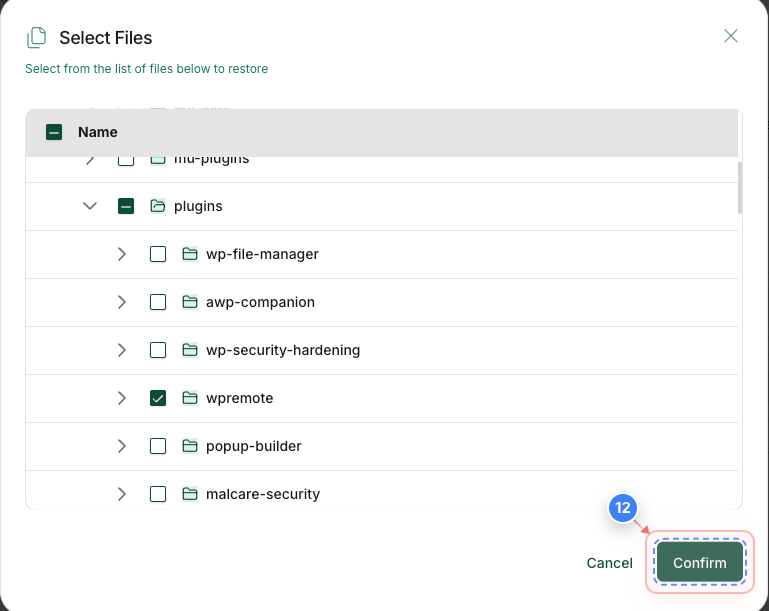
Step 9 of 13
Confirm file selection
Click the "Confirm" button at the bottom to finalize selected files
Note: Review selections carefully before confirming
Step 9 screenshot
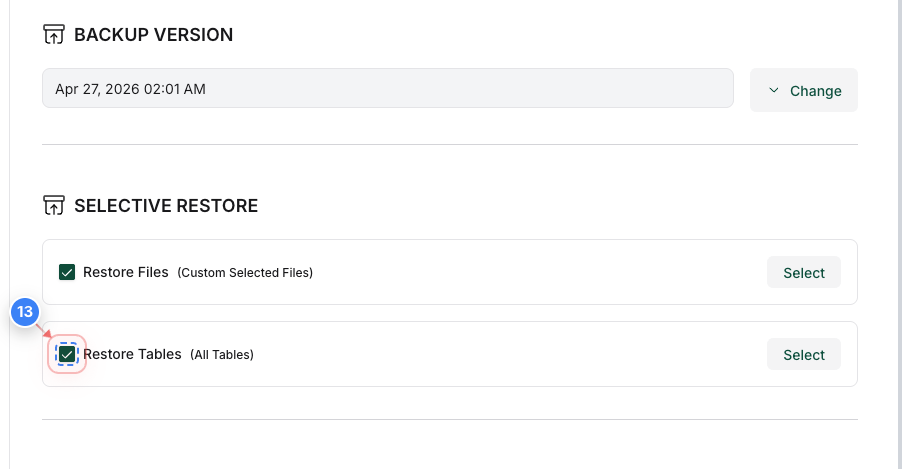
Step 10 of 13
Select database tables - Optional
Click the checkbox in the Restore Tables section to exclude database tables in the restore. Restoring the database might remove the data added after the backup is created.
Step 10 screenshot
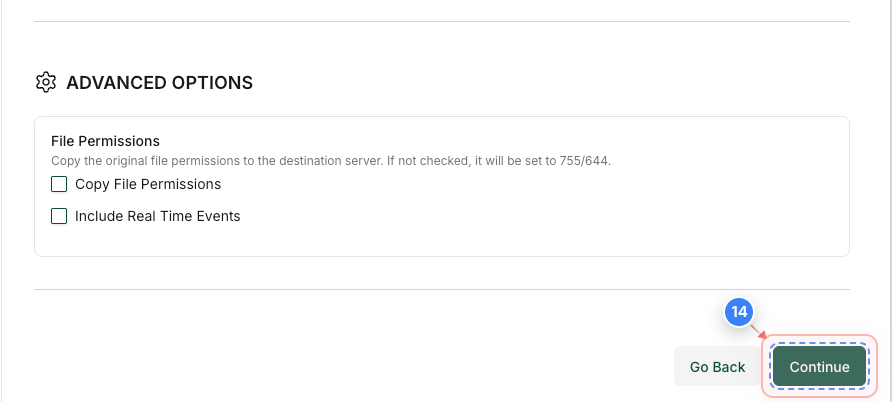
Step 11 of 13
Proceed to the next step
Click the "Continue" button at the bottom to move to the backup version selection
Note: You will choose which backup point to restore from
Step 11 screenshot
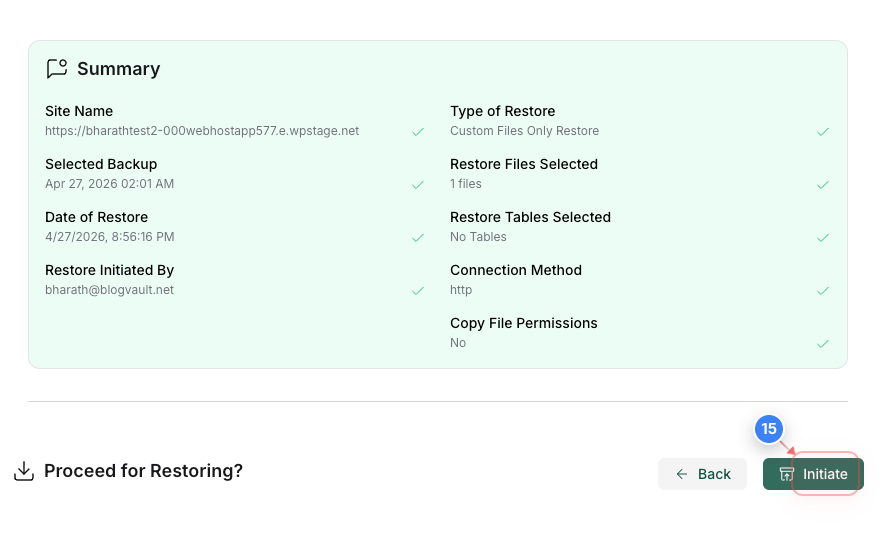
Step 12 of 13
Start restore process
Click the "Initiate" button at the bottom to begin the restore process
Note: This action will overwrite current files and database with the selected backup
Step 12 screenshot
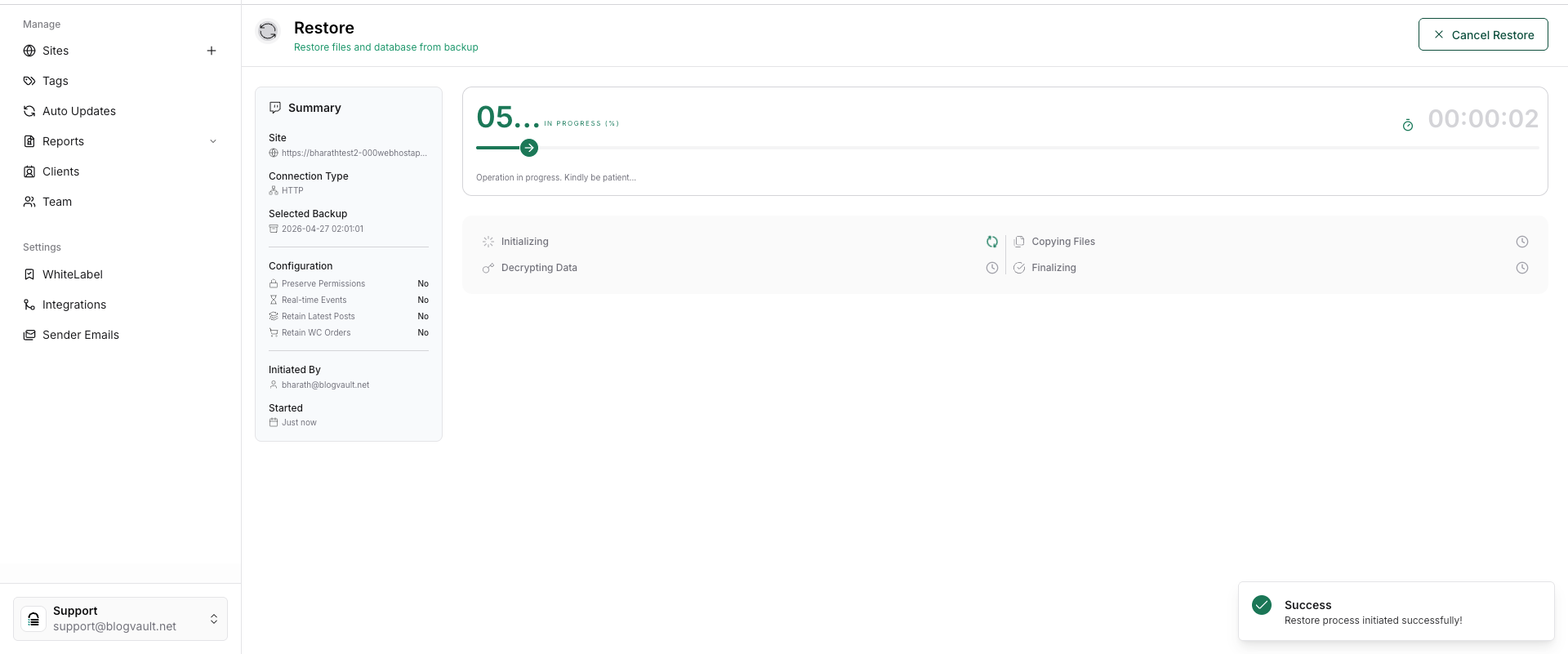
Step 13 of 13
Monitor restore progress
The Restore Task page shows the progress of your restore including status, percentage completion, and steps like decrypting and copying files
Note: Verify that the status shows "In Progress" and progresses toward completion. If it stalls, check logs or retry the restore. Once complete, review your site to ensure everything is restored correctly
Step 13 screenshot

Was this article helpful?

That’s Great!

Thank you for your feedback

Sorry! We couldn't be helpful

Thank you for your feedback

Let us know how can we improve this article!

Select at least one of the reasons

Feedback sent

We appreciate your effort and will try to fix the article