
How to Restore a WooCommerce Store Backup with the Latest Data?

Created by Bharath K, Modified on Mon, 15 Dec at 11:34 AM by Bharath K

Step 1 of 7
Open Site Dashboard
Click on your site name in the Sites list to open its management dashboard.
Note: Make sure you select the correct site if you manage multiple sites.
Step 1 screenshot
Step 2 of 7
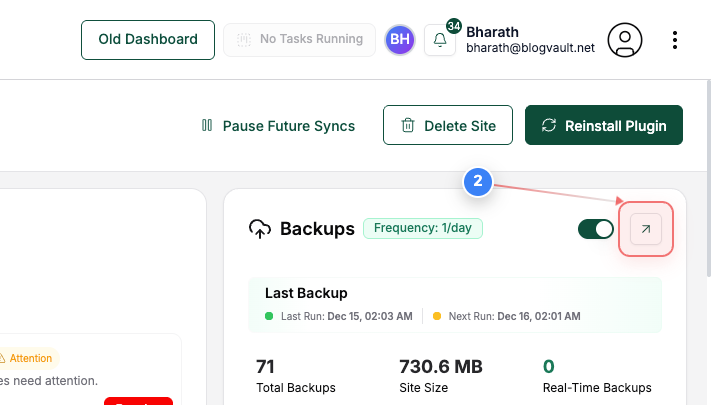
Open Backup Options
Click the options button in the Backups section on the right side of the page to manage backup actions for this site.
Step 2 screenshot
Step 3 of 7
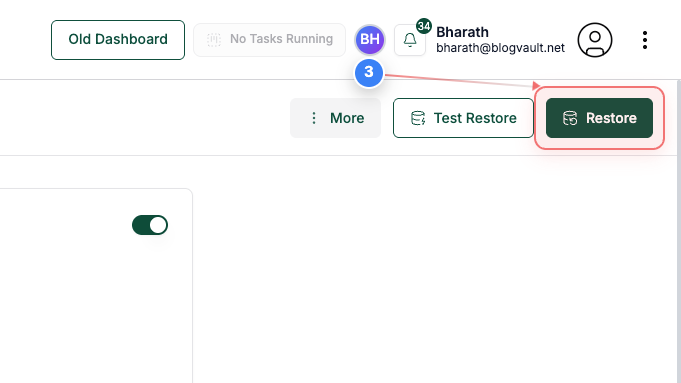
Initiate Restore
Click the restore option in the Backup Details header to begin restoring a backup.
Note: This opens the restore configuration for the selected backup.
Step 3 screenshot
Step 4 of 7
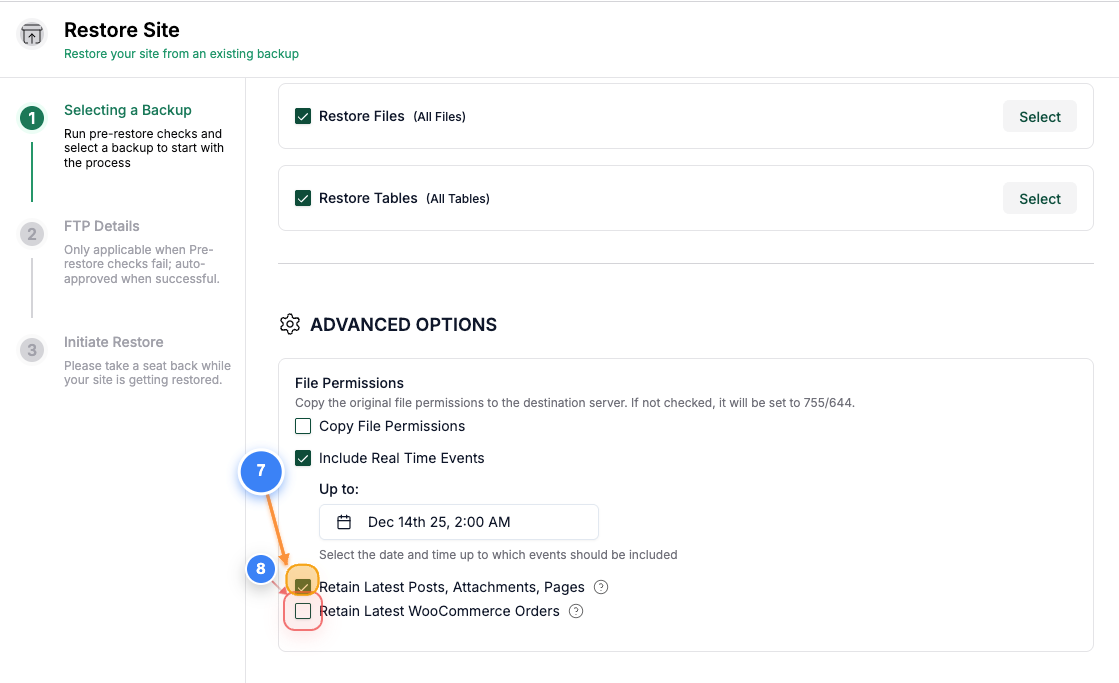
Select Retain options
Select the "Retain Latest Posts, Attachments, Pages" & "Retain Latest WooCommerce Orders" options to keep the latest posts and WooCommerce order data.
Note: You need to have Real-time backups enabled and the backups should have WooCommerce plugin enabled to access this feature.
Step 4 screenshot
Step 5 of 7
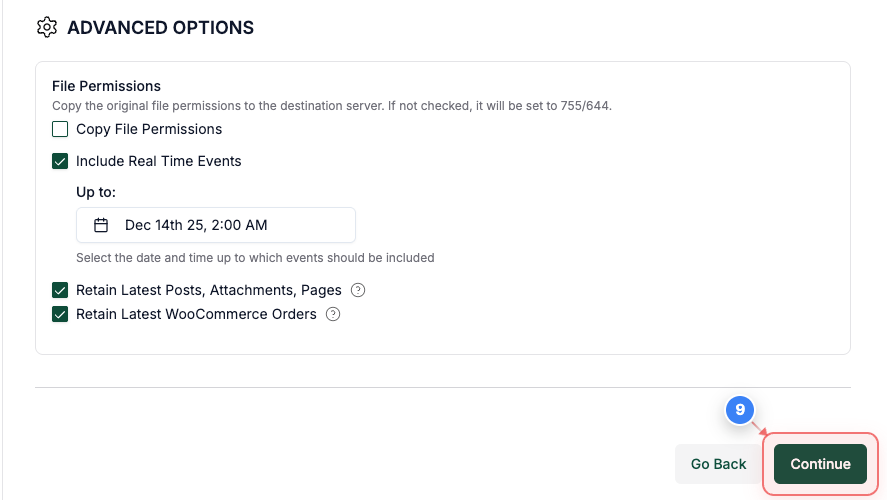
Proceed with Restore
Click the Continue button at the bottom of the configuration page to select the backup version to restore.
Step 5 screenshot
Step 6 of 7
Confirm Pre-Restore Checks
Click the Continue button in the restore connection page after reviewing the completed pre-restore checks and selected backup.
Note: All checks must be completed successfully to proceed.
Step 6 screenshot
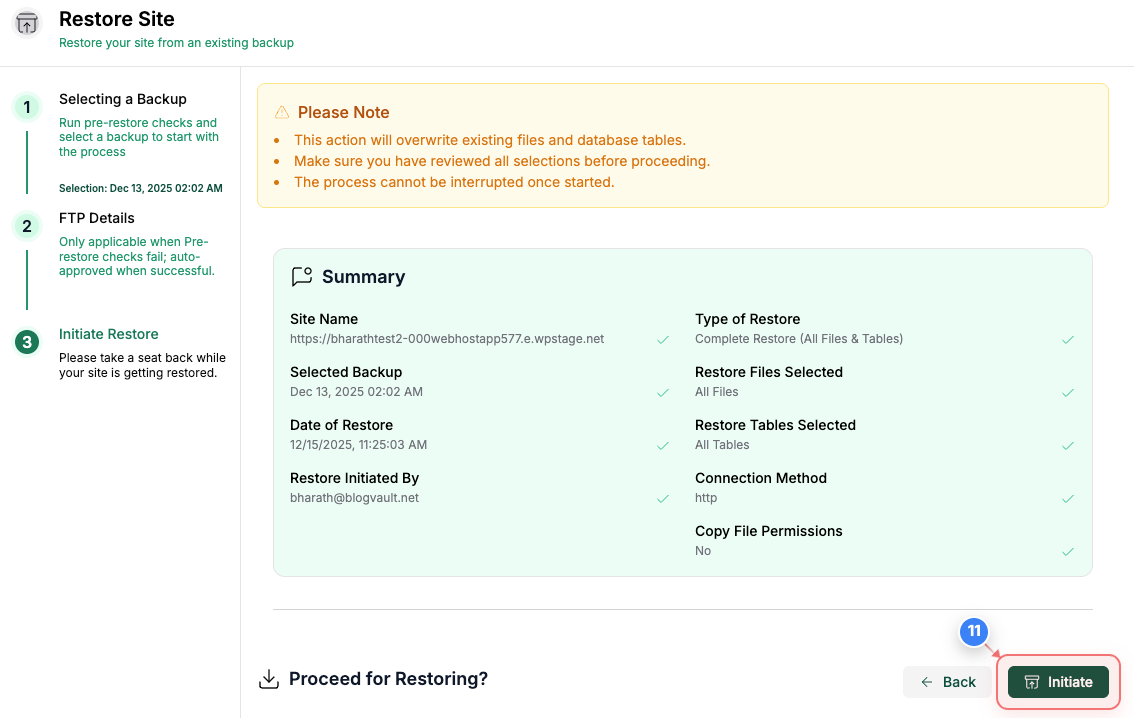
Step 7 of 7
Initiate Restore
Click the initiate restore button at the bottom of the summary page to start restoring your site from the selected backup.
Step 7 screenshot

Was this article helpful?

That’s Great!

Thank you for your feedback

Sorry! We couldn't be helpful

Thank you for your feedback

Let us know how can we improve this article!

Select at least one of the reasons

Feedback sent

We appreciate your effort and will try to fix the article