How to Enable Two-Factor Authentication (2FA) for WordPress Users

Created by Sachin B, Modified on Mon, 20 Apr at 1:44 PM by Sachin B

Step 1 of 12
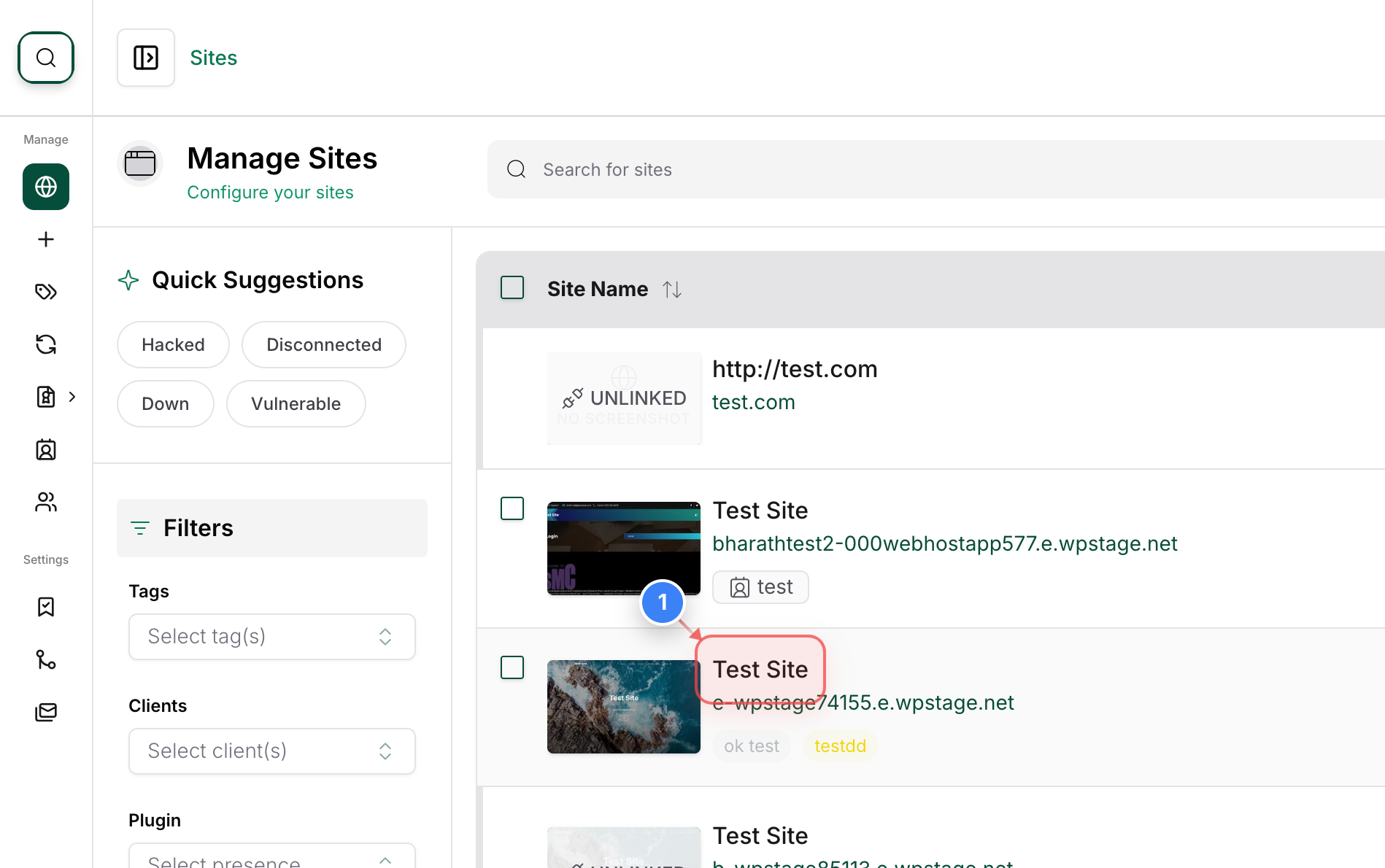
Select Your Website
Click on the site name in the center of the Sites page to open the specific management dashboard for that website.
Note: This will take you to the site-specific details where you can manage the site.
Step 1 screenshot
Step 2 of 12
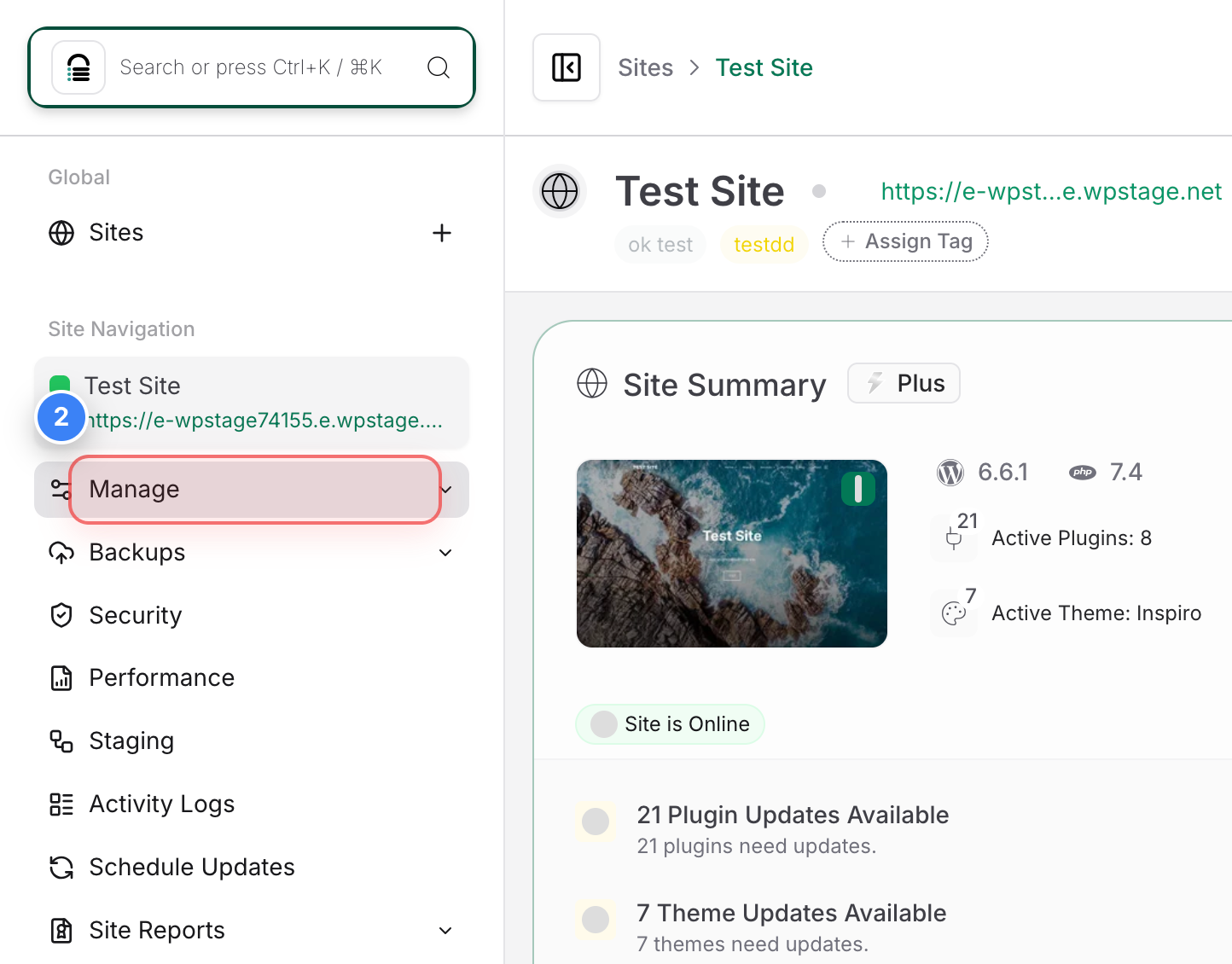
Access Site Management
Click on the Manage option in the left sidebar to expand the administrative tools for your site.
Step 2 screenshot
Step 3 of 12
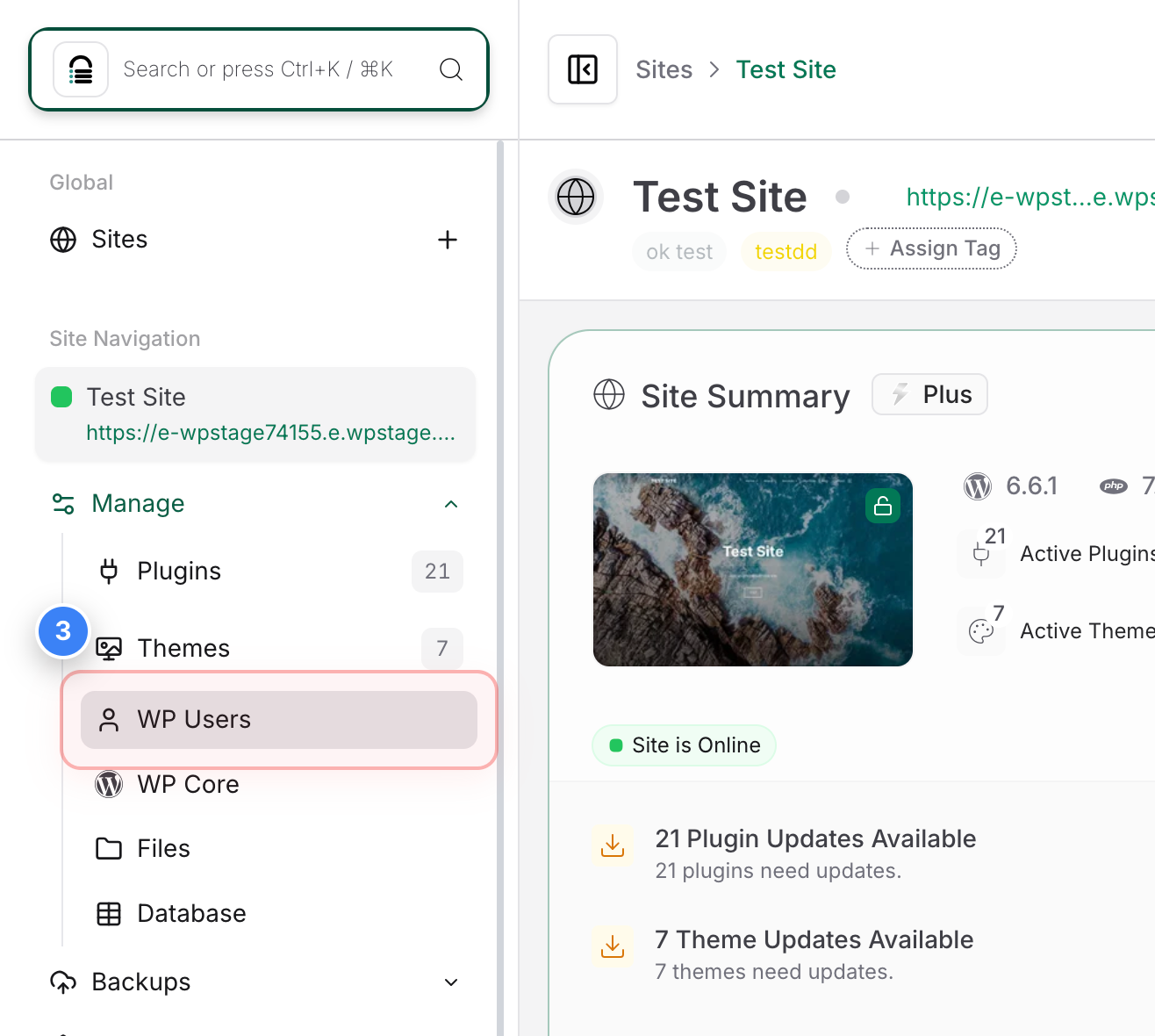
Open WordPress User Settings
Select WP Users from the sidebar menu to view and manage the security settings for your WordPress user accounts.
Step 3 screenshot
Step 4 of 12
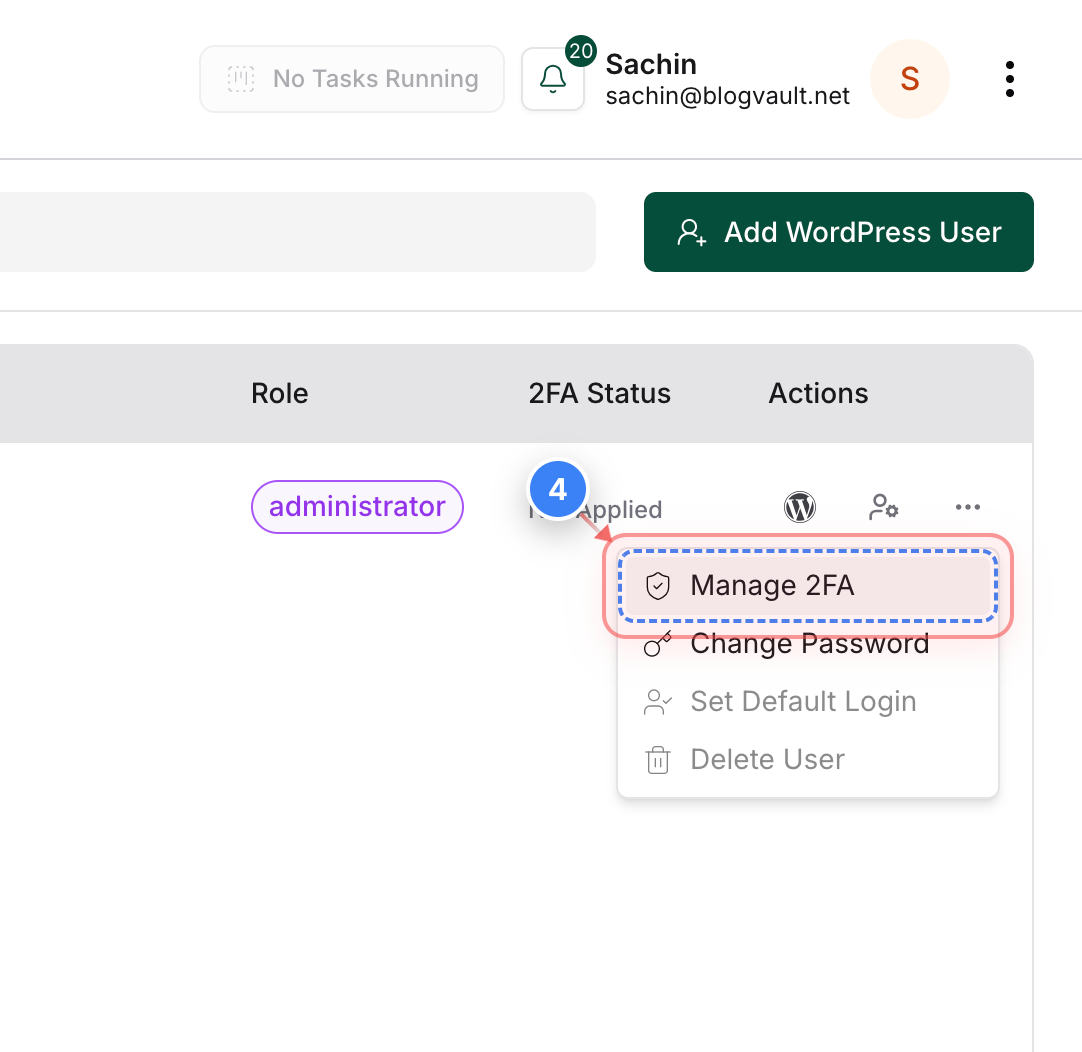
Initiate 2FA Configuration
Click on Manage 2FA in the user action menu to begin configuring two-factor authentication for the selected user.
Step 4 screenshot
Step 5 of 12
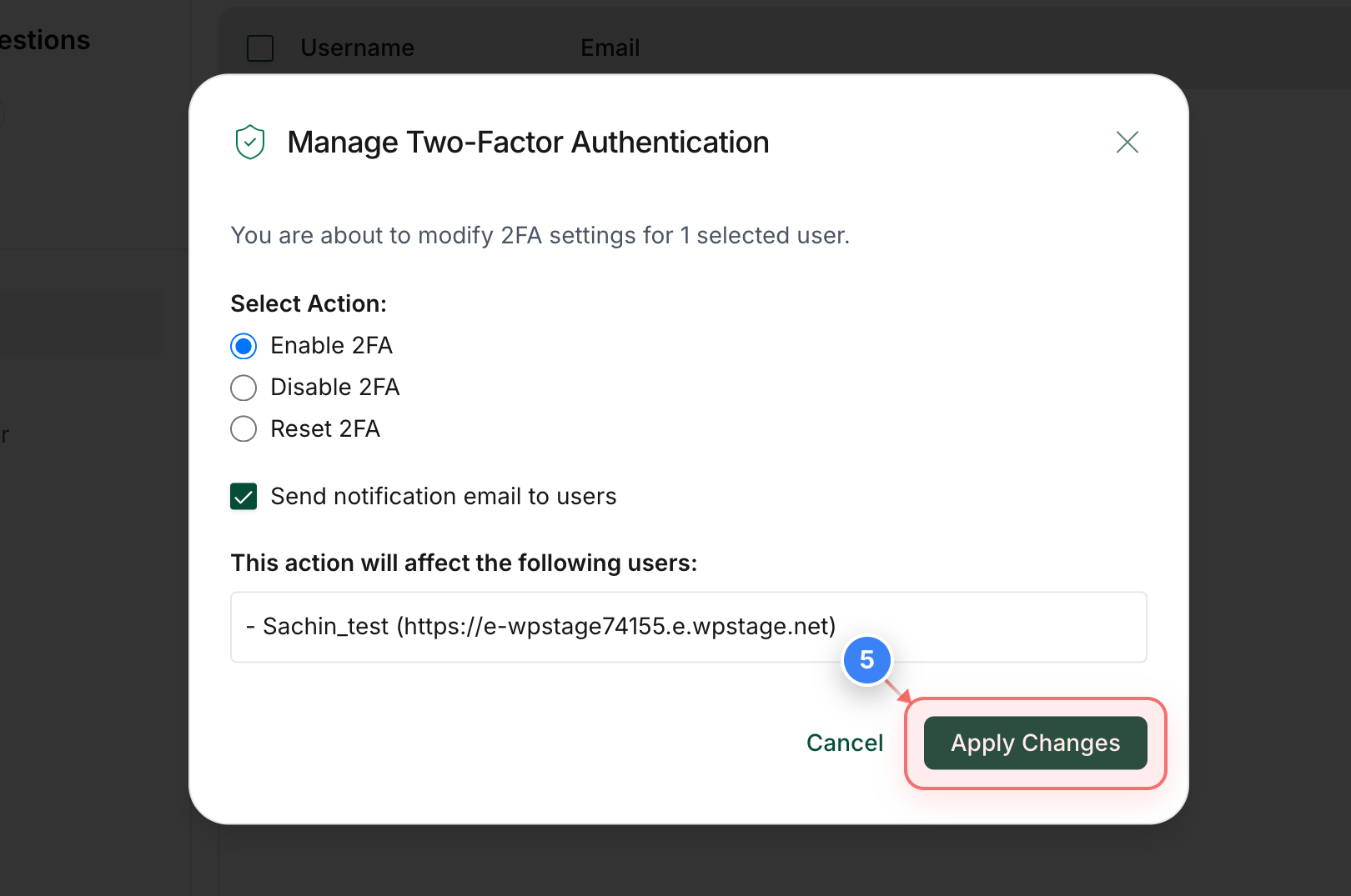
Enable Two-Factor Authentication
Select the Enable 2FA action and click the Apply Changes button to trigger the setup process for the user.
Note: This action sends an automated setup email to the user.
Step 5 screenshot
Step 6 of 12
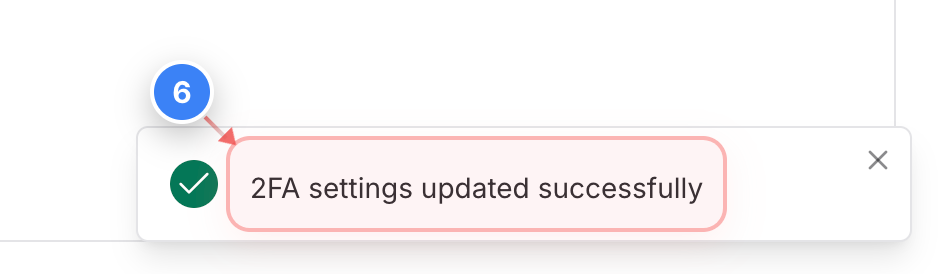
Confirm Status Update
Verify that the notification 2FA Process initiated successfully appears at the bottom-right of your screen.
Step 6 screenshot
Step 7 of 12
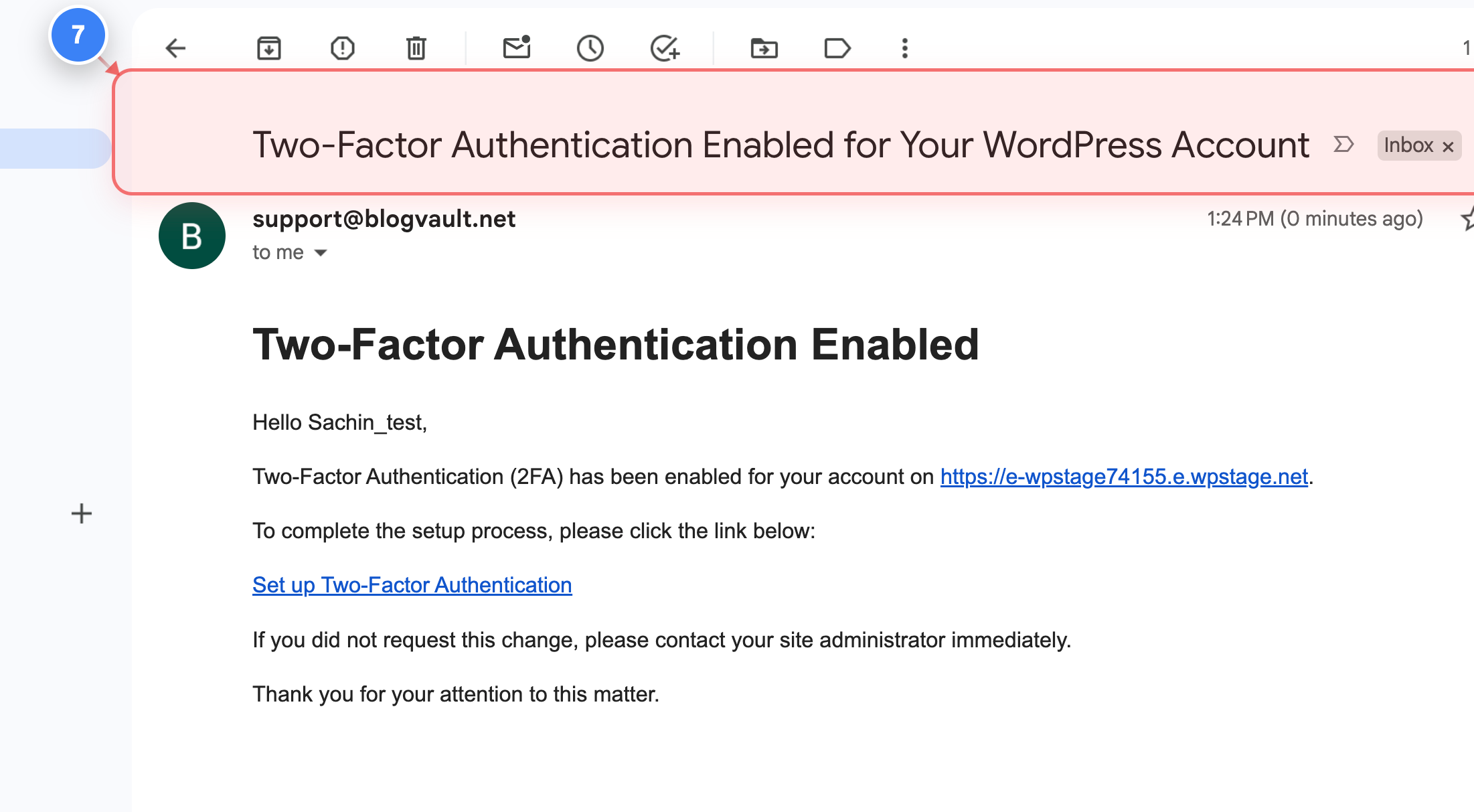
Open the Setup Email
Locate the Two-Factor Authentication email in your inbox and click the setup link to proceed to the verification page.
Note: Ensure you check your spam folder if the email does not arrive within a minute.
Step 7 screenshot
Step 8 of 12
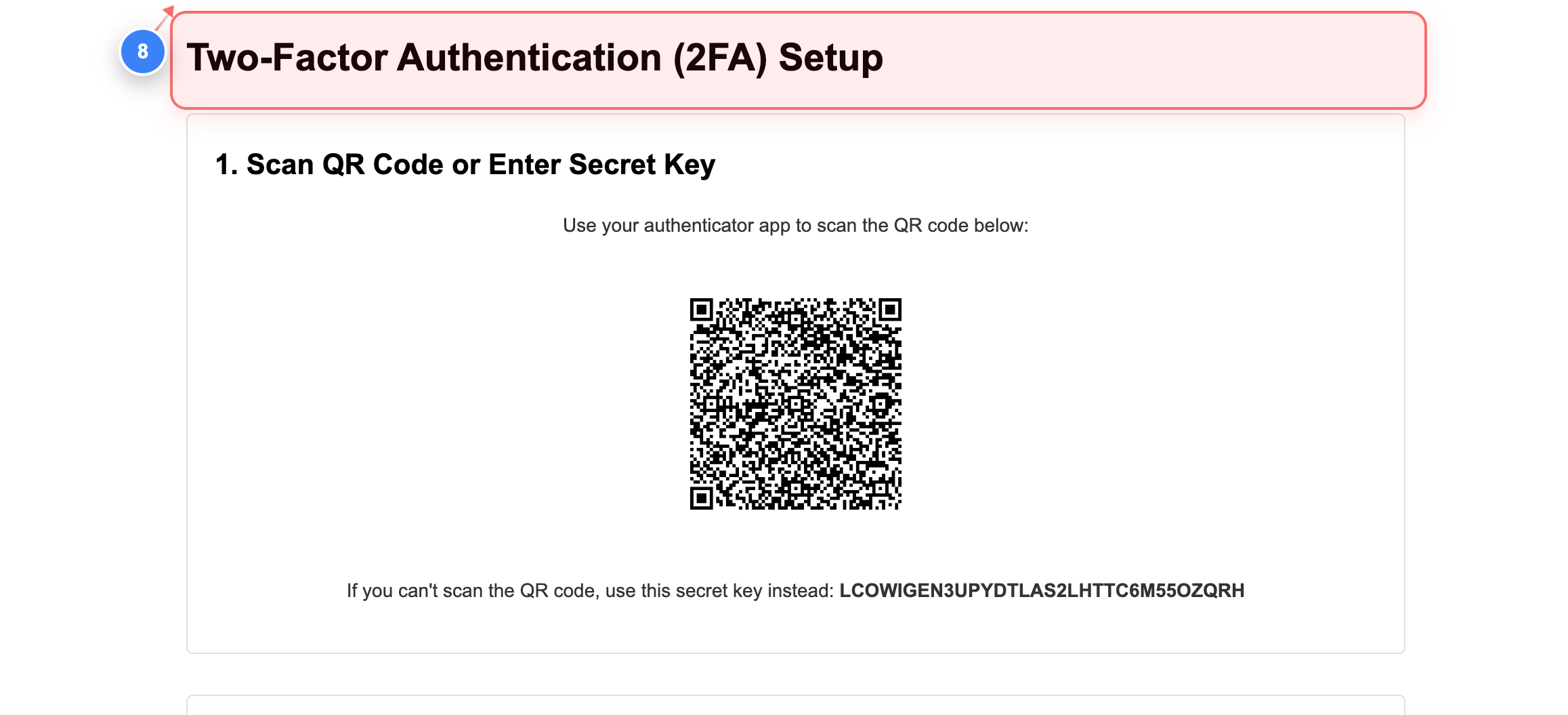
Enter the Authentication Code
Scan the QR code via the authenticator app to get the 2FA code.
Step 8 screenshot
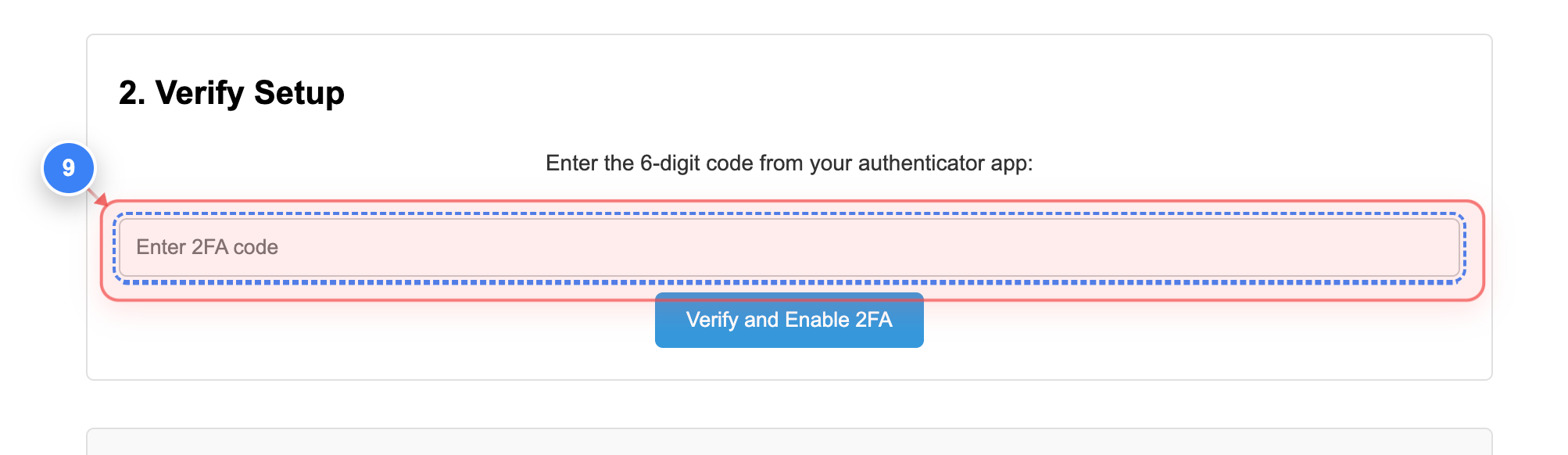
Step 9 of 12
Enter the 2FA Code
Enter the code to Verify and Enable 2FA.
Step 9 screenshot
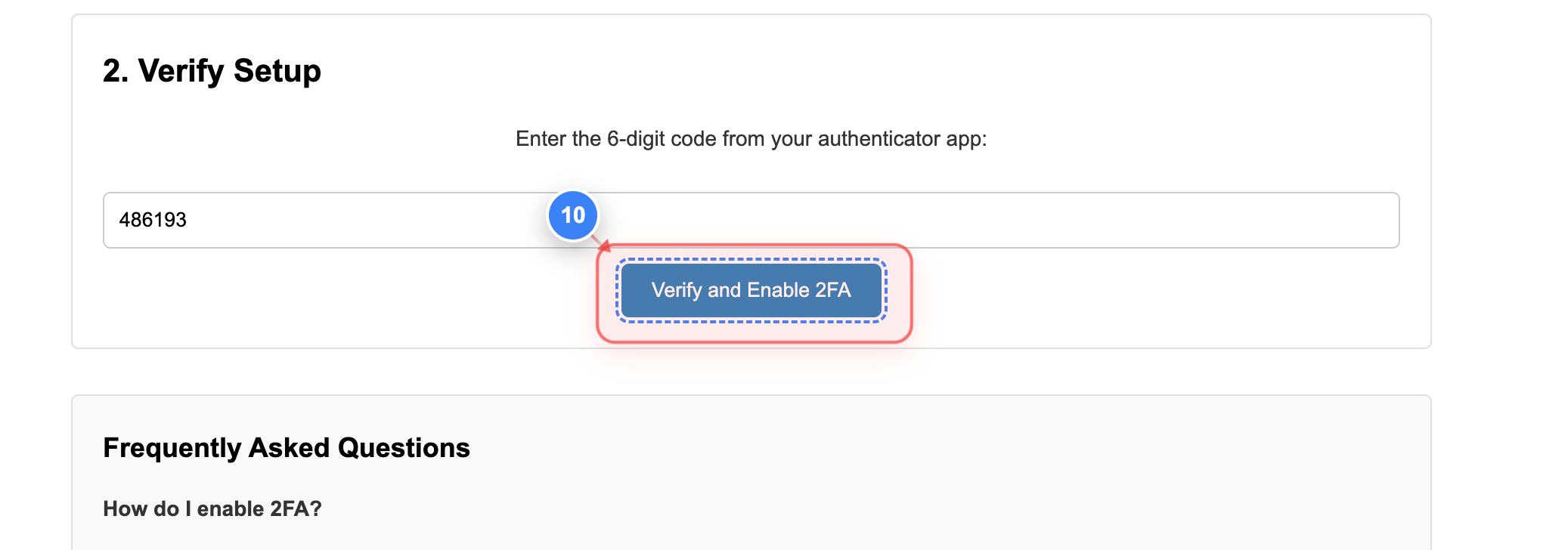
Step 10 of 12
Verify & Enable 2FA
Validate the code & enable the 2FA..
Note: This confirms that 2FA is active and required for future logins.
Step 10 screenshot
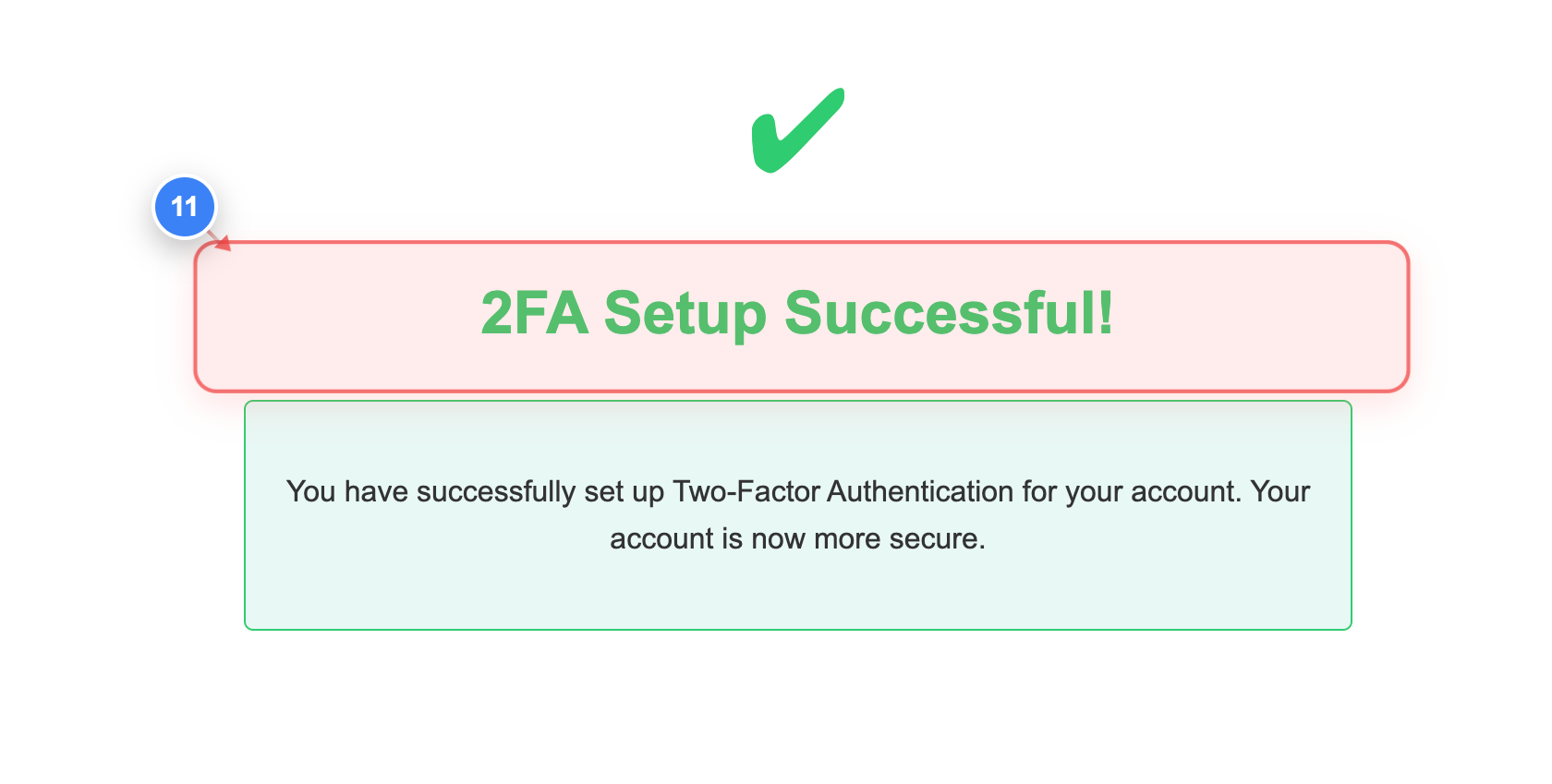
Step 11 of 12
2FA Confirmation
You will see a confirmation message "2FA Setup Successful!" 
Step 11 screenshot
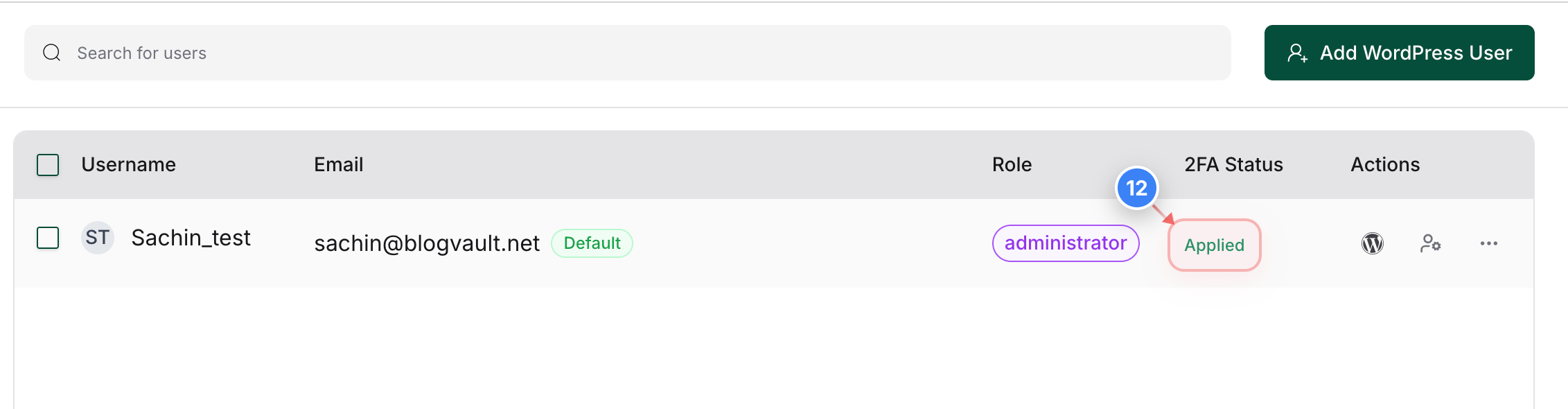
Step 12 of 12
Validate Status 
Validate 2FA status "Applied" For the user. 
Step 12 screenshot

Was this article helpful?

That’s Great!

Thank you for your feedback

Sorry! We couldn't be helpful

Thank you for your feedback

Let us know how can we improve this article!

Select at least one of the reasons

Feedback sent

We appreciate your effort and will try to fix the article