Protect WordPress logins with single-use email verification codes managed through the dashboard.
Overview
Email two-factor authentication (2FA) adds a verification step after a user enters valid WordPress credentials. Our plugin sends an eight-digit, single-use code to the email address saved in the user’s WordPress profile. A simple way to add an extra verification step without requiring every user to configure an authenticator app.
Note: The code expires after 10 minutes. Our system limits incorrect attempts, resend requests, and code deliveries. Existing Authenticator app users can keep their current method or change it to email 2FA.Before you begin
- The site must be connected to our plugin.
- The site must use generated plugin package version 6.68 or higher.
- The selected user must have a valid email address in WordPress.
- The site must be able to send WordPress email successfully.
Important: Email delivery depends on the site’s WordPress mail configuration.
Enable Email 2FA
Sign in to dashboard, then follow these steps for the WordPress user you want to enable 2FA for.
Step 1 of 9 | Open the site dashboard
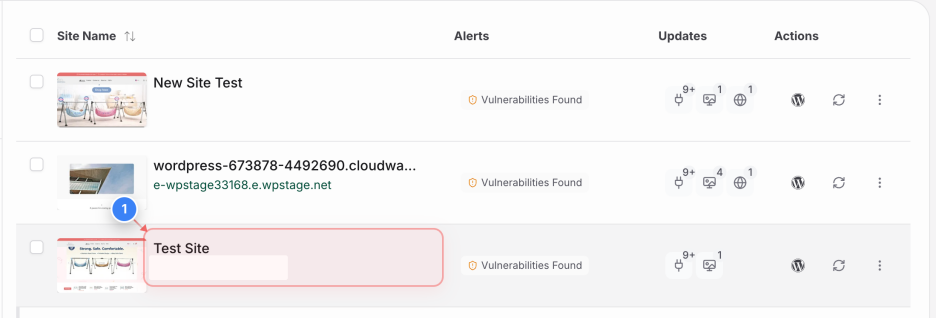
On the Sites page, click the website you want to manage.
Step 2 of 9 | Expand Manage
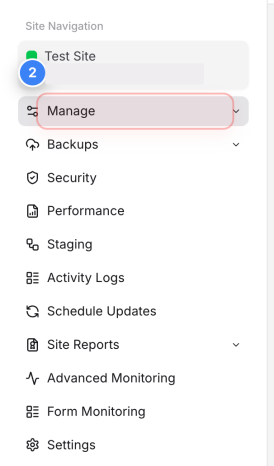
In the site dashboard sidebar, click Manage to display the WordPress management options.
Step 3 of 9 | Open WP Users
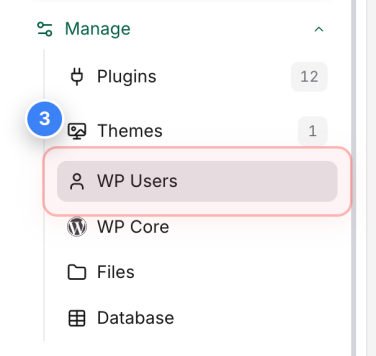
Under Manage, click WP Users to view the WordPress accounts found on the site.
Step 4 of 9 | Open the user actions
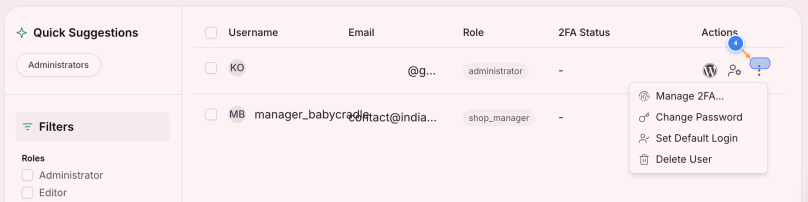
Find the user, then click the three-dot menu in the Actions column.
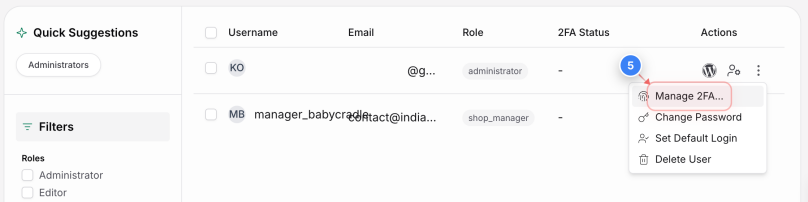
Step 5 of 9 | Select Manage 2FA
Click Manage 2FA to open the two-factor authentication settings for that user.
Step 6 of 9 | Choose Email
Select Email as the verification method. Our system will send login codes to the email address saved in the user’s WordPress profile.
Note: Select Send notification email to users if you want us to inform the user that their 2FA method has changed. This is not a login verification email. 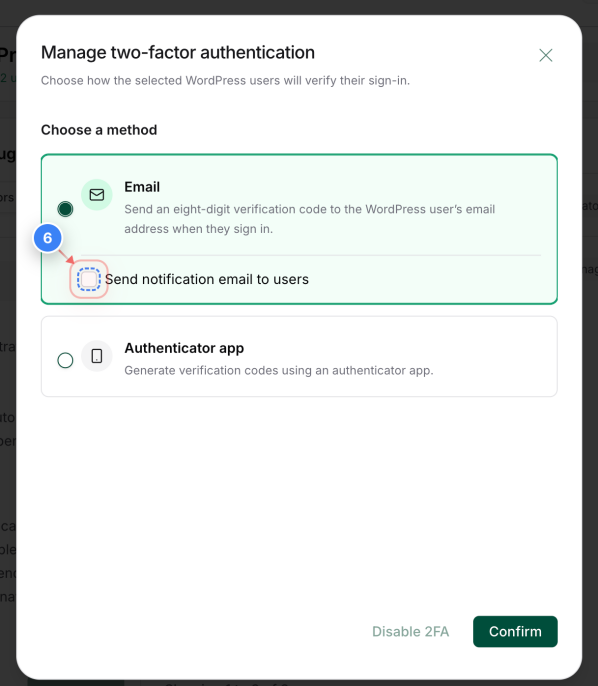
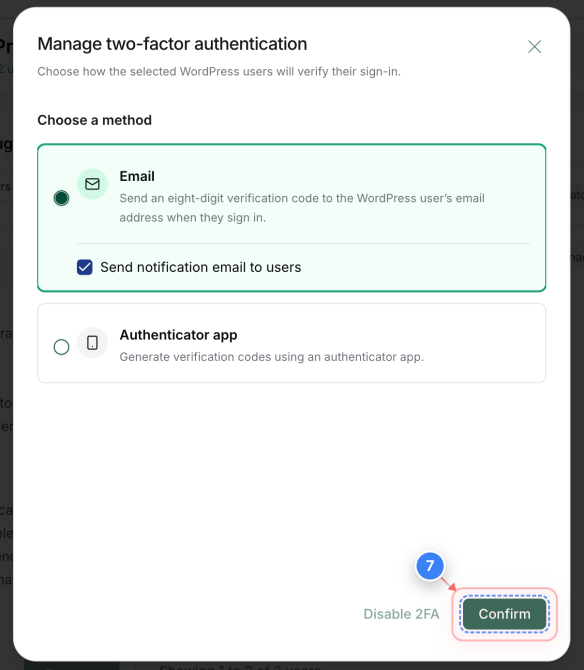
Step 7 of 9 | Confirm the change
Review the selected method, then click Confirm to enable Email 2FA for the user.
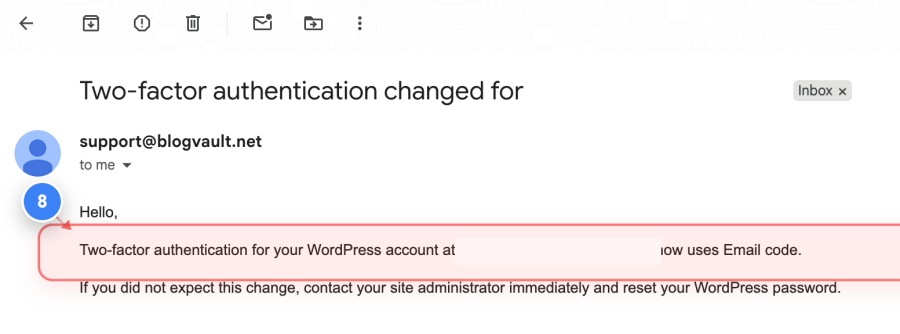
Step 8 of 9 | Check the notification email
If you selected Send notification email to users, the user receives an email confirming that their account now uses Email 2FA.
Step 9 of 9 | Verify the 2FA status
Reload the WP Users. Email should appear in the selected user’s 2FA Status column.
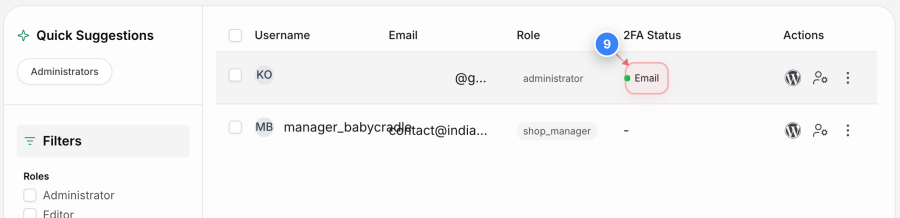
After Email 2FA is enabled
What the user sees during login
- Open the WordPress login page and enter a valid username and password.
- Receive an eight-digit code at the email address in the WordPress profile.
- Enter the newest code within 10 minutes to complete the login.
Codes are single-use. Expired, previously used, or invalid codes cannot complete the login. Attempt and resend limits apply. Avoid click resend frequently.Manage 2FA later
From WP Users > Actions > Manage 2FA, an administrator can:
- Switch between Email and Authenticator app.
- Reset a pending or inaccessible Authenticator app setup.
- Disable 2FA when needed.
- Apply supported changes to multiple users across one or more sites.
Troubleshooting
Email option is unavailable: Confirm that the user has a valid WordPress email address and that the site meets the 2FA and plugin-version requirements.
Verification code does not arrive: Check the email address and spam folder, then confirm that the site can send other WordPress emails, such as password-reset messages. Review any SMTP or mail-plugin errors.
Verification code is rejected: Request a new code and enter the most recently received code within 10 minutes.
Delivery failure: If a verification email cannot be delivered, the challenge is removed, and the login is not completed. Fix the site’s email delivery before trying again.
Was this article helpful?
That’s Great!
Thank you for your feedback
Sorry! We couldn't be helpful
Thank you for your feedback
Feedback sent
We appreciate your effort and will try to fix the article