How Do I Check the Modifications I Made on My Staging Site?

Created by Sachin B, Modified on Mon, 2 Feb at 11:02 AM by Sachin B

Step 1 of 8
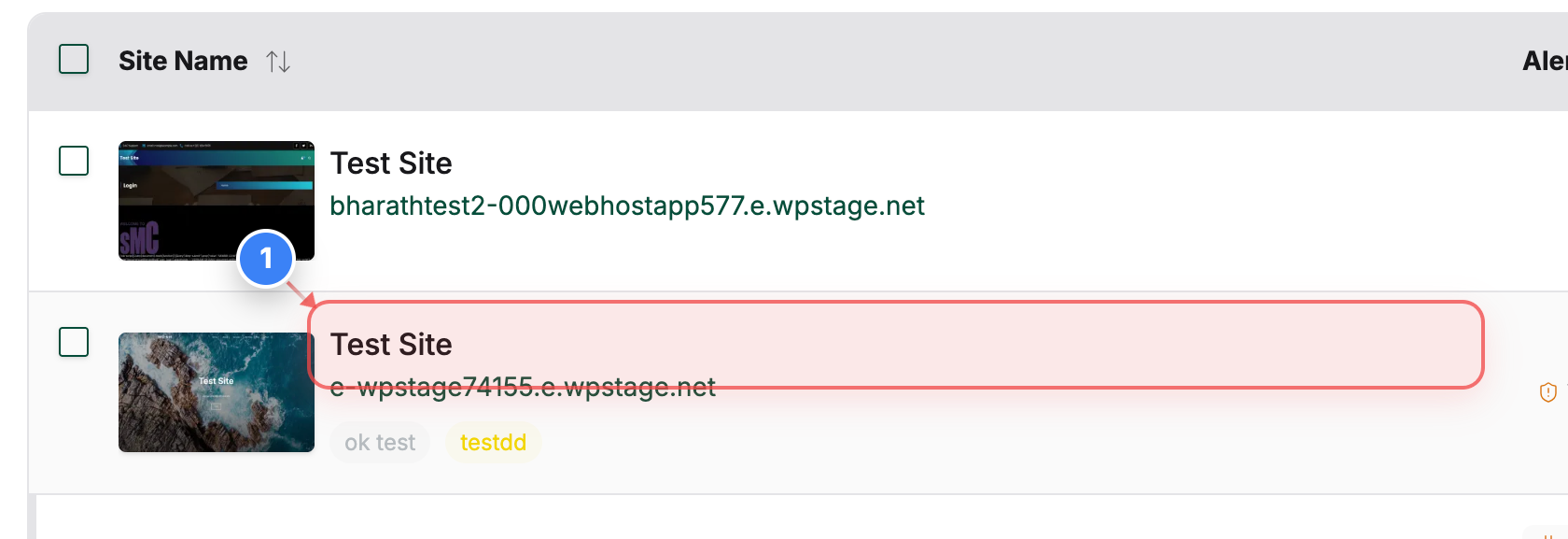
Select your site
Click on the specific site name in the Site Listing page to access the Site Detail dashboard.
Note: Ensure you select the site where the staging environment is currently active.
Step 1 screenshot
Step 2 of 8
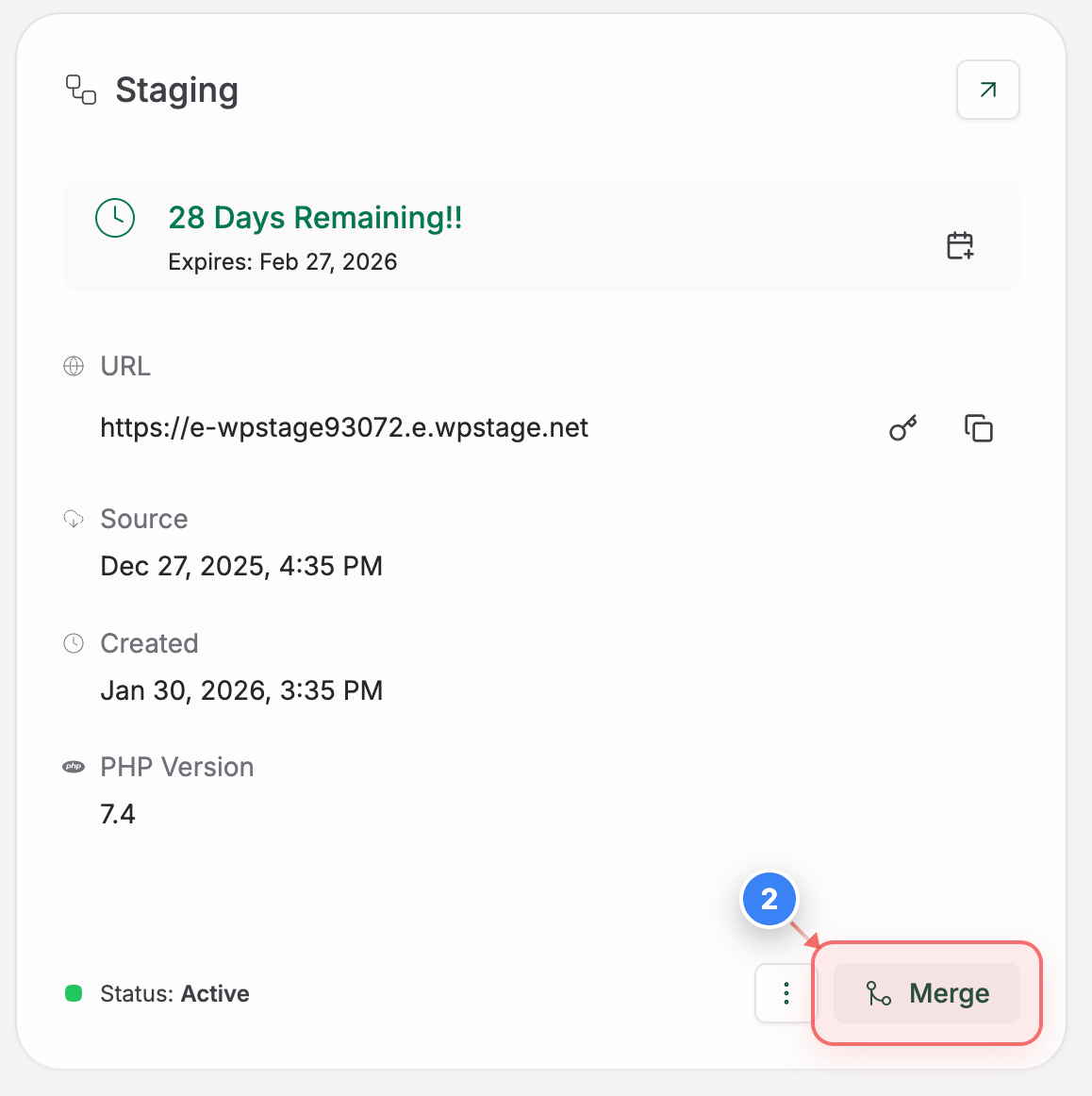
Initiate merge process
Locate the **Staging** section in the dashboard and click the merge icon (arrow button) to begin the Merge to Live process.
Note: This initiates a comparison between your staging and live environments.
Step 2 screenshot
Step 3 of 8
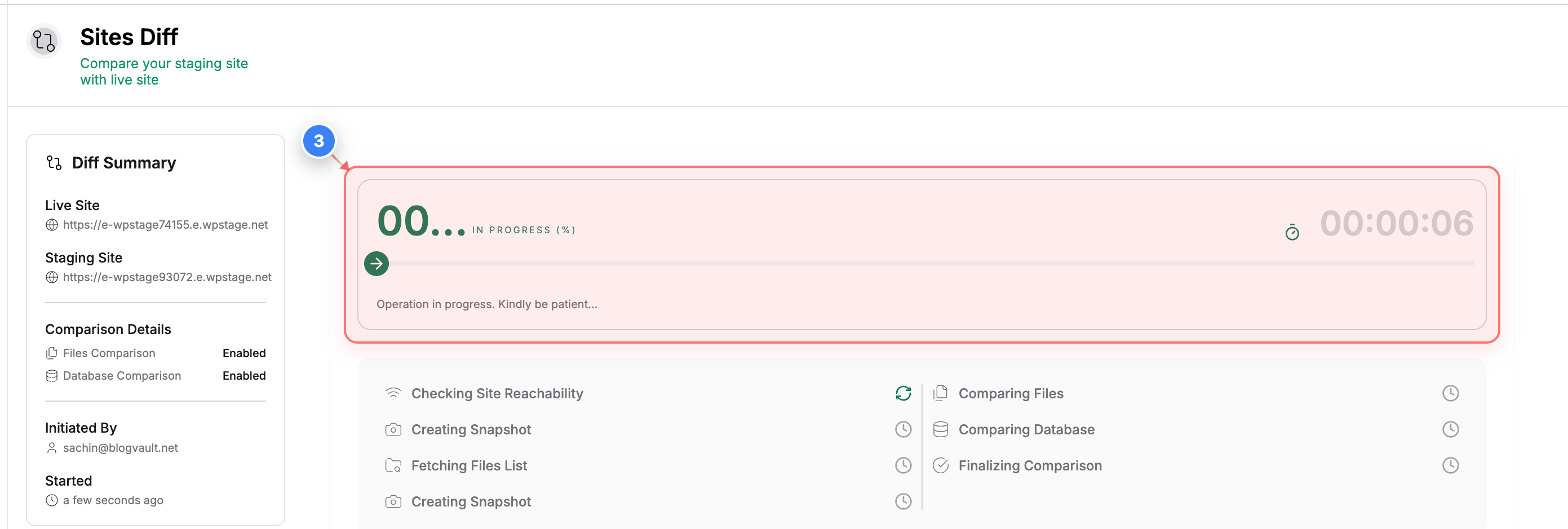
View comparison status
The progress indicator in the tasks area opens the difference comparison view once the analysis is complete.
Note: Once the process is done, you can view differences before finalizing the merge.
Step 3 screenshot
Step 4 of 8
View plugin changes
In the Files comparison view, select the checkbox next to **Plugins** to review and include plugin modifications in the merge.
Step 4 screenshot
Step 5 of 8
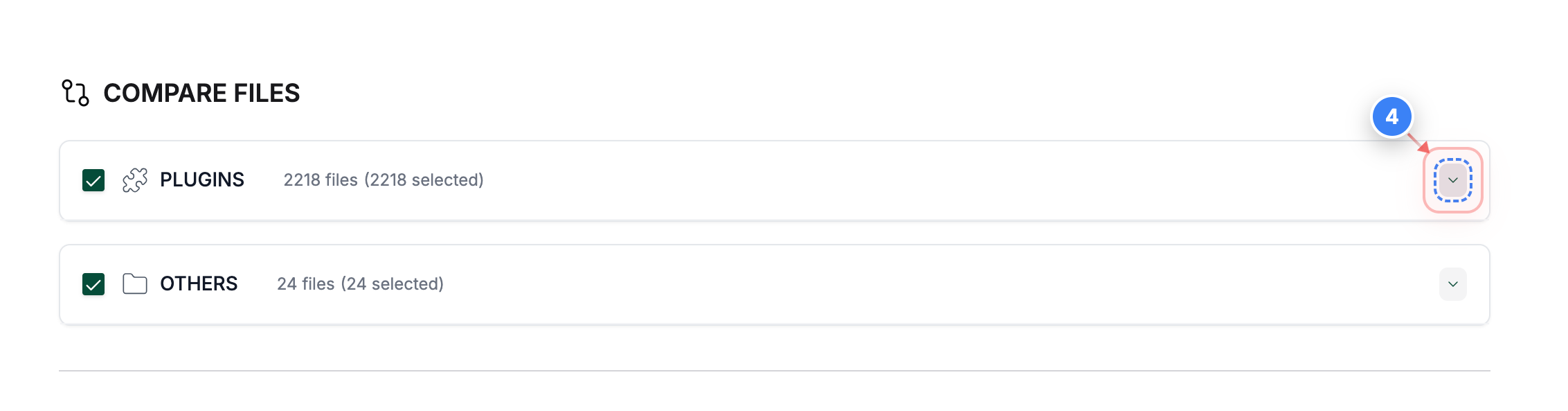
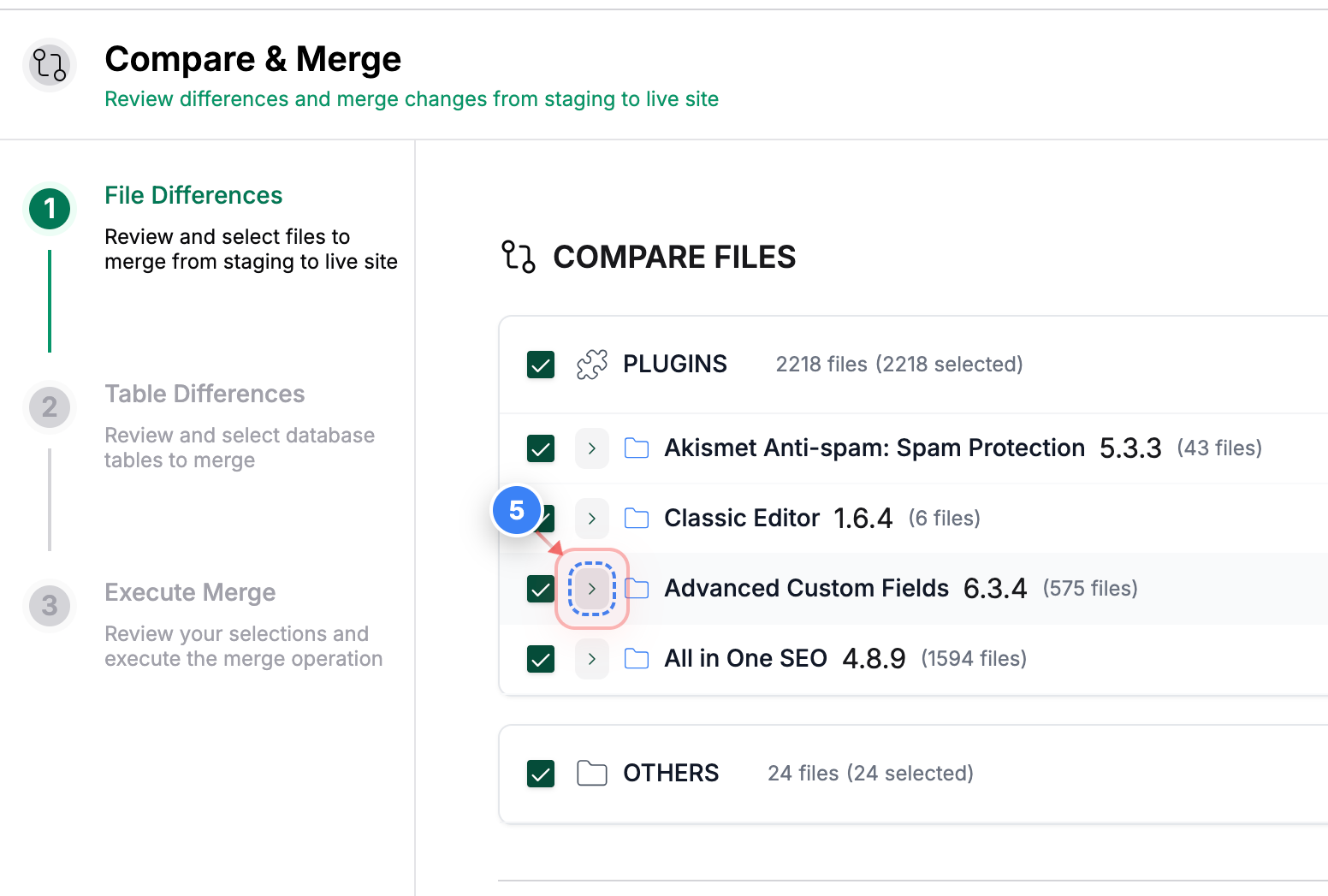
Expand file details
Click the expand icon next to a specific plugin or folder name to reveal the list of individual modified files.
Step 5 screenshot
Step 6 of 8
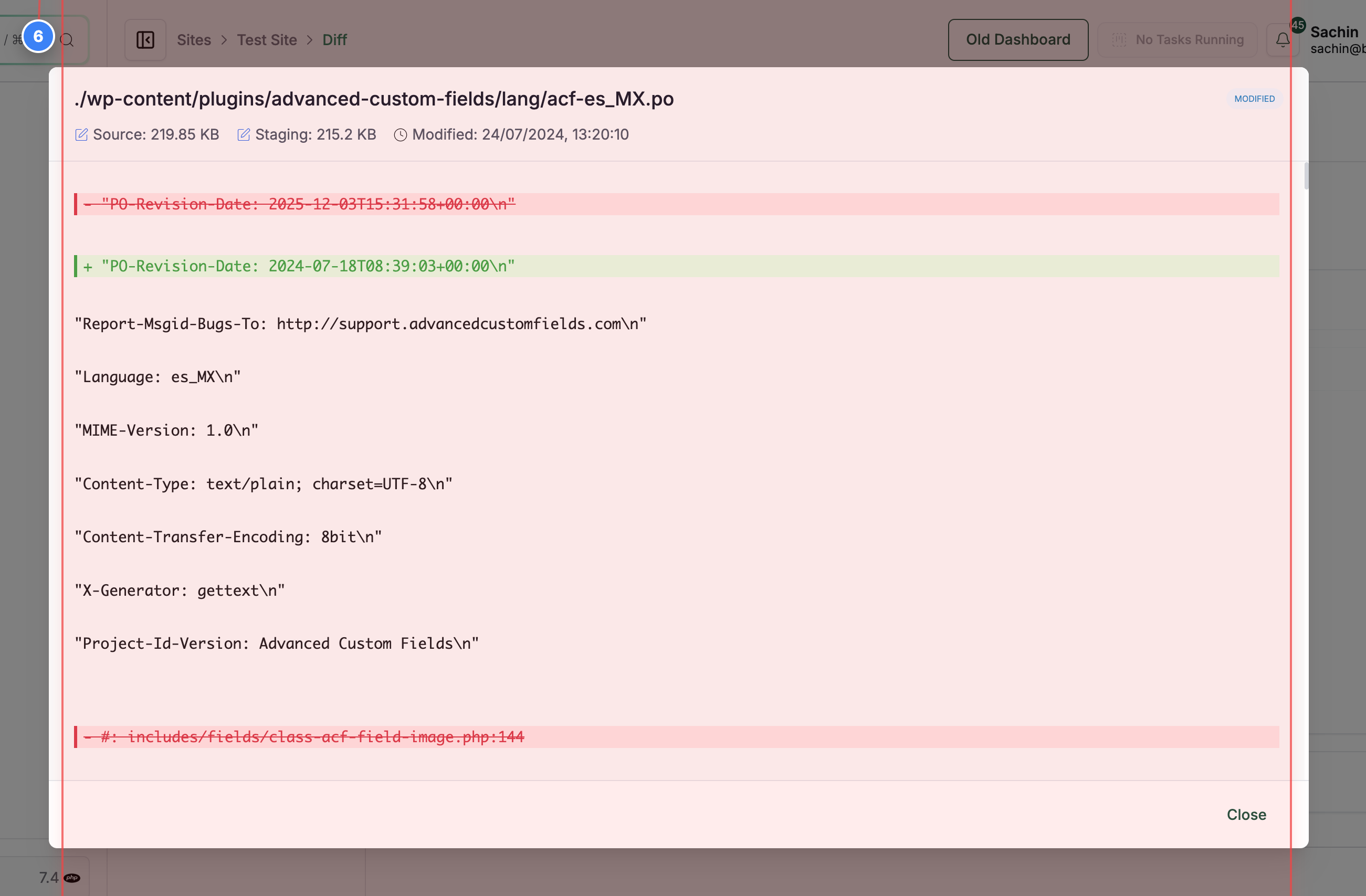
Review code differences
Click on a specific file to view the line-by-line code differences to ensure accuracy before merging.
Note:

The Lines marked in Red have been deleted in your Staging site.
The Lines marked in Green have been changed in your Staging site.
The Lines marked in Blue have been updated in your Staging site.
Step 6 screenshot
Step 7 of 8
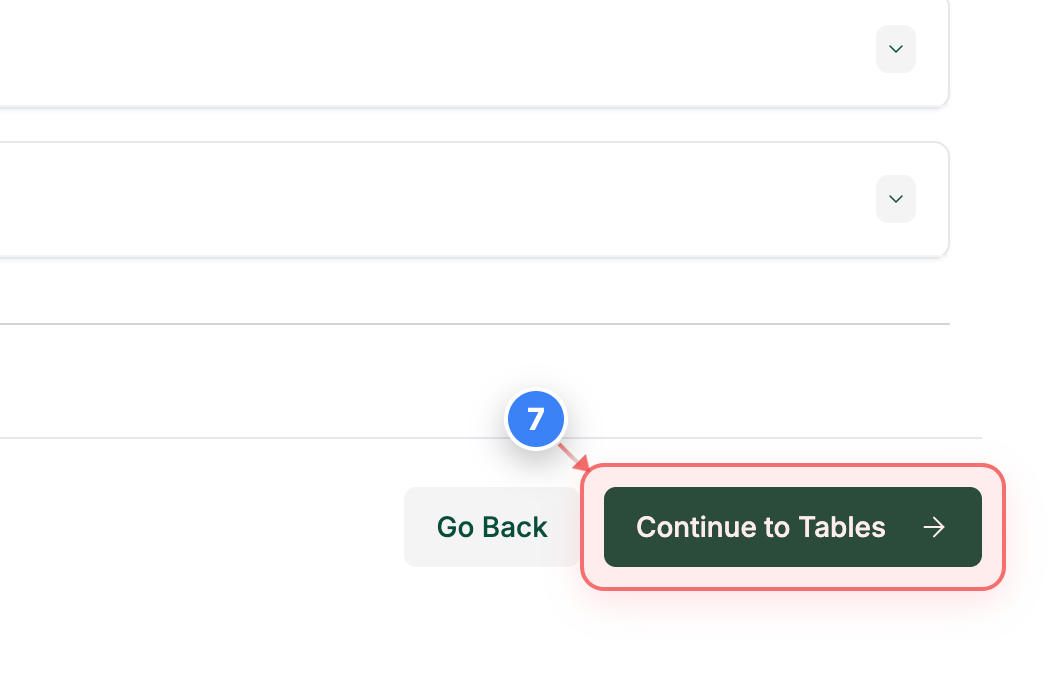
Proceed to the tables
After reviewing and selecting the desired files, click the **Continue to Tables** button in the top right corner to review database changes.
Step 7 screenshot
Step 8 of 8
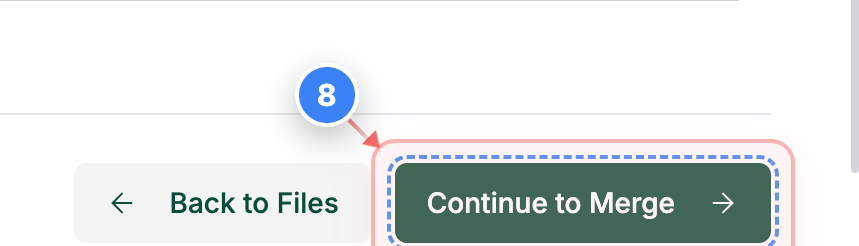
Finalize the merge
Review the selected database tables and click the **Continue to Merge** button to push the staging changes to your live site.
Note: This action will overwrite data on your live site with the selected staging data.
Step 8 screenshot

Was this article helpful?

That’s Great!

Thank you for your feedback

Sorry! We couldn't be helpful

Thank you for your feedback

Let us know how can we improve this article!

Select at least one of the reasons

Feedback sent

We appreciate your effort and will try to fix the article