How Do I Create a Staging Site?

Created by Sachin B, Modified on Fri, 12 Dec at 4:10 PM by Sachin B

Step 1 of 10
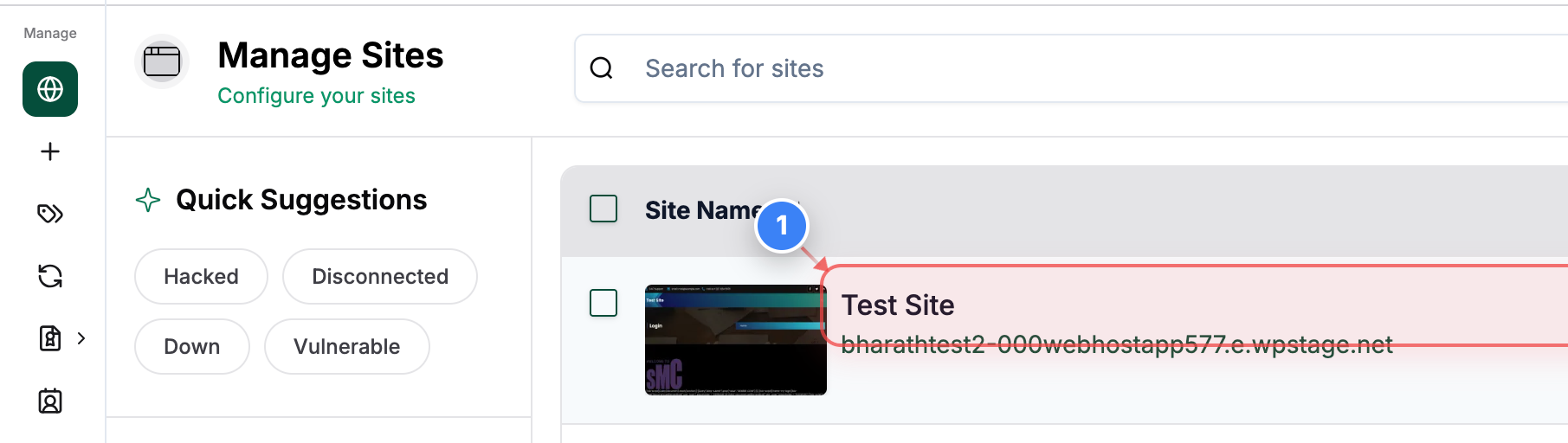
Access Site Management Options
Click on the Site in the upper area to open the site management dashboard.
Note: This takes you to the specific dashboard for managing your selected website.
Step 1 screenshot
Step 2 of 10
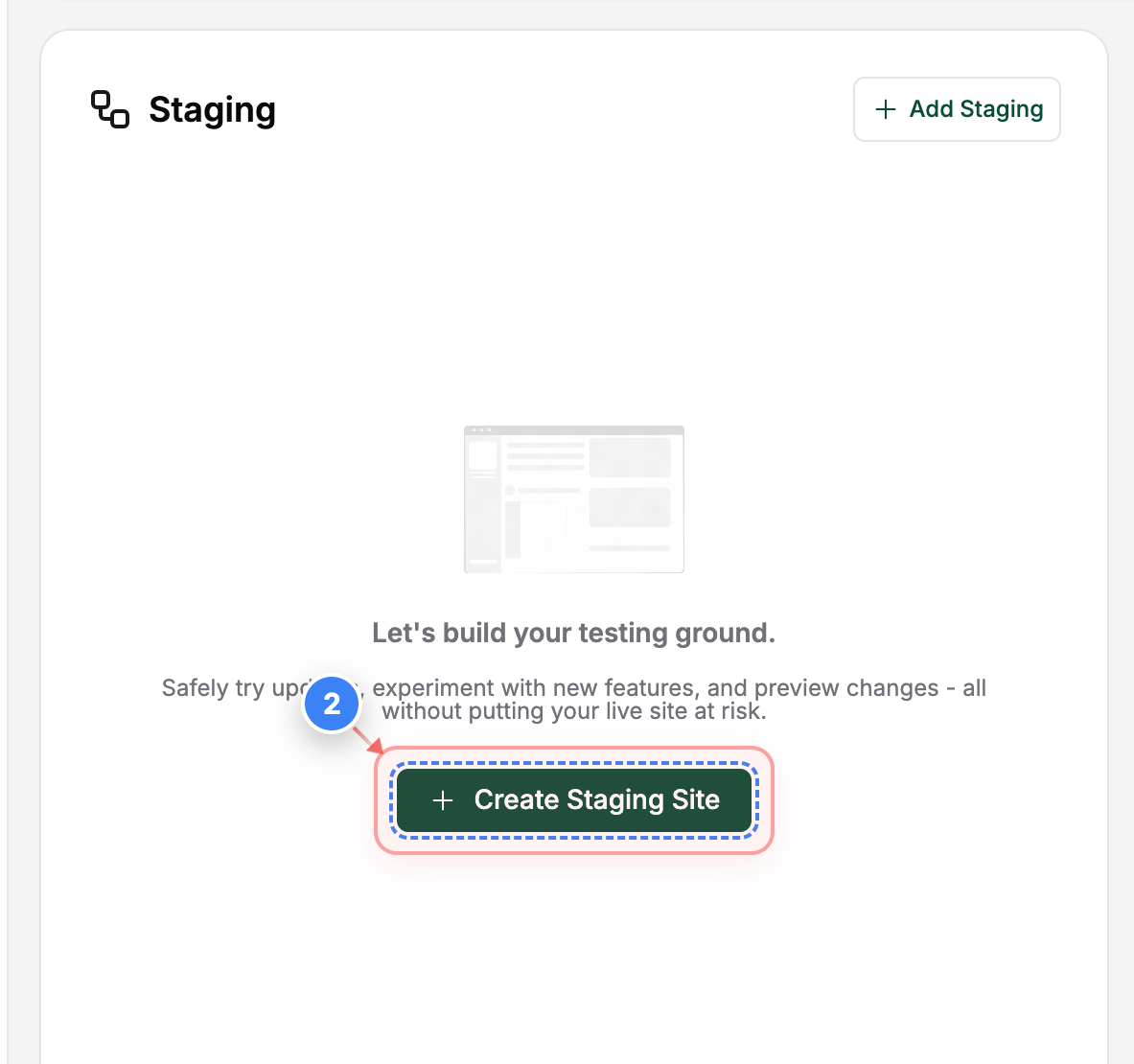
Start Staging Site Creation
Click the Create Staging Site button to begin the staging configuration process.
Note: The staging site provides a safe environment to test changes without affecting your live website.
Step 2 screenshot
Step 3 of 10
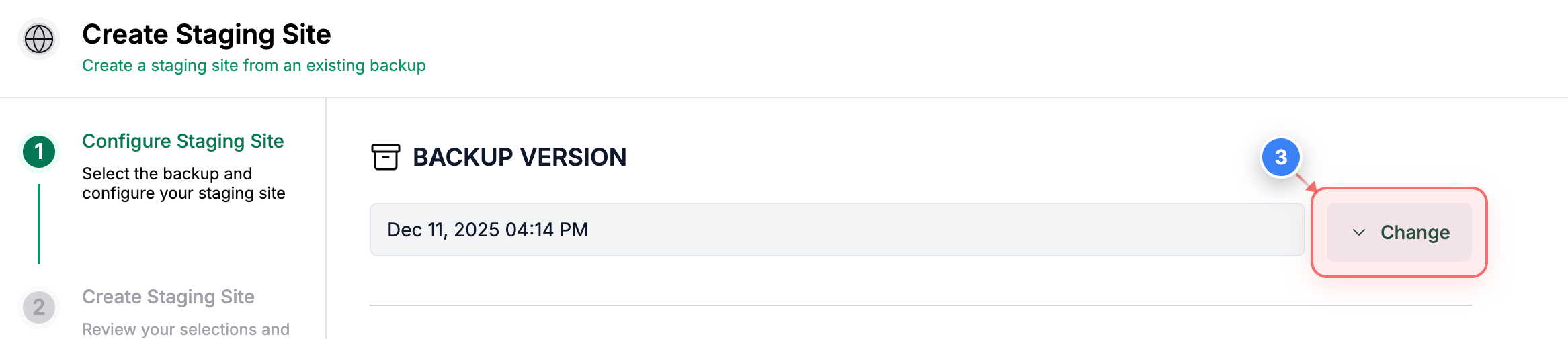
Modify Backup Version
Click on the Change button next to the BACKUP VERSION section on the right side of the page to select a different backup for staging according to your requirements.
Note: By default, the latest backup is selected. You may choose an older version if needed.
Step 3 screenshot
Step 4 of 10
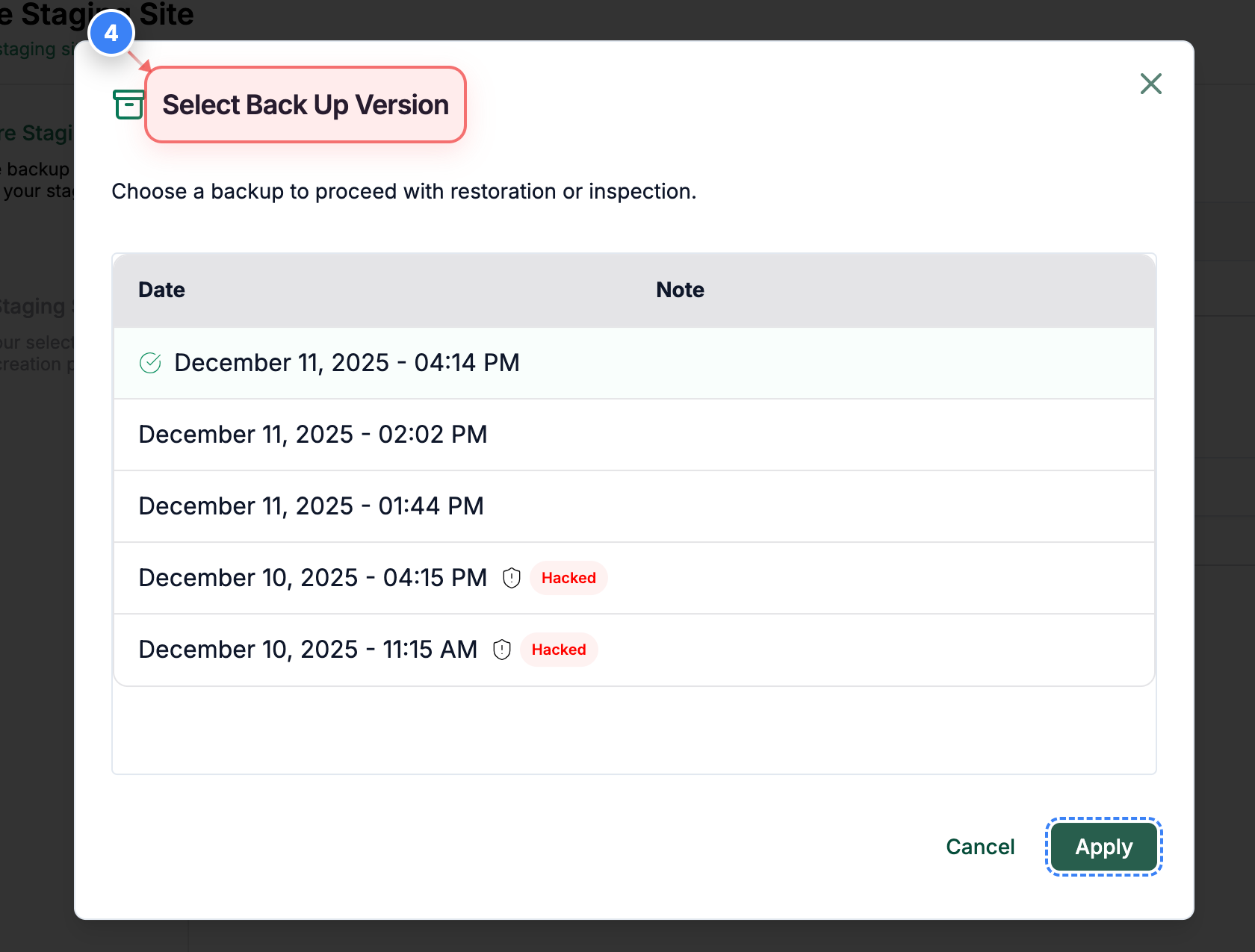
Select Desired Backup Version
In the Select Back Up Version dialog box, select the backup date and time you wish to use.
Note: Review the backup list to ensure you select the correct version.
Step 4 screenshot
Step 5 of 10
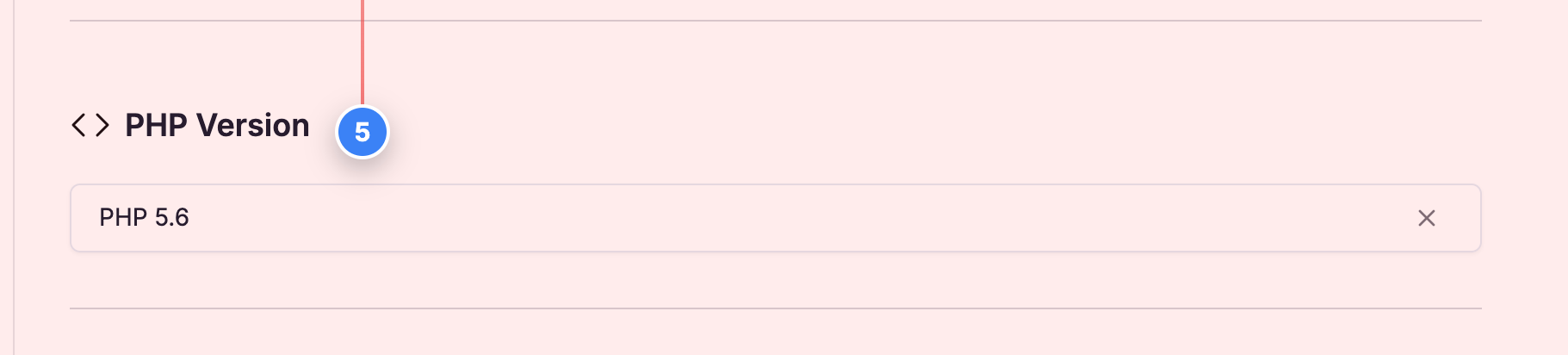
PHP Selection
Select the PHP version from the Drop-down you want to use for your staging site.
Step 5 screenshot
Step 6 of 10
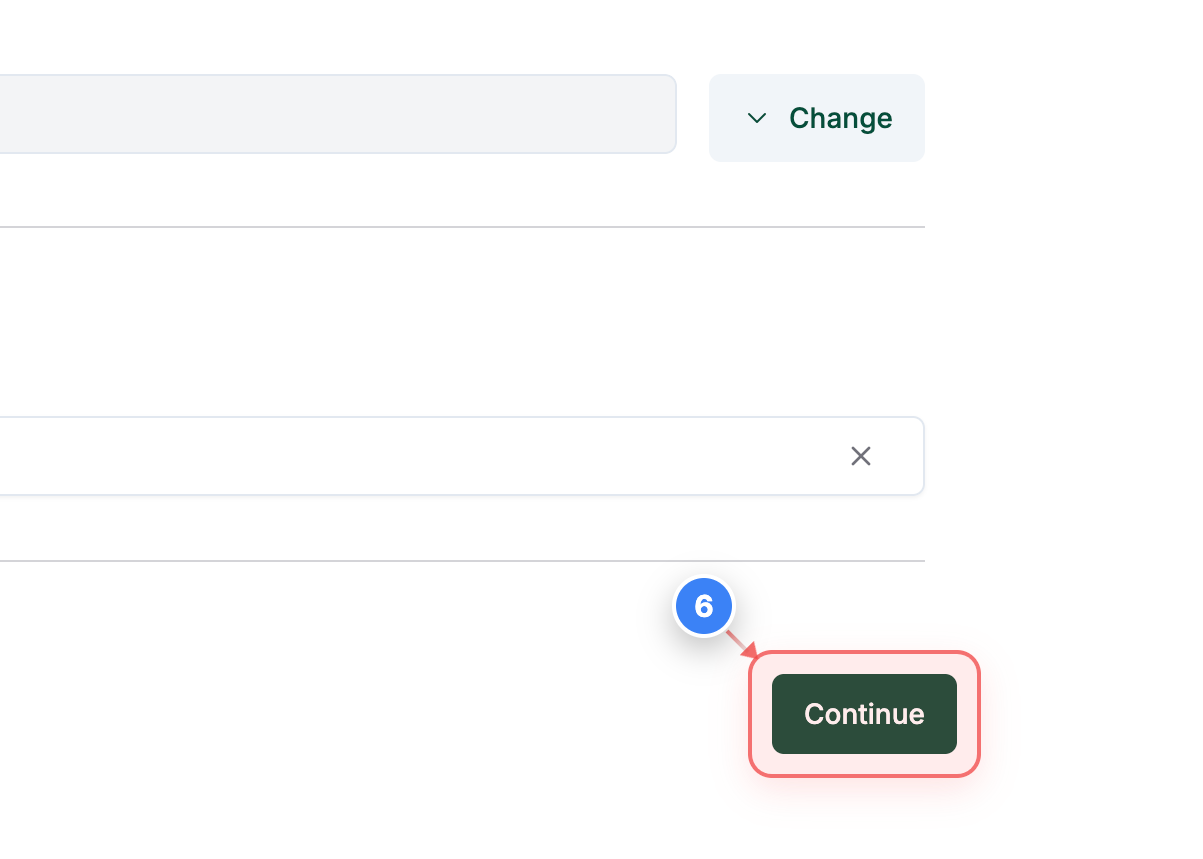
Proceed to Staging Site Summary Page
Click the Continue button on the right side of the page to proceed to the staging site creation summary.
Step 6 screenshot
Step 7 of 10
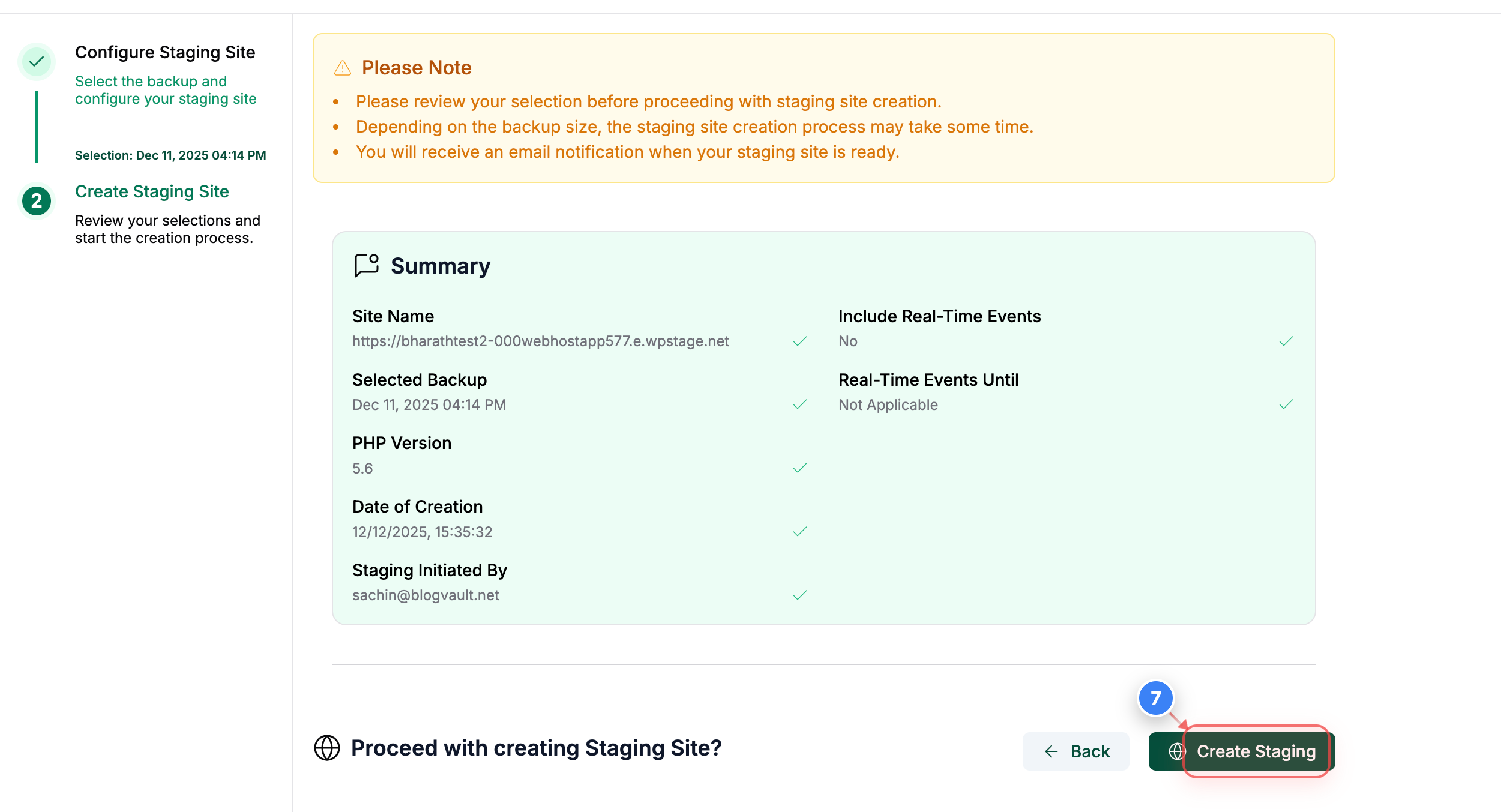
Finalize Staging Site Creation
Review the summary and click Create Staging in the bottom-right area of the page to start the process.
Note: Creating the staging site may take some time depending on your site's size. You will receive an email notification upon completion.
Step 7 screenshot
Step 8 of 10
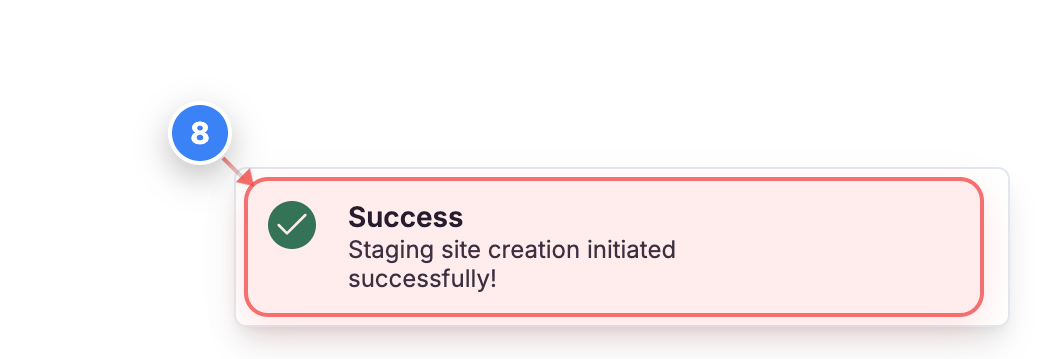
View Task Status
You will see the Success notification (bottom-right area) that confirms 'Staging site creation initiated successfully!'.
Note: Kindly monitor the staging site creation progress.
Step 8 screenshot
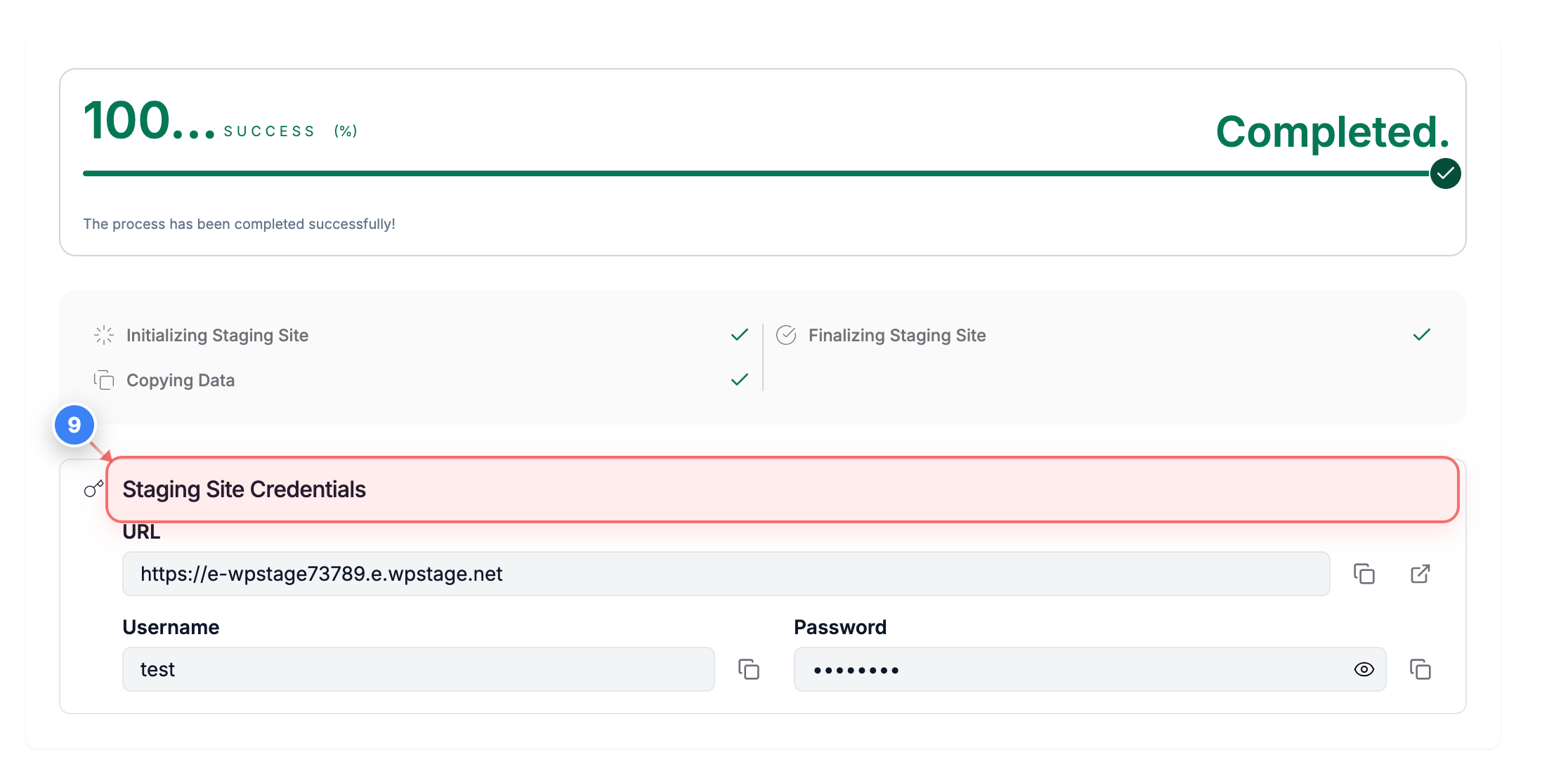
Step 9 of 10
Retrieve Staging Site Credentials
Once the Staging site is created (100%.. SUCCESS), you will see the Staging Site Credentials section in the center of the page to view the URL and login details for your new site.
Note: You will need these credentials to access your newly created staging site.
Step 9 screenshot
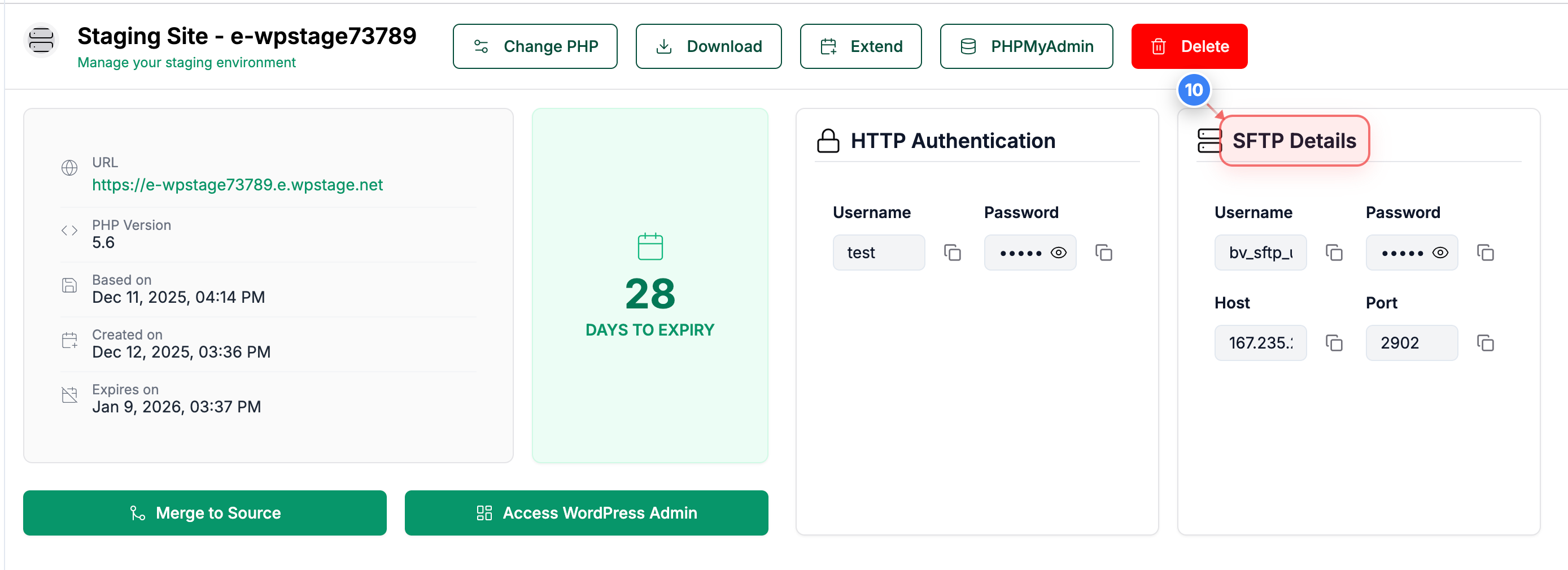
Step 10 of 10
To Access SFTP Details
Navigate to the Staging site section to find and view the SFTP Details of your Staging site. On this page, you will see other options to manage your staging site. For example, Download, Extend, PHPMyAdmin, Staging Deletion, etc.
Note: SFTP details are used for securely transferring files to and from your staging environment.
Step 10 screenshot

Was this article helpful?

That’s Great!

Thank you for your feedback

Sorry! We couldn't be helpful

Thank you for your feedback

Let us know how can we improve this article!

Select at least one of the reasons

Feedback sent

We appreciate your effort and will try to fix the article