How Can I Merge Specific Changes from Staging to Live Site?

Created by Sachin B, Modified on Fri, 30 Jan at 1:27 PM by Sachin B

Step 1 of 10
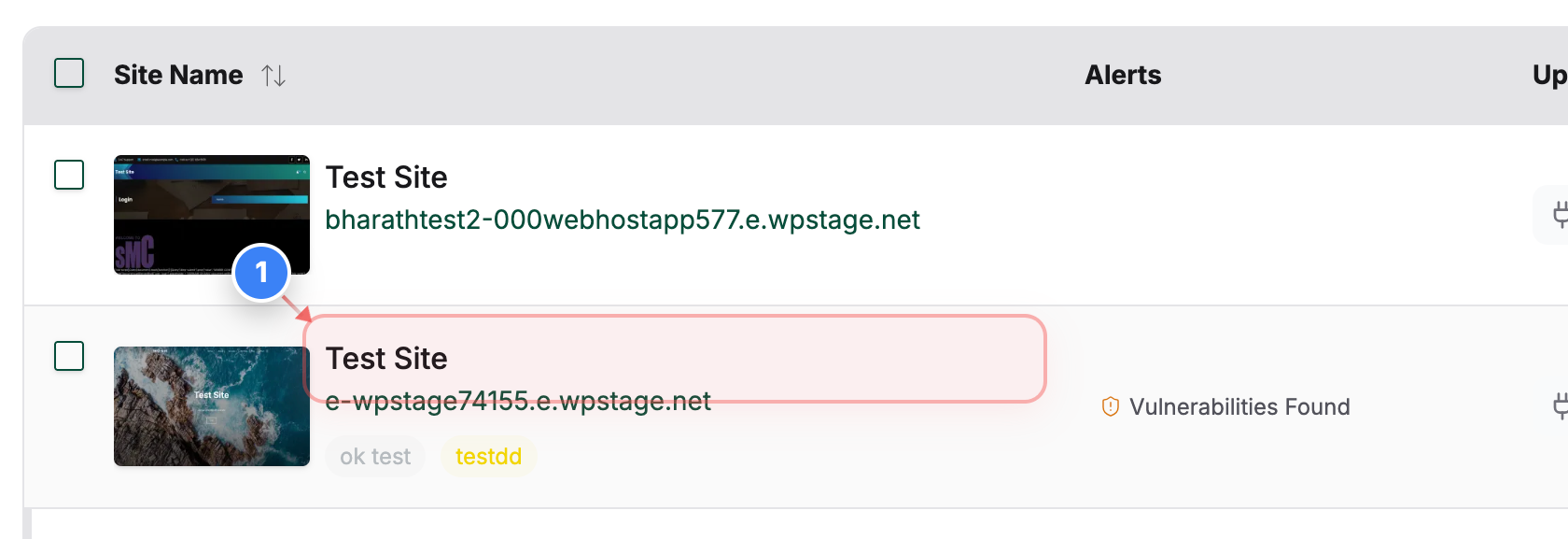
Open Your Site
Click on your site name in the center of the Sites page to open the Site Details dashboard and manage that site.
Step 1 screenshot
Step 2 of 10
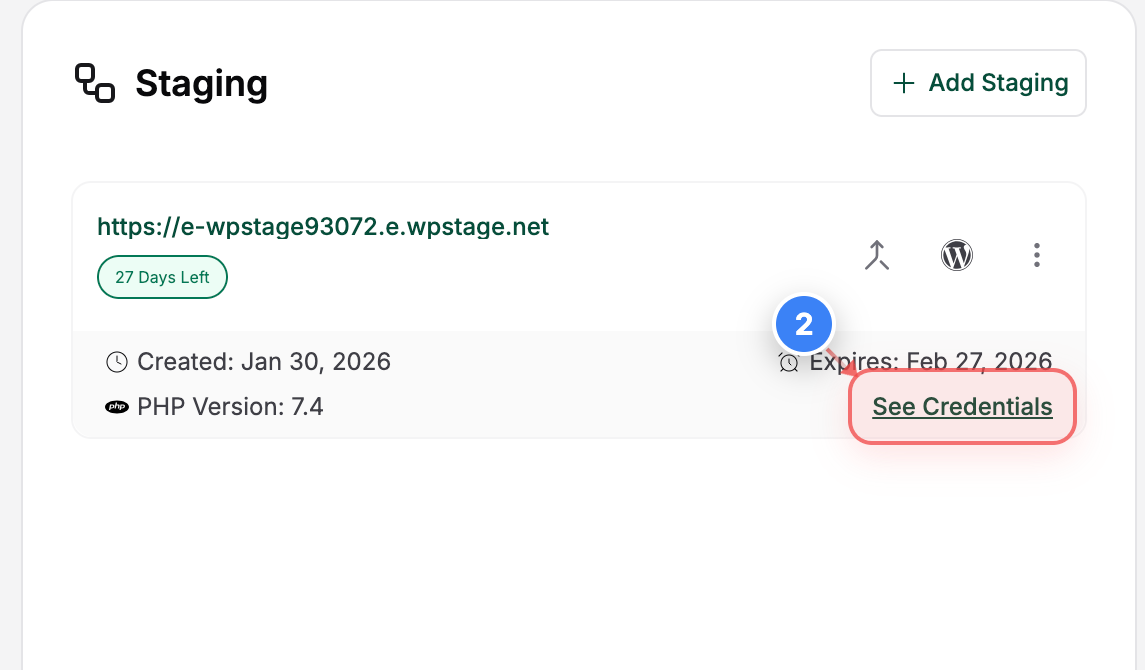
View Staging Site Credentials
Click the "See Credentials" button in the Site Details page to view login and access information for the selected site.
Step 2 screenshot
Step 3 of 10
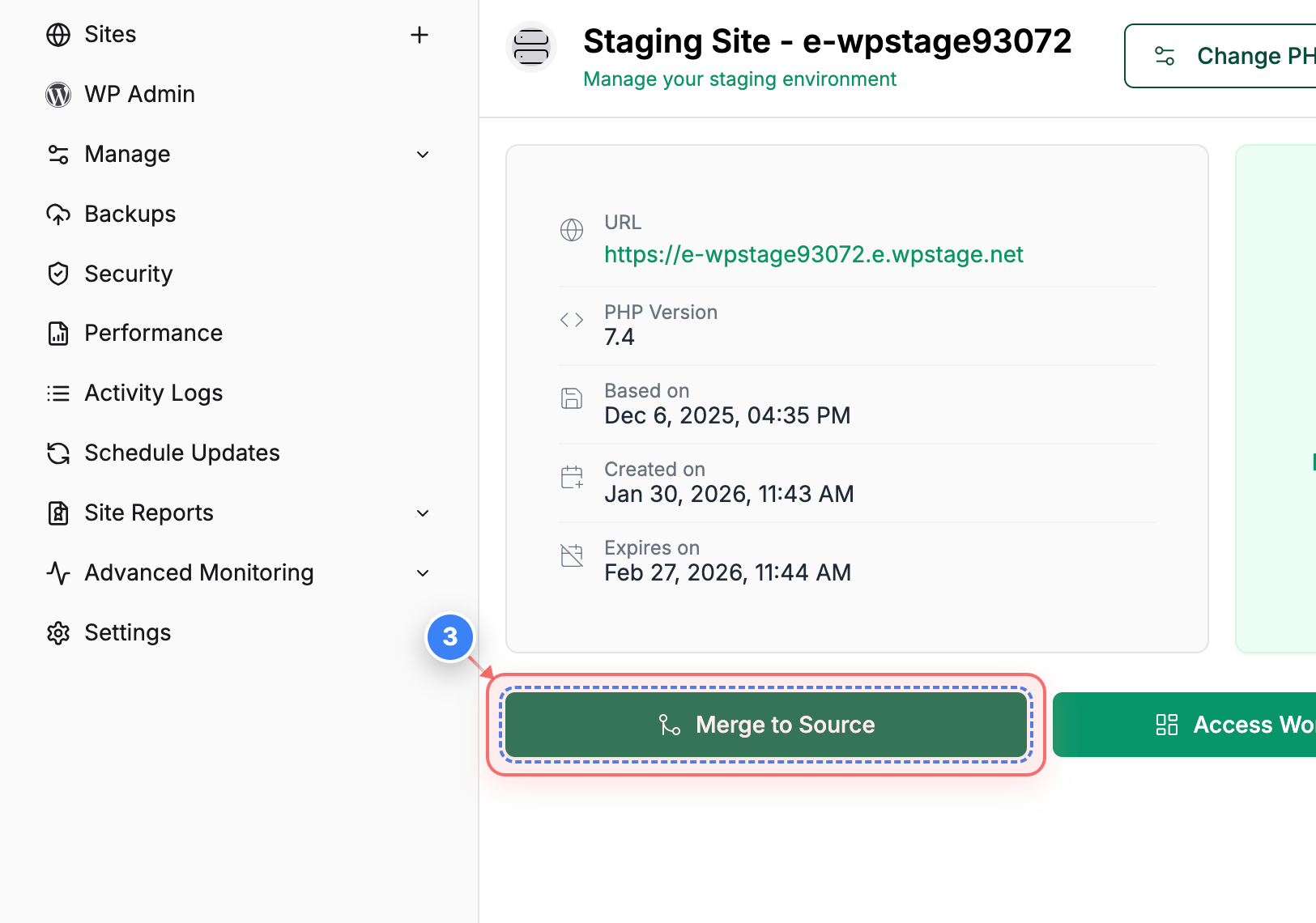
Start Merge to Live Site
Click the "Merge to Source" button on the staging site page to begin merging changes from staging to your live site.
Note: This opens the merge workflow where you can choose specific files and tables.
Step 3 screenshot
Step 4 of 10
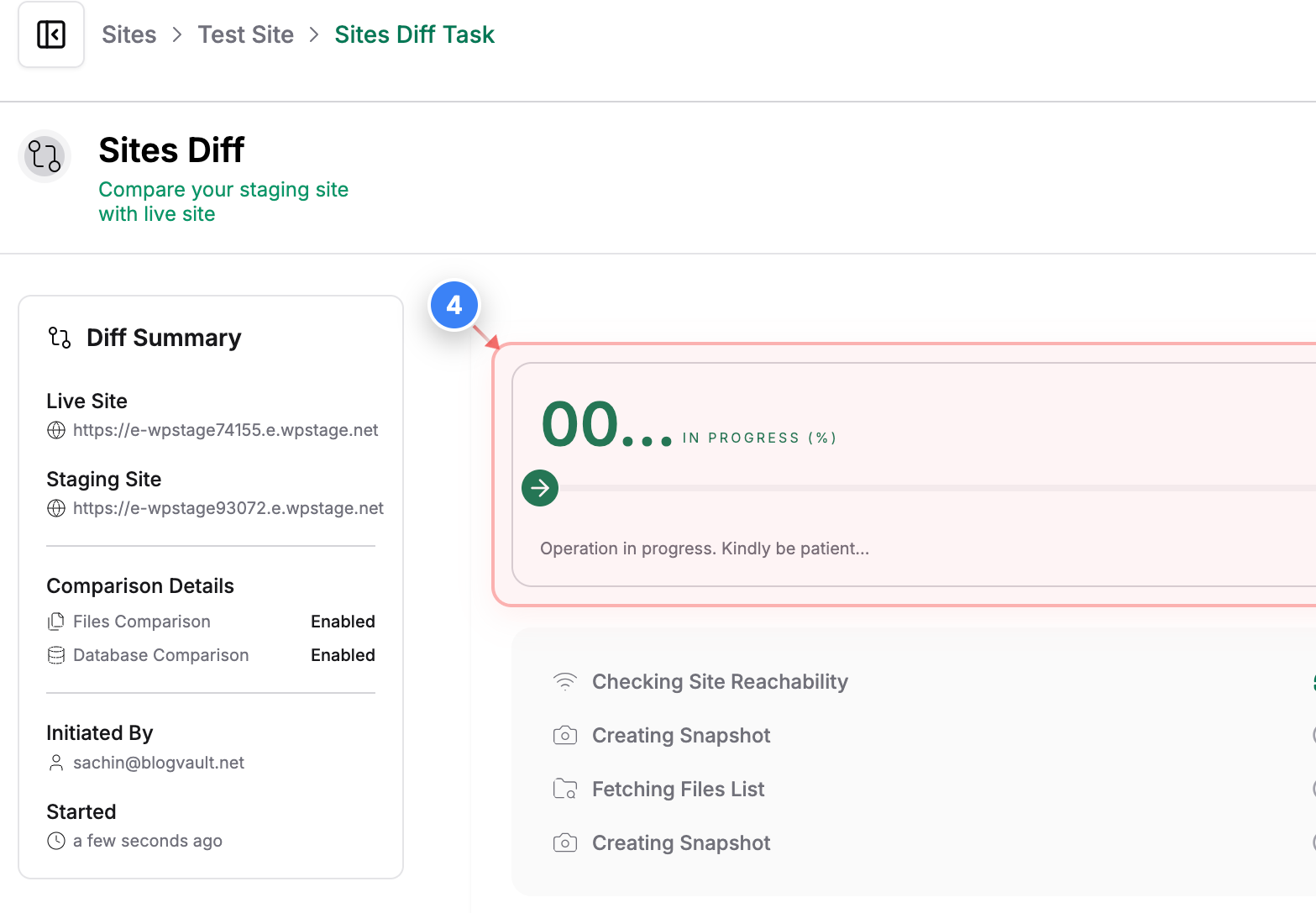
Monitor Merge Preparation
See the "In Progress" task panel on the Tasks page to view the merge preparation status and track its progress.
Note: Wait until the comparison process completes before selecting files or tables.
Step 4 screenshot
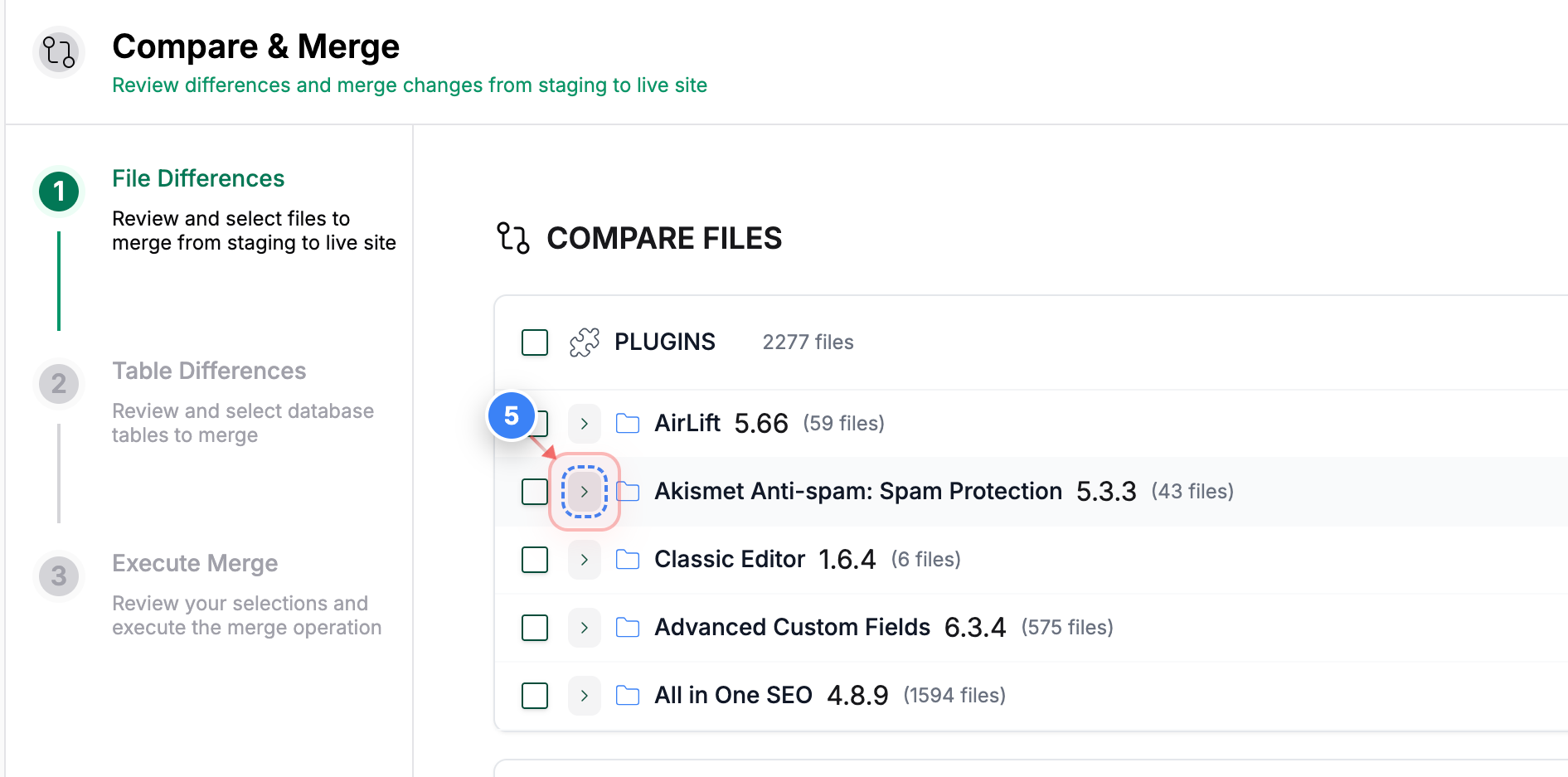
Step 5 of 10
Select Plugin Folder
Click the checkbox next to the Plugin folder in the Files selection screen to choose that folder for merging.
Note: You can expand folders to review individual files before selecting them.
Step 5 screenshot
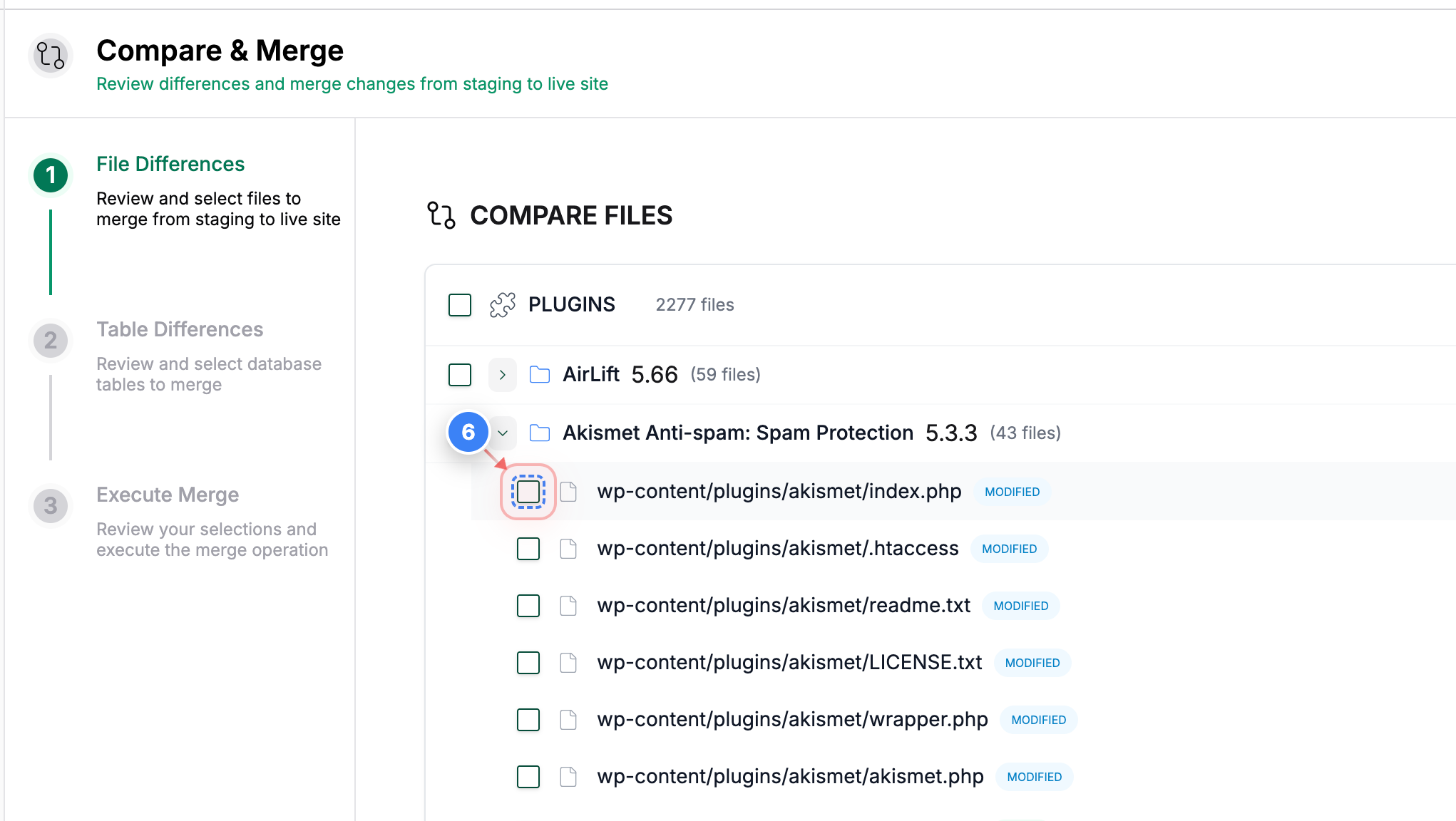
Step 6 of 10
Select Specific File
Click the checkbox in the Files list to include that specific file in the merge.
Note: In this example, one file is selected to demonstrate selective merge. You can select multiple files or use "Select All" if needed.
Step 6 screenshot
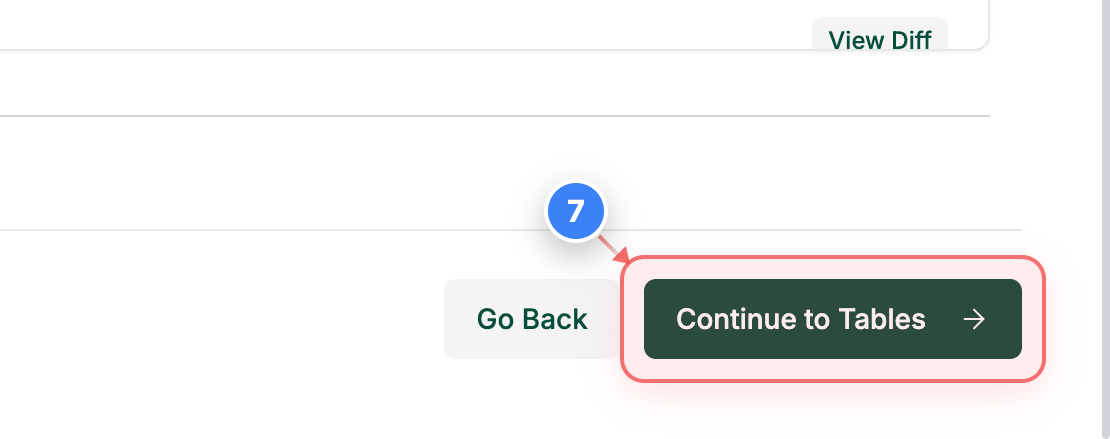
Step 7 of 10
Select Tables to Merge
Click the "Continue to Tables" button in the bottom-right area of the Files screen to proceed with selecting database tables.
Step 7 screenshot
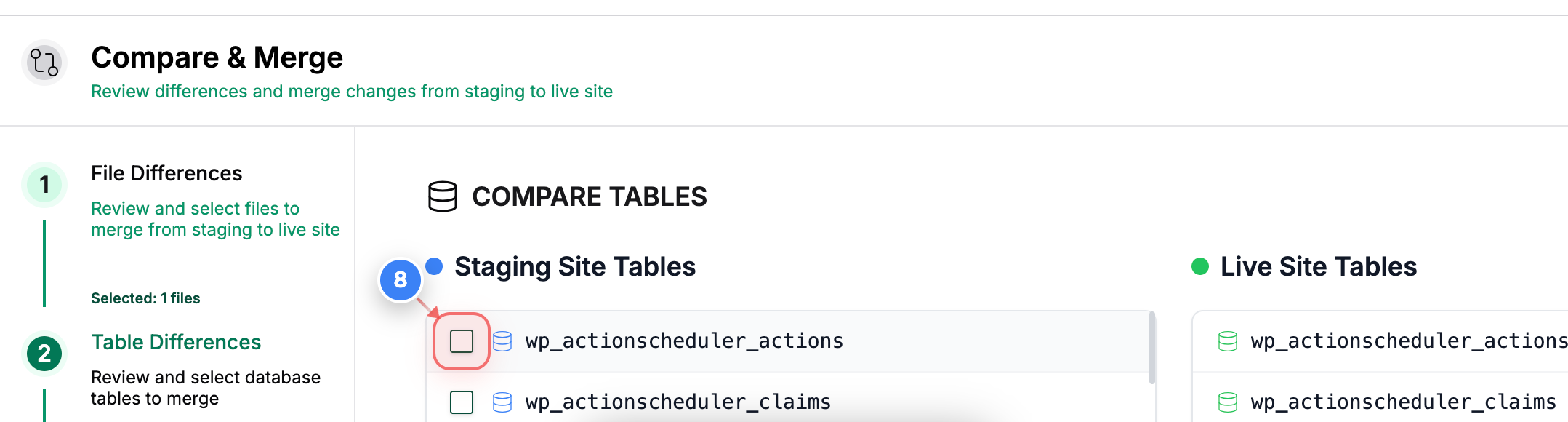
Step 8 of 10
Select Database Table
Click the checkbox next to the table in the Tables list to include that table in the merge.
Note: This example selects one table to demonstrate selective merging. You can select multiple tables or choose "Select All" if required.
Step 8 screenshot
Step 9 of 10
Proceed to Merge Summary
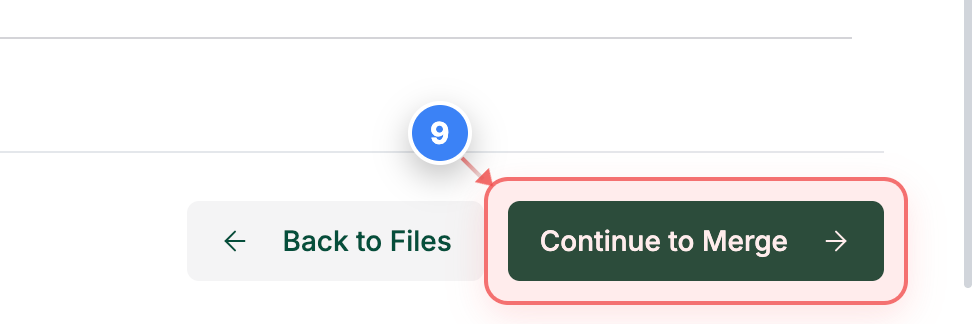
Click the "Continue to Merge" button in the bottom-right area of the Tables screen to review your selected files and tables.
Note: Review the selection count carefully before proceeding.
Step 9 screenshot
Step 10 of 10
Execute the Merge
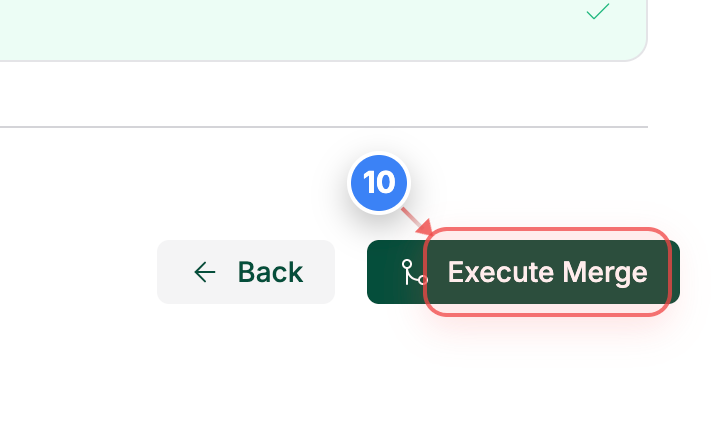
Click the "Execute Merge" button in the bottom-right area of the Merge Summary page to apply the selected files and tables to your live site.
Note: This action permanently overwrites the selected content on the live site.
Step 10 screenshot

Was this article helpful?

That’s Great!

Thank you for your feedback

Sorry! We couldn't be helpful

Thank you for your feedback

Let us know how can we improve this article!

Select at least one of the reasons

Feedback sent

We appreciate your effort and will try to fix the article