How Do I Create Reports?

Created by Bharath K, Modified on Thu, 11 Dec at 11:00 AM by Bharath K

Step 1 of 8
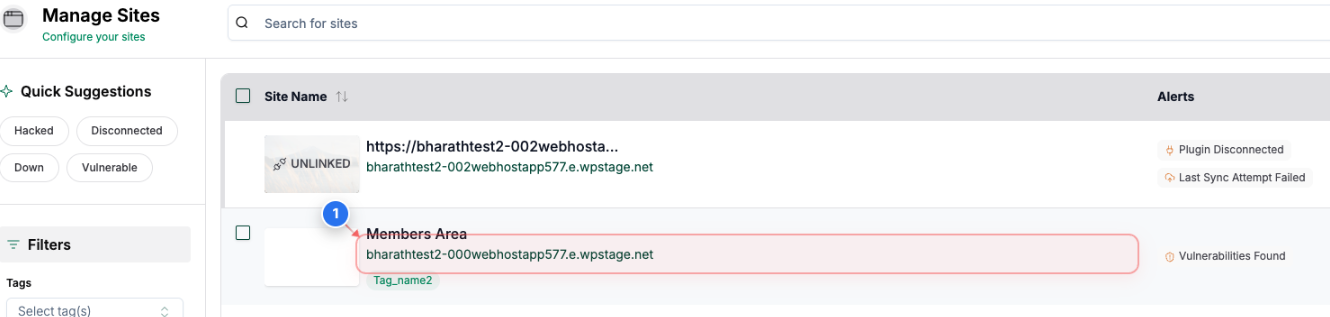
Select Your Website
Click on your site name in the center of the Sites page to access its management options
Note: Your site will be listed with its domain name and any associated tags
Step 2 of 8
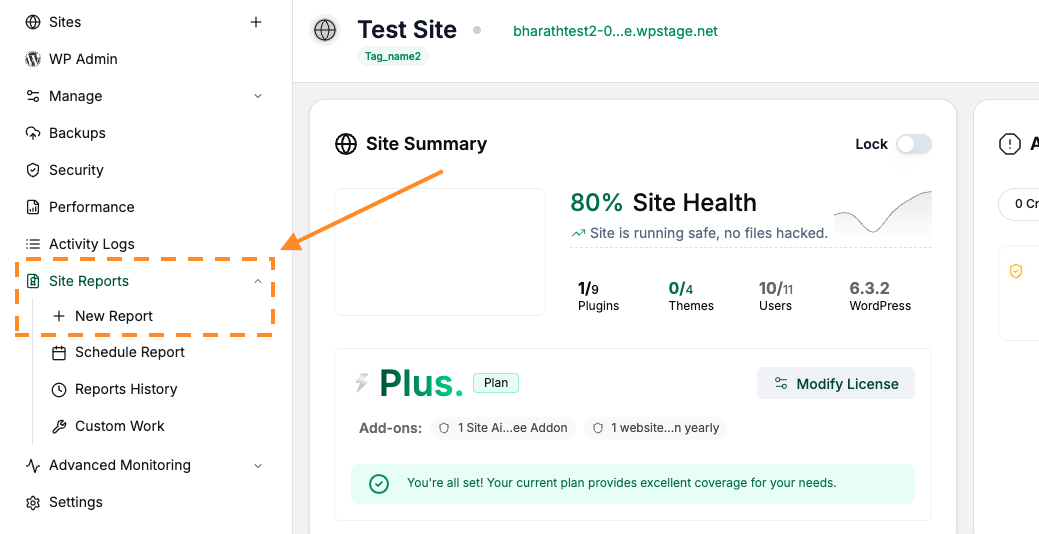
Access Reports Page
Click on the Site Reports drop down and select New Report option
Step 3 of 8
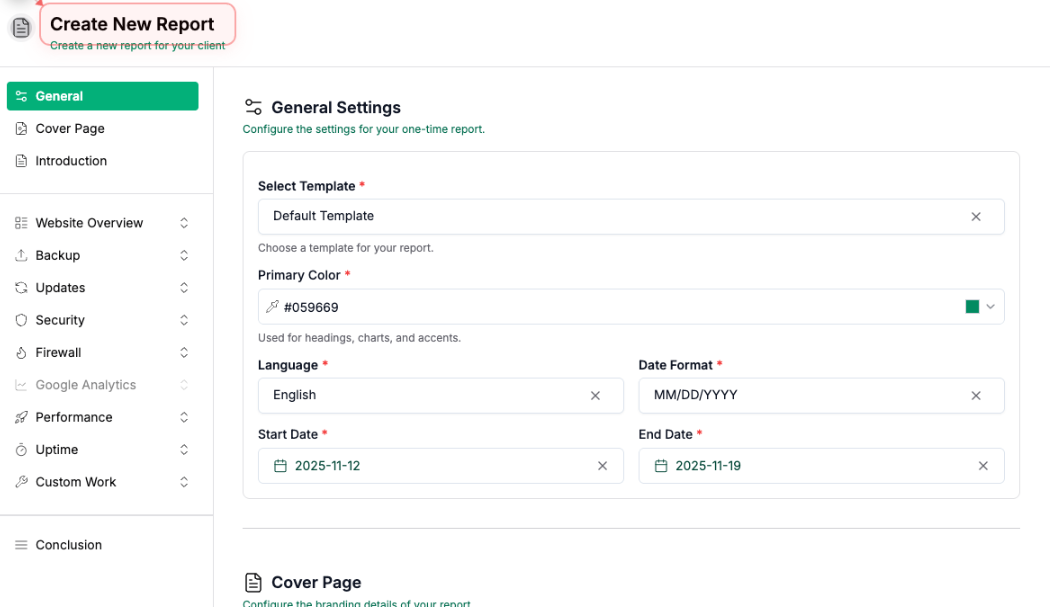
Start New Report Creation
From this page, you can customize the report based on your requirements: 
  • You can select the Start & End date between which you would like to get the report. 
  • You can select a pre-built template for the report or leave it to default. 
  • Add a custom logo and a cover image to replace the BlogVault defaults. 
  • Provide a Title, Introduction and Conclusion Message to the report. 
  • Select the data you would like to see in the report like Overview, Updates, Backup, Security, and more.

Step 4 of 8
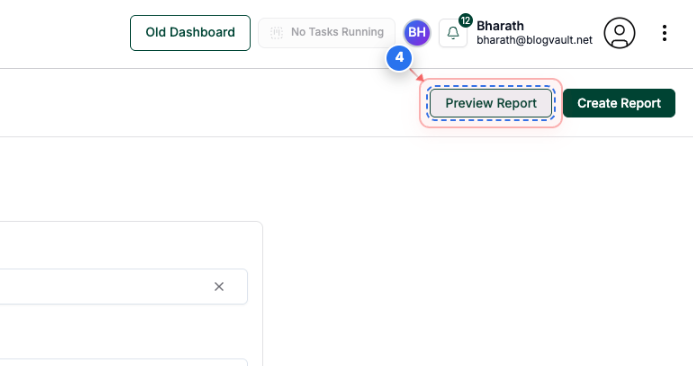
Preview Your Report
Click the "Preview Report" button in the top-right area to review the report before finalizing
Note: Previewing allows you to check the report content and formatting
Step 5 of 8
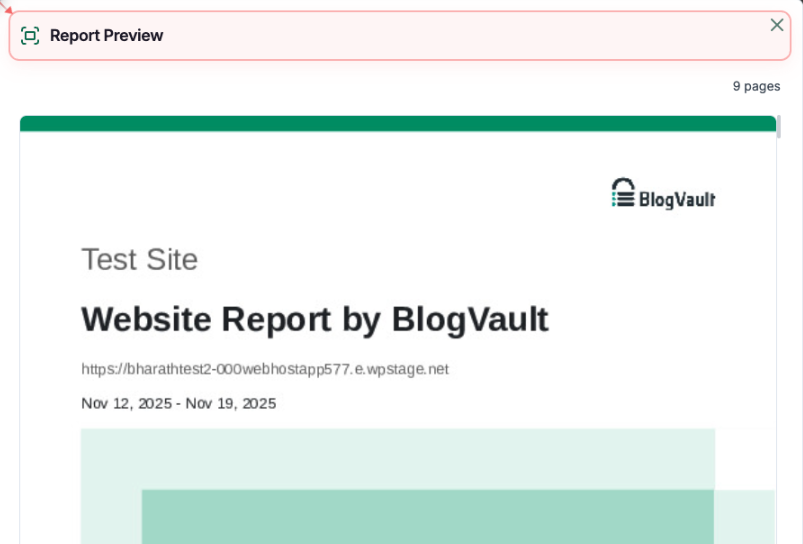
Review Report Preview
Report Preview dialogue box will open. You can preview the report before creating it.
Note: The preview shows all report pages and content layout
Step 6 of 8
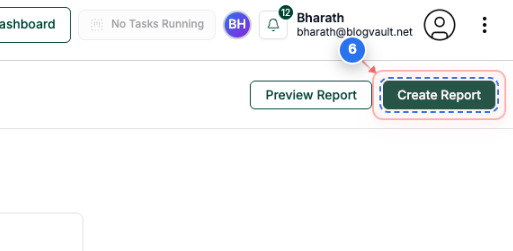
Finalize Report Creation
Click the "Create Report" button in the top-right area to generate the final report
Note: This processes and saves your report for distribution
Step 7.1 of 8
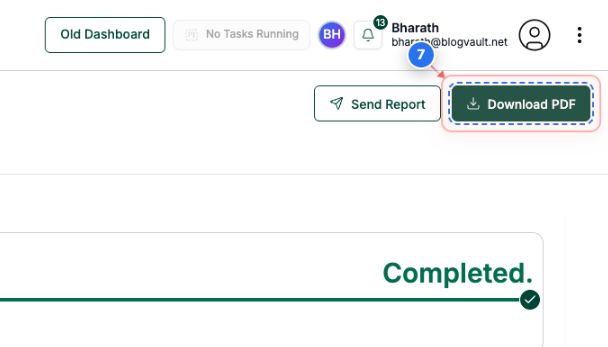
Download Report as PDF
Click the download icon button in the top-right area to save the report as a PDF file
Note: The download button features a downward arrow icon for easy recognition
Step 7.2 of 8
Access Email Sharing
Click the "Send Report" button in the top-right area to share the report via email
Note: The send button features a paper airplane icon for email distribution
Step 8 of 8
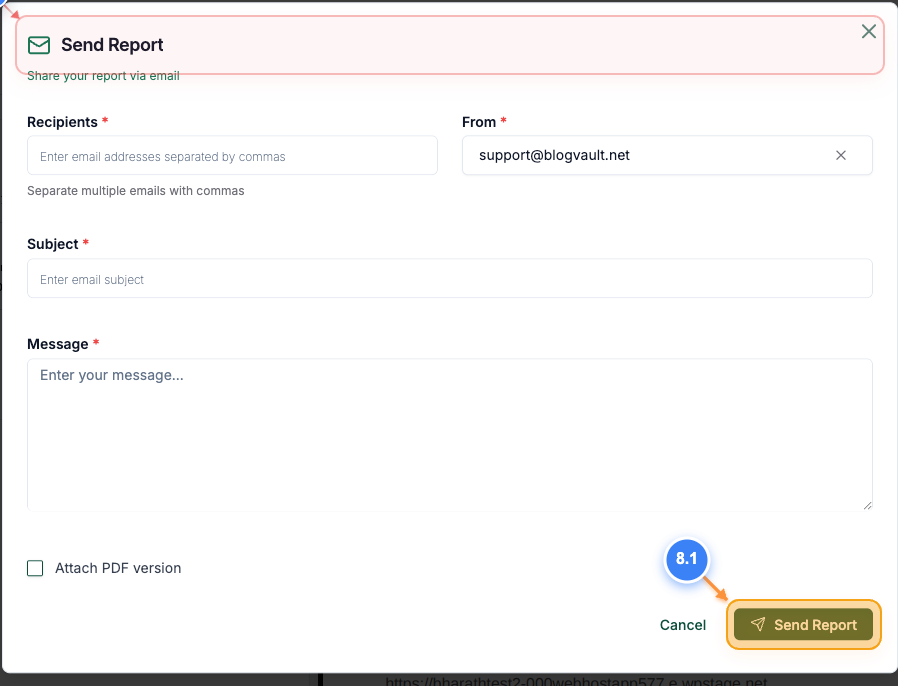
Configure Email Settings
Enter the Recipients, Subject, Message and Select the From address in the Send Report box. Click on the "Send Report" button to send the generated Report.
Note: This opens the email configuration panel for customizing your message
Step 8 screenshot

Was this article helpful?

That’s Great!

Thank you for your feedback

Sorry! We couldn't be helpful

Thank you for your feedback

Let us know how can we improve this article!

Select at least one of the reasons

Feedback sent

We appreciate your effort and will try to fix the article