To white-label the plugin for your account, follow the steps below:
Step 1: Sign in to your account.
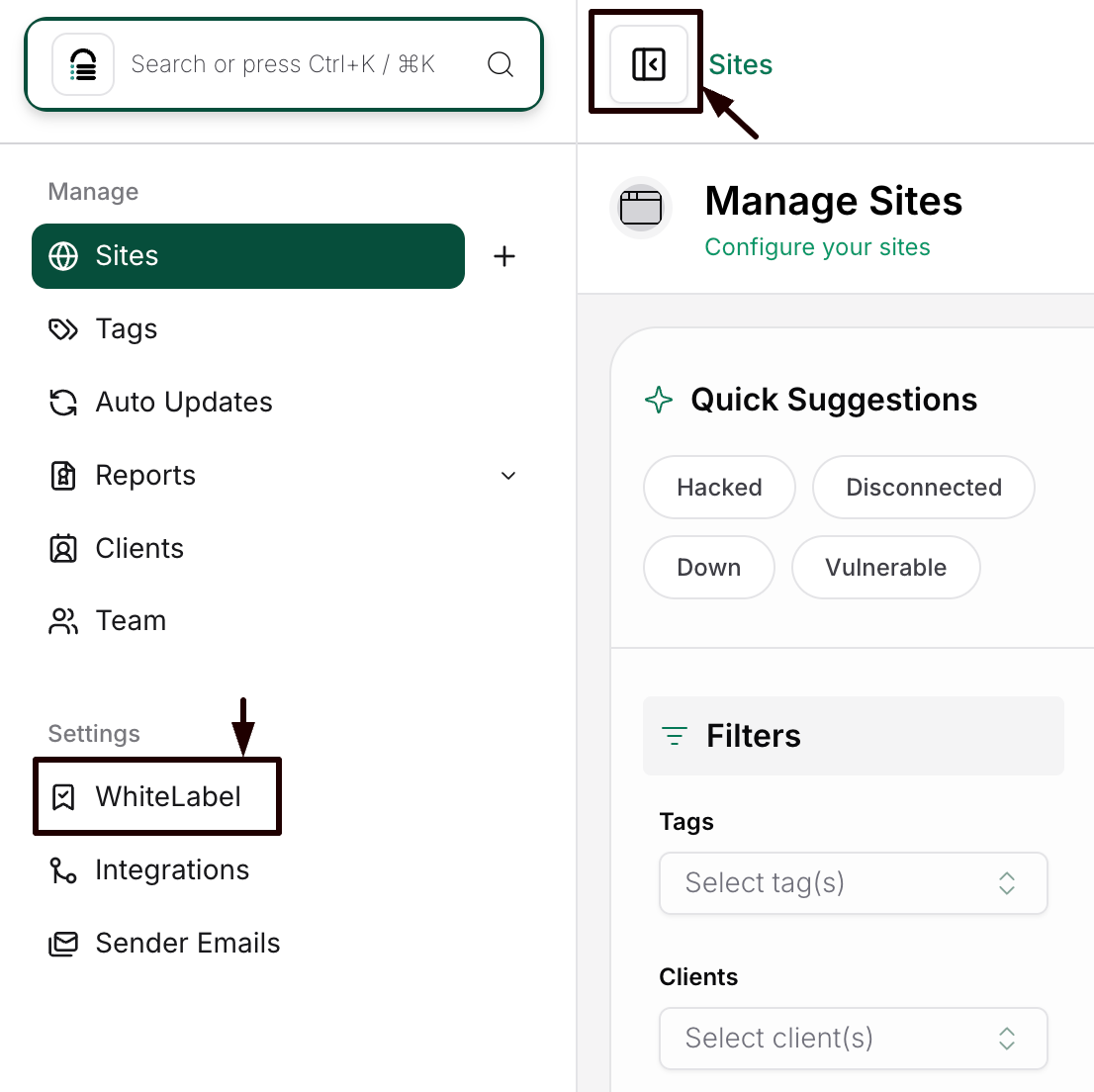
Step 2: Open the left side menu by clicking the button in the top left corner of the screen. The menu will appear. Click on White Label.
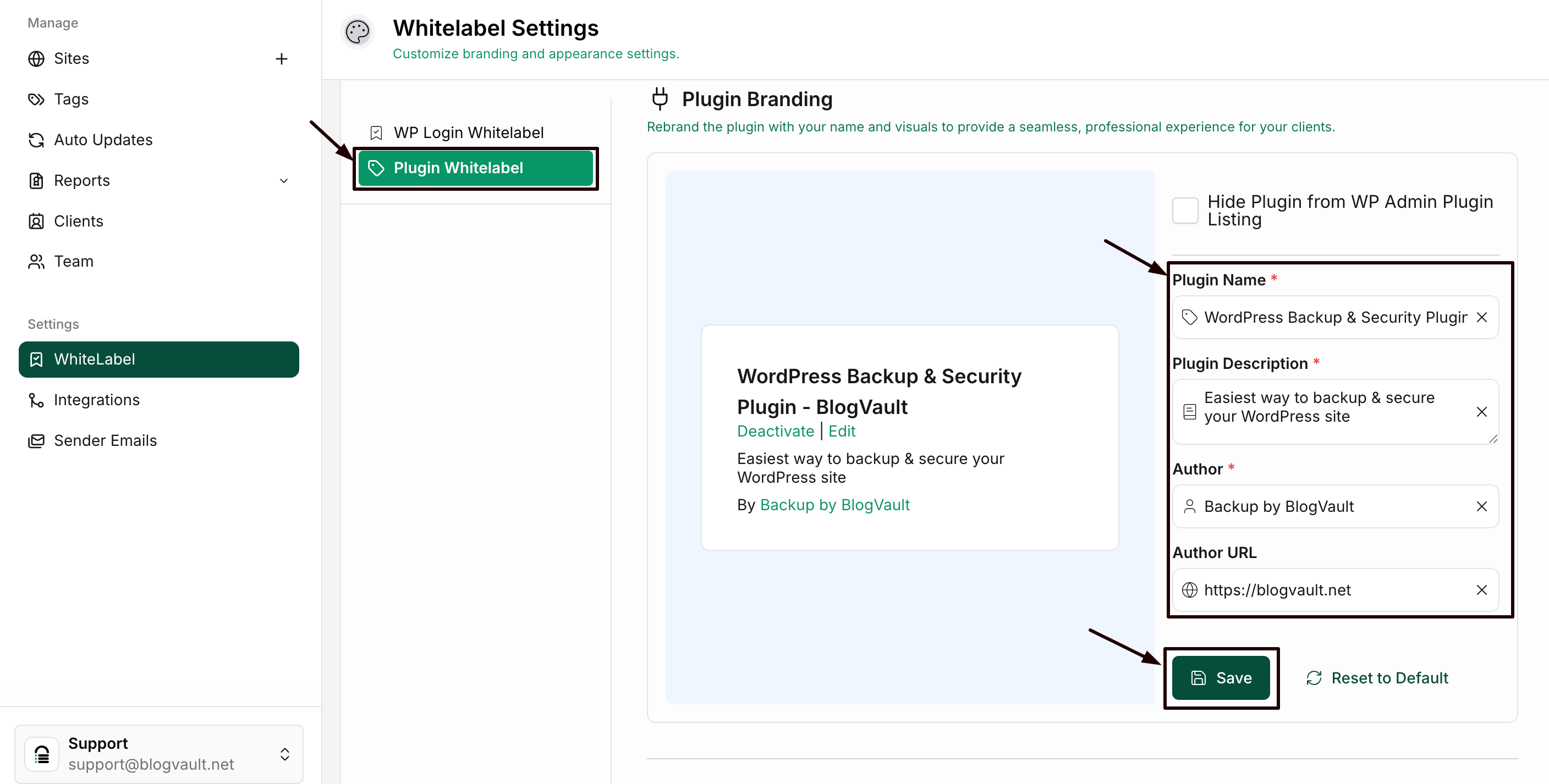
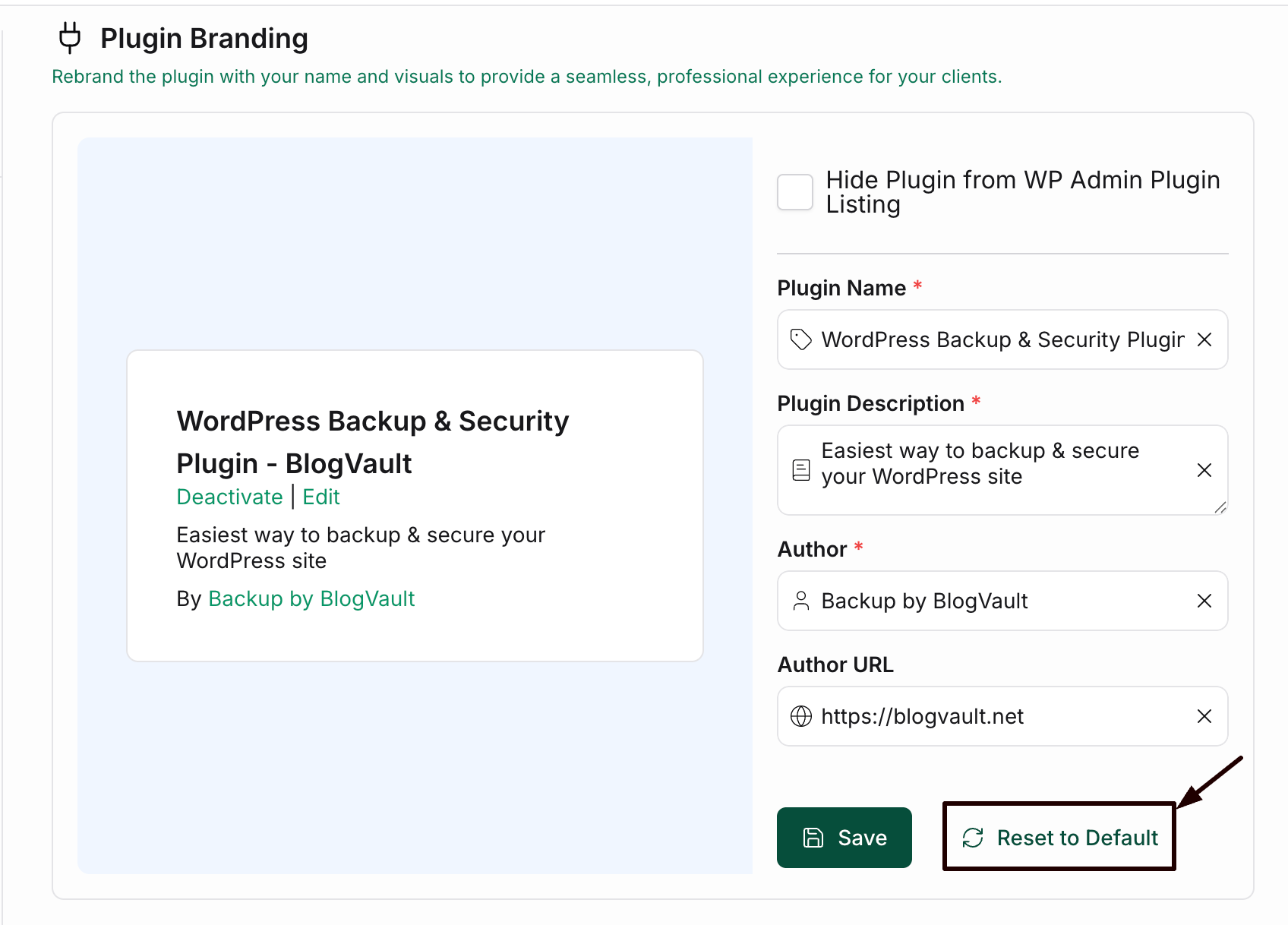
Step 3: It will open the White Label Settings. You can input a new name for the plugin and provide details such as the plugin description, author information, and URL in the provided form
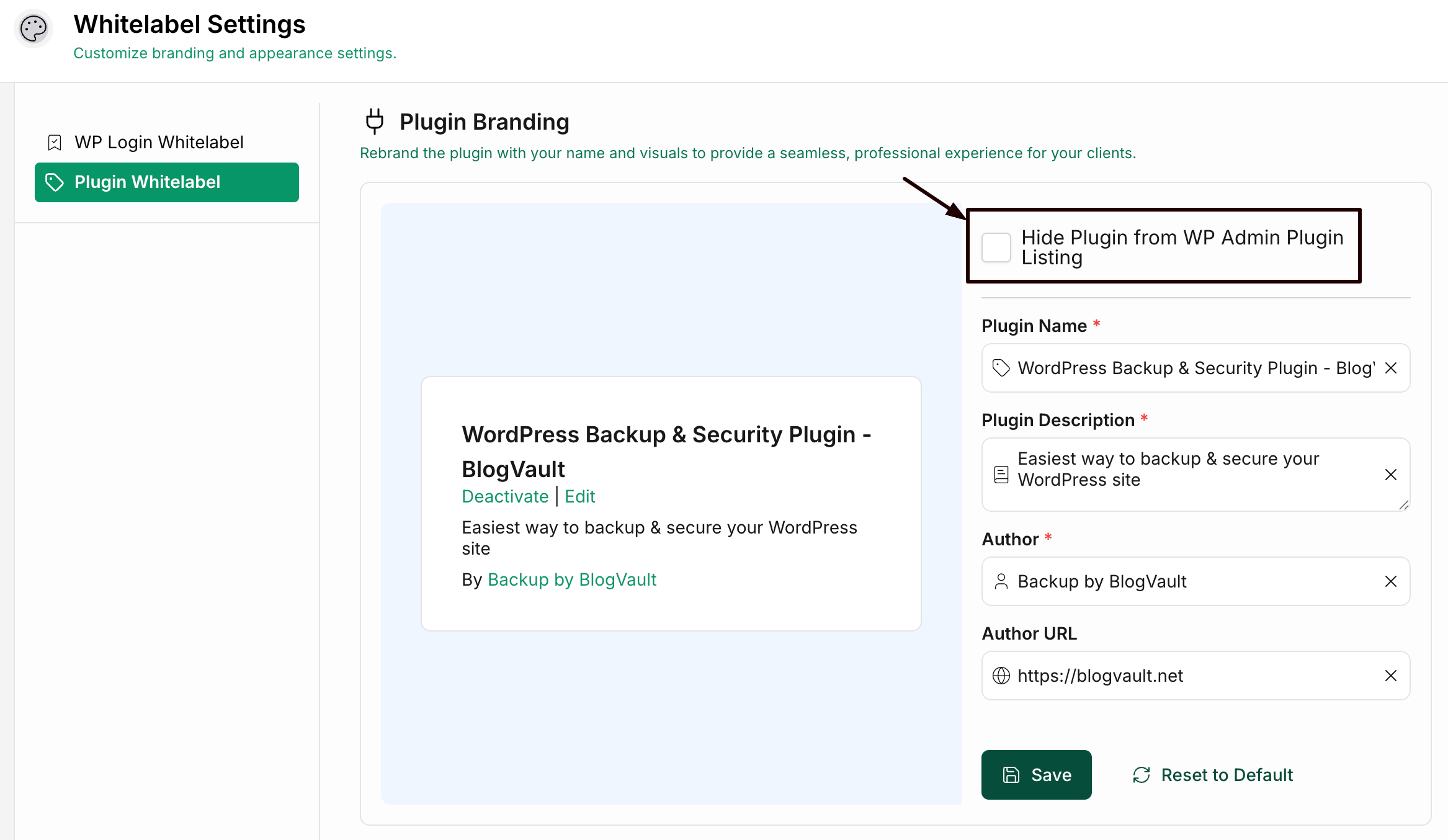
Step 4: Check the Hide Plugin from WP Admin Plugin Listing option to hide the plugin entirely.
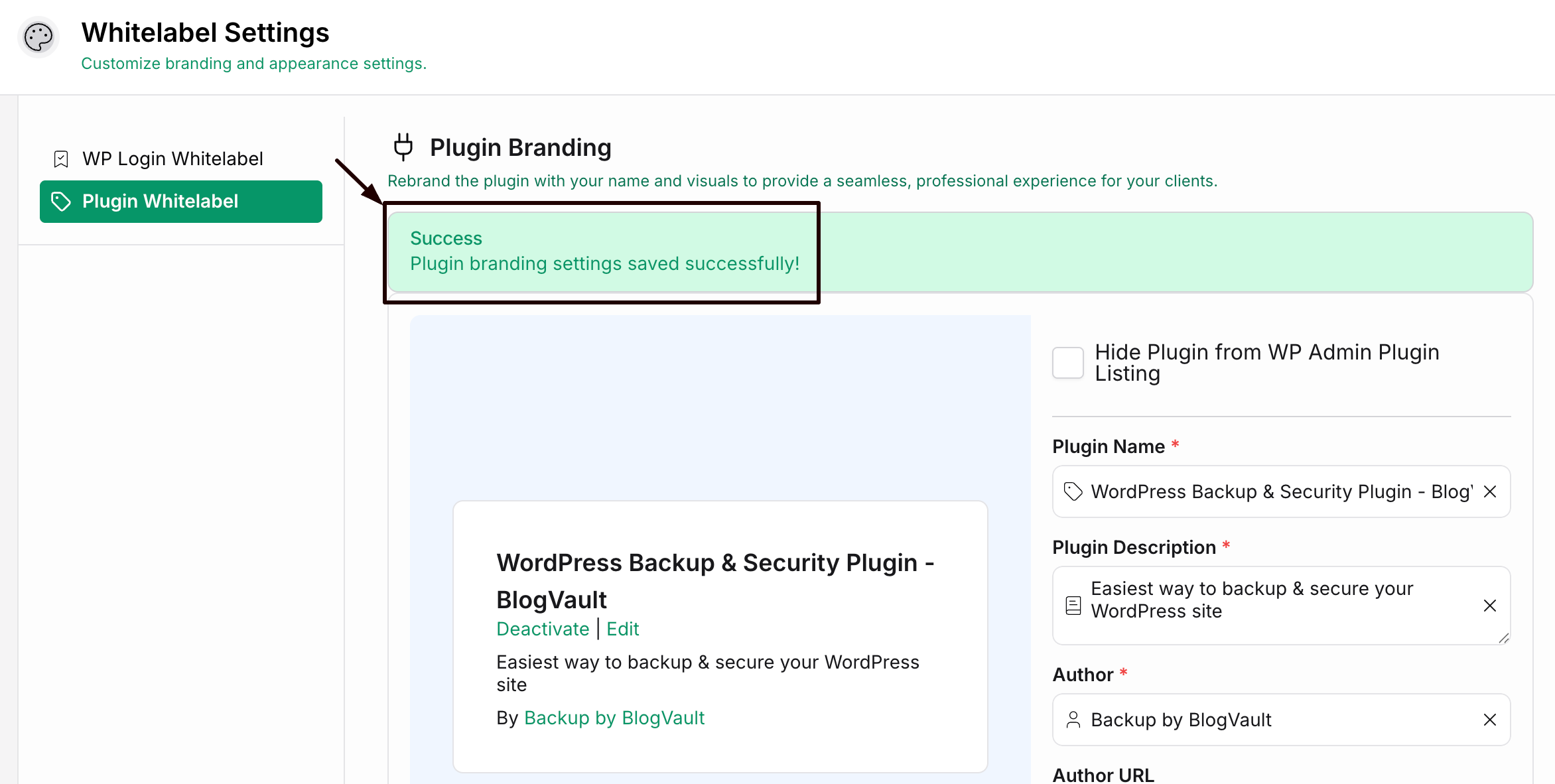
Step 5: Click Save.
Your settings will be saved, and a confirmation message will appear at the top.
Step 6: If you want to show the default name on your website again, click Reset to Default. The information about your brand is stored for your further use.
To white-label the Plugin for any site, follow the steps below:
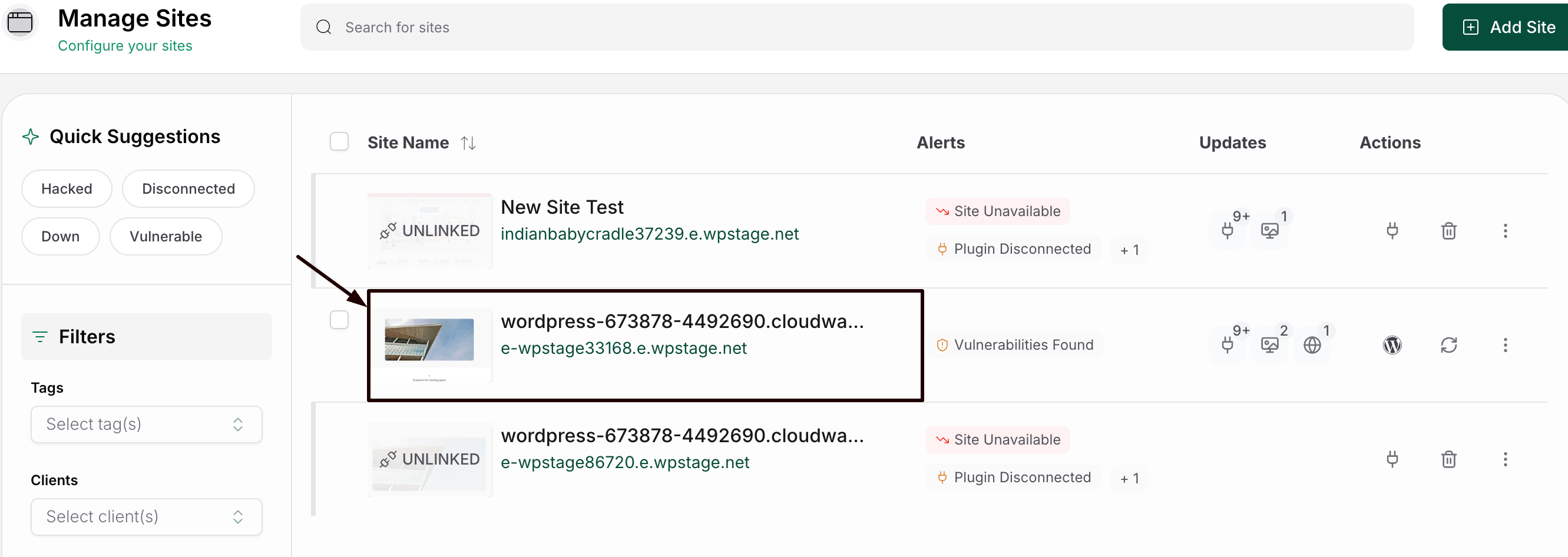
Step 1: Open the site details page for the site you want to apply the white-label to
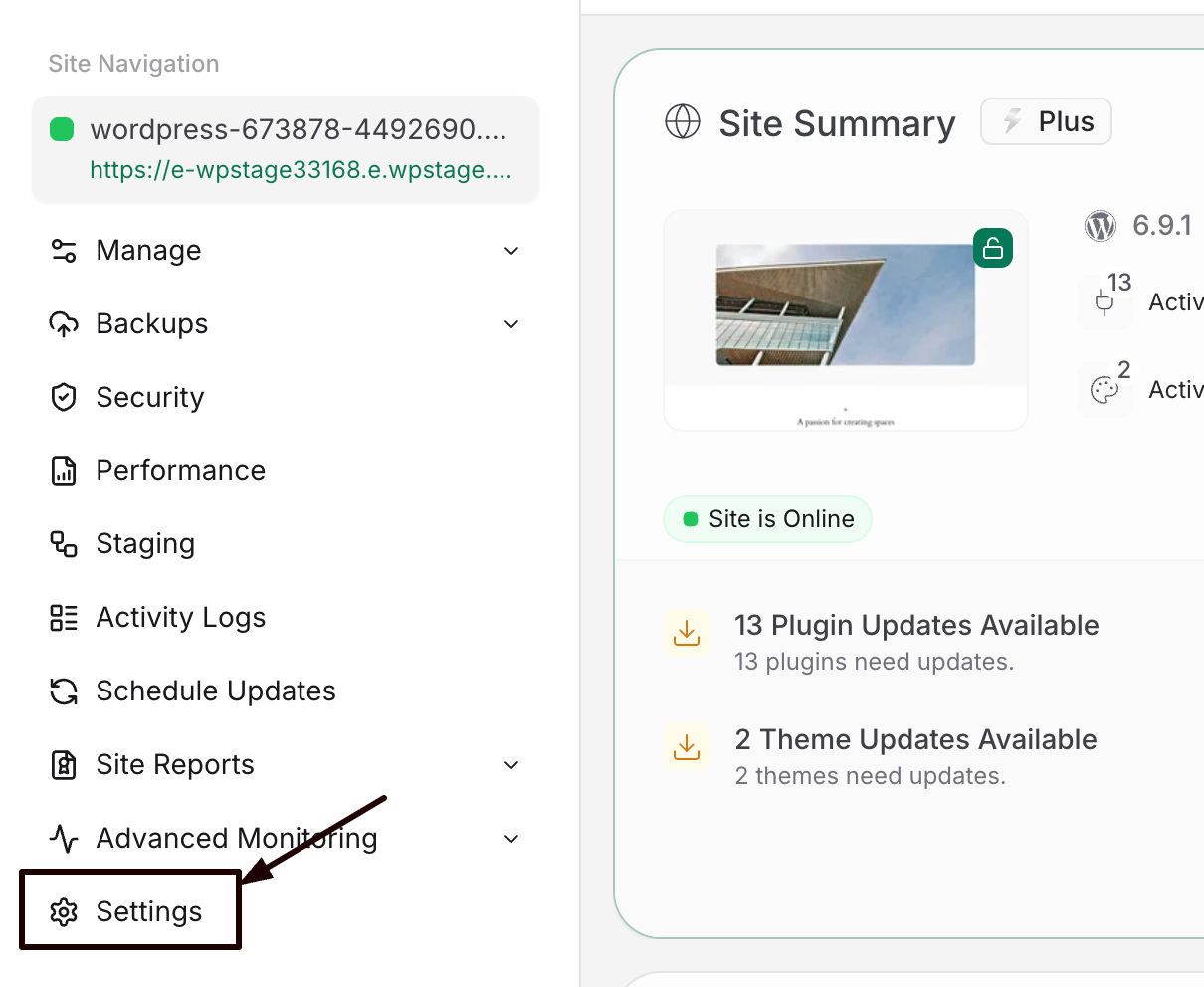
Step 2: Open the left side menu by clicking the button in the top left corner of the screen. The menu will appear. Click on White Label.
Step 3: Double-click on the "Plugin Branding" option:
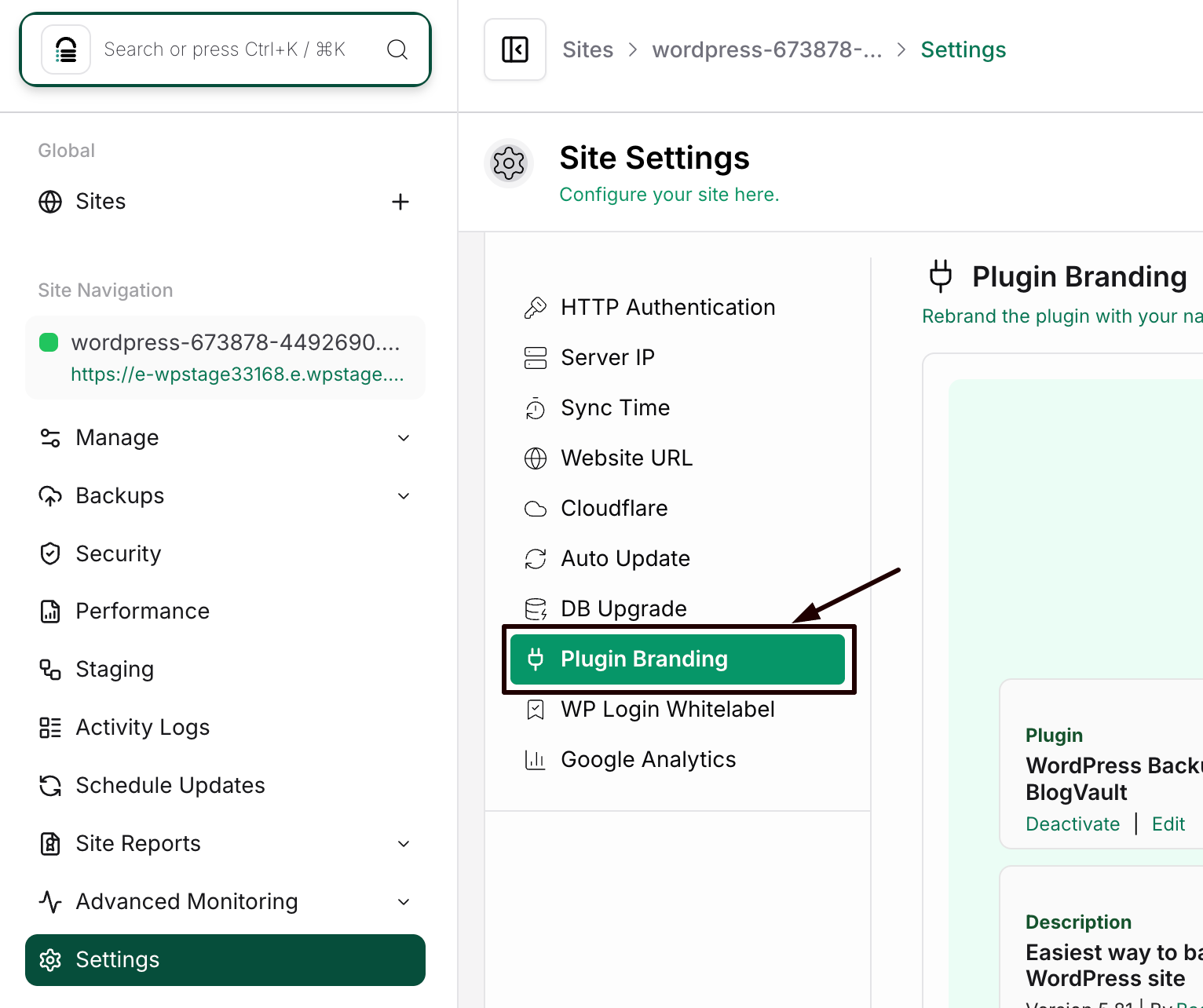
Step 4: The White Label settings will now be available. You can choose from the following options:
- No White Label – Displays the default plugin branding.
- Same As Account – Uses the branding configured at the account level.
- Hidden – Hides the plugin completely from the WP-Admin of the site.
- Custom – Allows you to create your own branding.
If you select Custom, you can enter a custom plugin name and update details such as the plugin description, author name, author URL, and other branding information using the form provided.
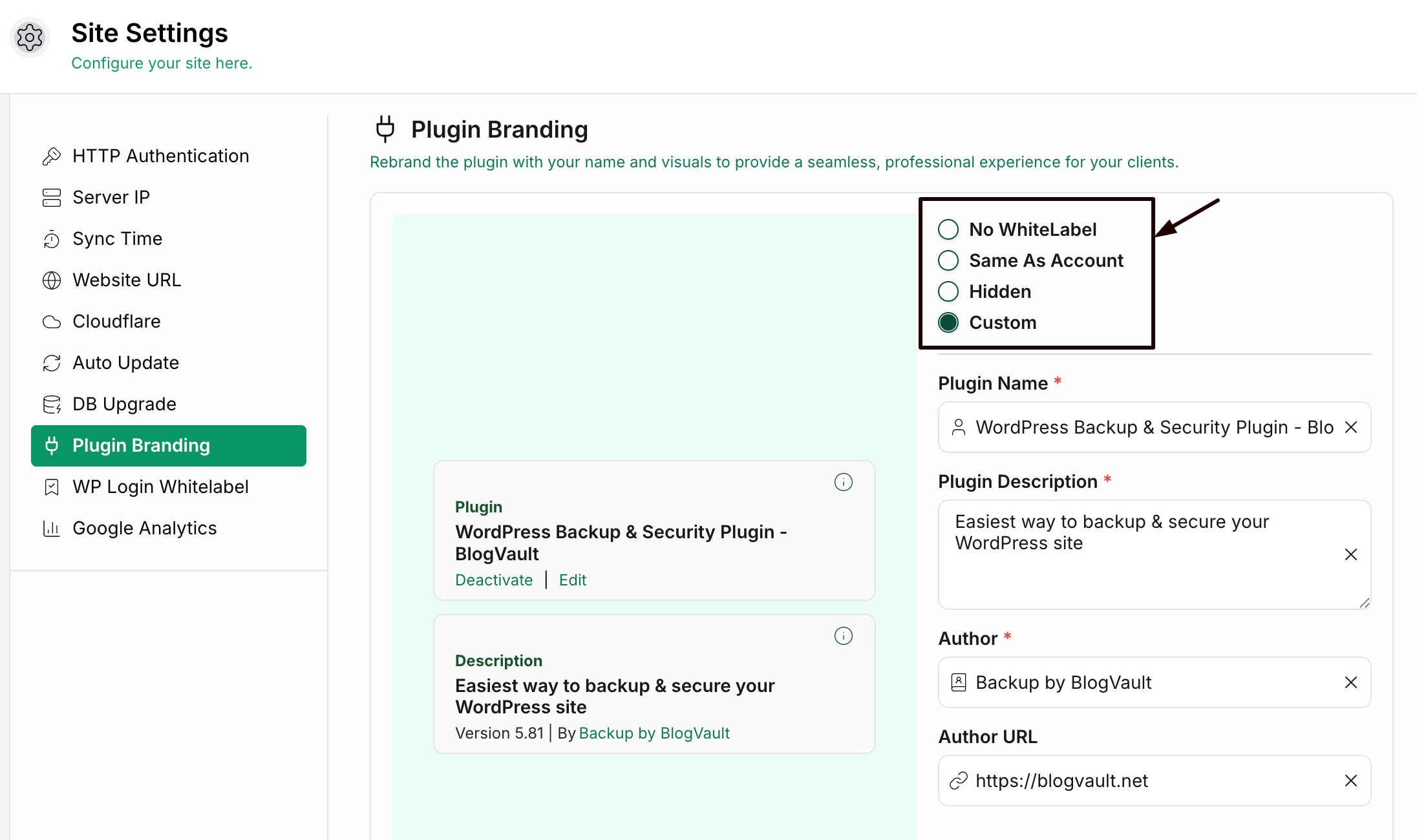
Step 5: Click Apply.
Now your website is white-labeled.
Note: The white-label feature is available for the agency plans.
Was this article helpful?
That’s Great!
Thank you for your feedback
Sorry! We couldn't be helpful
Thank you for your feedback
Feedback sent
We appreciate your effort and will try to fix the article