What is lock feature and what it does?

Created by Likhith Salian, Modified on Mon, 24 Nov at 8:35 PM by Likhith Salian

Step 1 of 11
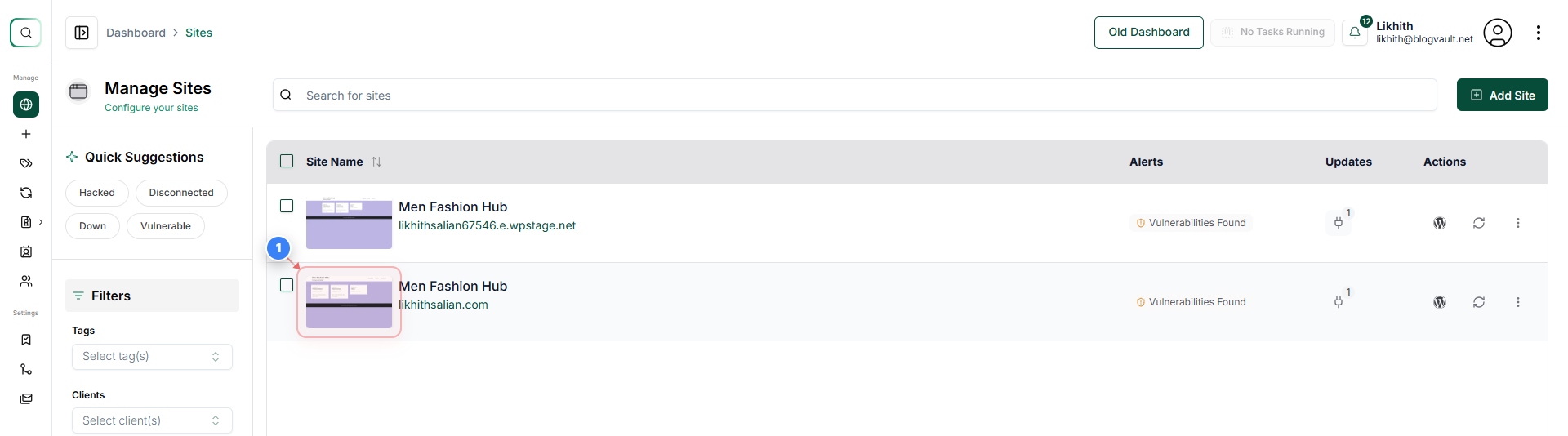
Open Site Overview
Click on your site.
Note: Use the site thumbnail or domain to confirm you opened the correct site.
Step 1 screenshot
Step 2 of 11
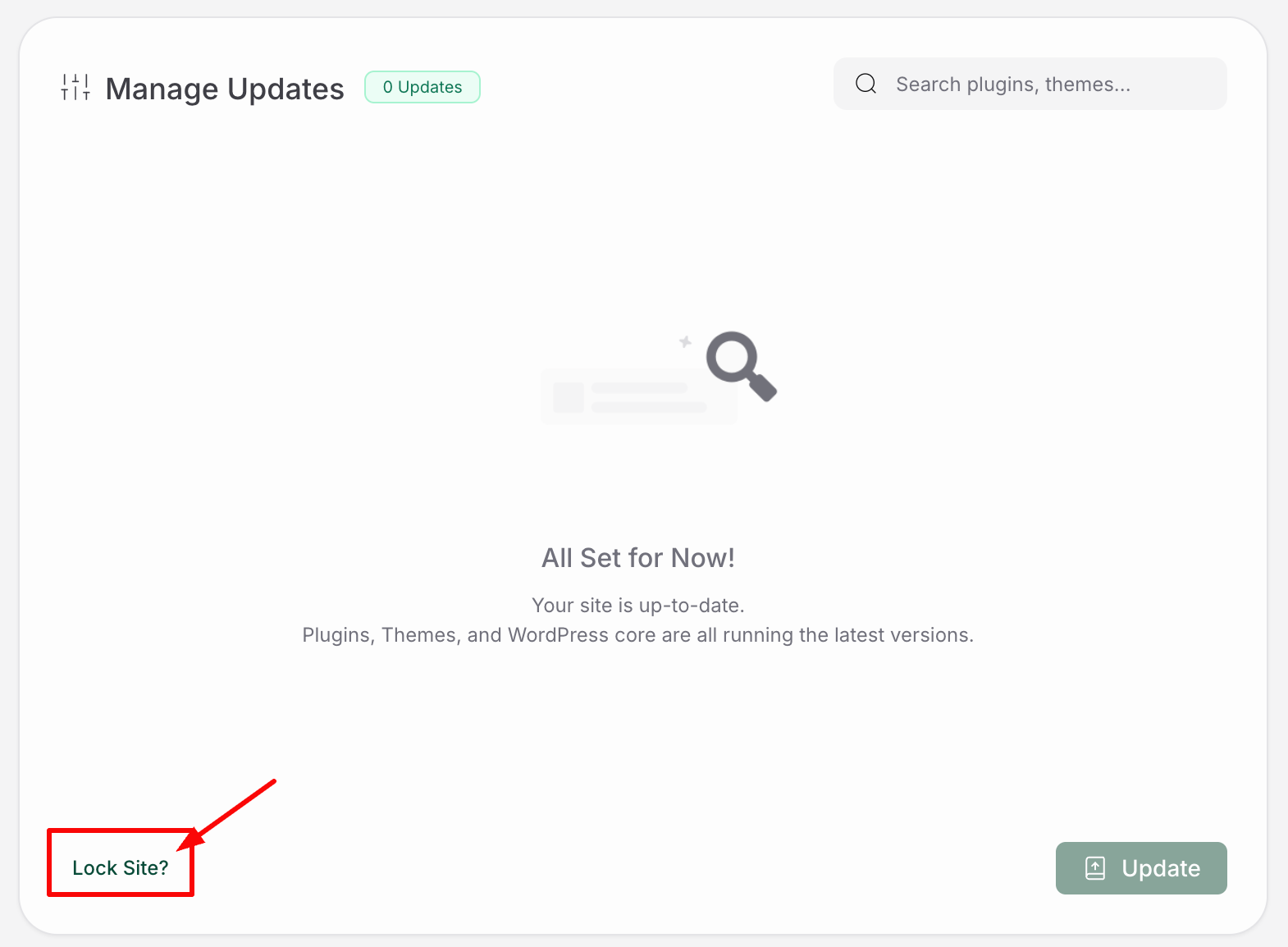
Enable Lock Toggle
Click the Lock toggle (value: on) in the Site Summary to enable lock mode and prevent accidental changes while you manage the site.  
Note: This lock feature comes under Website Management. This feature enables you to lock a website from Plugins, Themes & WordPress Core updates.  You can also lock a particular Plugin or theme across your website(s) to not update, instead of locking one website in the next steps.  This lock feature only applies to the MalCare dashboard and not to the Website. You will still be able to update the plugins via WP-Admin. There will be no such restrictions added to your WordPress installation.


Step 2 screenshot
Step 3 of 11
Open Manage Menu
Click Manage in the left sidebar to reveal site management options such as Plugins and Themes.
Note: The Manage item is located at the top-left navigation column of the dashboard.
Step 3 screenshot
Step 4 of 11
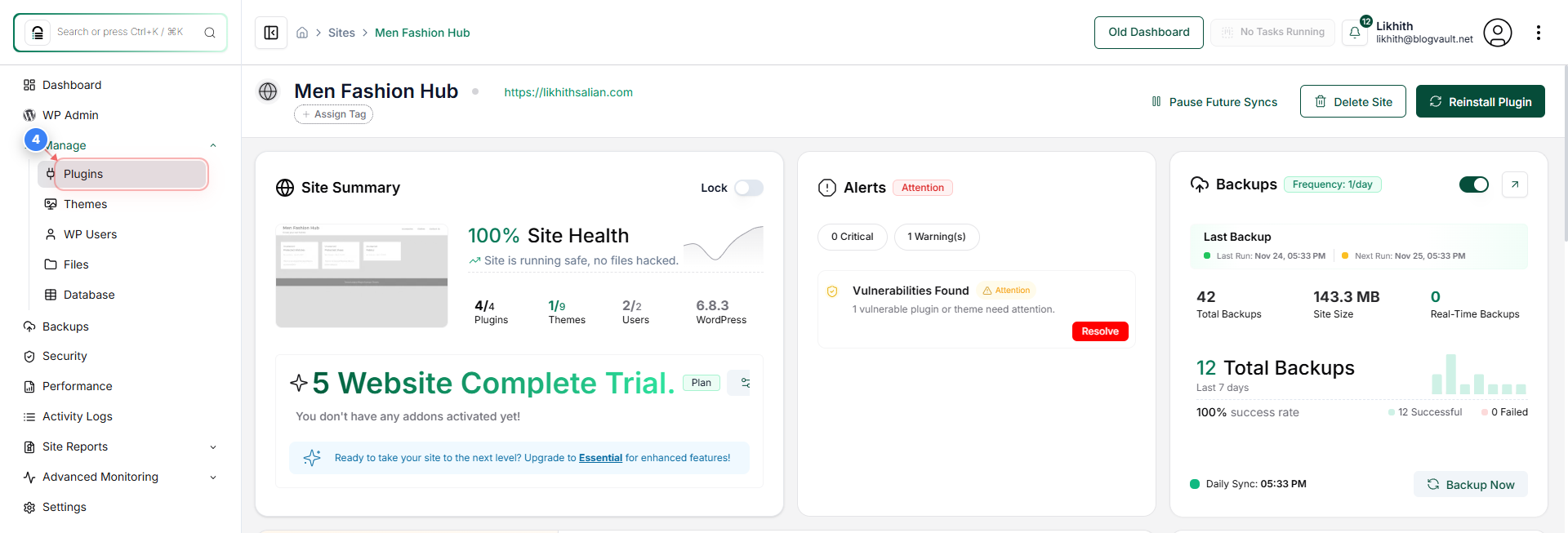
Go to Plugins Page
Click Plugins in the Manage submenu to open the Plugins page and view installed plugins for the selected site.
Note: Plugins show plugin names, statuses, and selection checkboxes for bulk actions.
Step 4 screenshot
Step 5 of 11
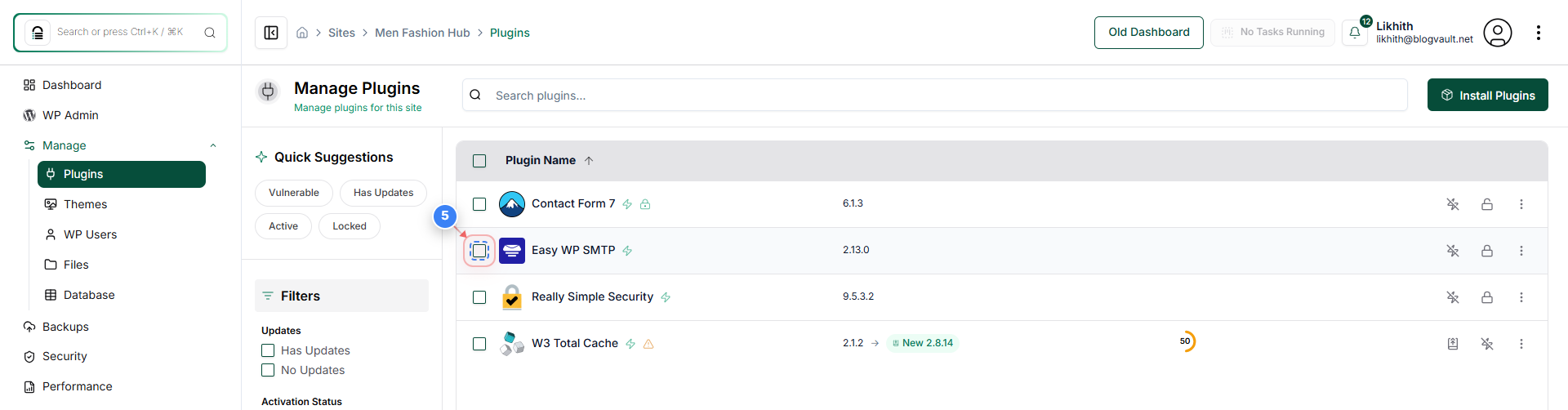
Select Plugin Checkbox
Click the checkbox (value: on) next to the plugin you want to manage to select it for actions like locking.
Note: Selected items appear in the bottom action bar, indicating how many items are selected.
Step 5 screenshot
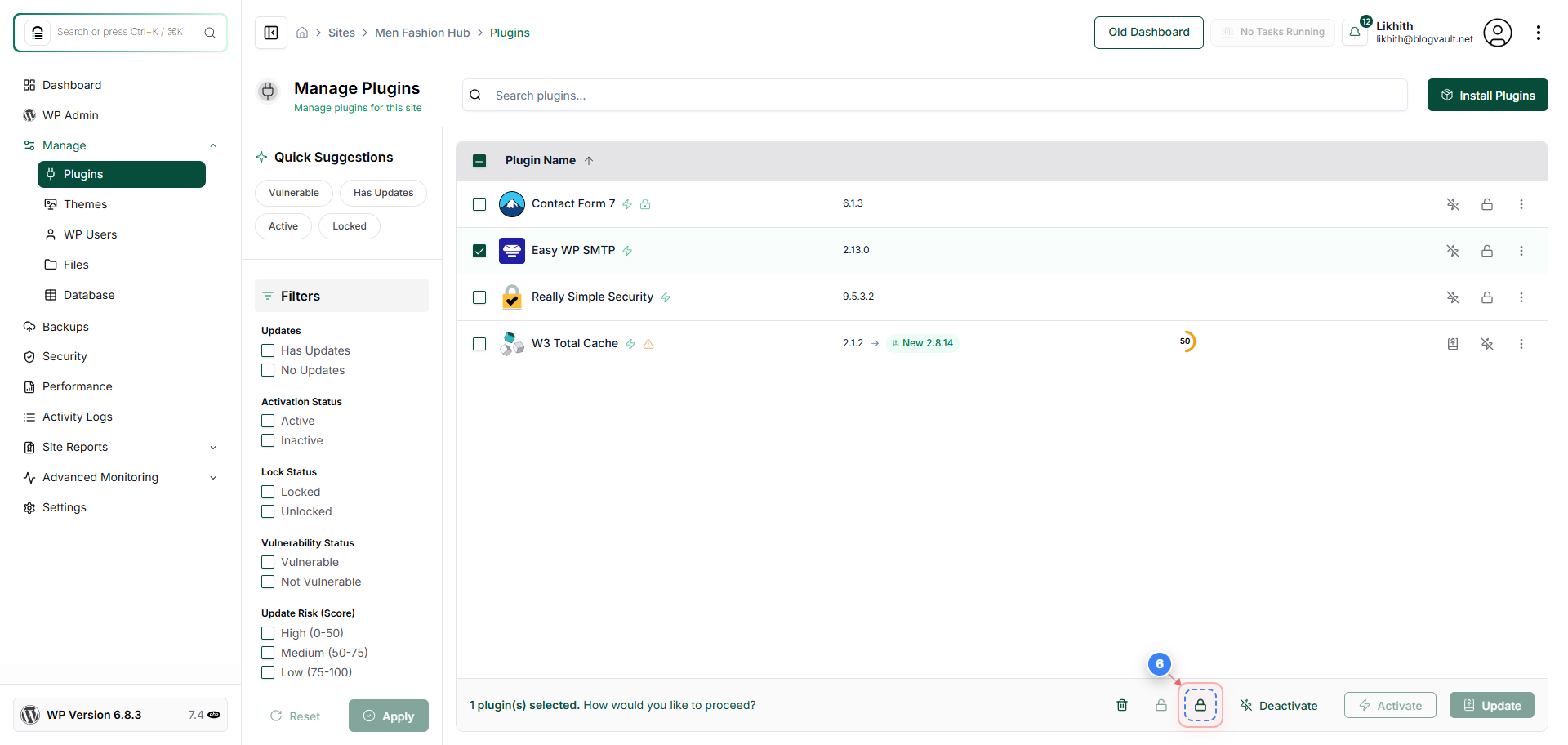
Step 6 of 11
Open Action Bar
Click the action button in the bottom-right action bar to open available actions for the selected plugin.
Note: The action bar appears after selecting one or more items and provides options such as lock or delete.
Step 6 screenshot
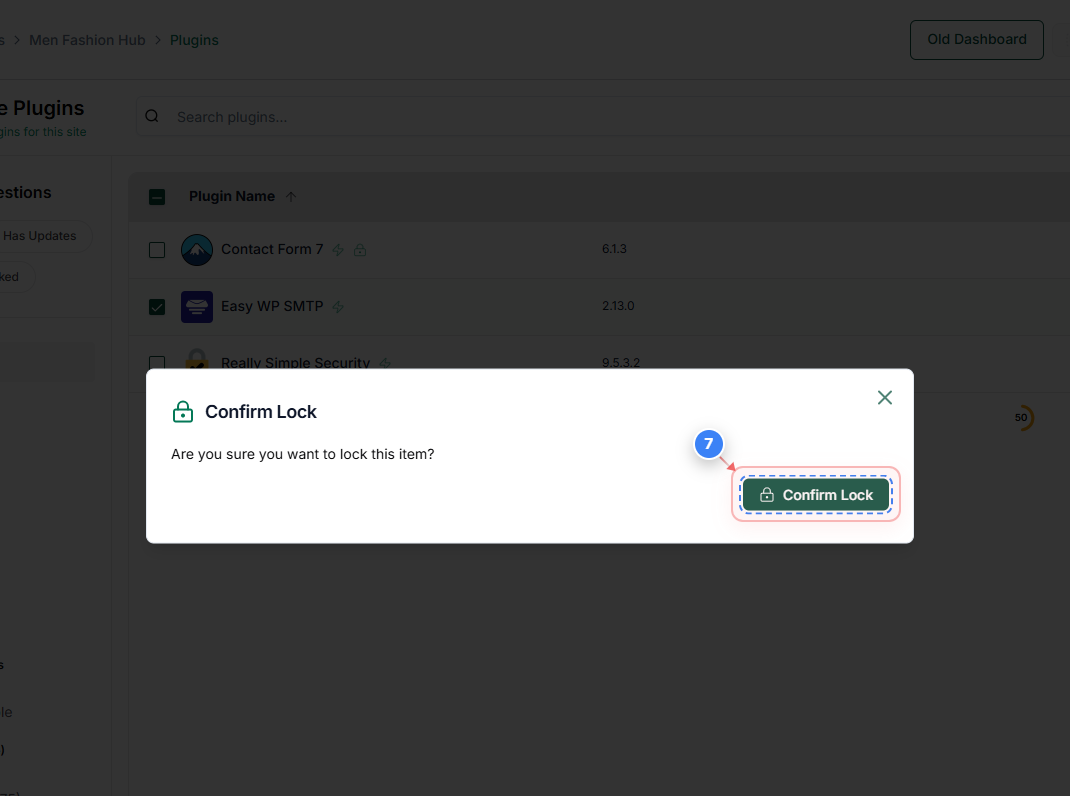
Step 7 of 11
Confirm Lock Action
Click the Confirm Lock button in the confirmation dialog to apply the lock and prevent further modifications to the selected plugin.
Note: The confirmation modal appears centred and describes the action before it is applied.
Step 7 screenshot
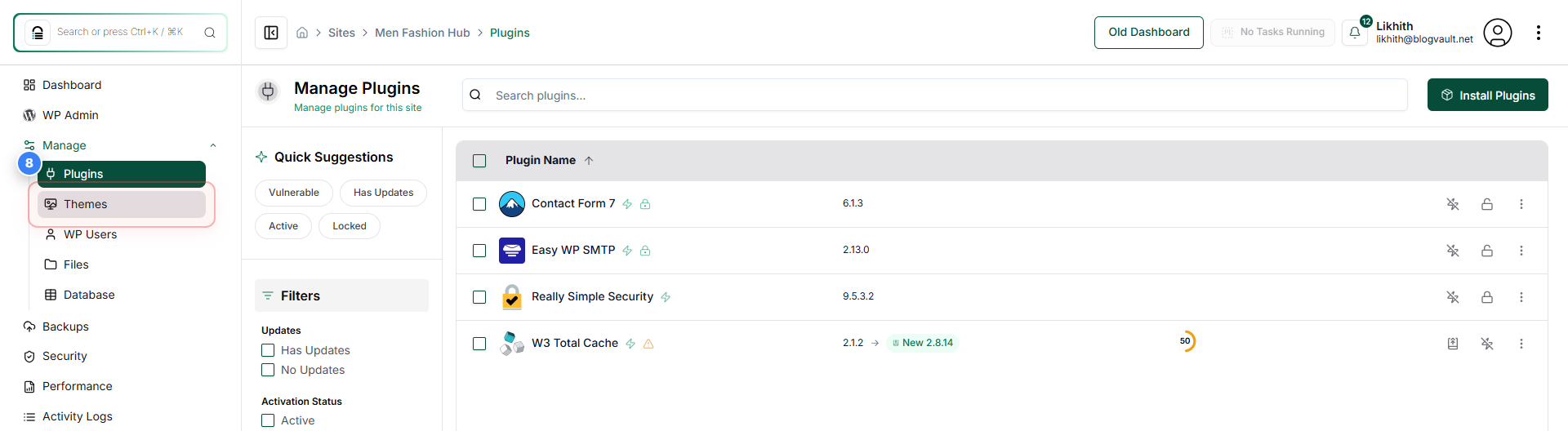
Step 8 of 11
Open Themes Page
Click Themes in the Manage submenu to open the Themes page if you need to manage or lock installed themes as well.
Note: Themes is located near Plugins in the Manage submenu and lists available themes with selection checkboxes.
Step 8 screenshot
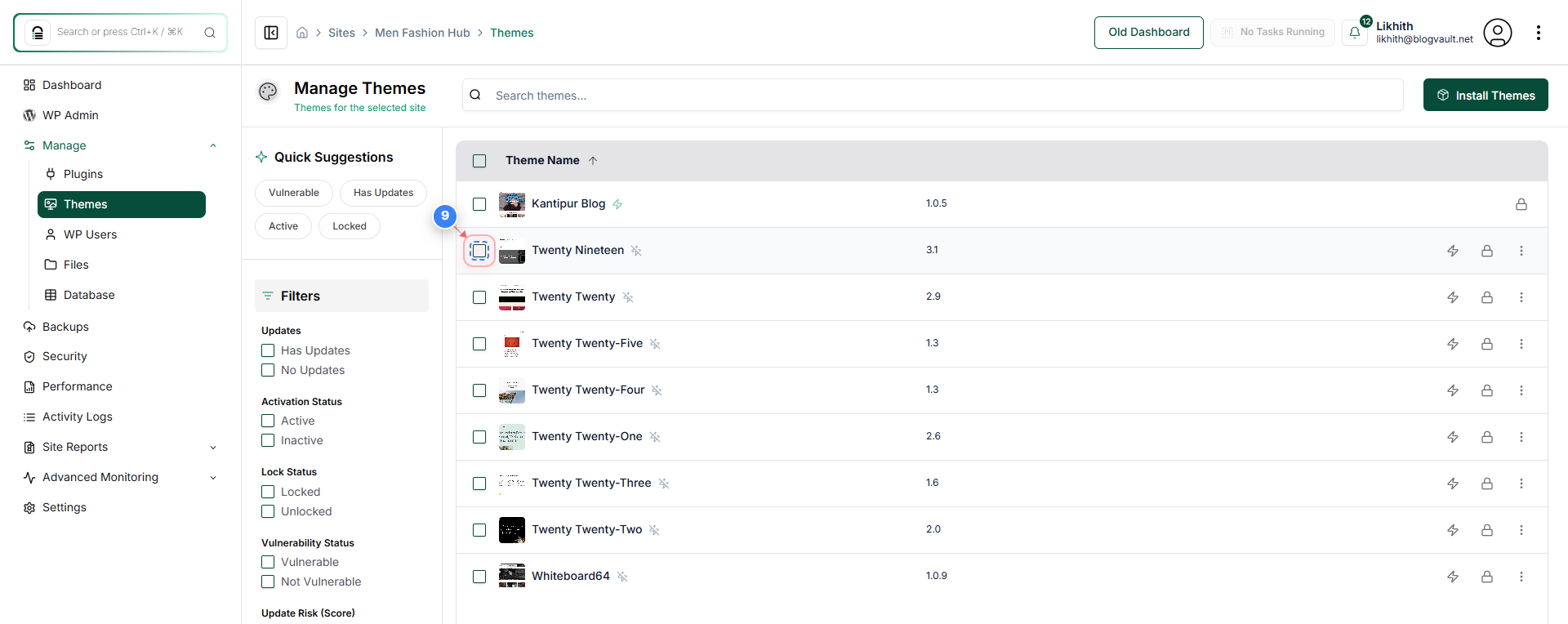
Step 9 of 11
Select Theme Checkbox
Click the checkbox (value: on) next to the theme you want to include in the action to prepare it for locking.
Note: Selected themes will appear in the same bottom action bar used for plugins.
Step 9 screenshot
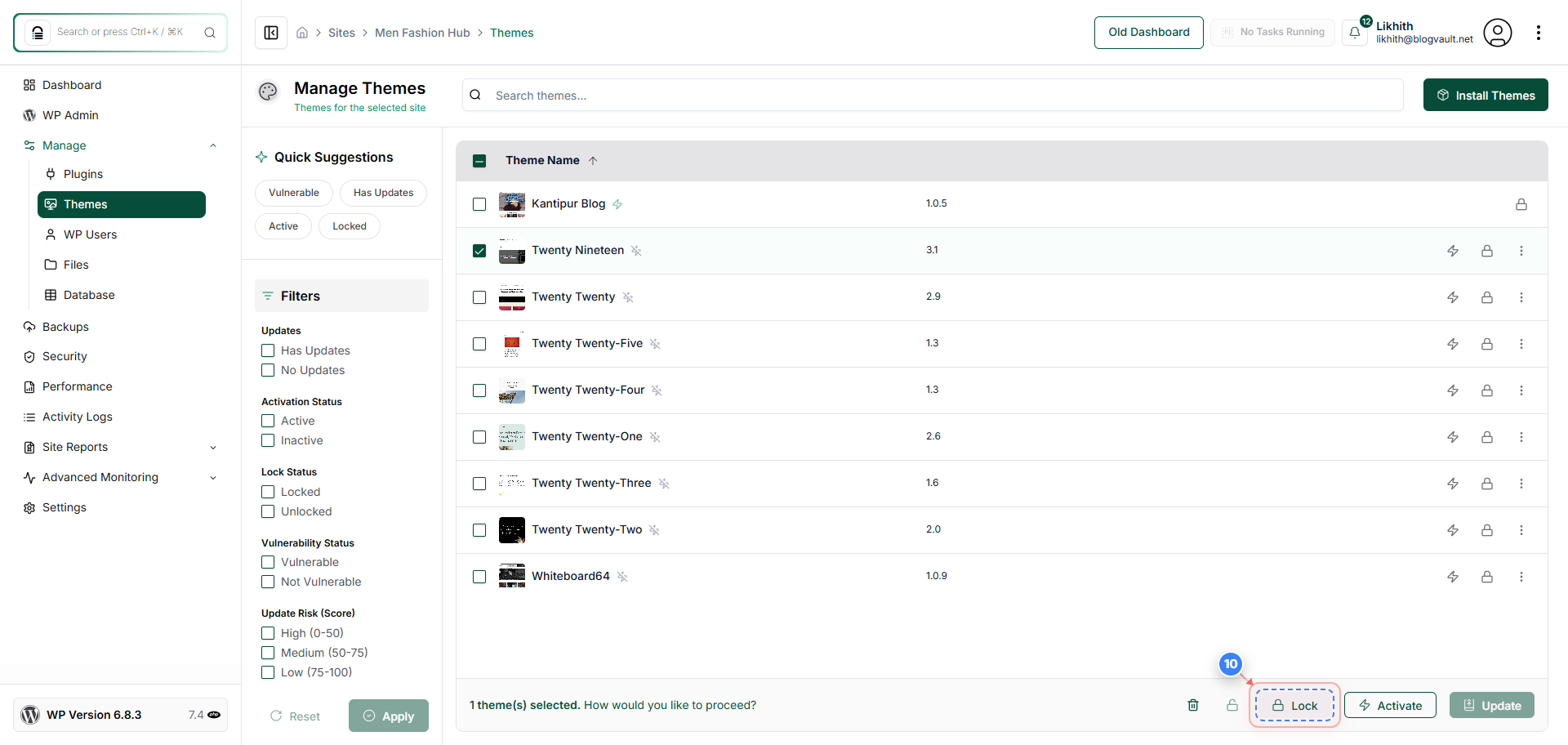
Step 10 of 11
Trigger Theme Action
Click the action button in the bottom-right action bar to proceed with locking the selected theme.
Note: Ensure the correct theme is selected before proceeding to avoid unintended changes.
Step 10 screenshot
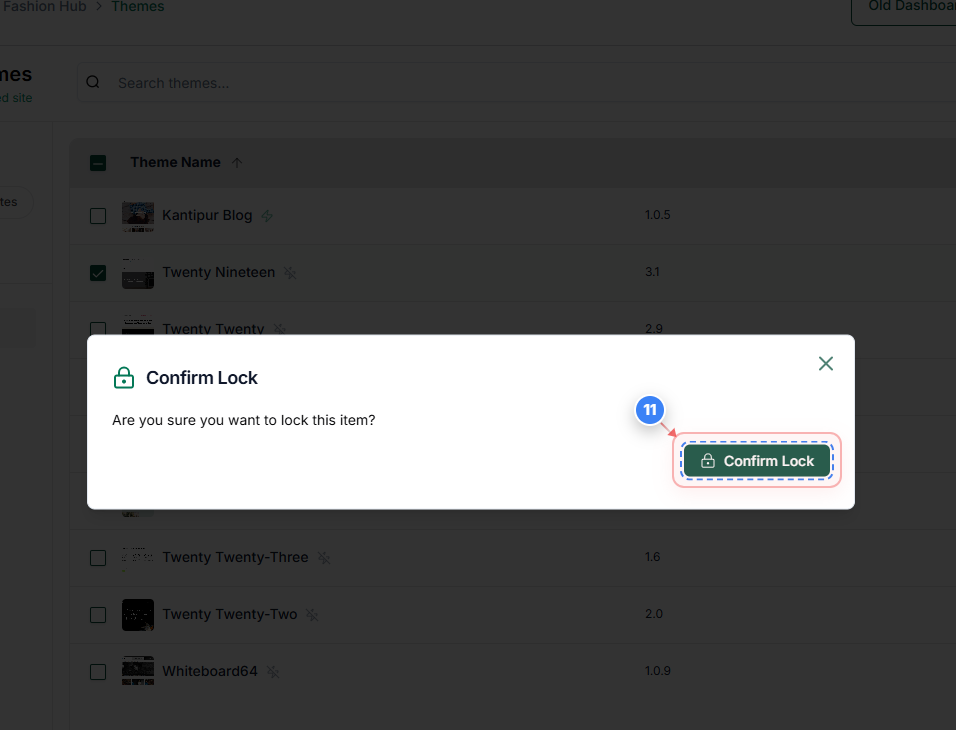
Step 11 of 11
Finalise Theme Lock
Click the Confirm Lock button in the modal to finalise the lock on the selected theme and prevent future edits.
Note: The modal confirms the item being locked and requires your confirmation to apply the change.
Step 11 screenshot

Was this article helpful?

That’s Great!

Thank you for your feedback

Sorry! We couldn't be helpful

Thank you for your feedback

Let us know how can we improve this article!

Select at least one of the reasons

Feedback sent

We appreciate your effort and will try to fix the article