How to Manage Geo Blocking For Multiple Sites

Created by Sachin B, Modified on Mon, 20 Apr at 2:21 PM by Sachin B

Step 1 of 9
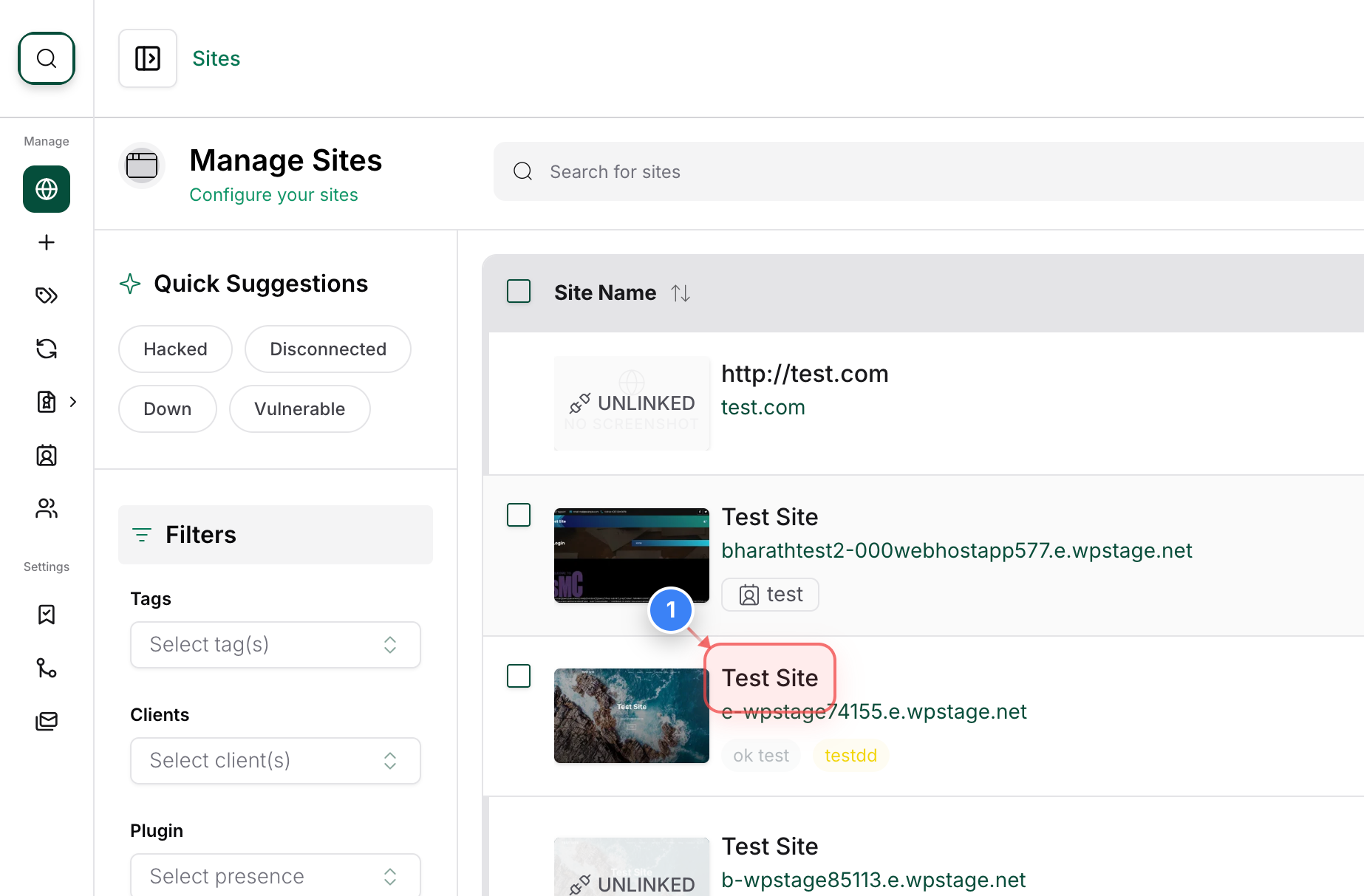
Select The Website
Click on the site name in the main sites list to open the management dashboard.
Note: This will take you to the individual site details page, where all management tools are located.
Step 1 screenshot
Step 2 of 9
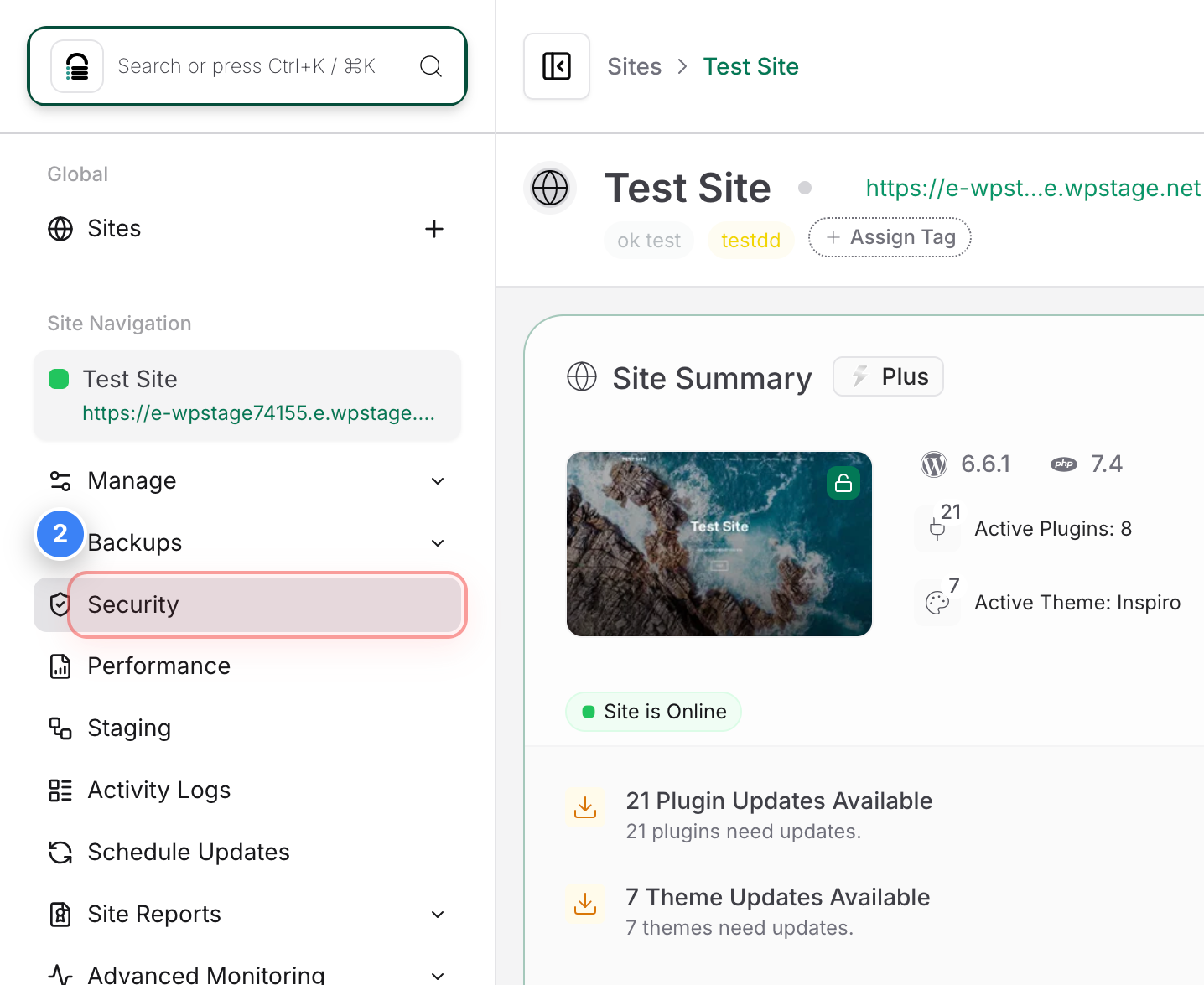
Access Security Settings
Select the Security option in the left-hand sidebar to view the protection and firewall status for your site.
Step 2 screenshot
Step 3 of 9
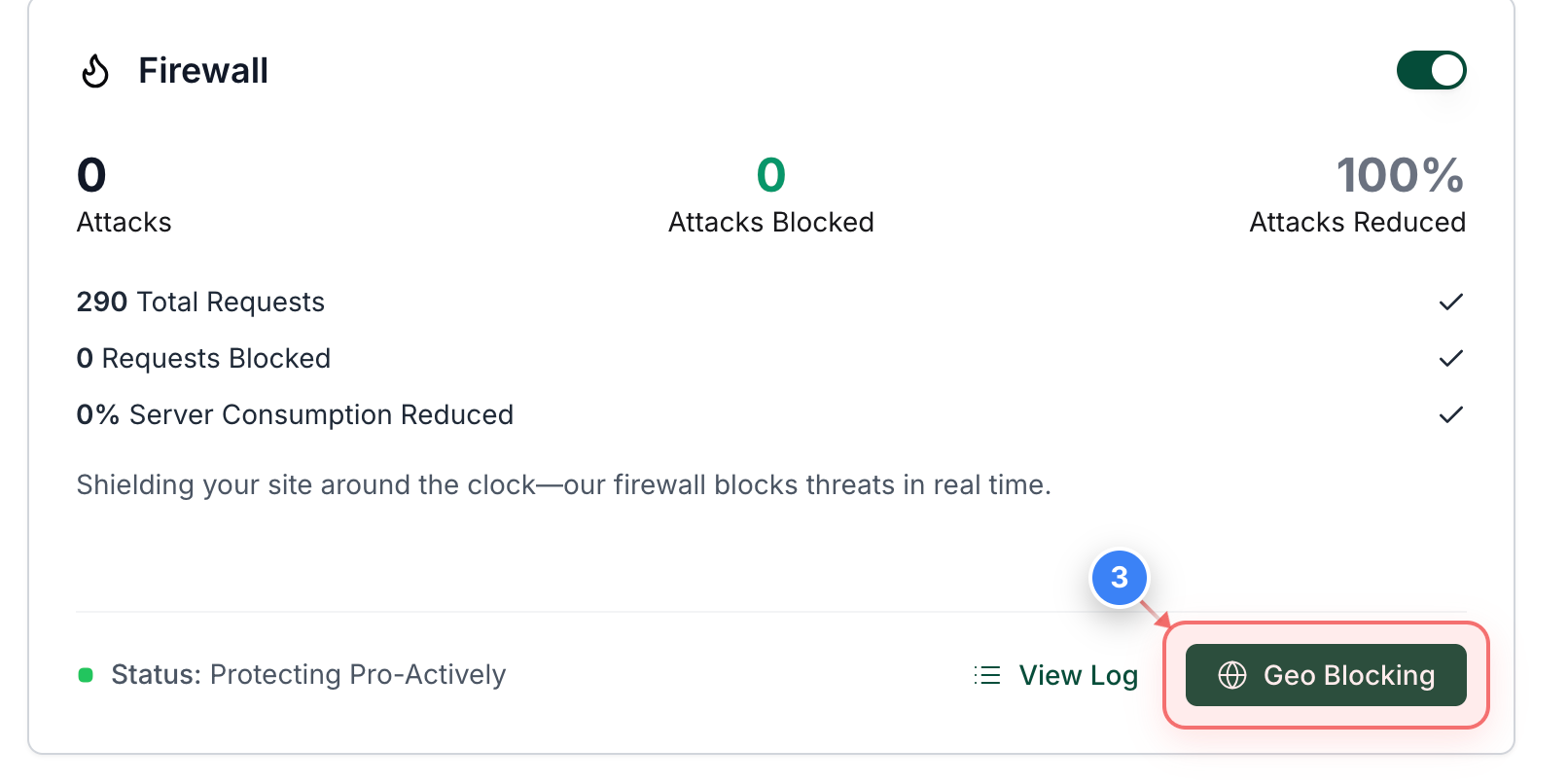
Open Geo Blocking Tools
Click the Geo Blocking button within the Firewall section to manage country-level access restrictions.
Step 3 screenshot
Step 4 of 9
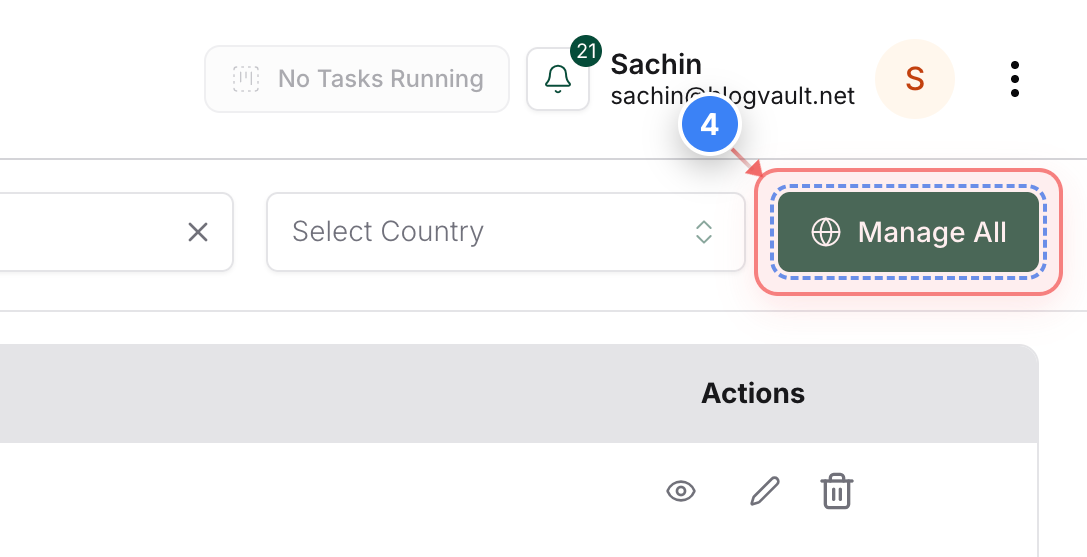
Manage Global Blocking (ALL Sites)
Click the Manage All button in the top-right header to configure blocking rules across multiple sites.
Step 4 screenshot
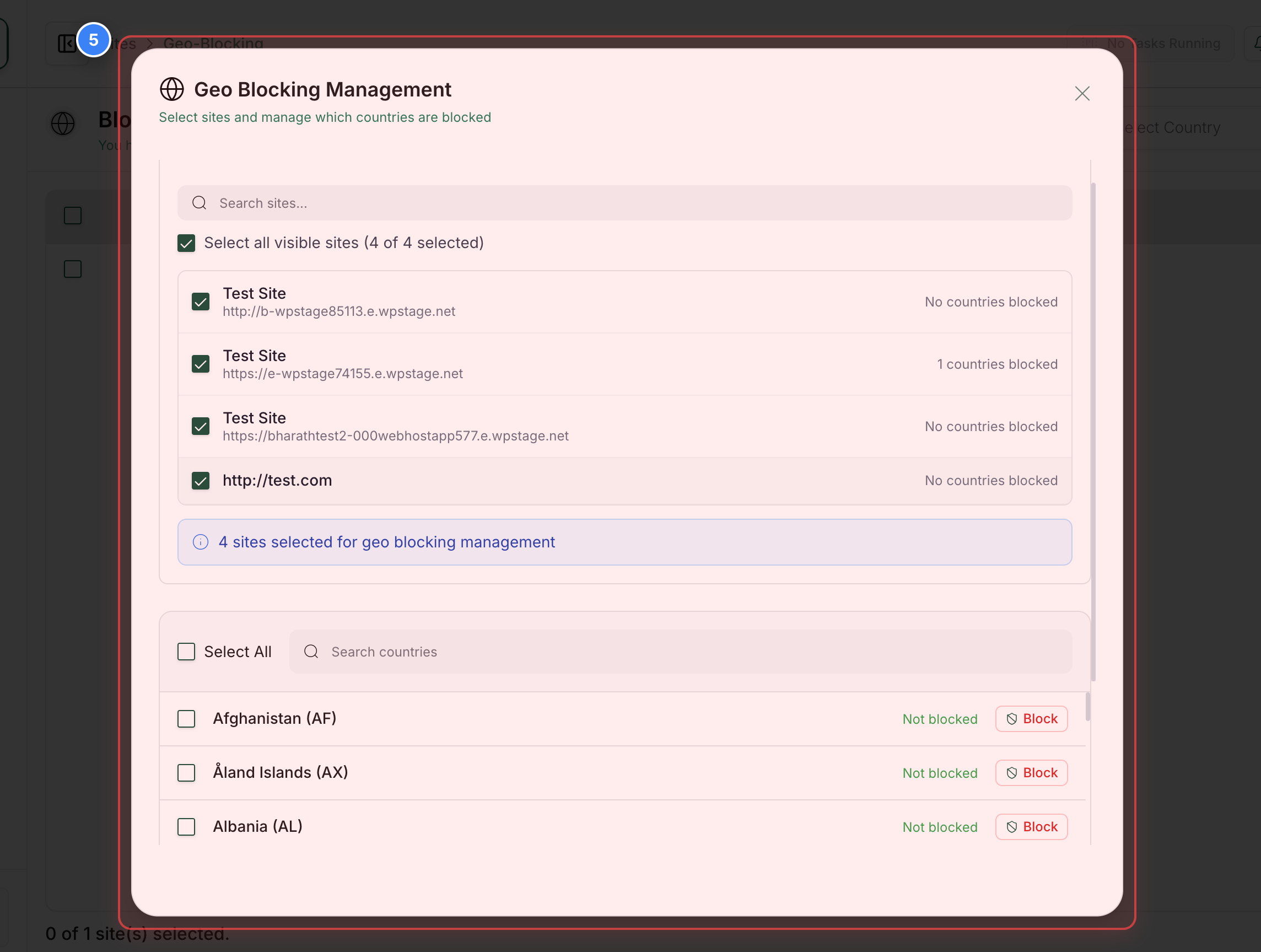
Step 5 of 9
Open Management Dialog
In the center of the Geo Blocking page, select specific Sites & Countries for restriction.
Note: Bulk Operation
Step 5 screenshot
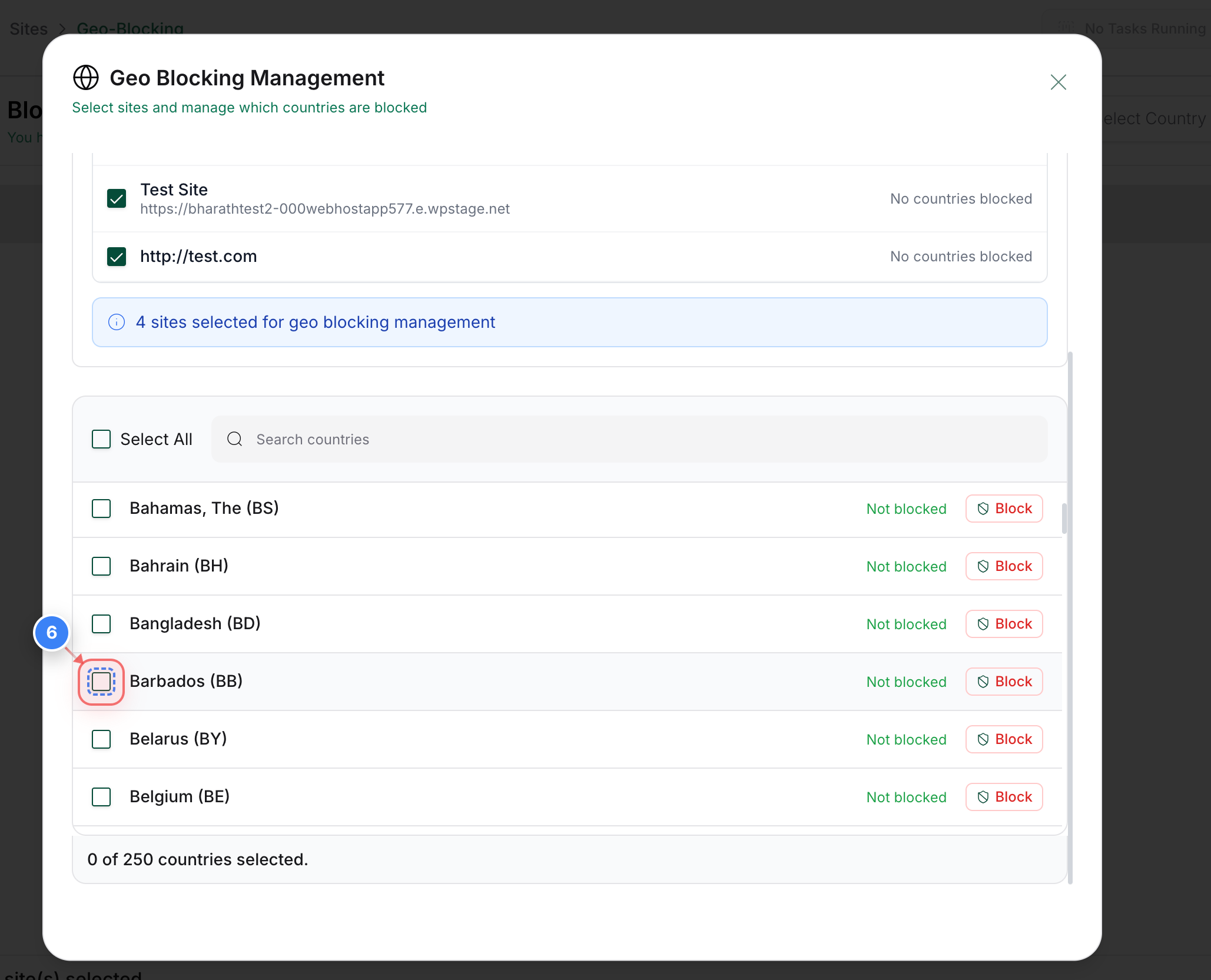
Step 6 of 9
Select Countries to Block
Click the checkbox next to the country name (e.g., Afghanistan) in the list to mark it for blocking.
Note: You can select multiple countries at once from this list.
Step 6 screenshot
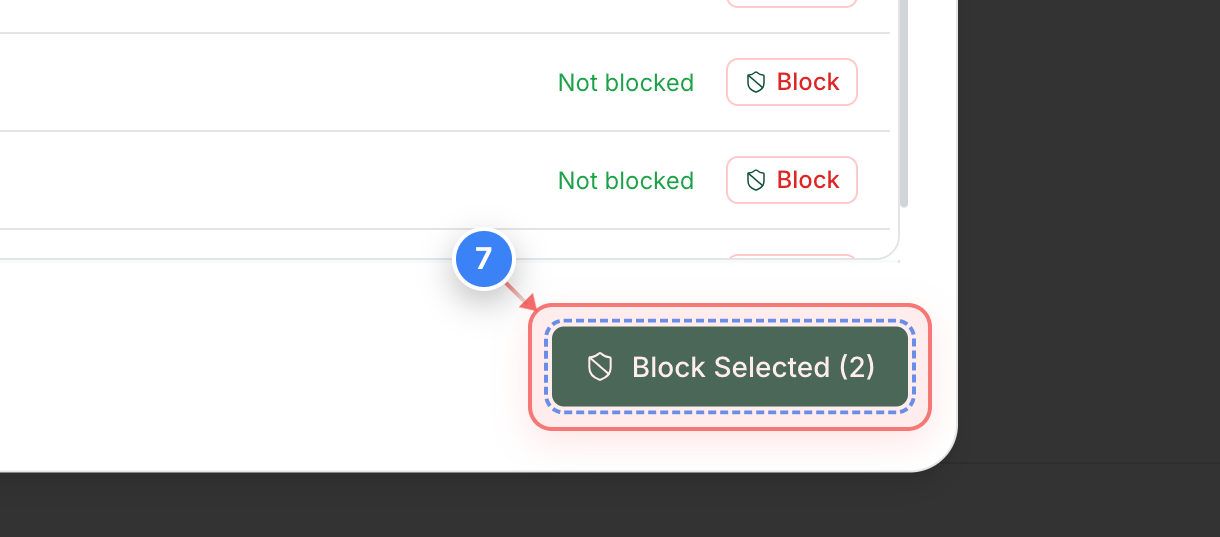
Step 7 of 9
Confirm Selection
Click the Block Selected button at the bottom of the management window to proceed with the restrictions.
Step 7 screenshot
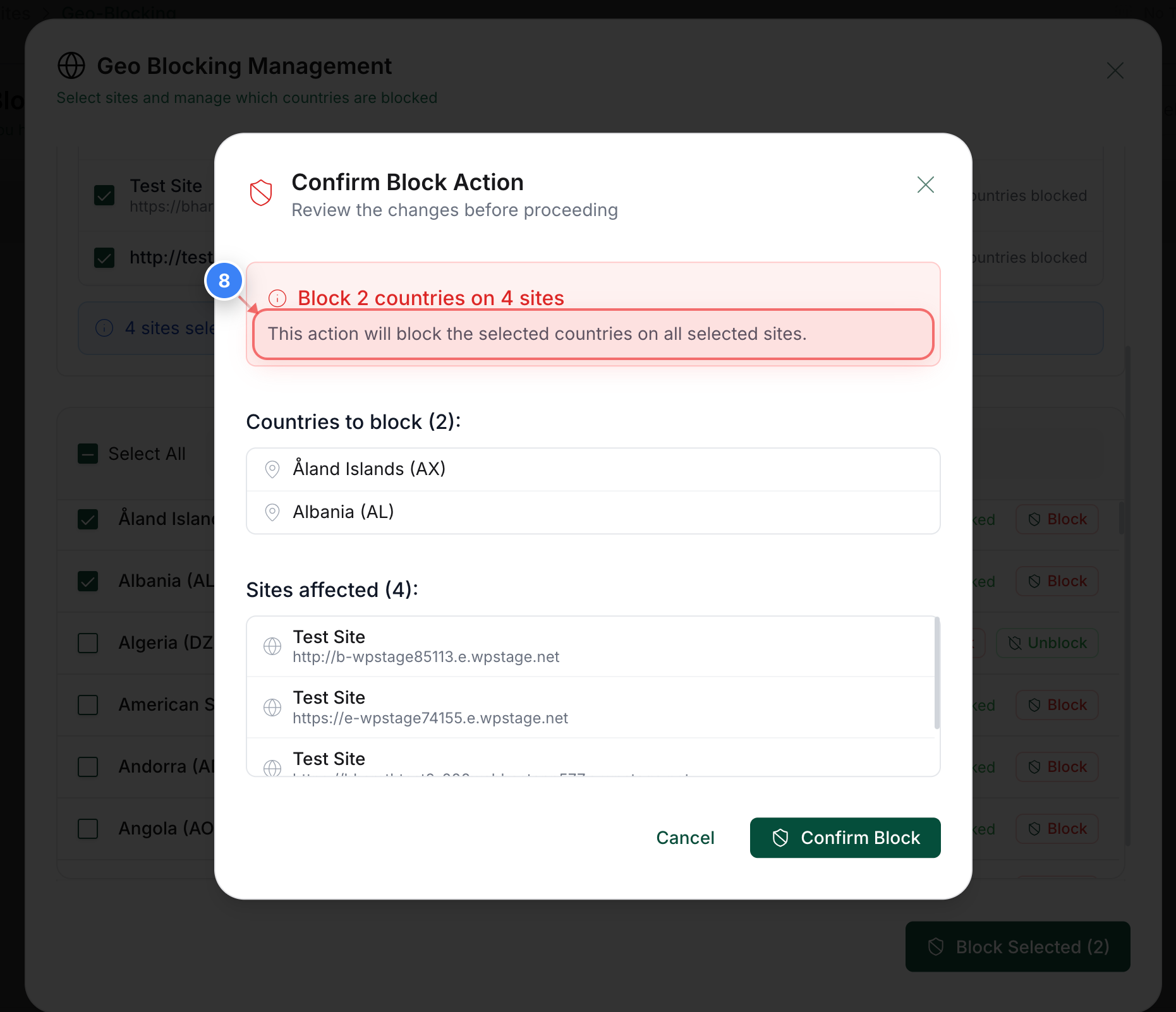
Step 8 of 9
Apply Changes to Sites
Verify Details & Click the Block Button in the dialog to apply the block to all selected websites.
Step 8 screenshot
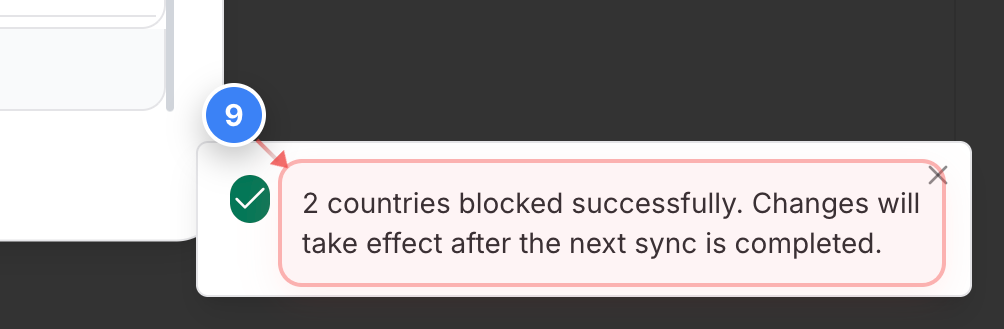
Step 9 of 9
Verify Successful Blocking
Confirm the success notification in the bottom-right corner, which indicates the block will take effect after the next sync.
Step 9 screenshot

Was this article helpful?

That’s Great!

Thank you for your feedback

Sorry! We couldn't be helpful

Thank you for your feedback

Let us know how can we improve this article!

Select at least one of the reasons

Feedback sent

We appreciate your effort and will try to fix the article