How Do I Connect Additional Google Analytics Accounts to My Dashboard?

Created by Bharath K, Modified on Thu, 11 Dec at 1:58 PM by Bharath K

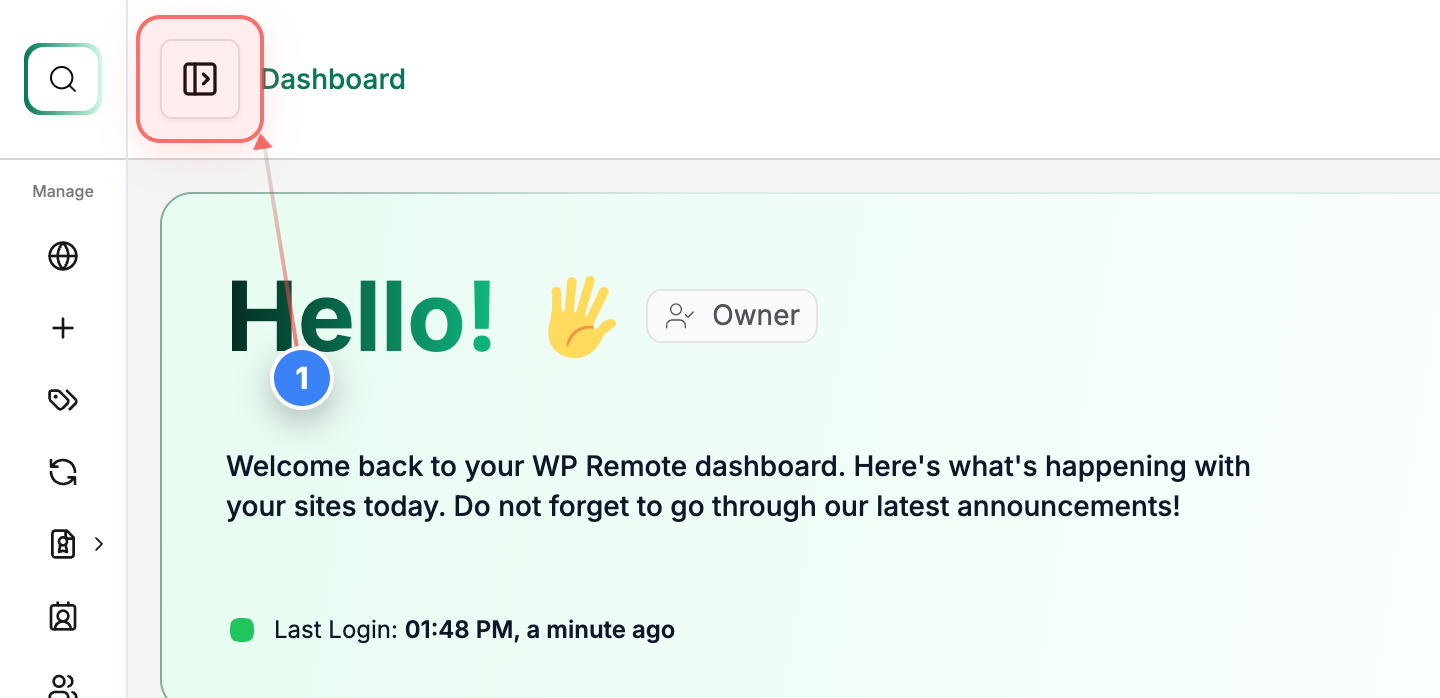
Step 1 of 4
Open Sidebar Menu
Click the button in the top-left navigation bar to open the sidebar menu and access additional site options.
Note: This reveals the main navigation sections, including Integrations.
Step 1 screenshot
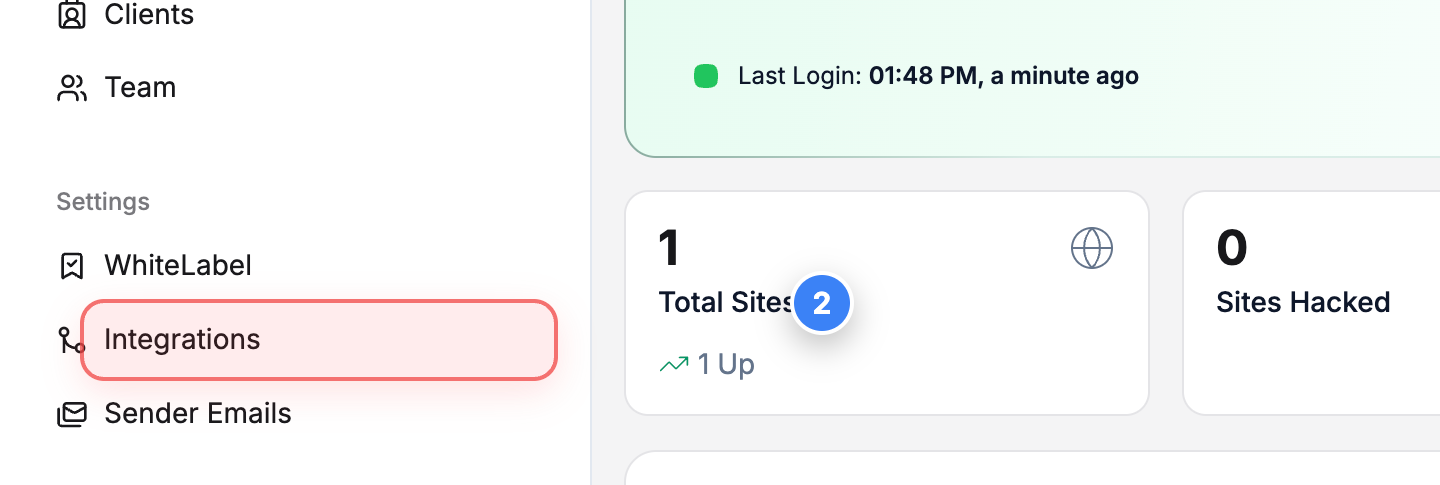
Step 2 of 4
Open Integrations Section
Select the Integrations option in the left sidebar to view all available external service connections.
Note: This section includes services like Slack, Dropbox, Google Pagespeed, and Google Analytics.
Step 2 screenshot
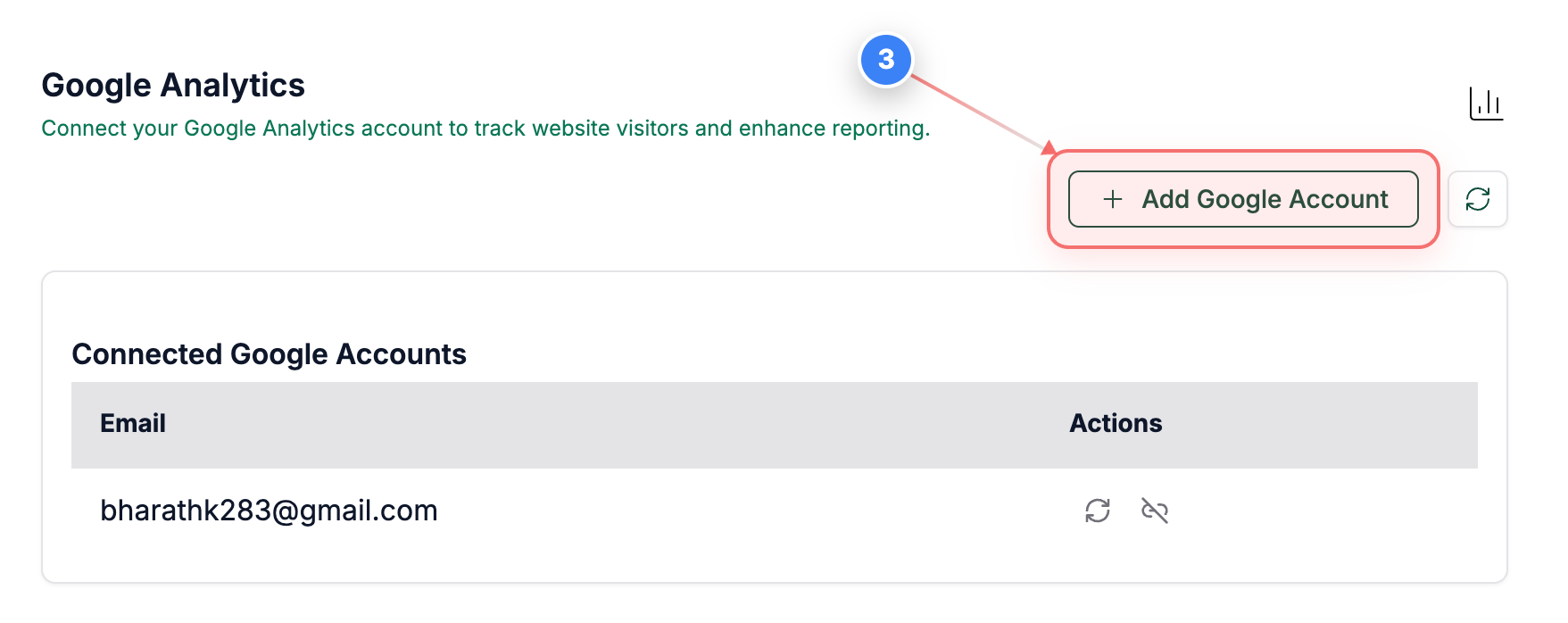
Step 3 of 4
Add Google Analytics Account
Click the Add Google Account button in the upper-right area of the Integrations page to begin connecting your Google Analytics account.
Note: A Google sign-in window will open to authorize access.
Step 3 screenshot
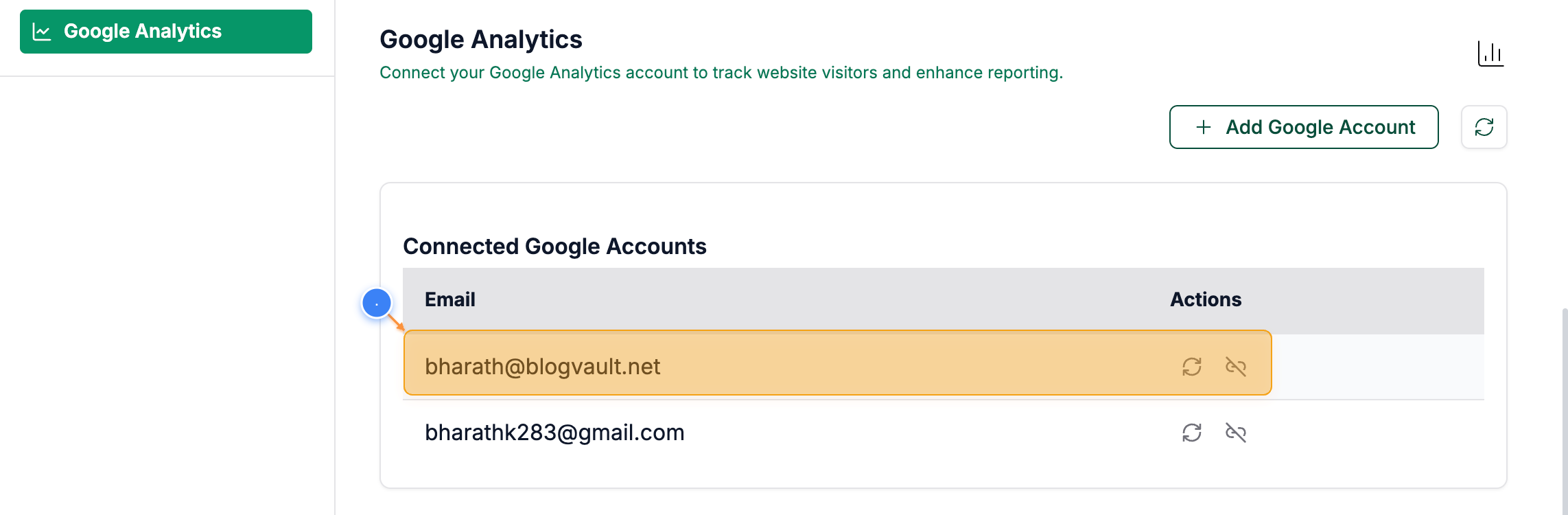
Step 4 of 4
Review Integration Status
You can see the newly added email address shown in the list once you complete all the steps.
Step 4 screenshot

Was this article helpful?

That’s Great!

Thank you for your feedback

Sorry! We couldn't be helpful

Thank you for your feedback

Let us know how can we improve this article!

Select at least one of the reasons

Feedback sent

We appreciate your effort and will try to fix the article