How Do I connect My Site from WP-Admin to My Account Dashboard?

Created by Sachin B, Modified on Wed, 10 Dec at 11:32 AM by Sachin B

Step 1 of 7
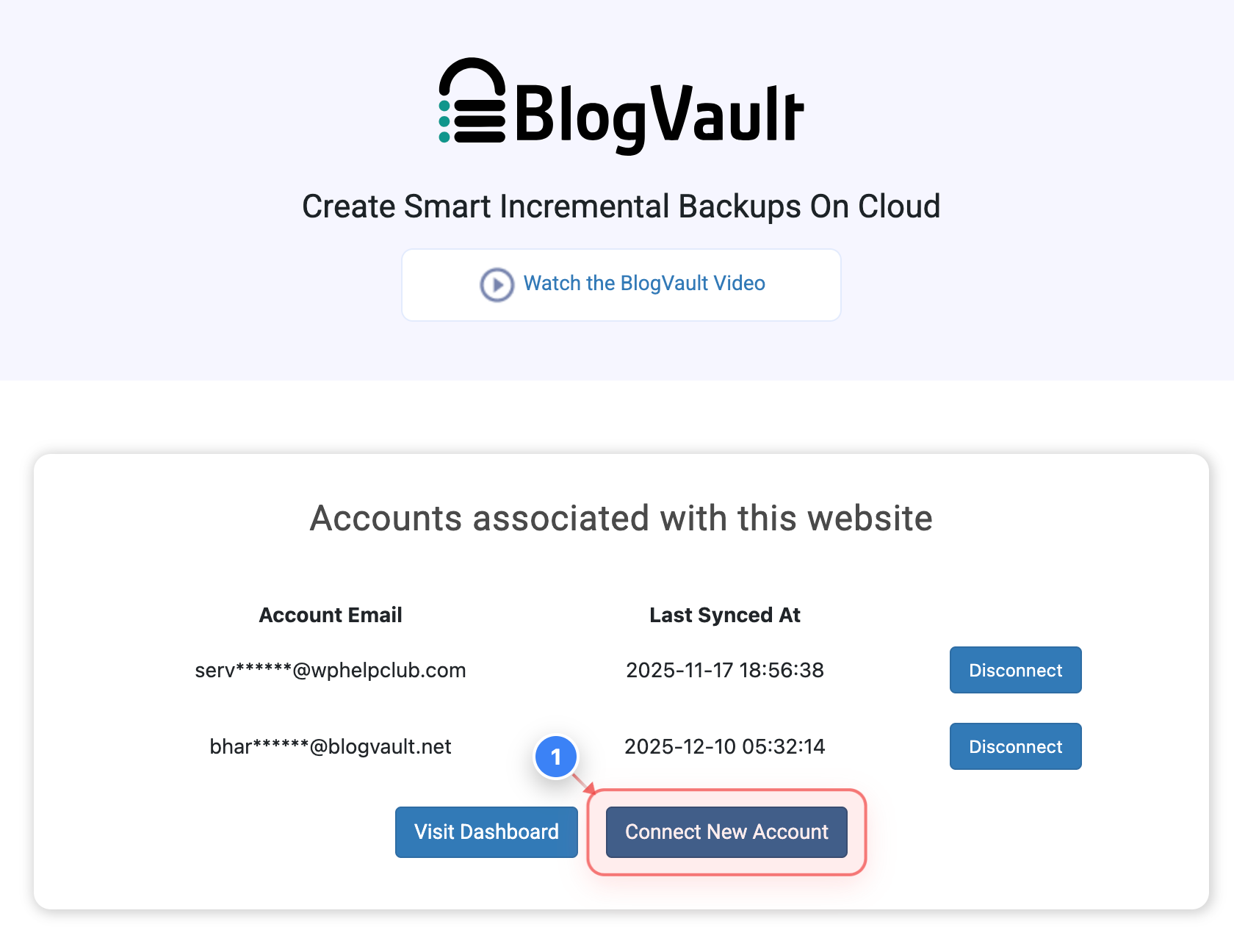
Open Account Connection Options
Go to WP Admin -> Plugin -> Click the Connect New Account link in the accounts section to add a new BlogVault account to this site.
Step 1 screenshot
Step 2 of 7
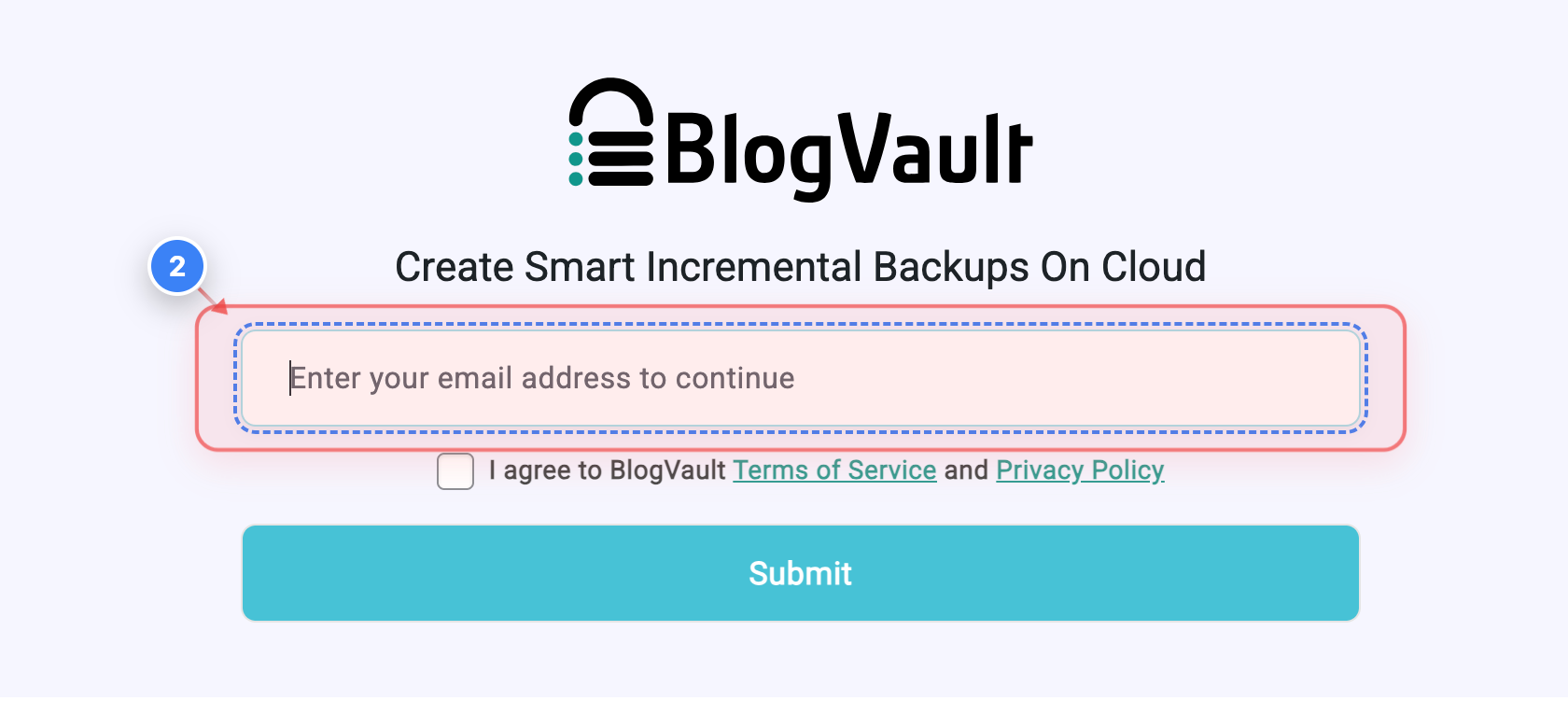
Enter Your Email
Click the email field in the form to enter the Email address you want to use for connecting your BlogVault account.
Step 2 screenshot
Step 3 of 7
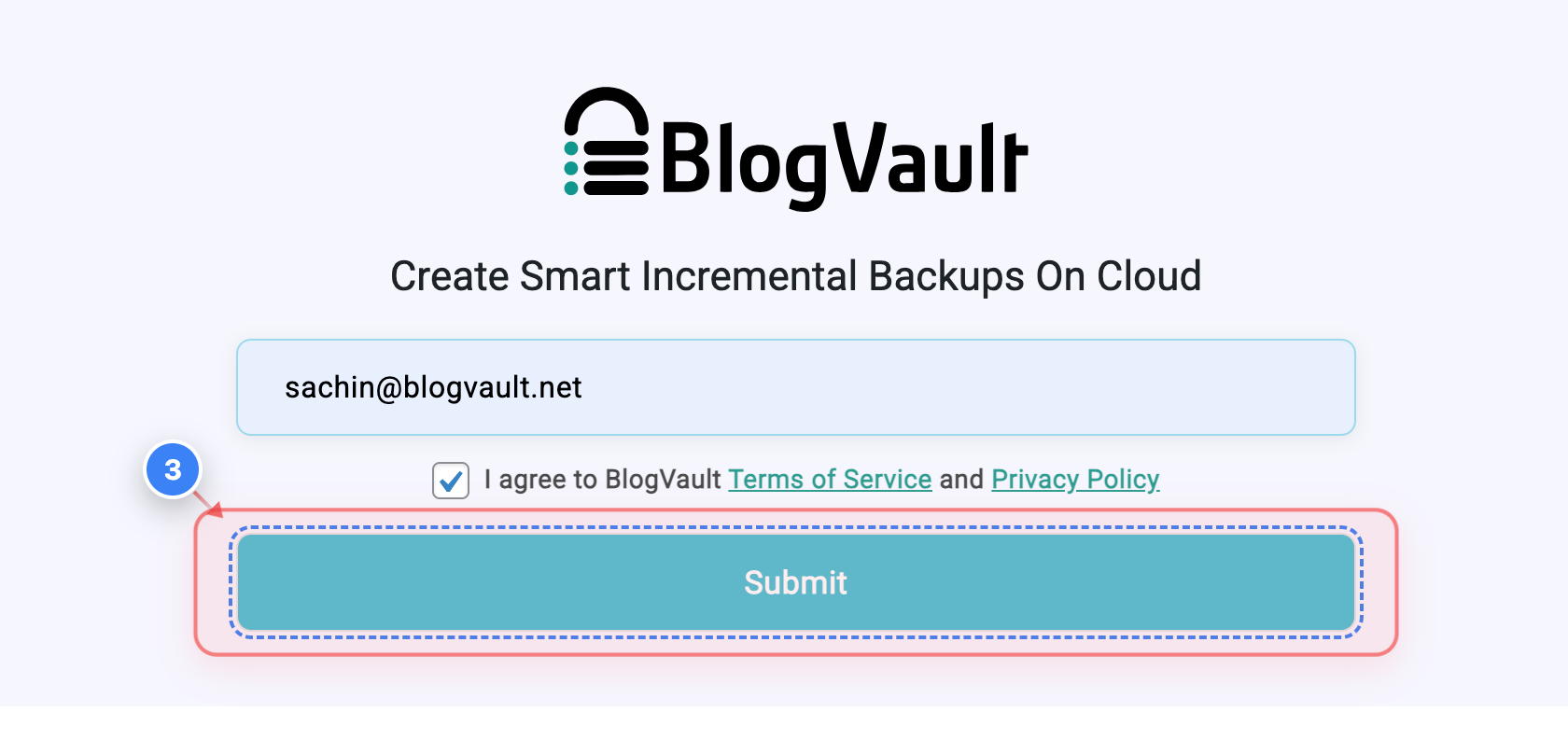
Submit Email Details
Agree with Terms & Policy -> Click the Submit button in the signup form to continue connecting your BlogVault account.
Note: You will be redirected to your Dashboard.
Step 3 screenshot
Step 4 of 7
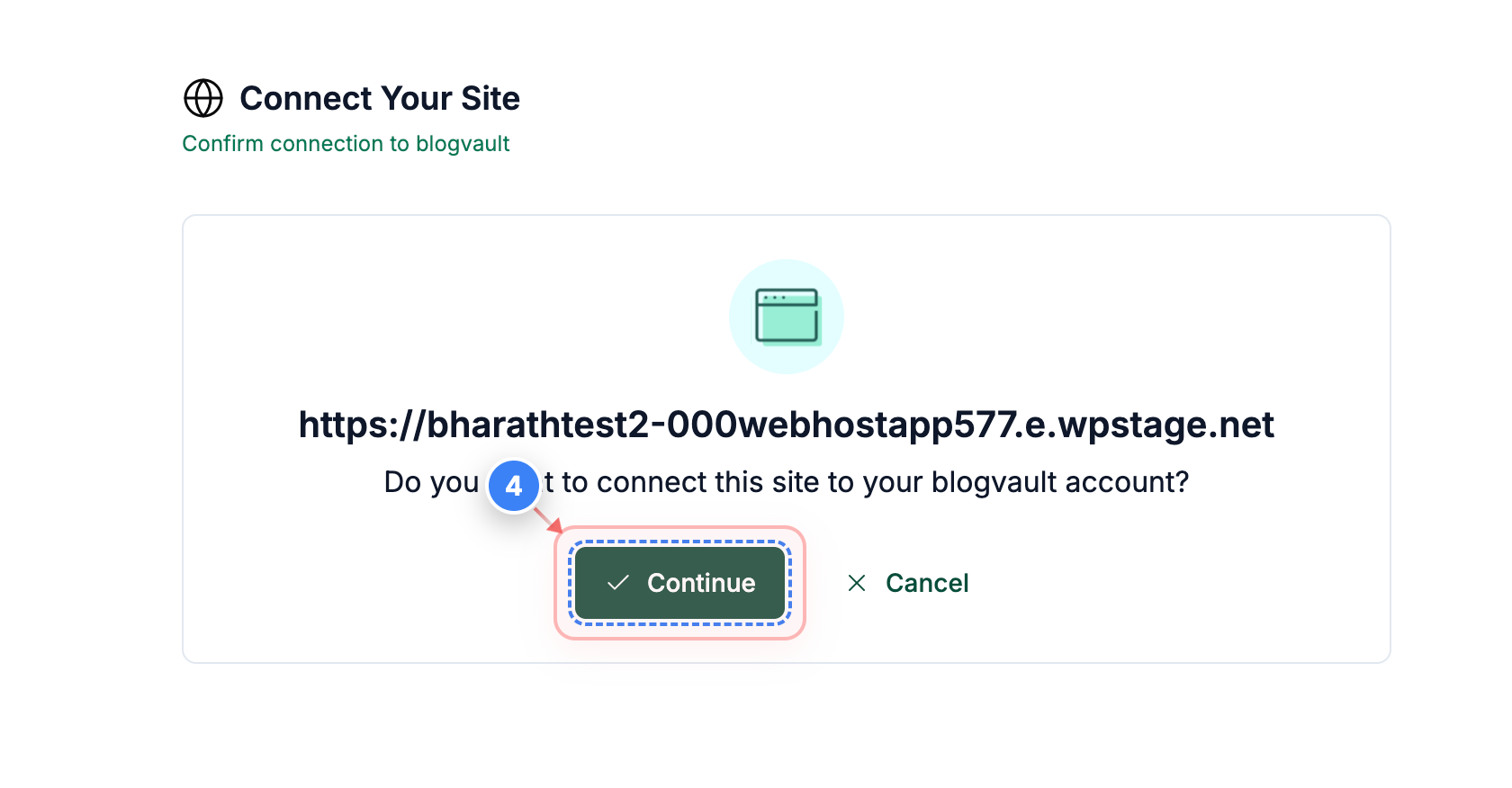
Confirm Site Connection
Click the Continue button in the confirmation panel to approve connecting this WordPress site to your BlogVault account.
Step 4 screenshot
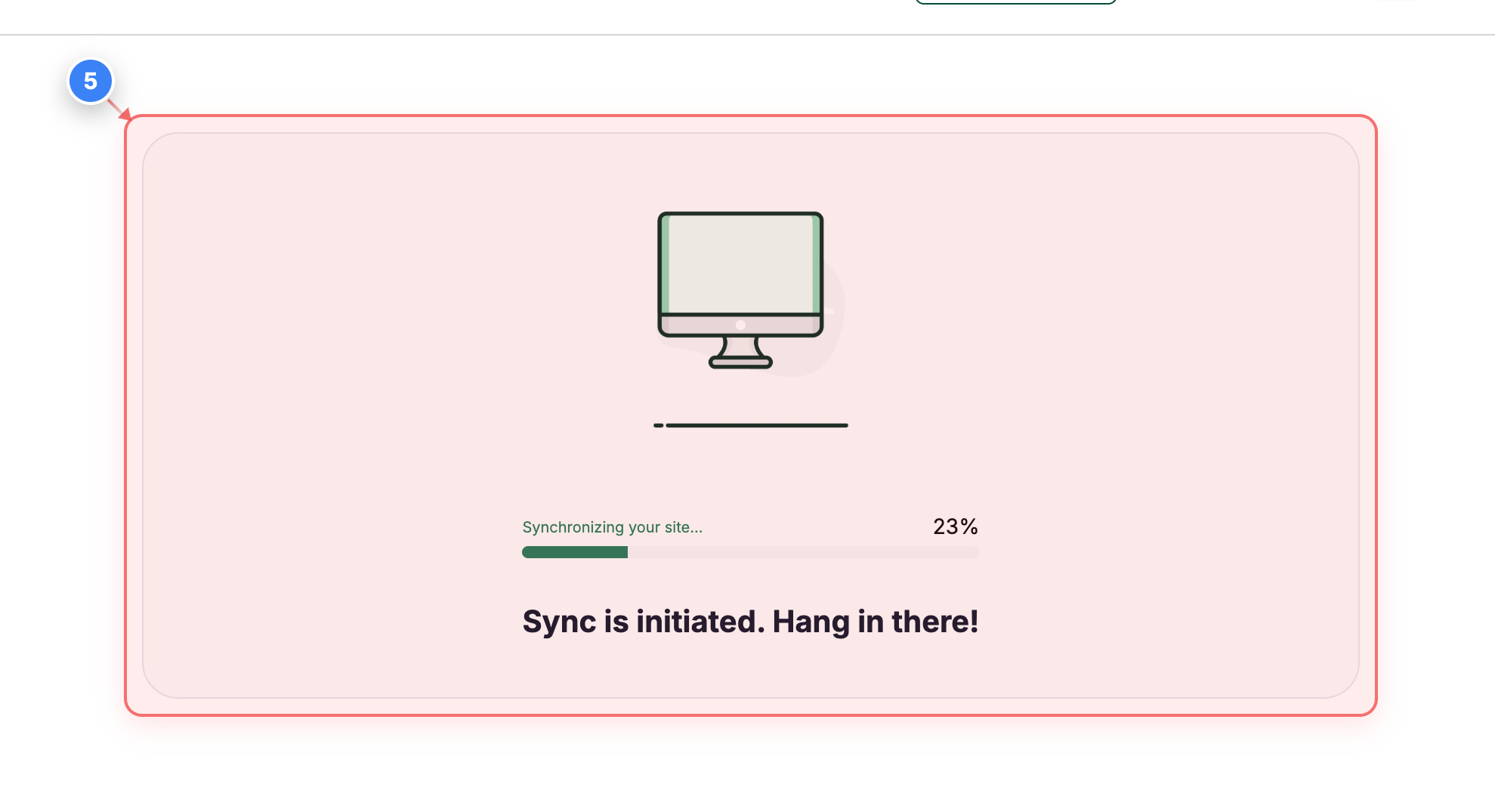
Step 5 of 7
Monitor Sync Progress
The window will show the current status of your site synchronization. Kindly track its completion.
Step 5 screenshot
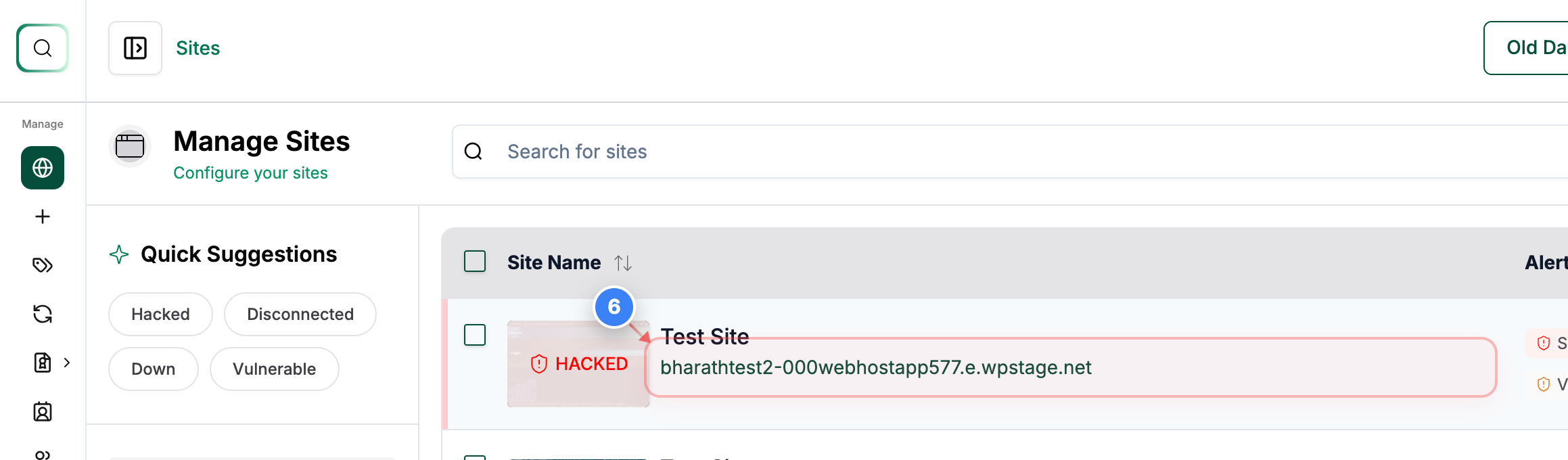
Step 6 of 7
Open the Added Site Details
You will see the site is now added to the dashboard. Click on the Site to access its management options.
Step 6 screenshot
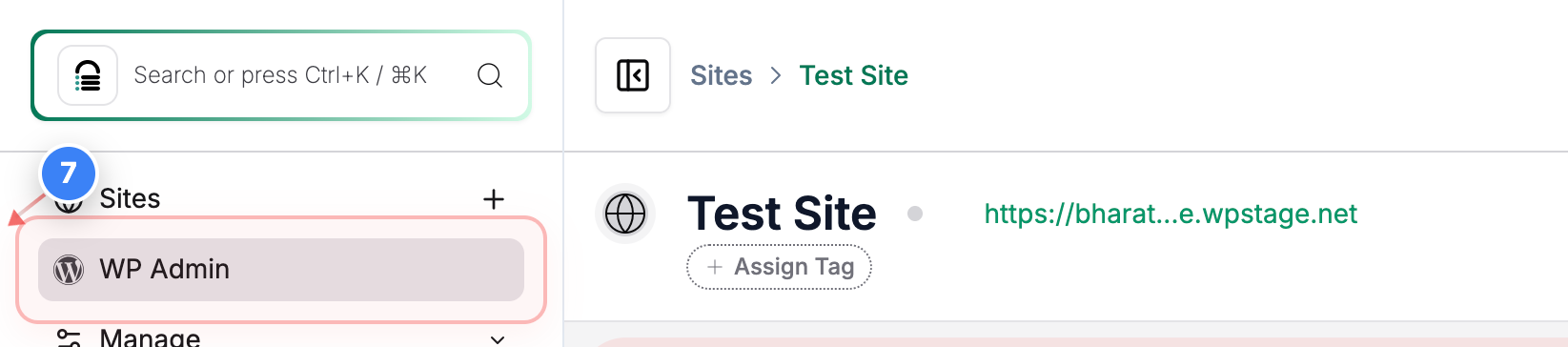
Step 7 of 7
Access WP Admin
Click the WP Admin option in the site menu to open the WordPress dashboard for the Site.
Note: You will be redirected to your WP Admin dashboard.
Step 7 screenshot

Was this article helpful?

That’s Great!

Thank you for your feedback

Sorry! We couldn't be helpful

Thank you for your feedback

Let us know how can we improve this article!

Select at least one of the reasons

Feedback sent

We appreciate your effort and will try to fix the article