How Do I Check All My Previous Reports?

Created by Bharath K, Modified on Fri, 21 Nov at 6:04 PM by Bharath K

Website Level

Step 1 of 3
Select Your Website
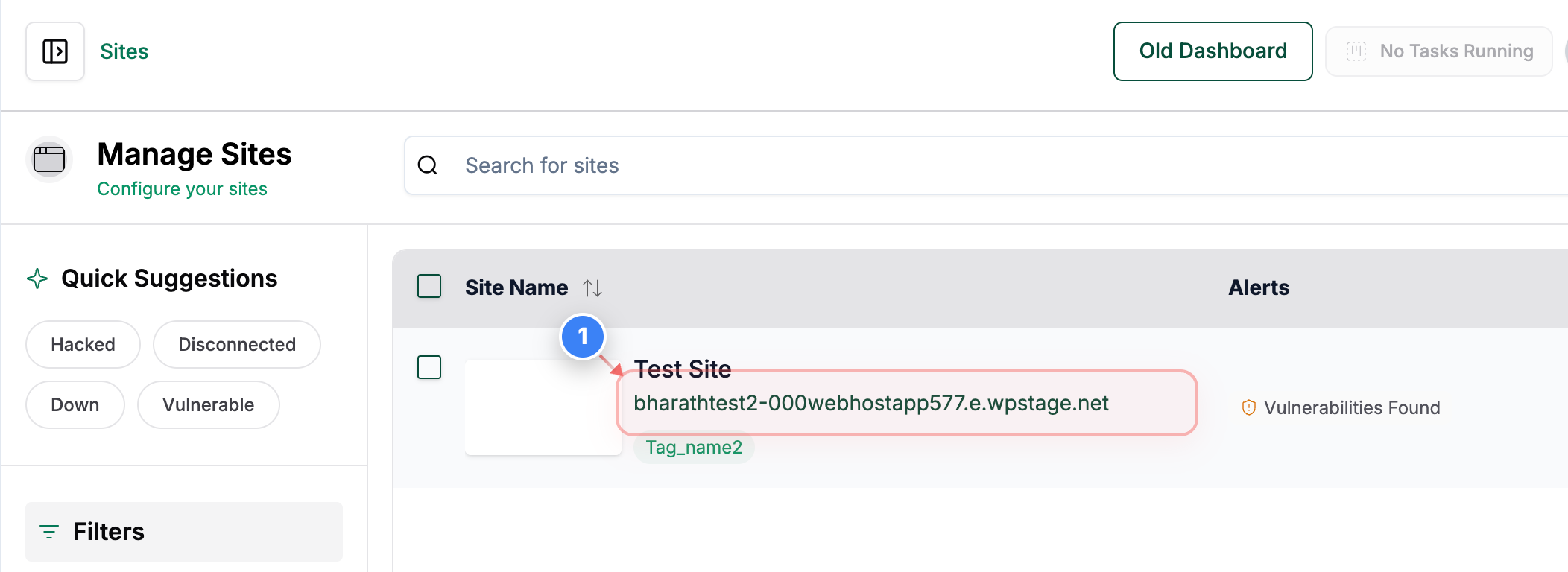
Click on your site name in the center of the page to access site management options
Note: Look for your site name displayed prominently in the middle section with the domain URL below it
Step 1 screenshot
Step 2 of 3
Access Reports History
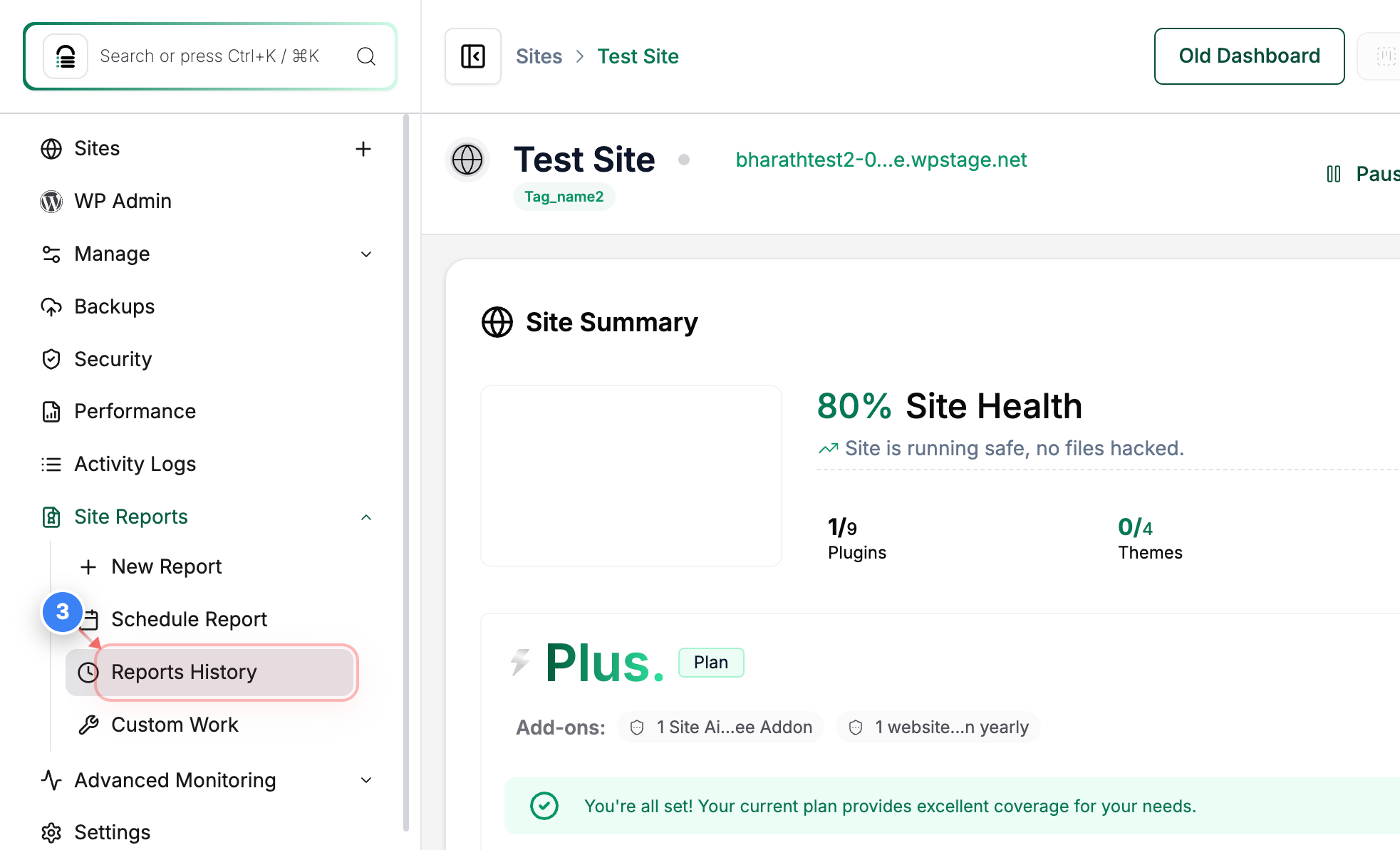
Click on the Reports History option in the left sidebar to view your site's reporting data
Note: The Reports History section is located in the navigation menu on the left side of the page
Step 2 screenshot
Step 3 of 3
Review Generated Reports
The Reports page displays your site's report history including creation dates, categories, and status for each report
Note: Check the report list to verify dates, categories, and status indicators - reports are organized chronologically with the most recent first
Step 3 screenshot

Account Level

Step 1 of 2
Open the Reports Section
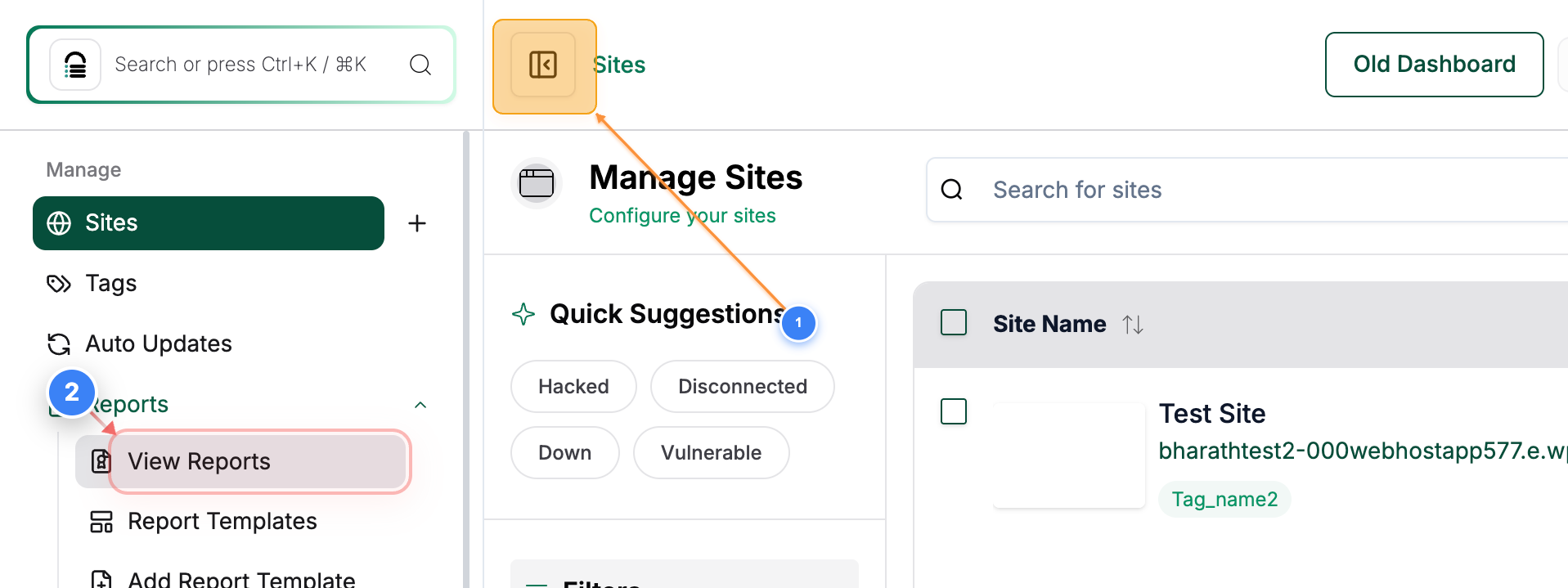
Click the Reports -> View Reports option in the left sidebar to access all generated reports for your sites.
Note: Click on the Hide/Unhide icon (1) to open the sidebar where the Reports and other options are present.
Step 1 screenshot
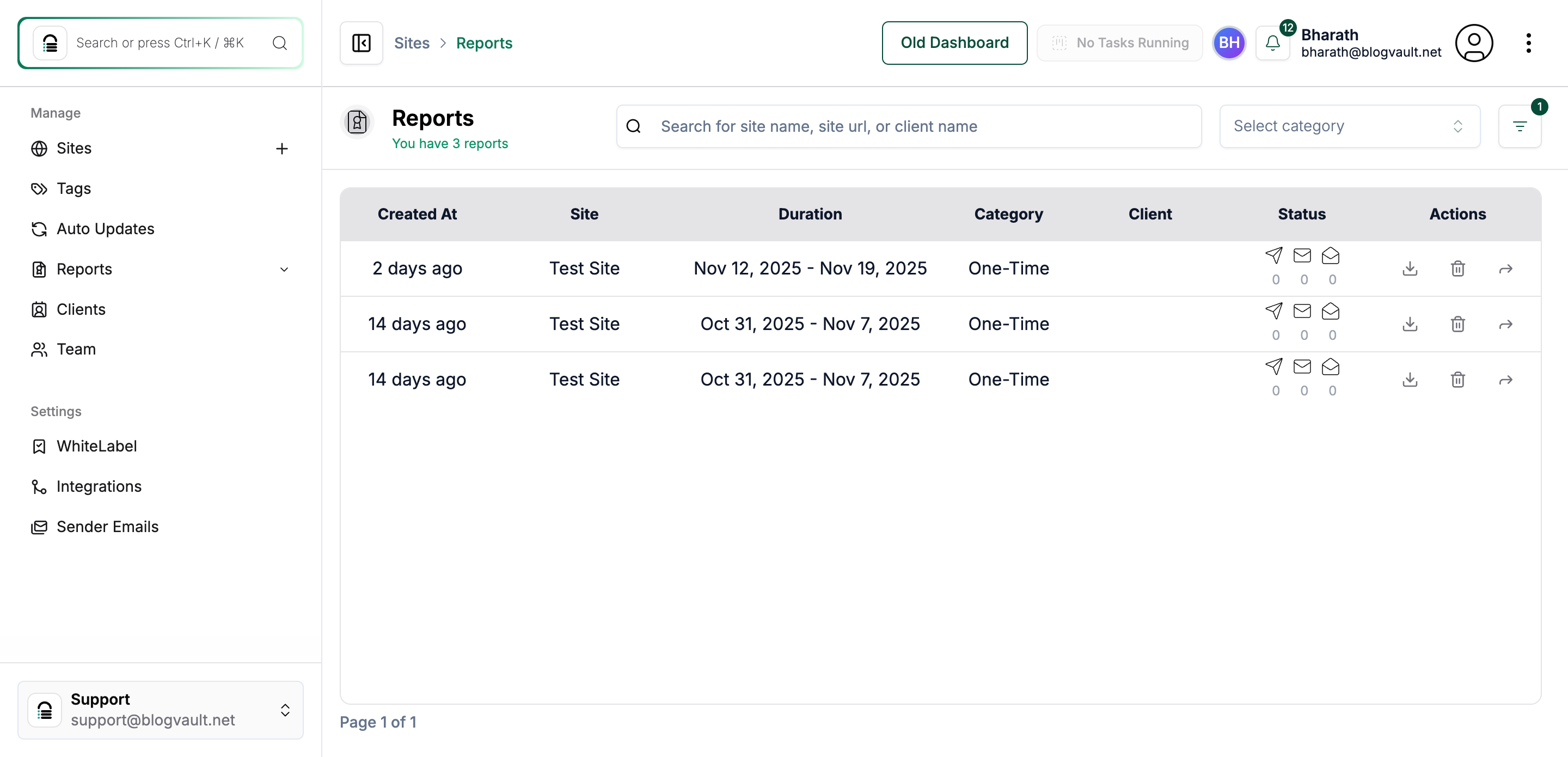
Step 2 of 2
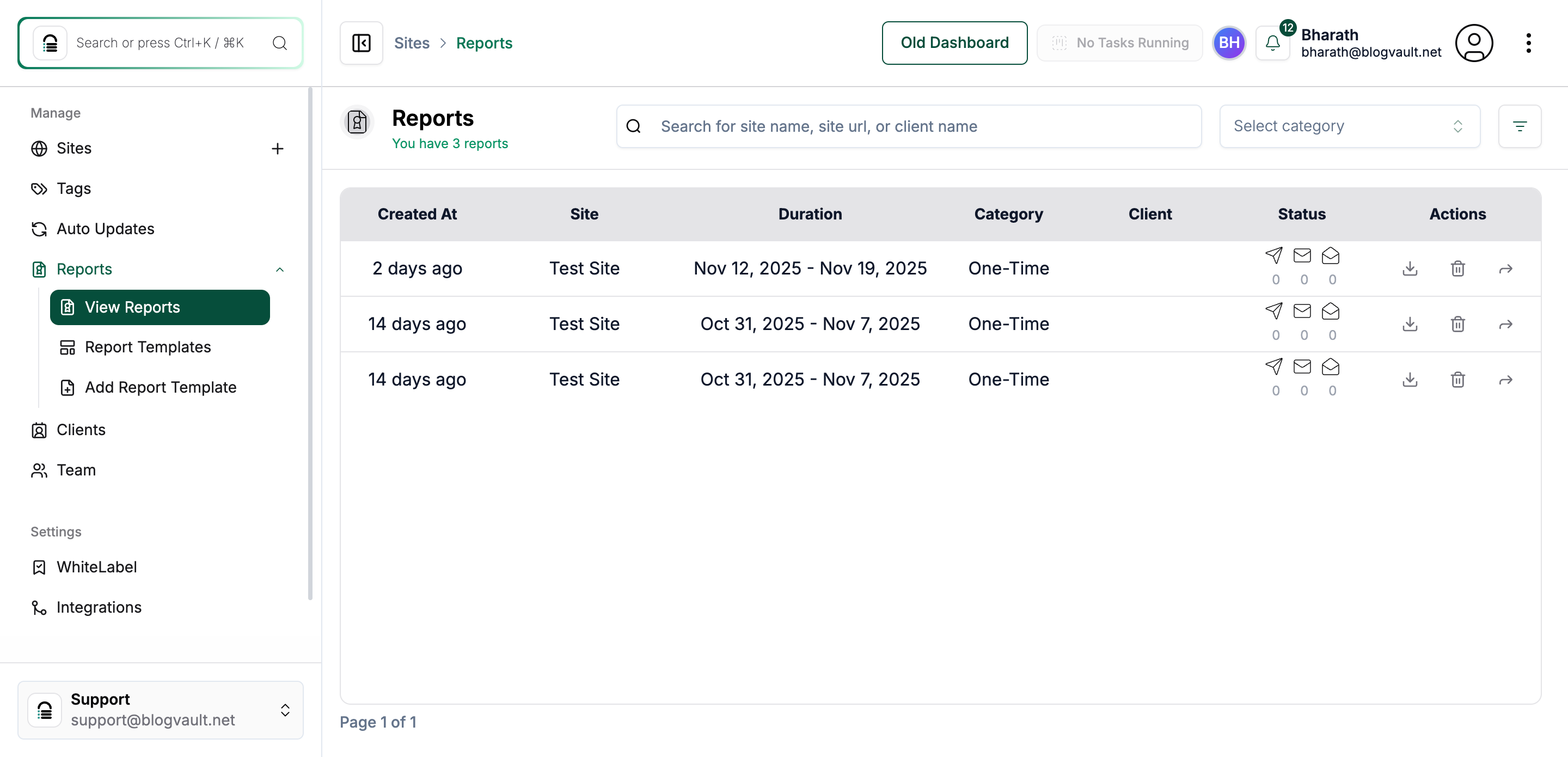
Review Available Reports
The Reports page lists all generated reports, including details such as creation date, site name, report duration, category, client, and status.
Note: Check the table to confirm the latest reports have been generated. Use the Actions column to view, download, or manage individual reports as needed.
Step 2 screenshot


Was this article helpful?

That’s Great!

Thank you for your feedback

Sorry! We couldn't be helpful

Thank you for your feedback

Let us know how can we improve this article!

Select at least one of the reasons

Feedback sent

We appreciate your effort and will try to fix the article