How to Export and Upload Website Backups to Google Drive

Created by Kousik M, Modified on Wed, 17 Jun at 4:15 AM by Kousik M

Step 1 of 10
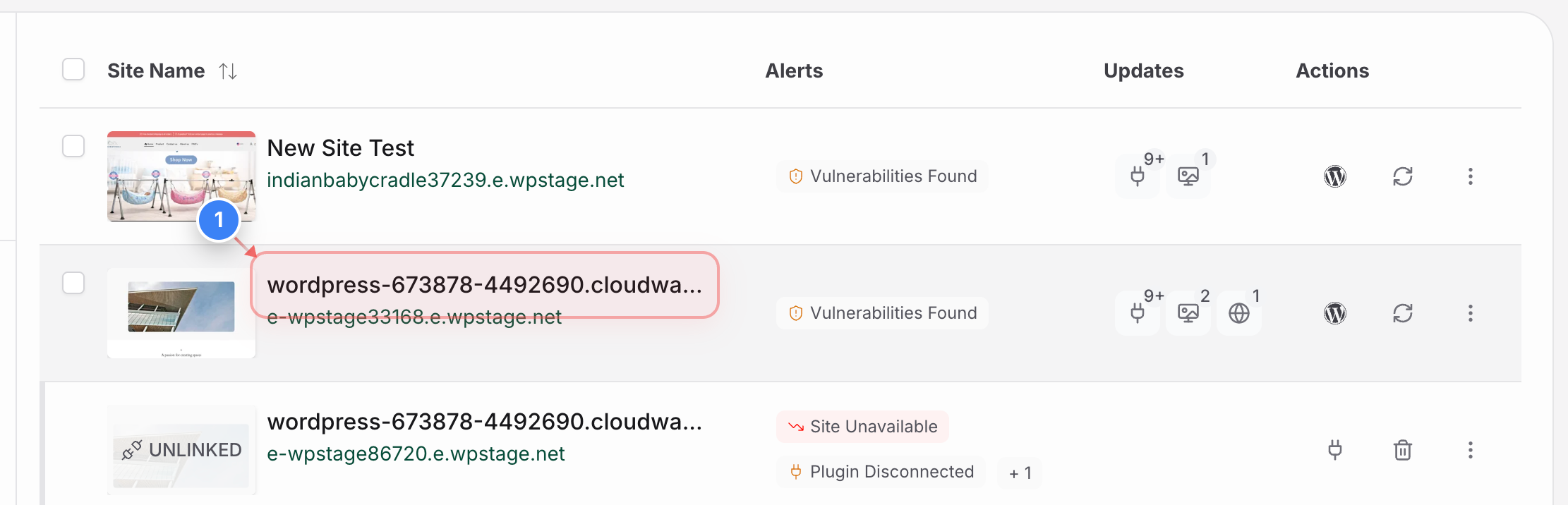
Select Your Site
Click on your site name from the site listing page to open site management options.
Note: This will open the site's individual overview dashboard containing all the site details.
Step 1 screenshot
Step 2 of 10
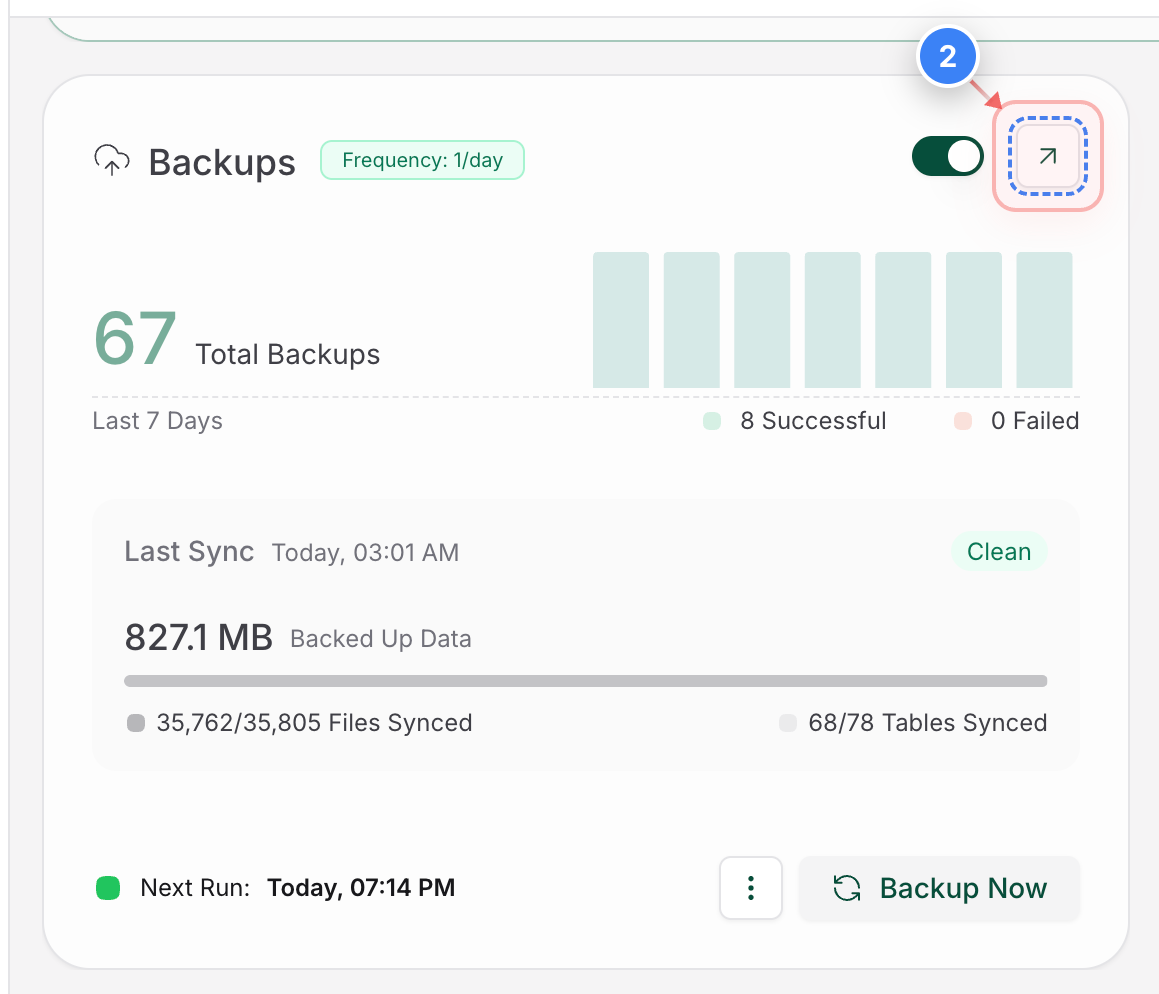
Open Backup Details
Click on the arrow within the Backups card to open the backup details page
Note: This section has all these details related to backup & features for backup related services
Step 2 screenshot
Step 3 of 10
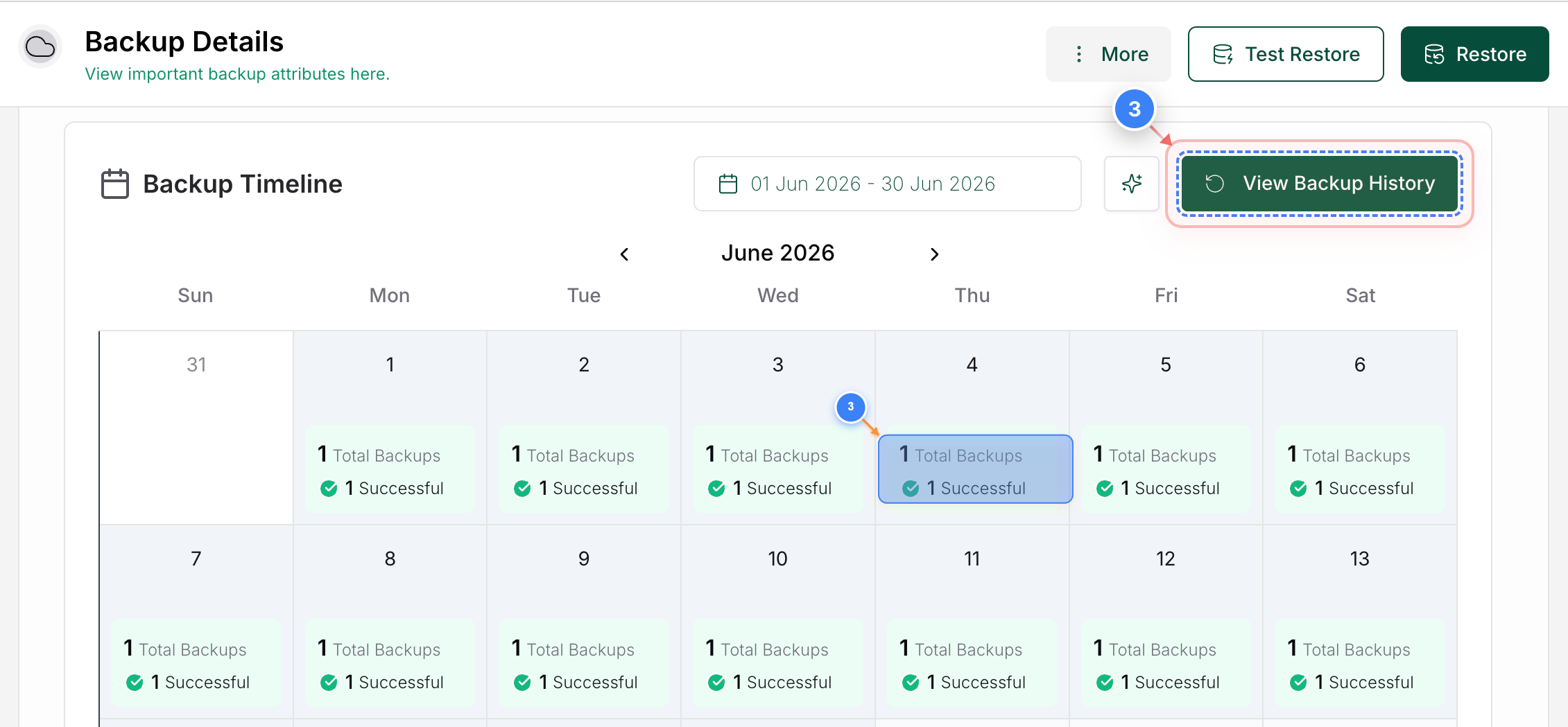
View Backup History
Click the View Backup History button on the right side of the Backup Timeline panel to open the historical archive of all snapshots.
Note: You can also pick individual backup instances directly from the Backup Timeline shown there.
Step 3 screenshot
Step 4 of 10
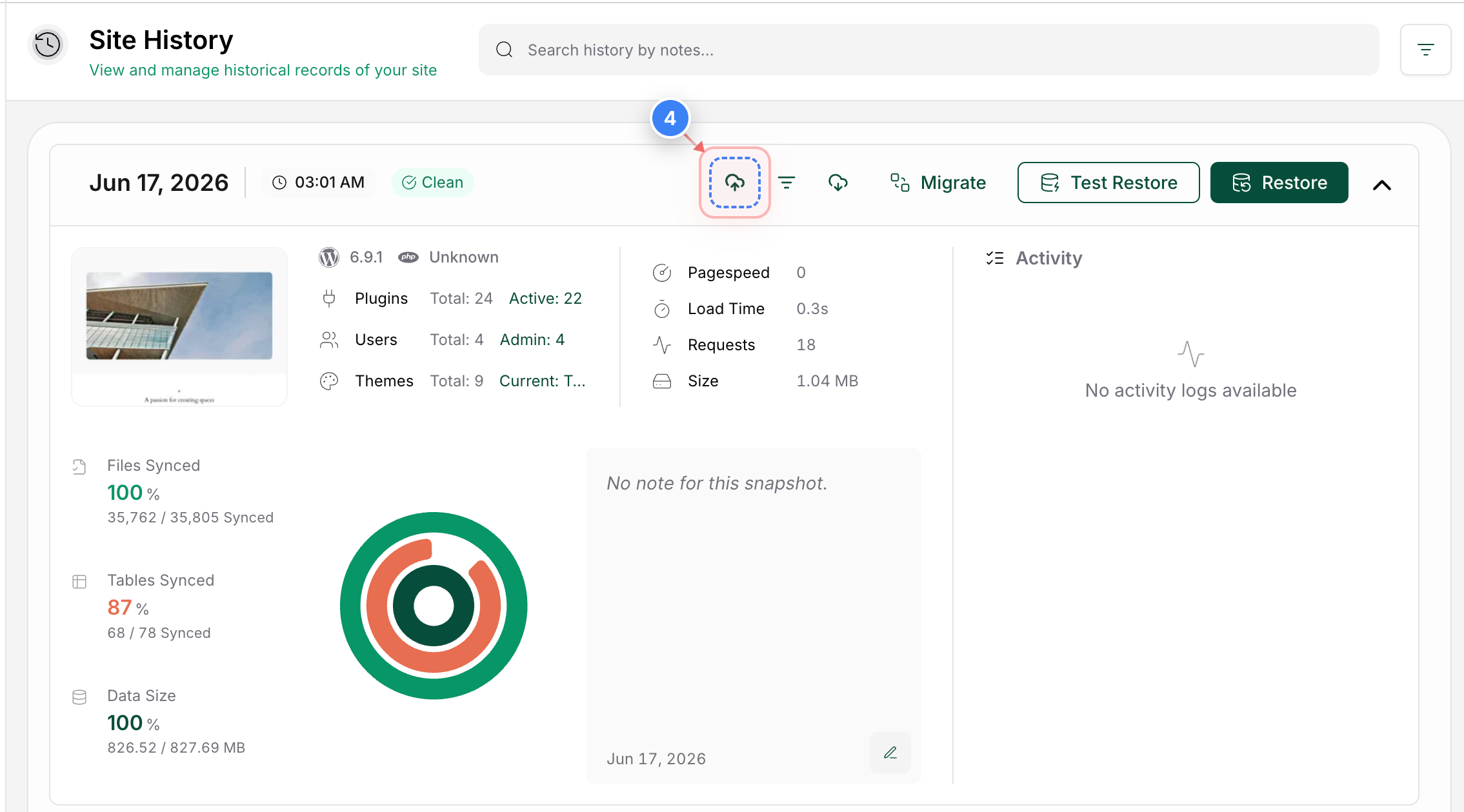
Initialize Backup Upload
Click the Upload Backup button in the backup history timeline to open the destination setup screen
Step 4 screenshot
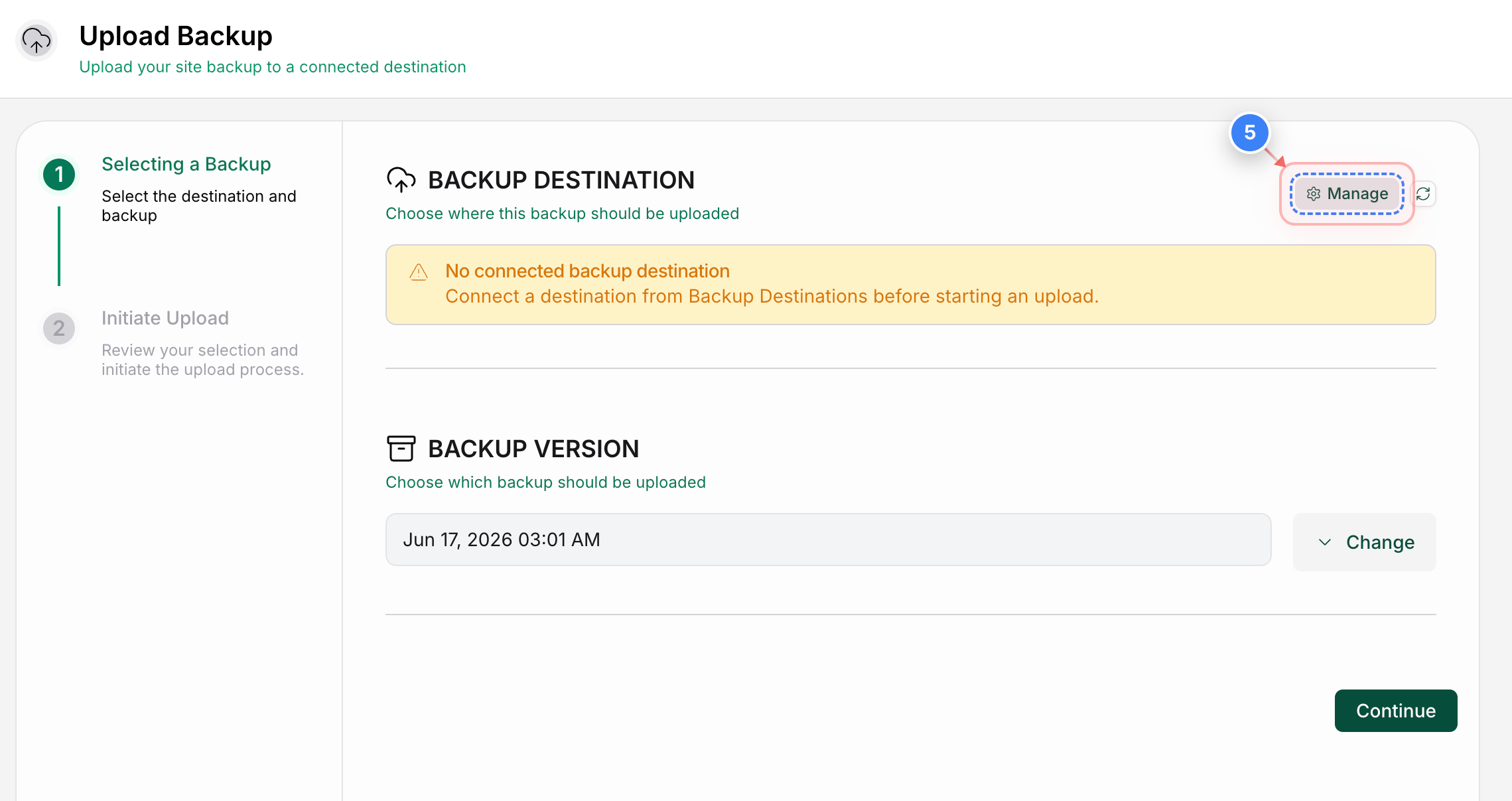
Step 5 of 10
Manage Backup Destinations
Click the Manage button next to the Backup Destination header to open your external cloud storage settings.
Note: This setup is required if you haven't linked to your Google Drive account yet.
Step 5 screenshot
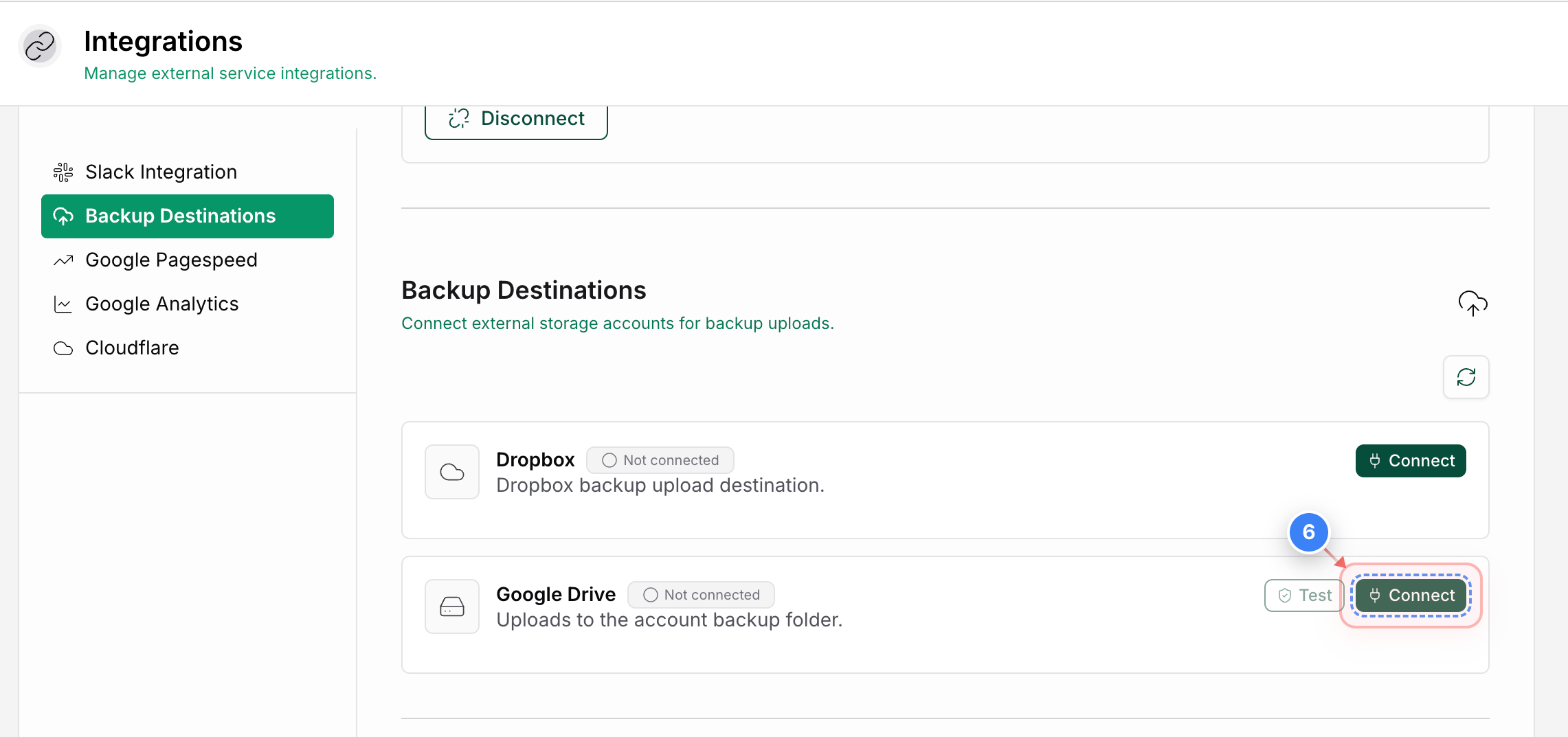
Step 6 of 10
Connect Google Drive
Click the Connect button next to the Google Drive option to link your Google Drive account.
Note: Once connected, the status badge will shift from Not Connected to Connected.
Step 6 screenshot
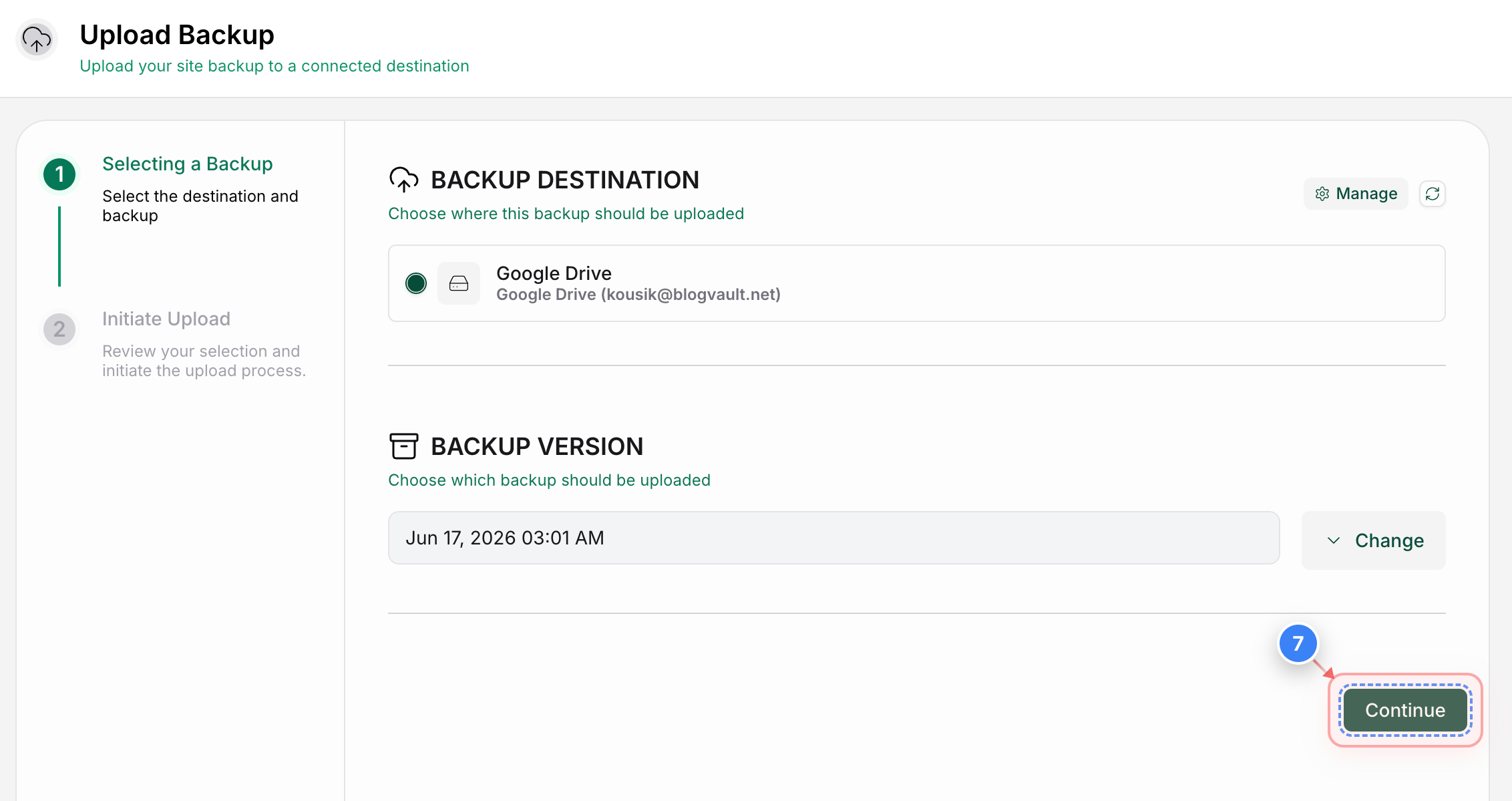
Step 7 of 10
Confirm the Destination & Backup version
Click the Continue button in the bottom-right corner of the configuration screen to review your upload settings.
Note: You can also change the backup version if you wish to upload another backup version
Step 7 screenshot
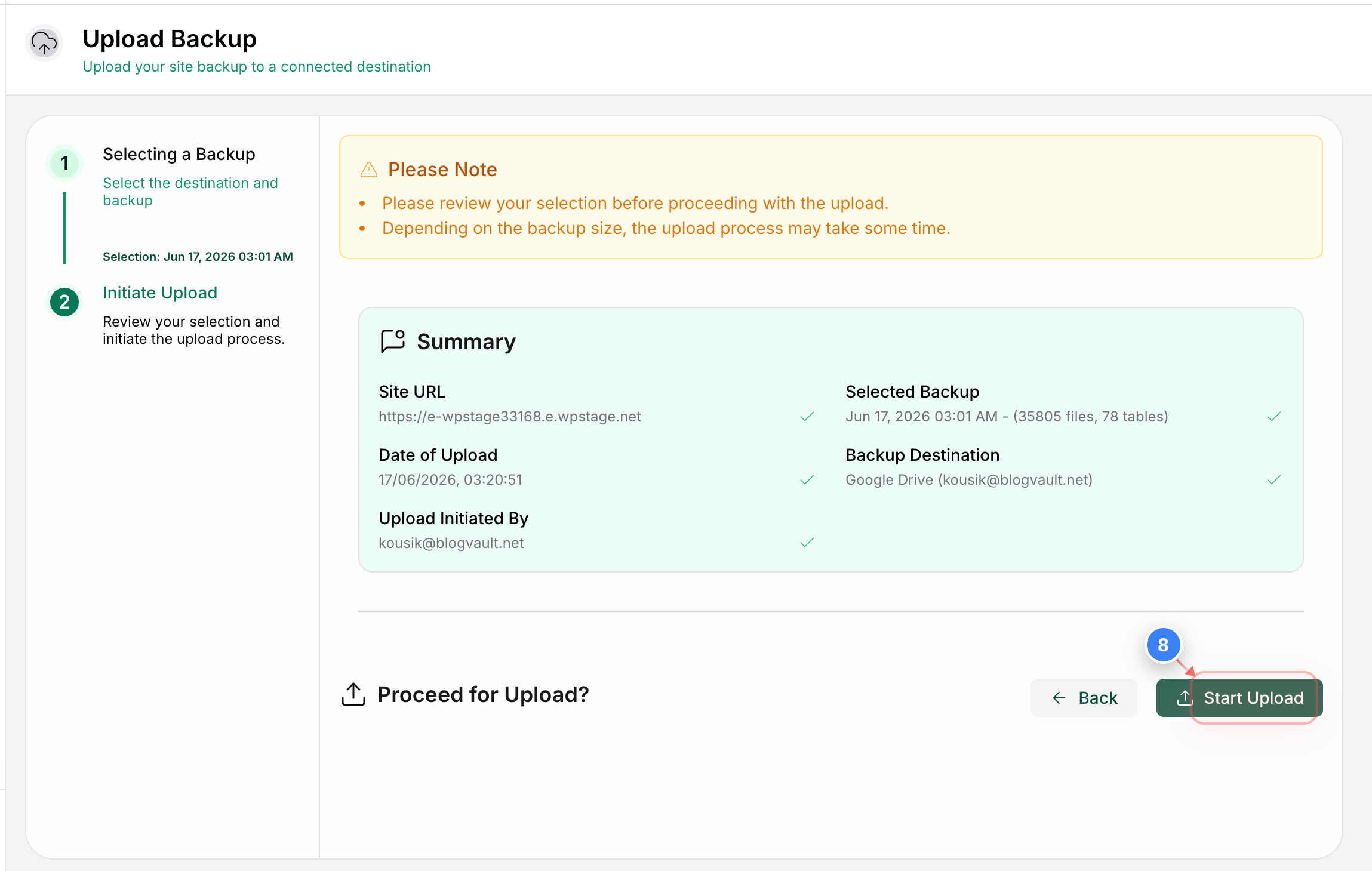
Step 8 of 10
Confirm and Start Upload
Click the Start Upload button in the bottom-right corner to begin transferring your backup to your cloud drive.
Step 8 screenshot
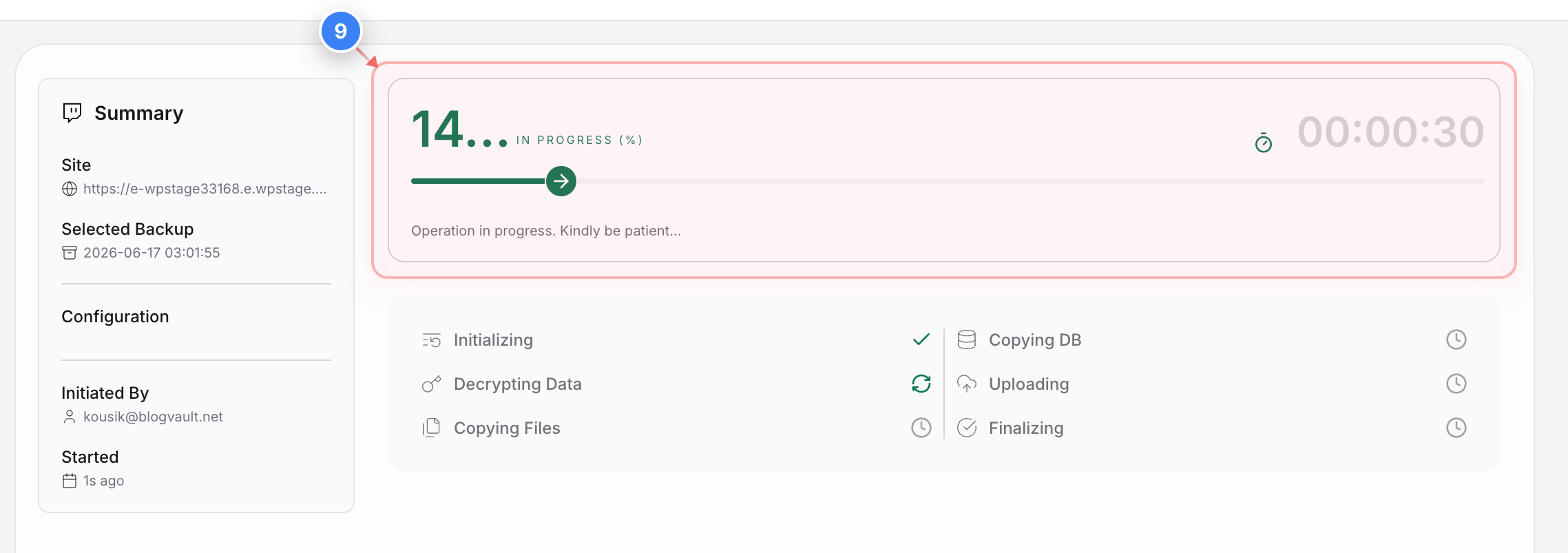
Step 9 of 10
Monitor Upload Status
View the progress bar to track the real-time status of your backup upload.
Note: You can also close the tab without any issues and the process will work in the backend
Step 9 screenshot
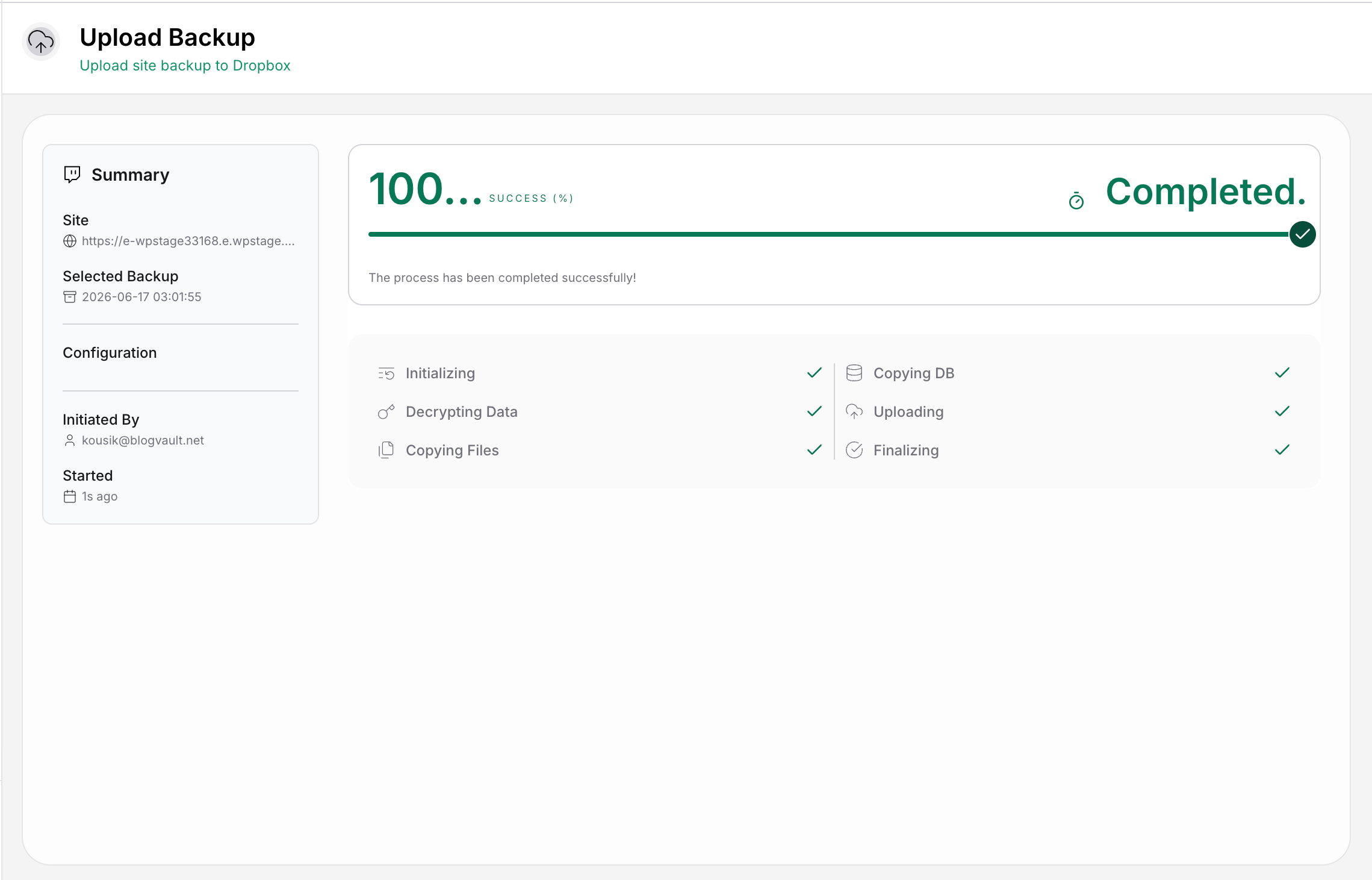
Step 10 of 10
Verify Successful Upload
Confirm that the progress indicator shows a green 100% success with COMPLETED message to verify your upload completed perfectly.
Note: Once the process is finished, you will also receive an automated confirmation email from the system.
Step 10 screenshot

Was this article helpful?

That’s Great!

Thank you for your feedback

Sorry! We couldn't be helpful

Thank you for your feedback

Let us know how can we improve this article!

Select at least one of the reasons

Feedback sent

We appreciate your effort and will try to fix the article