How Can I Download The Firewall Logs?

Created by Bharath K, Modified on Fri, 8 May at 10:03 PM by Bharath K

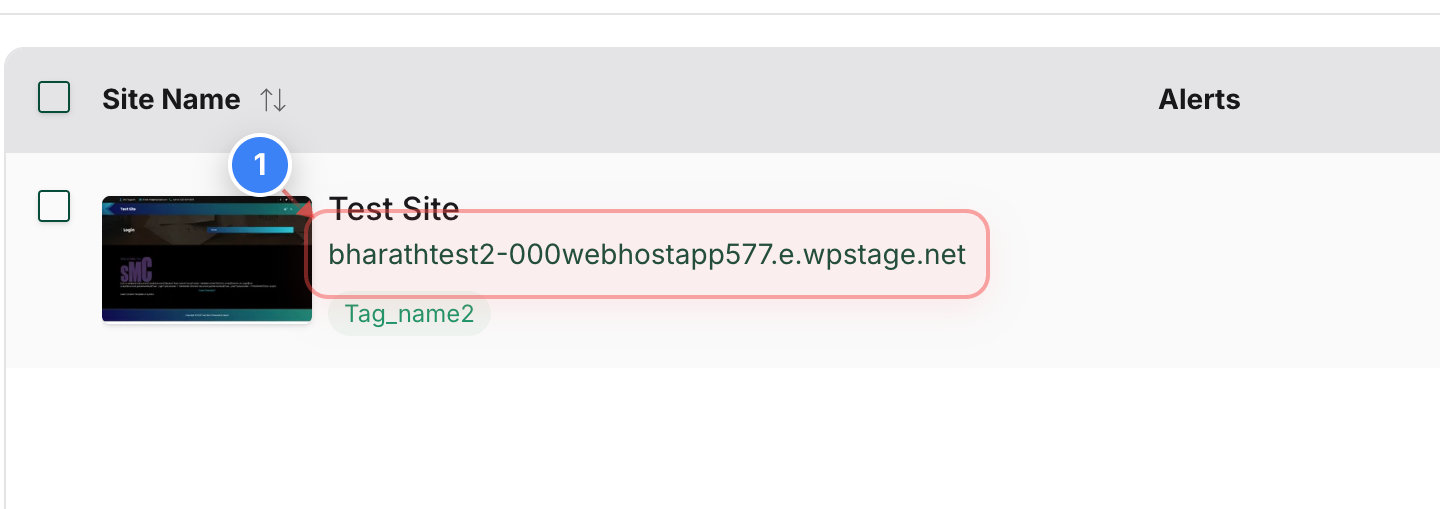
Step 1 of 7
Select Your Website
Click on your site name in the center of the dashboard to open the site management area.
Note: This will take you to the overview page for that specific website.
Step 1 screenshot
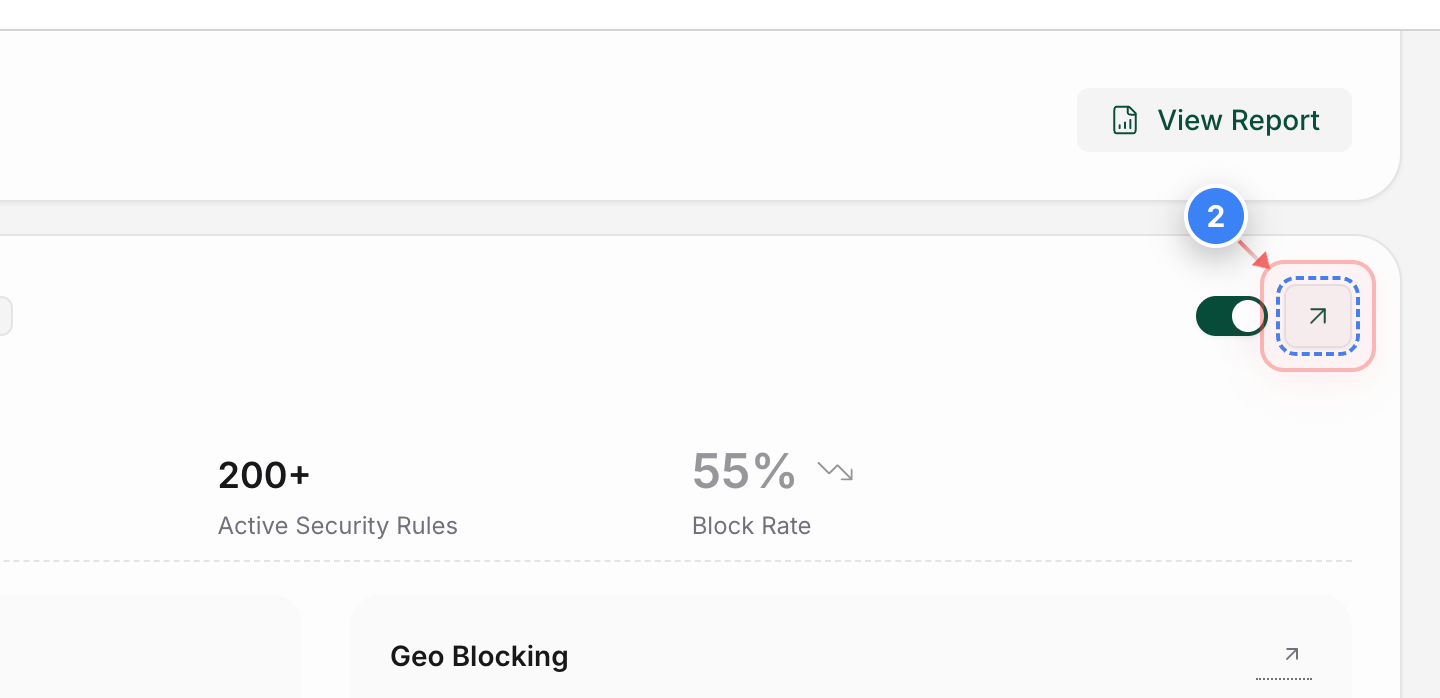
Step 2 of 7
Access Security Settings
Click on the security section in the site overview to view detailed firewall and protection metrics.
Step 2 screenshot
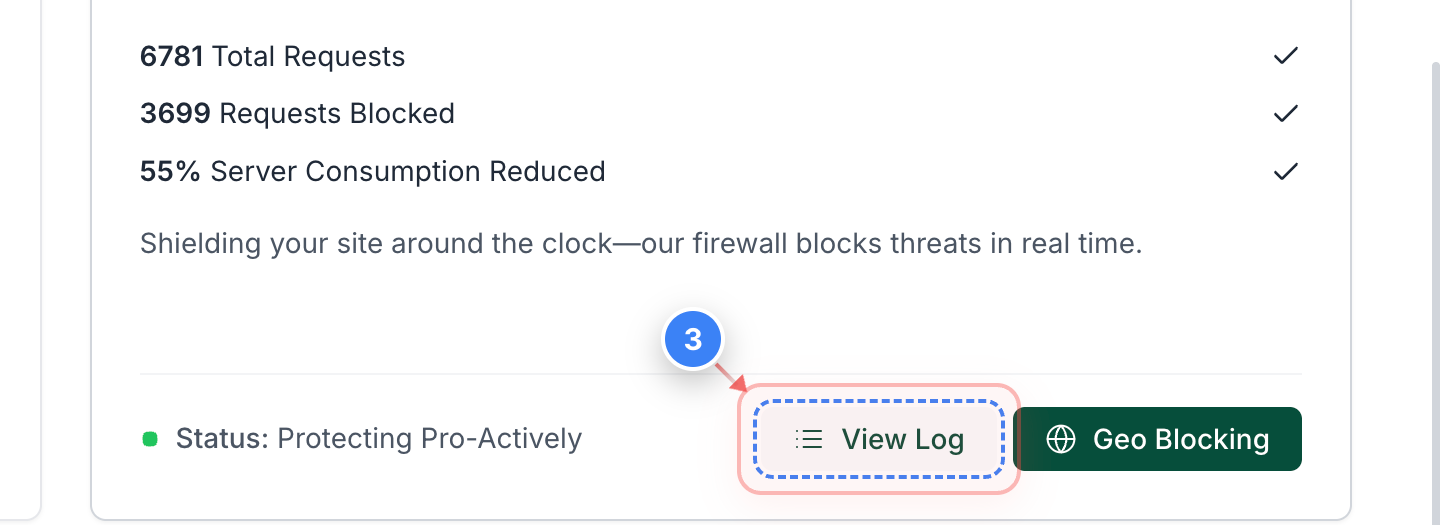
Step 3 of 7
Open Firewall logs
Click the View Log button in the Firewall section to see a list of firewall logs.
Step 3 screenshot
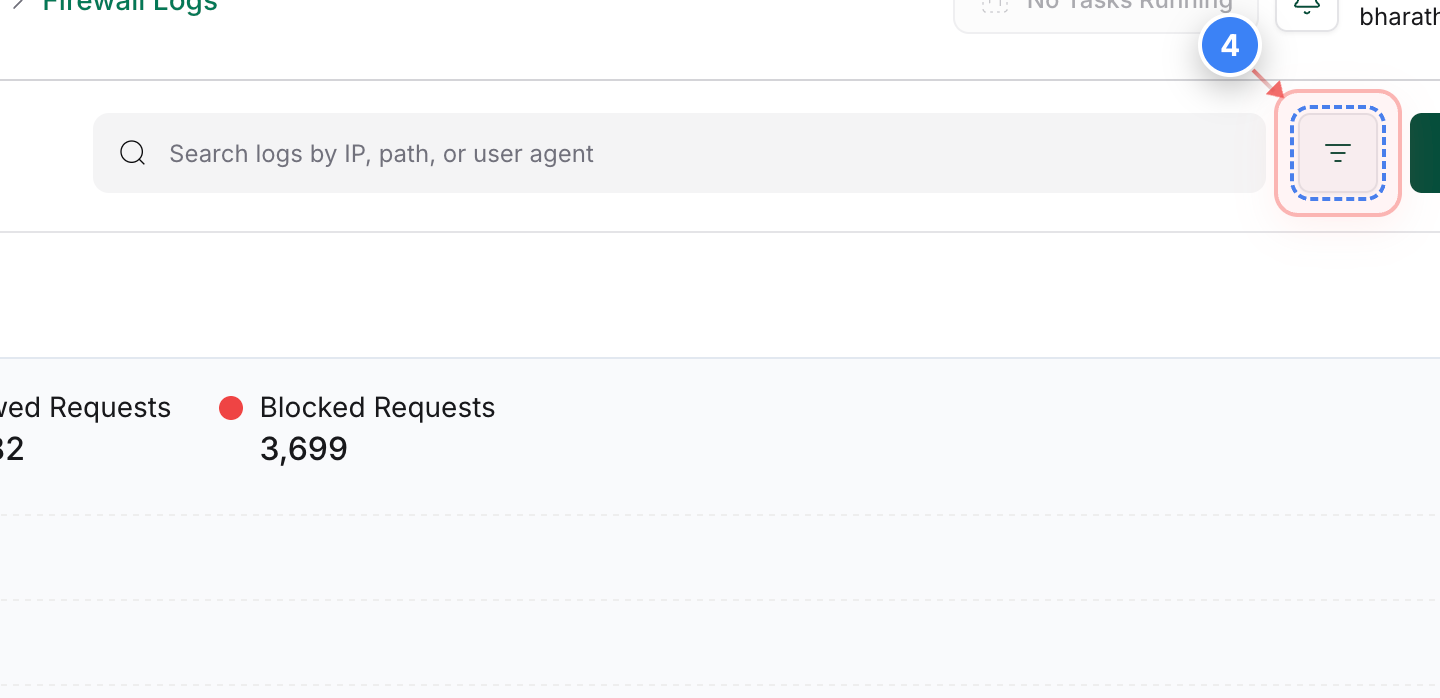
Step 4 of 7
Filter Firewall Logs - Optional
Click the button in the top-right area of the Firewall page to filter the logs according to your requirements.
Step 4 screenshot
Step 5 of 7
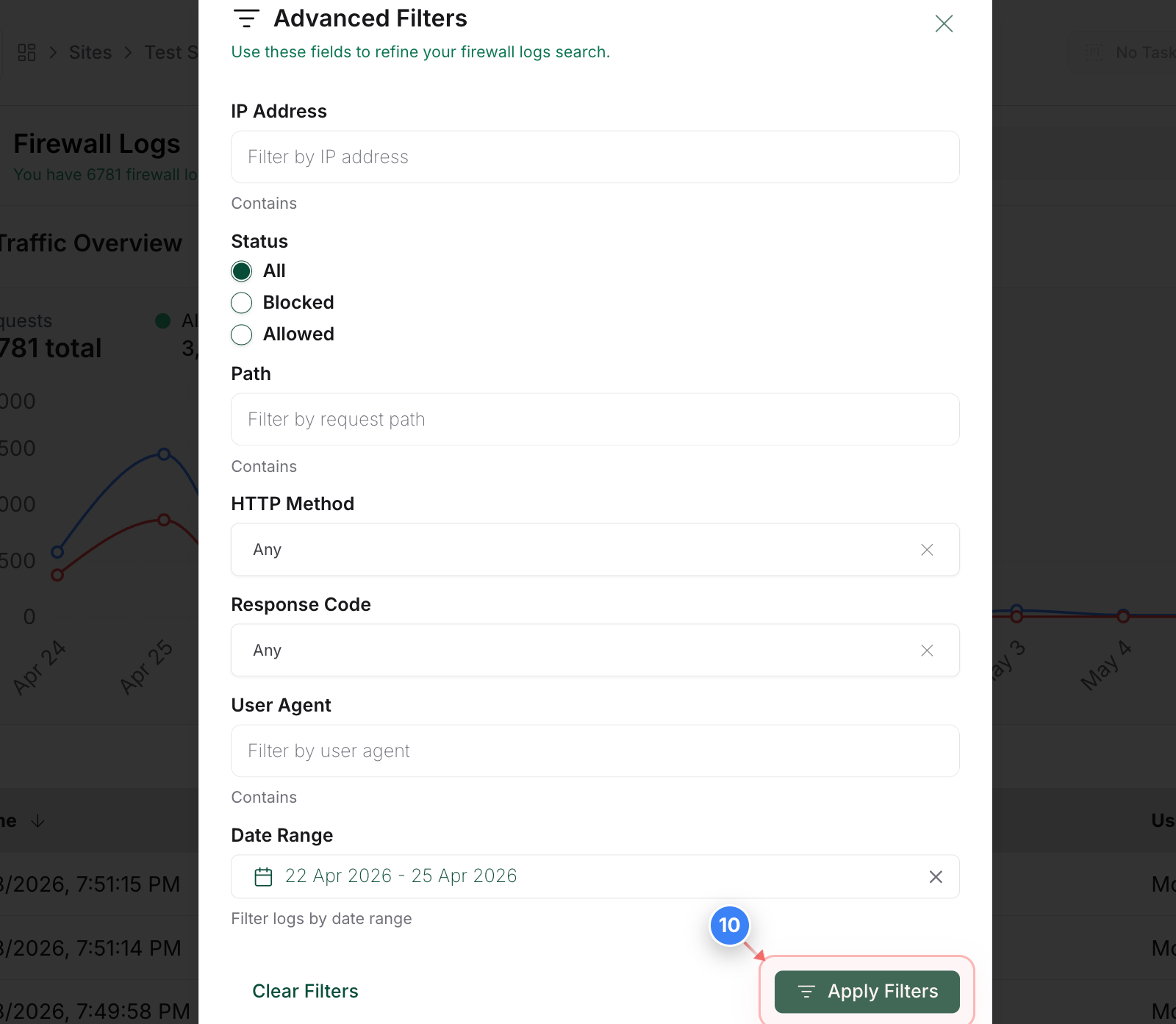
Log Filters - Optional
If you are looking to download logs for the specific IP, date range, user agent, and other metrics, you can do so from the Advanced Filter pop-up. Select the options and click the Apply Filters button at the bottom of the panel to update the log list with your selected options.
Step 5 screenshot
Step 6 of 7
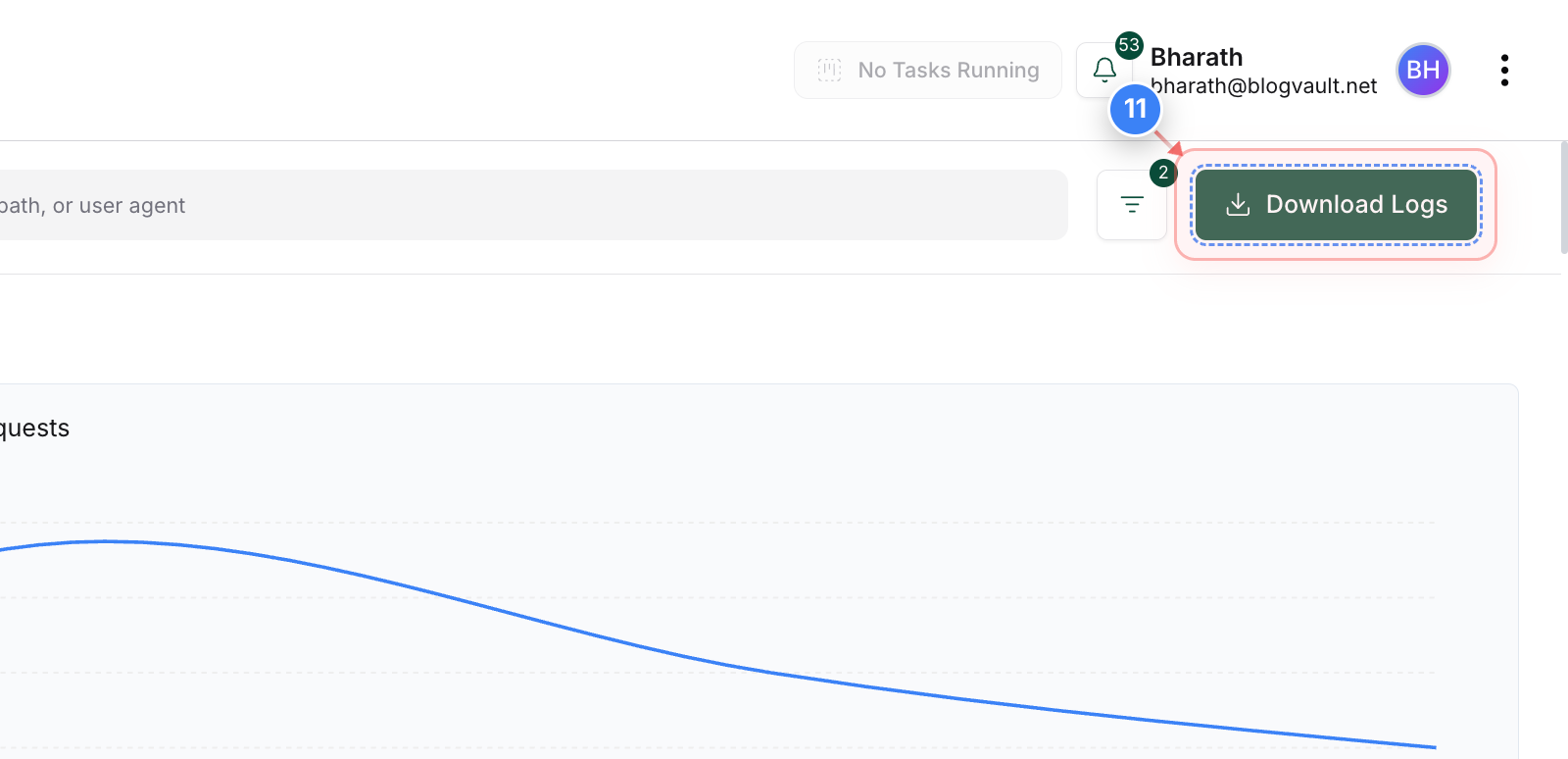
Initiate Log Export
Click the Download Logs button in the top-right area to prepare a CSV or file export of your filtered data.
Step 6 screenshot
Step 7 of 7
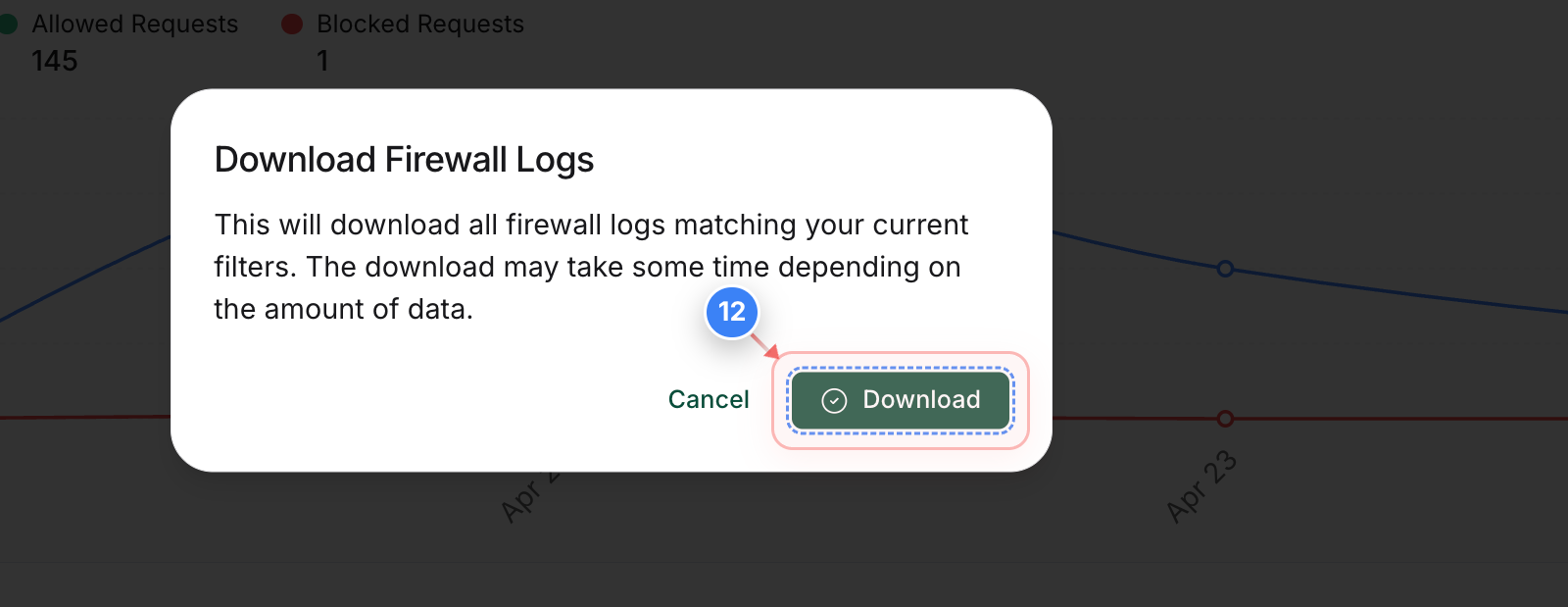
Confirm Data Download
Click the Download button in the confirmation dialog to save the firewall logs. The link to download the logs will be sent to your registered email address.
Step 7 screenshot

Was this article helpful?

That’s Great!

Thank you for your feedback

Sorry! We couldn't be helpful

Thank you for your feedback

Let us know how can we improve this article!

Select at least one of the reasons

Feedback sent

We appreciate your effort and will try to fix the article