
How Do I View the IP Addresses Blocked from Accessing My Website?

Created by Sai Sanjay G, Modified on Mon, 24 Nov at 11:43 PM by Sai Sanjay G

Step 1 of 6
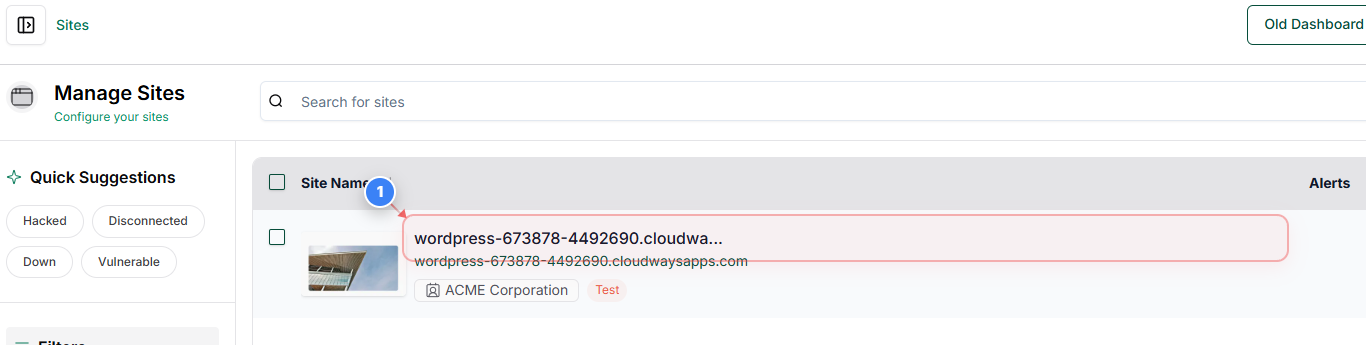
Open Your Site Dashboard
Click on your site name in the Sites list to open its management dashboard.
Step 1 screenshot
Step 2 of 6
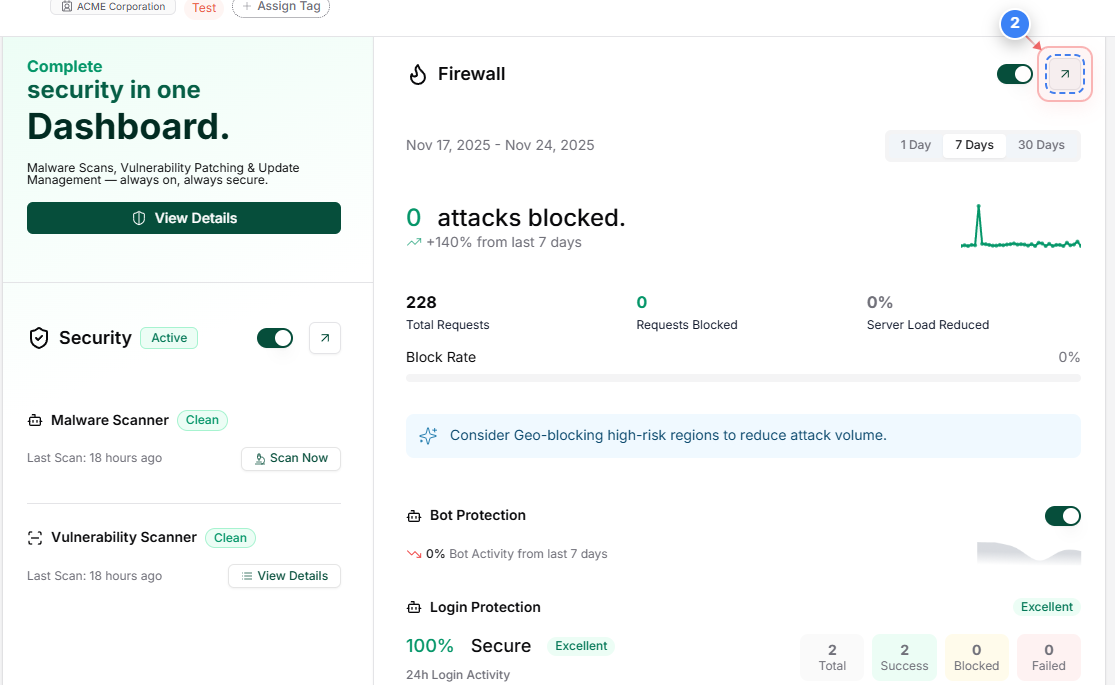
Open Firewall Section
Click the arrow button under the Firewall option to access the site's firewall settings.
Step 2 screenshot
Step 3 of 6
Open Firewall Logs
Click the Filter button in the Firewall Logs toolbar to open the available filtering options.
Step 3 screenshot
Step 4 of 6
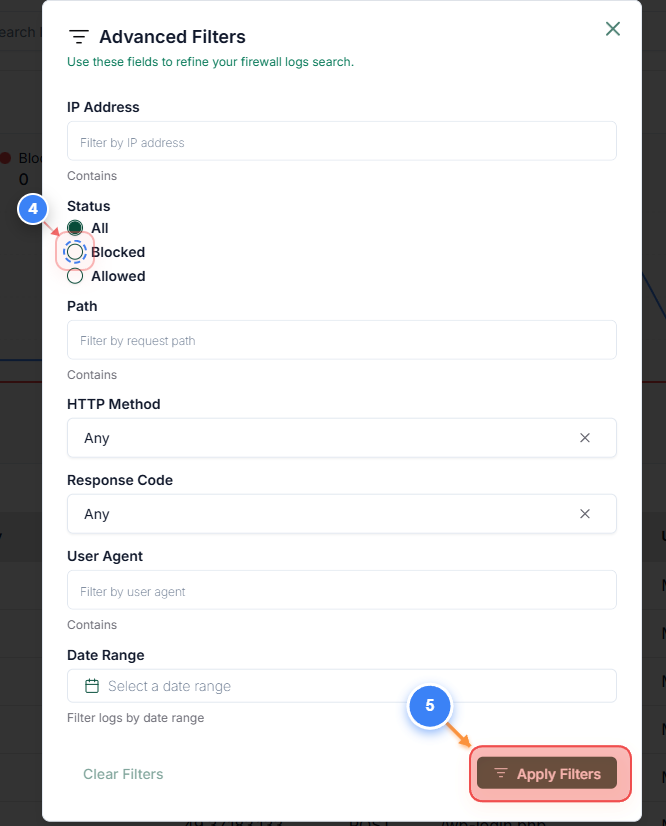
Filter by Blocked Requests
In the filter options, select the Blocked status to narrow the logs to only blocked requests(Step 4). Click the Apply Filters button to update the filter and view only blocked requests(Step 5).
Step 4 screenshot
Step 6 of 6
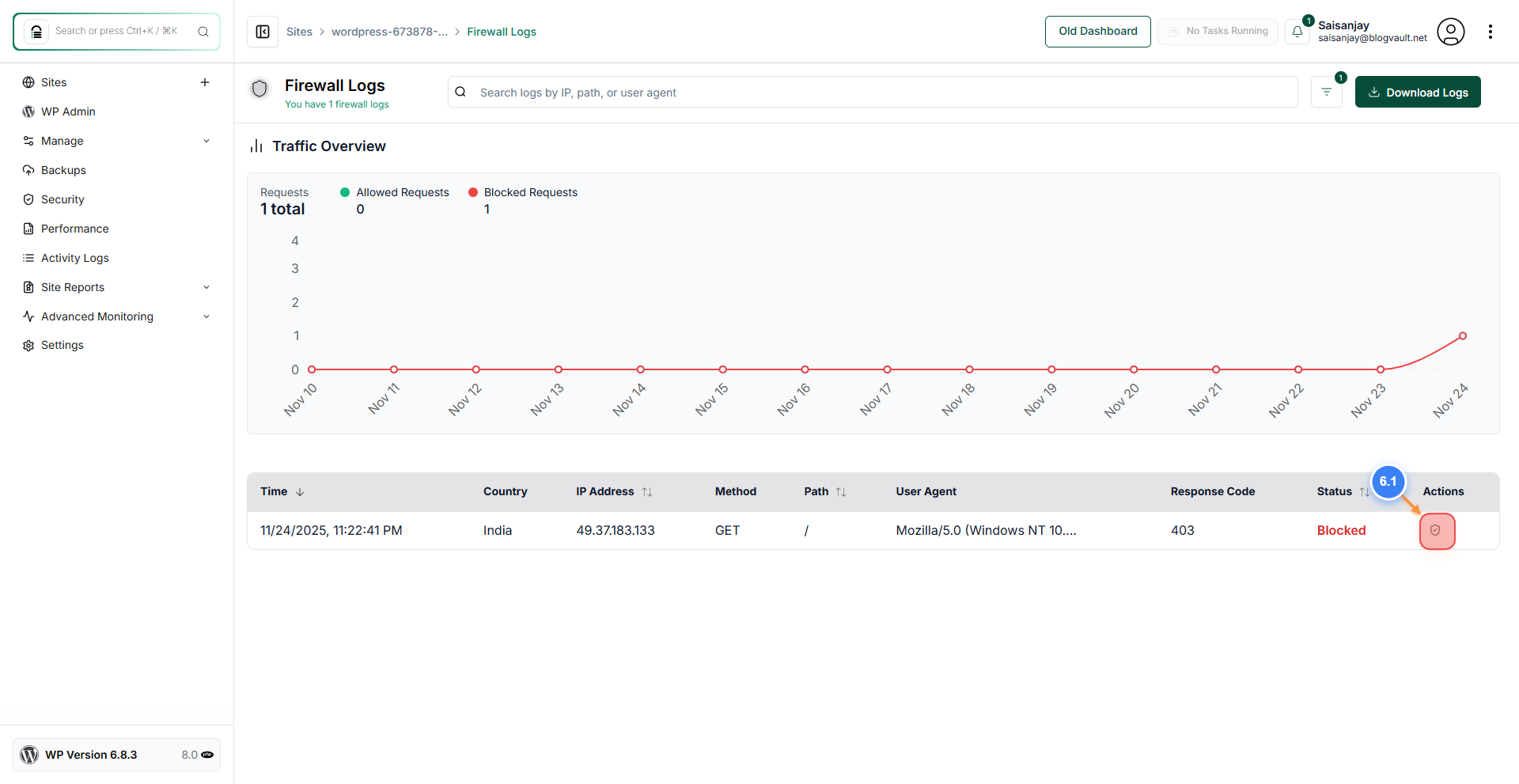
Review Blocked Requests
On the Firewall Logs page with the Blocked filter applied, review the table columns - Time, Country, IP Address, Method, Path, User Agent, Response Code, and Status - to investigate blocked traffic and identify suspicious patterns.
Note: Check for repeated attempts from the same IP, unusual user agents, or multiple failed methods. Use the Download Logs option if you need to export entries for further analysis.
Step 6 screenshot

Was this article helpful?

That’s Great!

Thank you for your feedback

Sorry! We couldn't be helpful

Thank you for your feedback

Let us know how can we improve this article!

Select at least one of the reasons

Feedback sent

We appreciate your effort and will try to fix the article