How Can I View the Login Logs for My Website?

Created by Sai Sanjay G, Modified on Mon, 24 Nov at 10:53 PM by Sai Sanjay G

Step 1 of 4
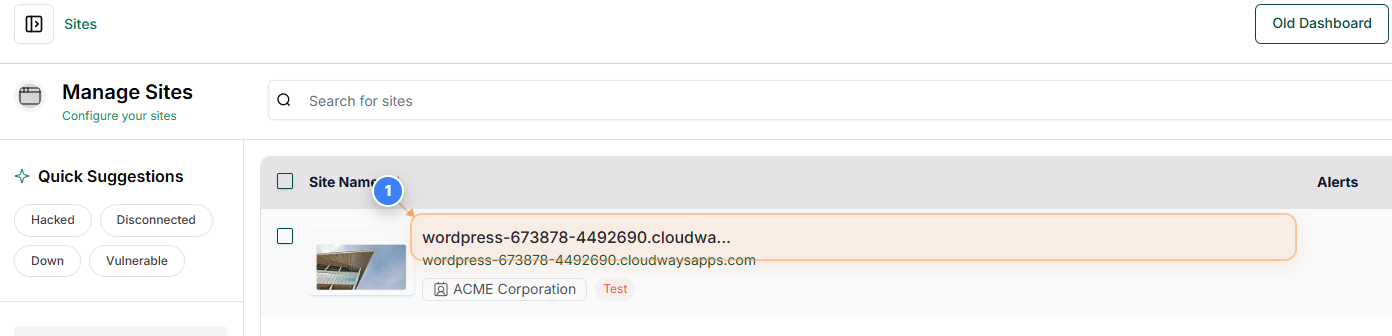
Open Your Site Dashboard
Click on your site name in the Sites list to open its management dashboard.
Note: Use this section whenever you need to access tools and settings for a specific site.
Step 1 screenshot
Step 2 of 4
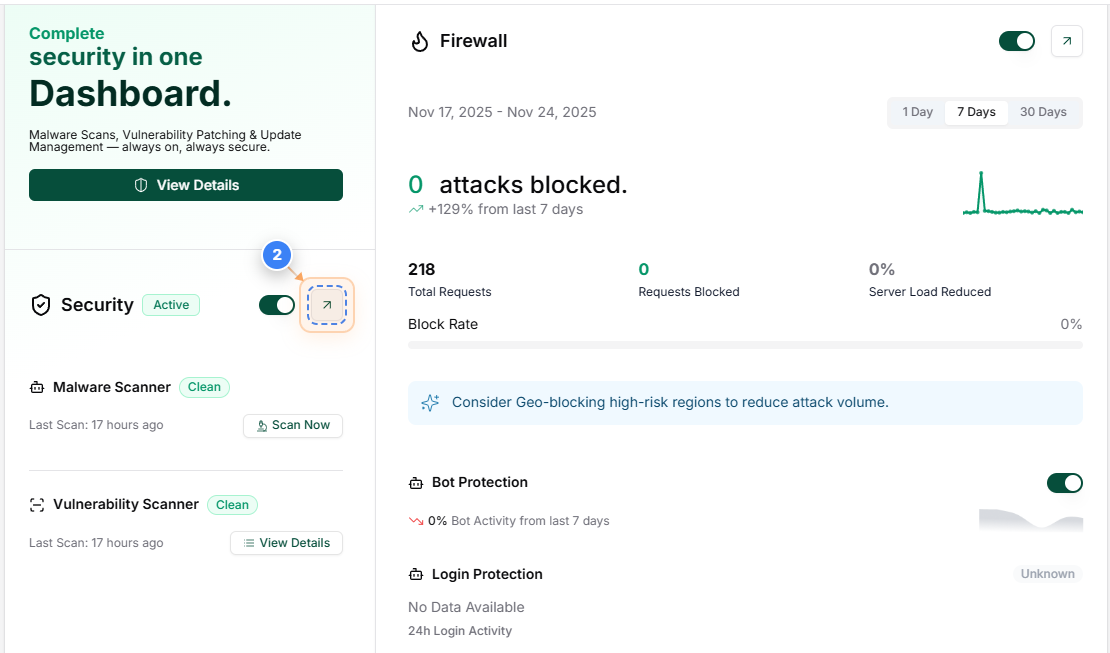
Access Security Overview
Click the Security section on your dashboard to view security features and controls.
Note: The Security area lets you review active protection, activity logs, and key security settings.
Step 2 screenshot
Step 3 of 4
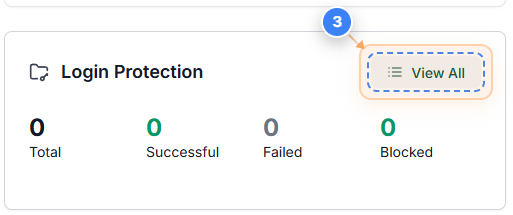
Open Login Protection Details
Click the View All option in the Login Protection area to review detailed login security activity.
Note: This section helps you analyze login attempts, blocked access, and suspicious behavior.
Step 3 screenshot
Step 4 of 4
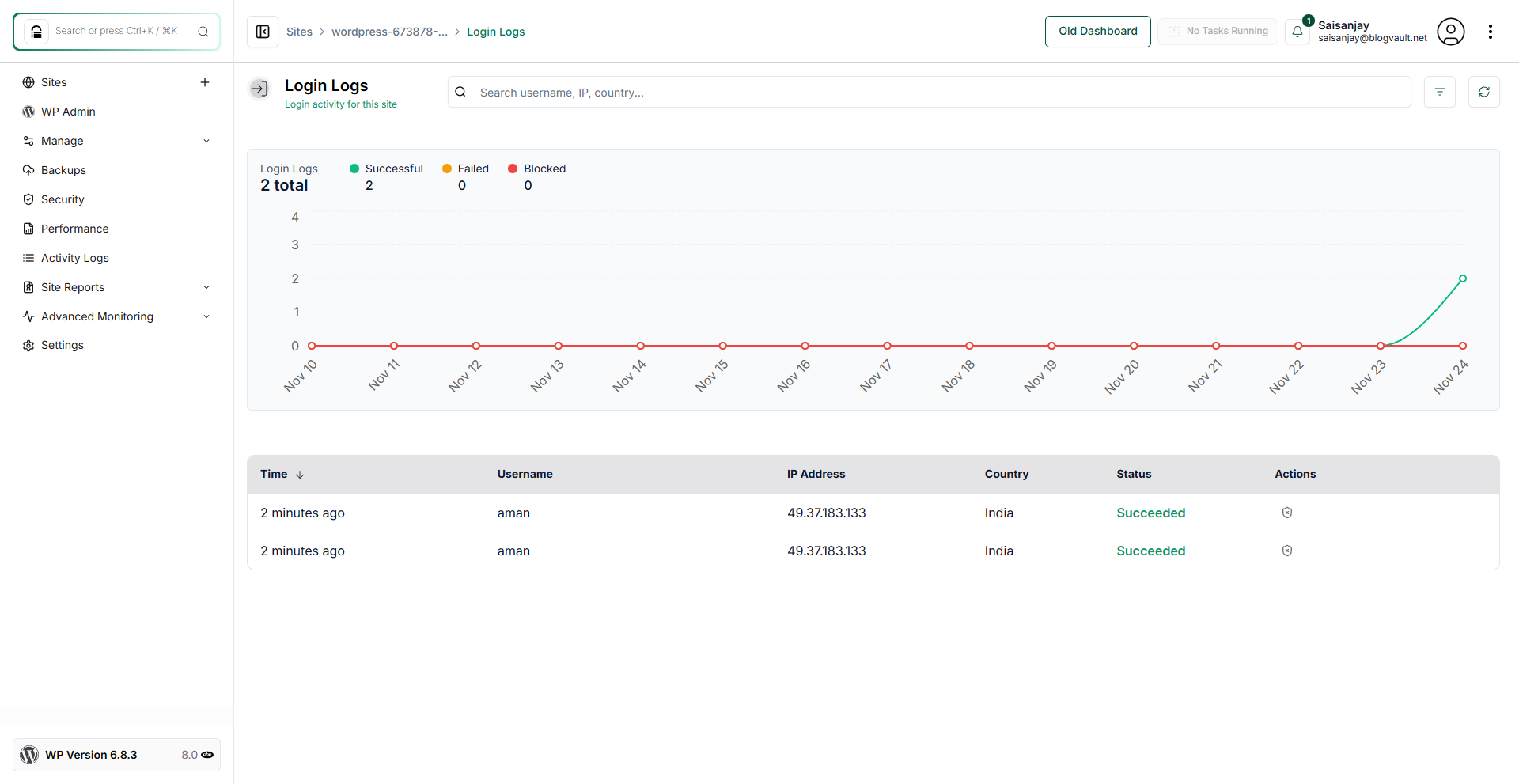
Review Recent Login Activity
The Login Logs page shows detailed information about recent login attempts, including username, IP address, country, time, and whether the attempt succeeded or failed. You can also block an IP from the Actions section
Note: Look for unexpected usernames, repeated attempts from the same IP, or failed logins to identify possible unauthorized access attempts.
Step 4 screenshot

Was this article helpful?

That’s Great!

Thank you for your feedback

Sorry! We couldn't be helpful

Thank you for your feedback

Let us know how can we improve this article!

Select at least one of the reasons

Feedback sent

We appreciate your effort and will try to fix the article