How to Set a Default WordPress Admin Login User For Site

Created by Sachin B, Modified on Mon, 20 Apr at 12:14 PM by Sachin B

Step 1 of 7
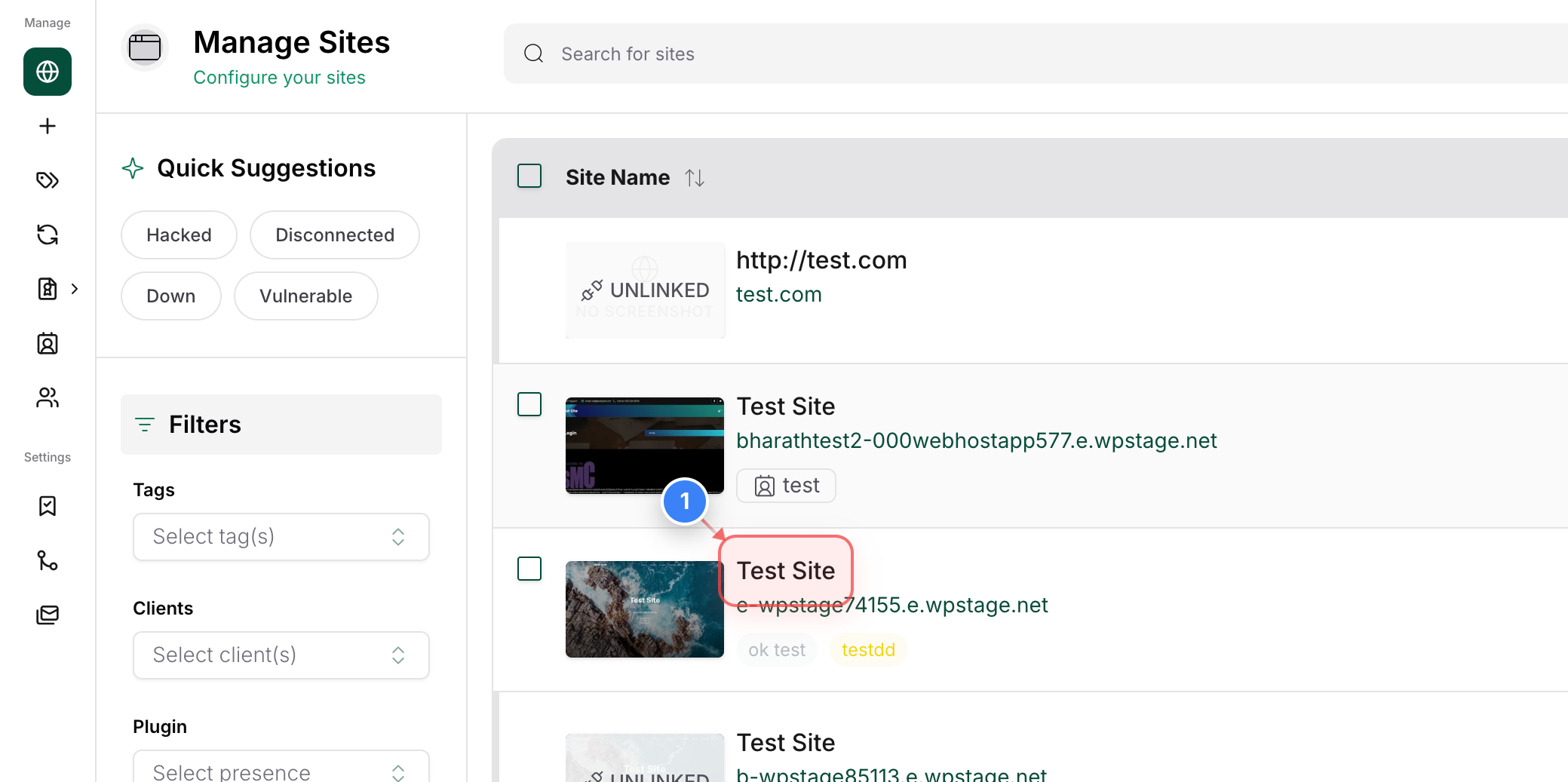
Select Your Website
Click on the site name in the center of the Sites dashboard to open the management overview for that specific website.
Note: Ensure you are selecting the correct site if you have multiple sites.
Step 1 screenshot
Step 2 of 7
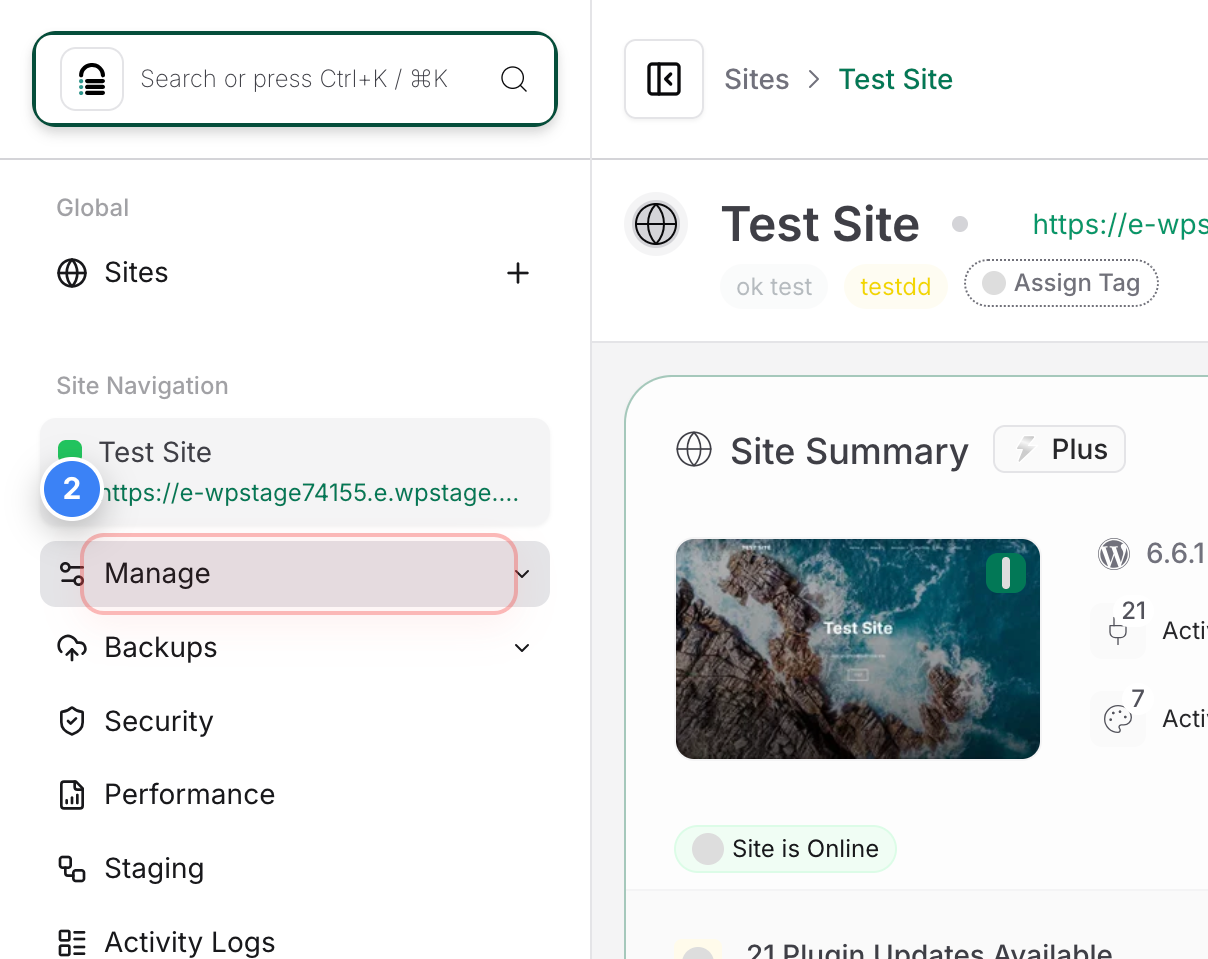
Access Site Management Tools
Click the Manage option in the left-hand sidebar to expand the settings for your site.
Step 2 screenshot
Step 3 of 7
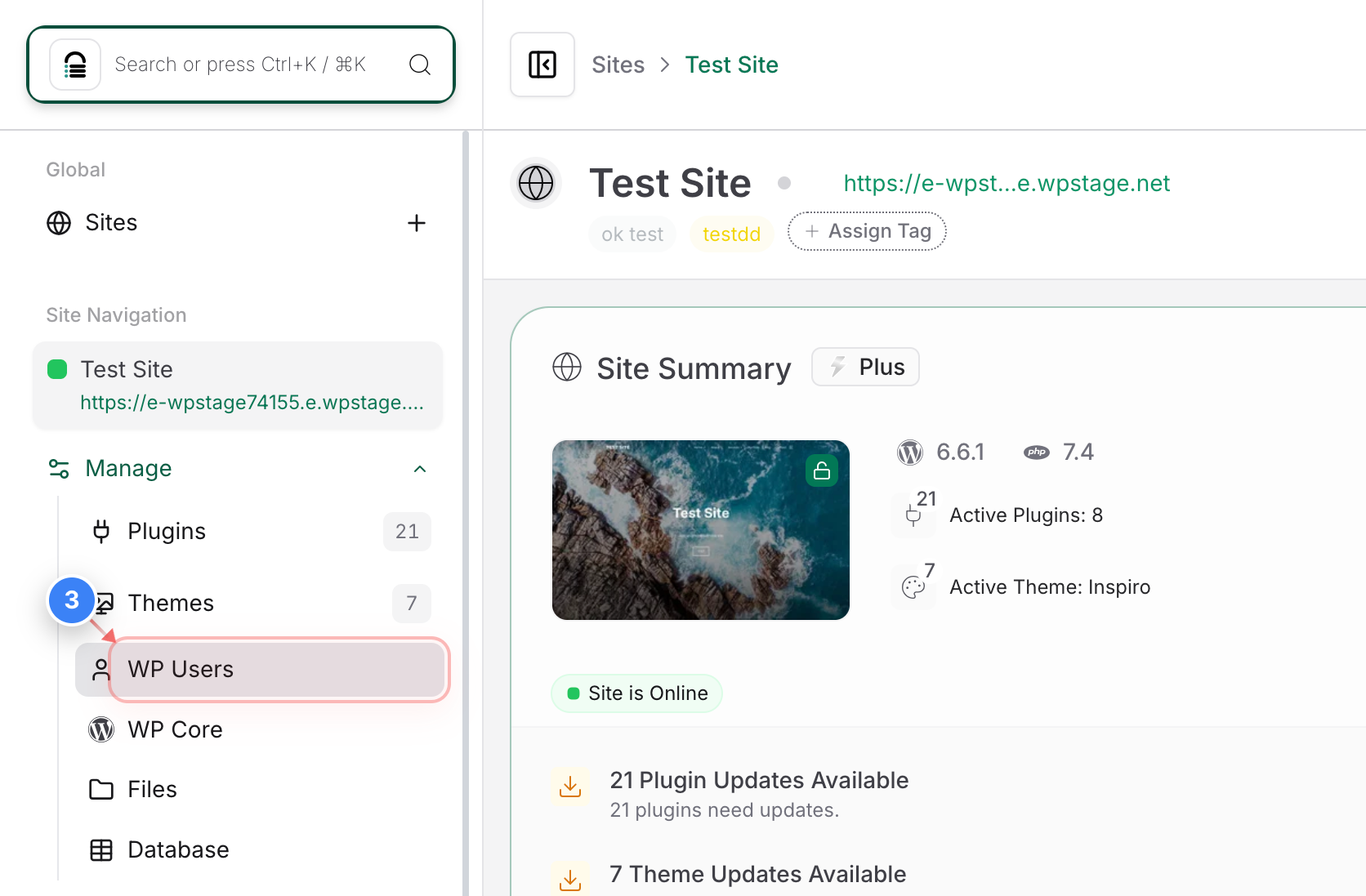
Open WP Users Section
Select WP Users from the sidebar menu to view and manage the WordPress users associated with your site.
Step 3 screenshot
Step 4 of 7
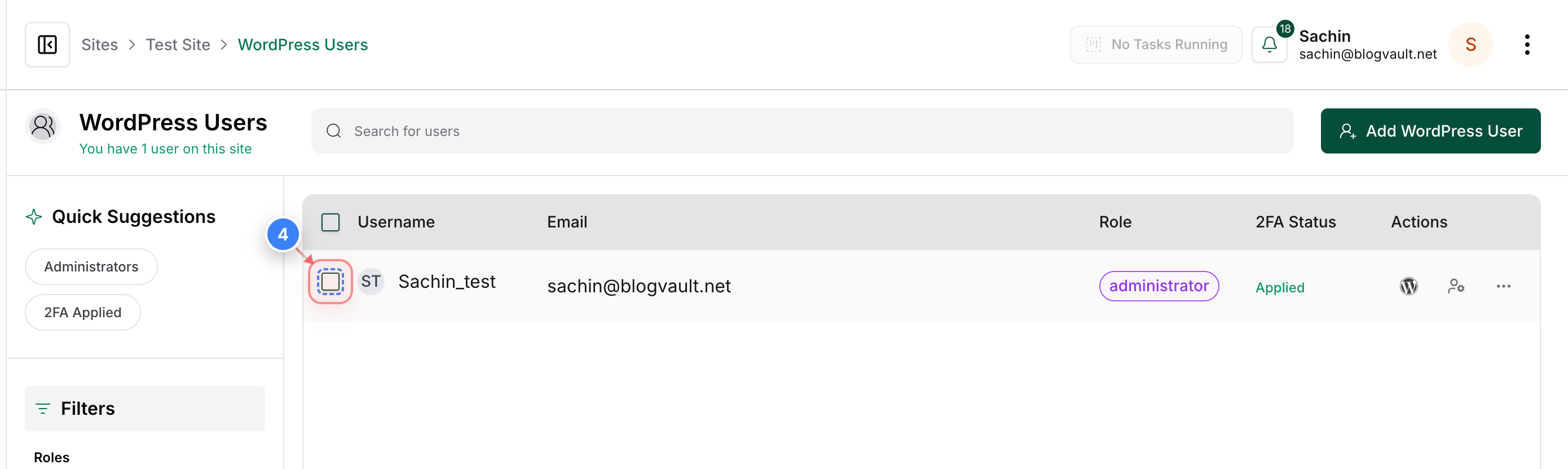
Select a Specific User
Click the checkbox next to the desired username in the user list.
Step 4 screenshot
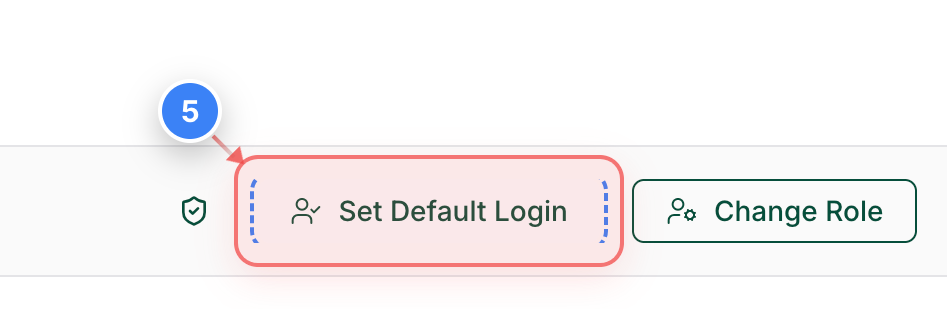
Step 5 of 7
Default Login Action
Click the Set Default Login button in the action bar at the bottom of the page to set up a default user.
Step 5 screenshot
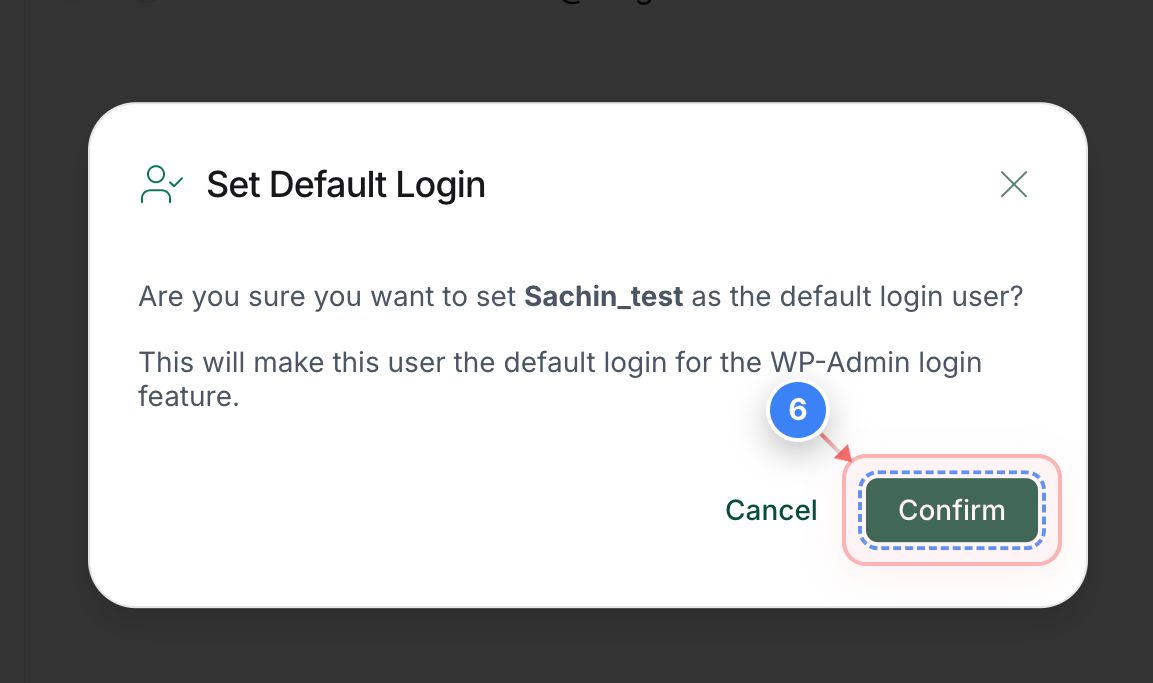
Step 6 of 7
Confirm User Update
Click the Confirm button in the pop-up dialog to set the selected user as the default user for WP-Admin access.
Note: This action will make this user the default User used for the automatic login feature.
Step 6 screenshot
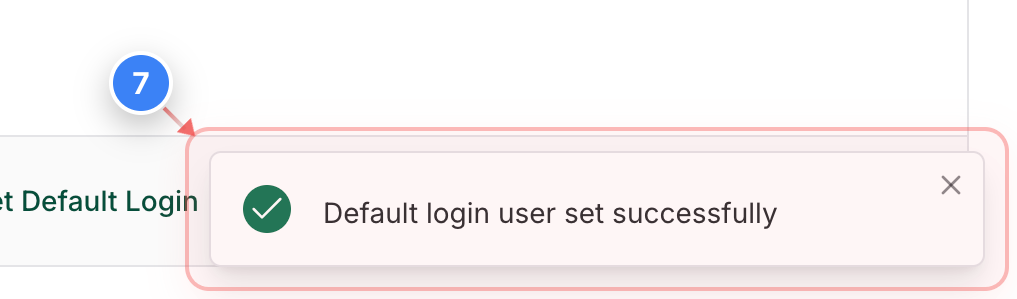
Step 7 of 7
Verify Successful Update
Confirm that the success notification appears in the bottom-right corner, indicating the default login user has been updated.
Step 7 screenshot

Was this article helpful?

That’s Great!

Thank you for your feedback

Sorry! We couldn't be helpful

Thank you for your feedback

Let us know how can we improve this article!

Select at least one of the reasons

Feedback sent

We appreciate your effort and will try to fix the article