How Do I Migrate My Website to a New Web Host with the Same Domain?

Created by Sai Sanjay G, Modified on Thu, 5 Feb at 1:26 AM by Sai Sanjay G

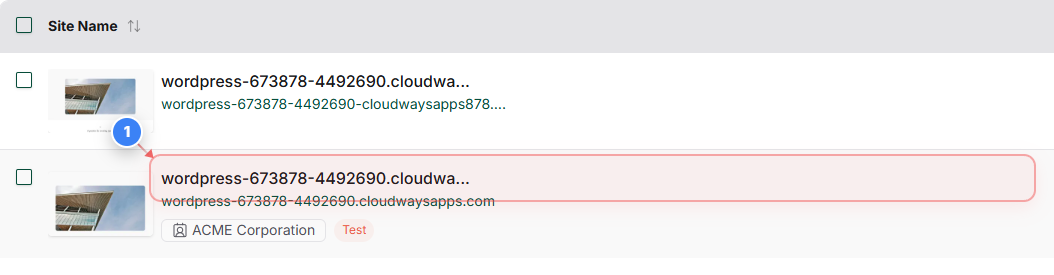
Step 1 of 14
Access your site overview page
Click the site card to access site-specific options and manage backups.
Note: Ensure you are accessing the correct site if you manage multiple sites.
Step 1 screenshot
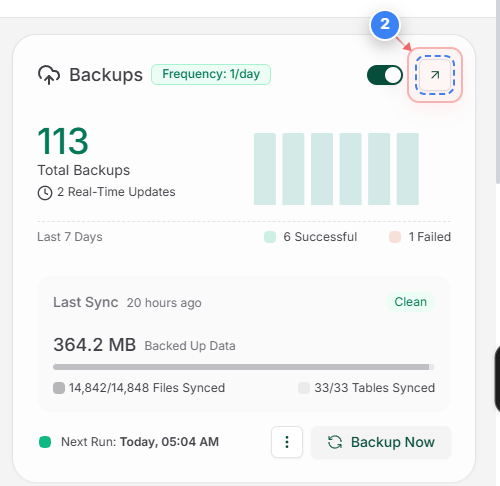
Step 2 of 14
Open Backups section
Click Backups to view all available backups for the selected site.
Step 2 screenshot
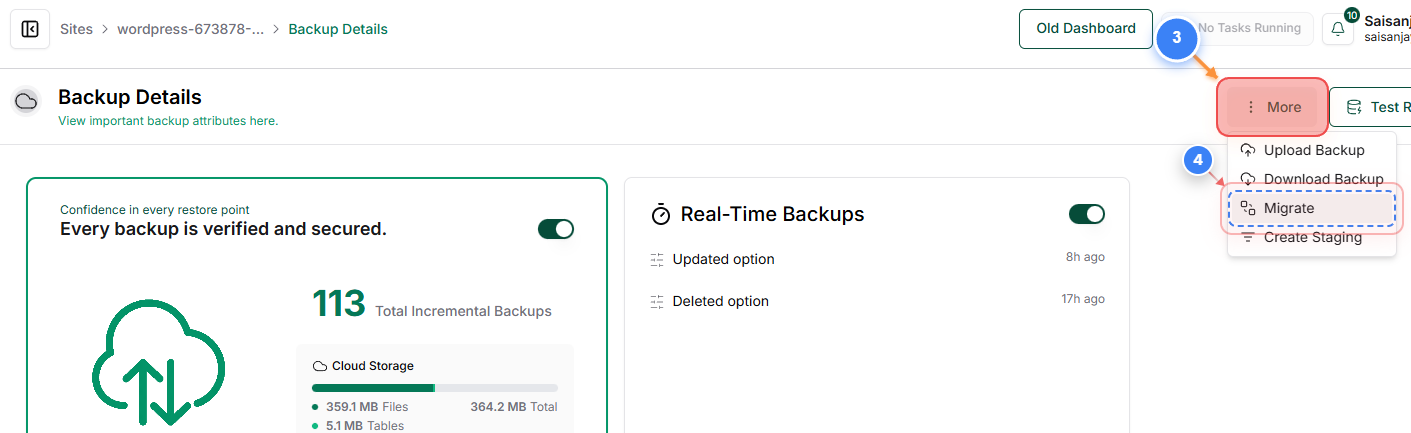
Step 3, 4 of 14
Start migration
Click on the More button(Step 3) and the Migrate(Step 4) to start the migration
Note: Select the desired backup in the next step
Step 4 screenshot
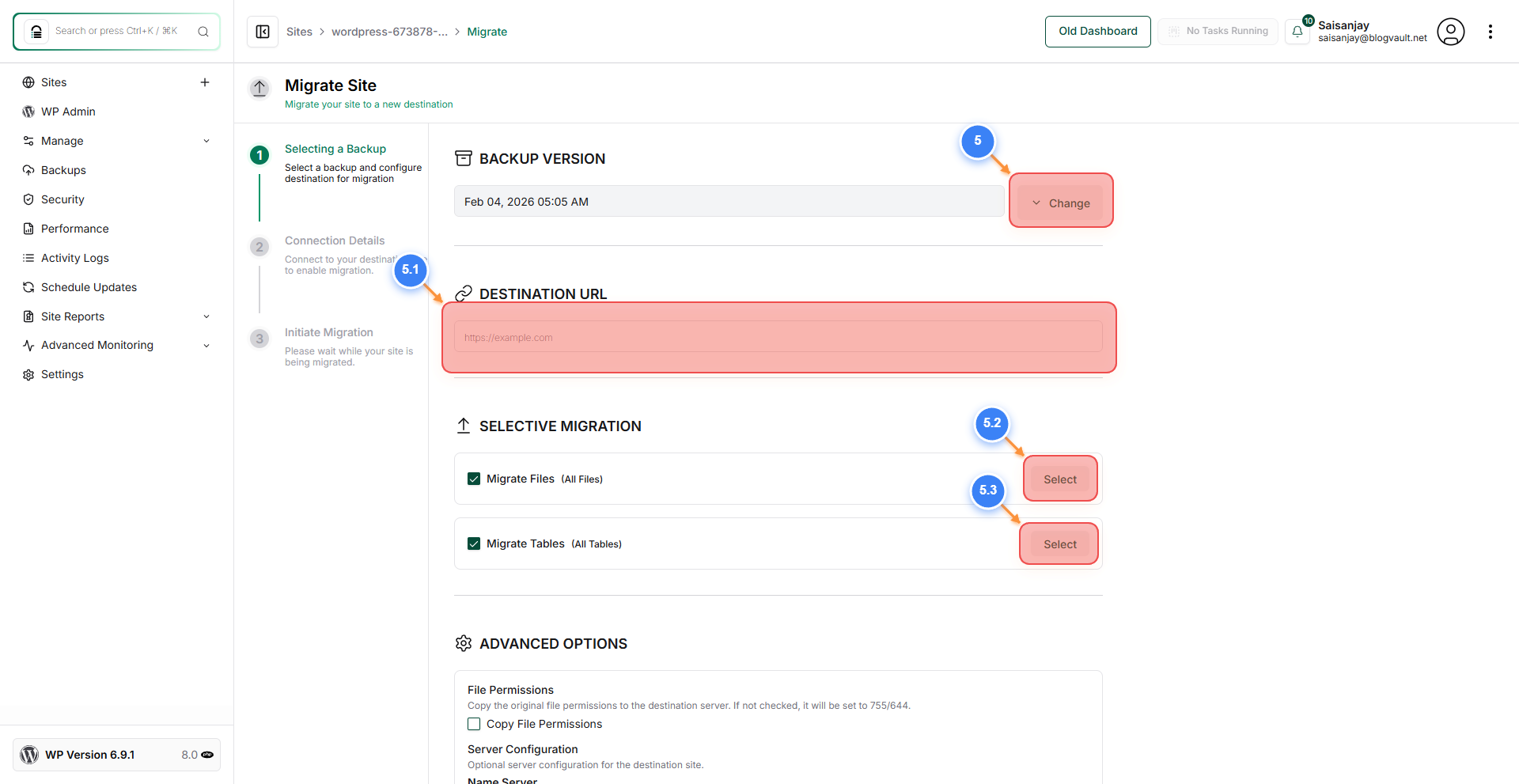
Step 5 of 14
Configure migration
Select your desired backup version (Step 5) and enter the destination URL (Step 5.1). You can also choose to selectively migrate specific files, directories, or database tables using the Select option under Selective Migration (Steps 5.3 and 5.4).
Note: You can skip files or database tables using the Selective Migration feature.
Step 5 screenshot
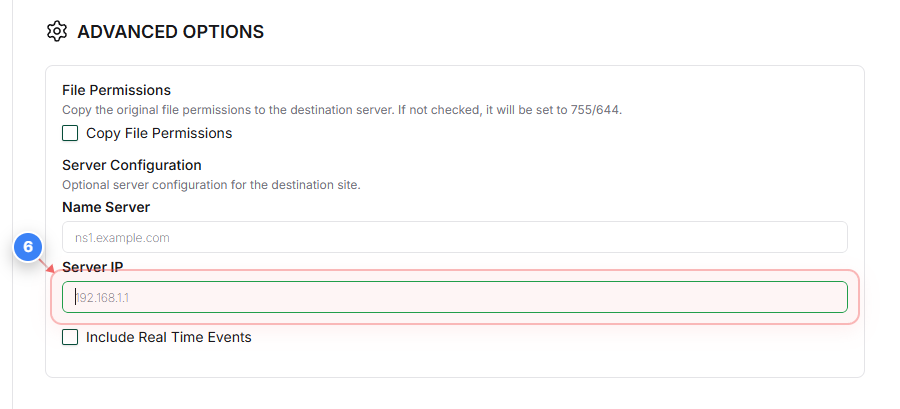
Step 6 of 14
Enter the new server IP
Scroll down to the Advanced Options section and enter the new server IP in the Server IP field. This will force our system to bypass the existing DNS settings and connect to the site URL directly using the new server IP.
Note: Double-check the IP to avoid connection failures.
Step 6 screenshot
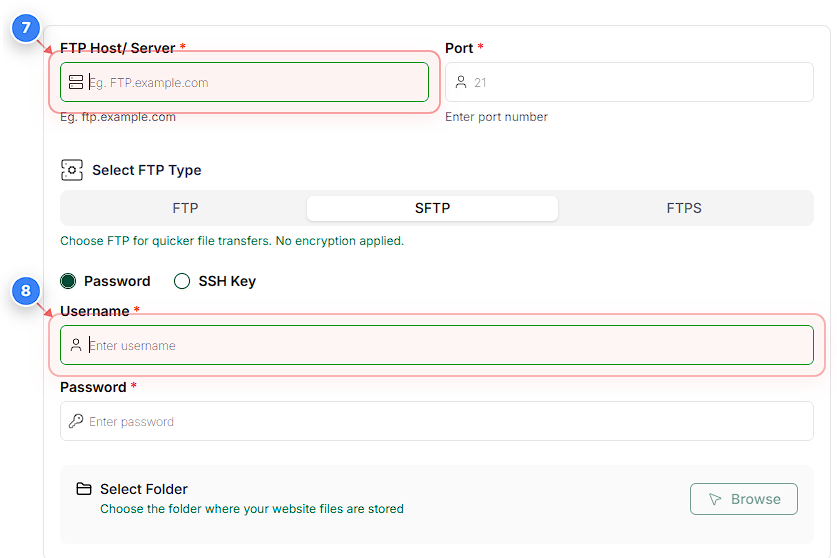
Step 7, 8 of 14
Add connection details
Enter your FTP Host/Server and Port details(Step 7) and your SFTP/FTP/FTPS credentails(Step 8)
Note: Ensure your credentials are correct to avoid connection failures.
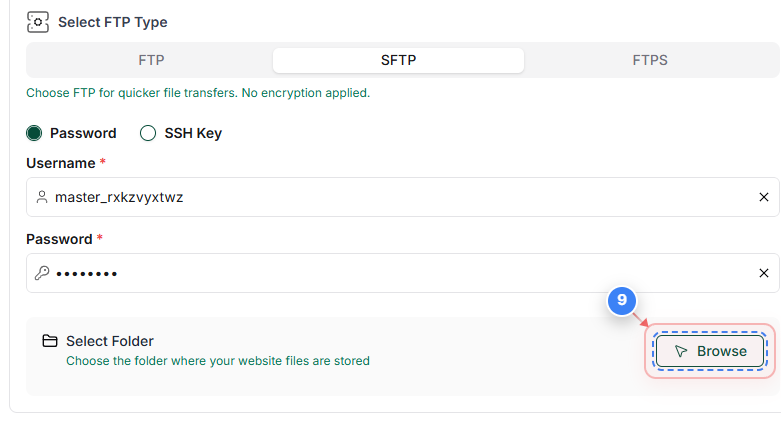
Step 9 of 14
Select destination folder
Click Browse to choose the folder where the site should be migrated.
Note: Select the WordPress root directory.
Step 8 screenshot
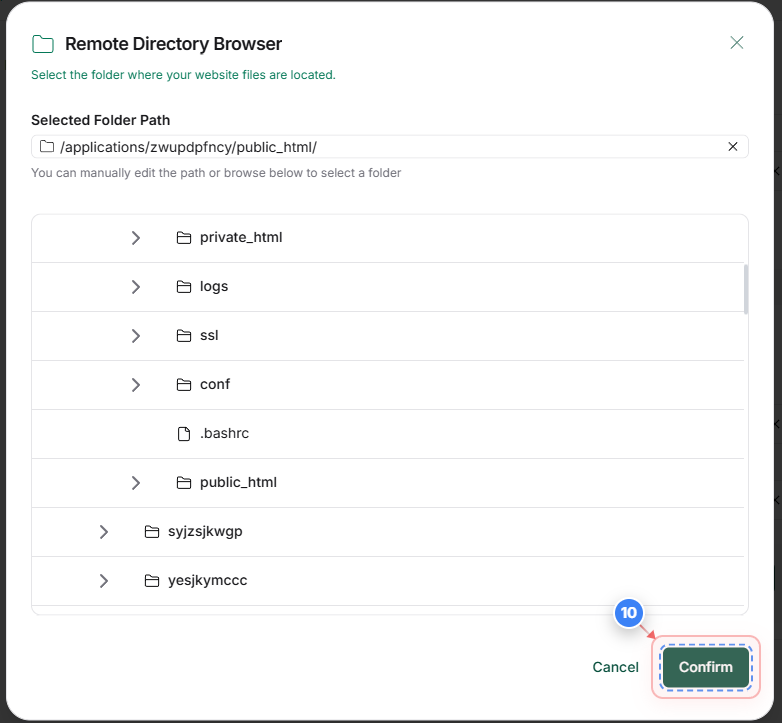
Step 10 of 14
Confirm folder
Click Confirm to lock in the selected destination folder.
Note: Ensure the correct destination WordPress directory is selected.
Step 9 screenshot
Step 11 of 14
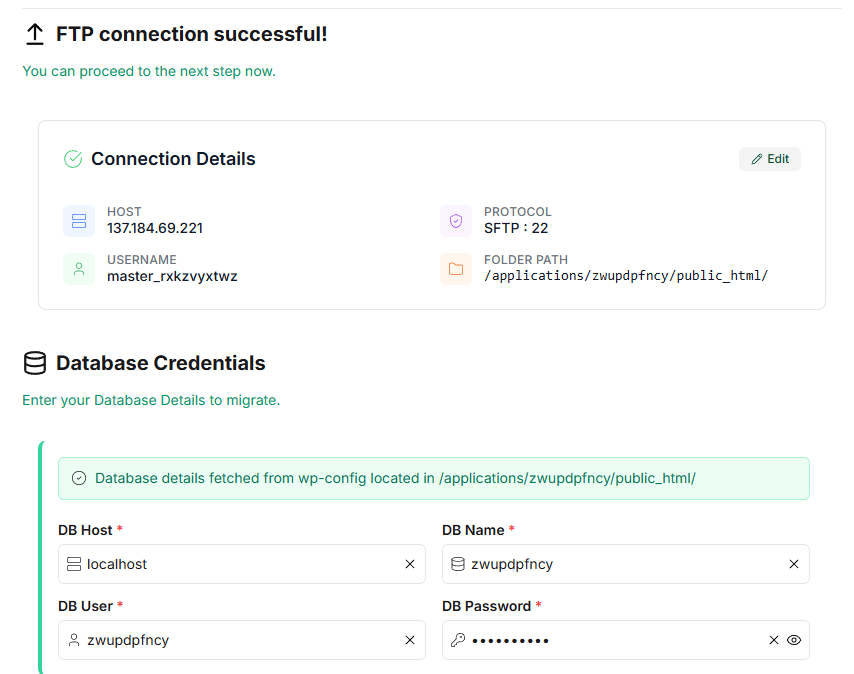
FTP connection
Our system will connect to the destination FTP/SFTP server and retrieve the database credentials from the wp-config.php file on the destination site. If no existing credentials are found, you will be prompted to enter the database details manually.
Note: Ensure the database credentials are correct.
Step 10 screenshot
Step 12 of 14
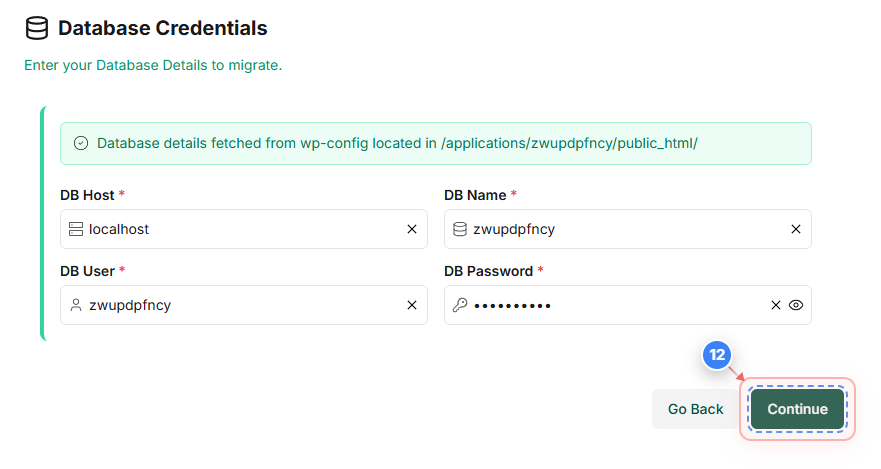
Verify database connection
Click Continue after confirming that the database credentials are correct. Our system will automatically validate the database credentials.
Note: Ensure the correct database credentails of the destination site are used.
Step 11 screenshot
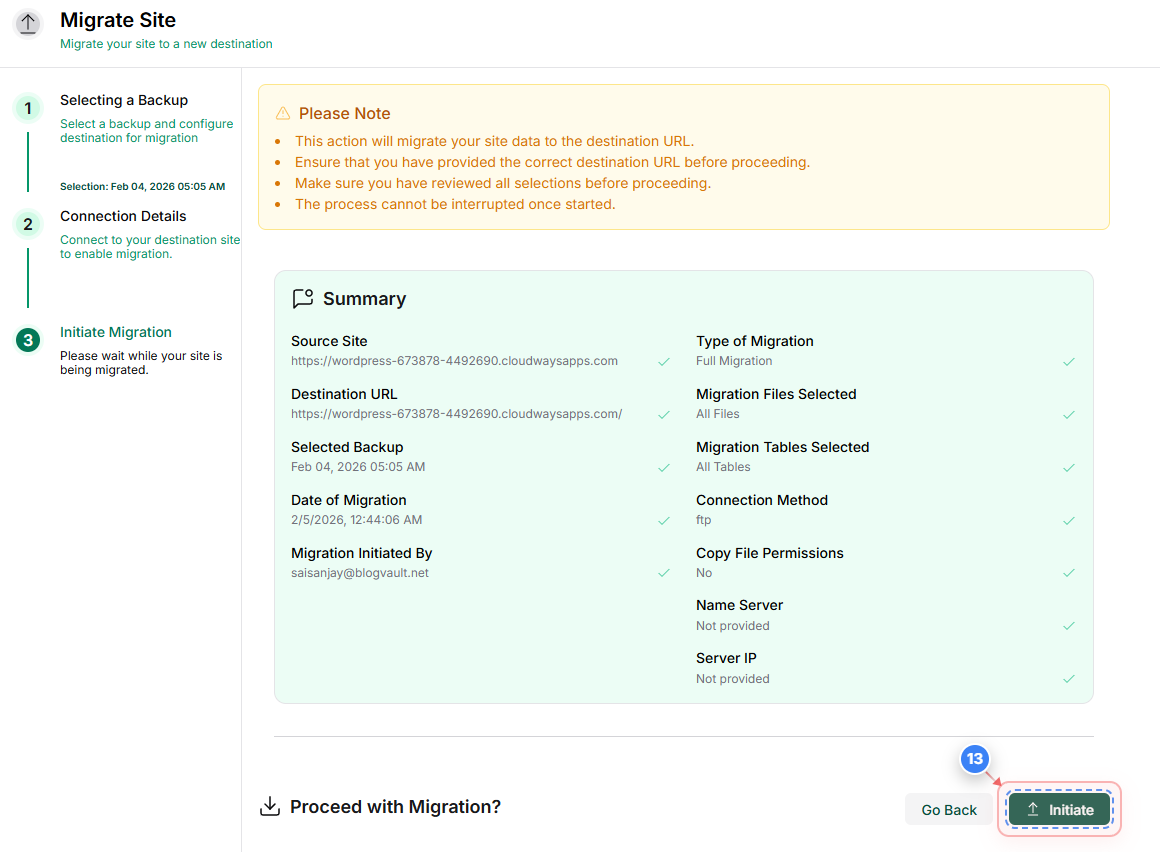
Step 13 of 14
Click Initiate to start migrating your site to the destination server
Step 12 screenshot
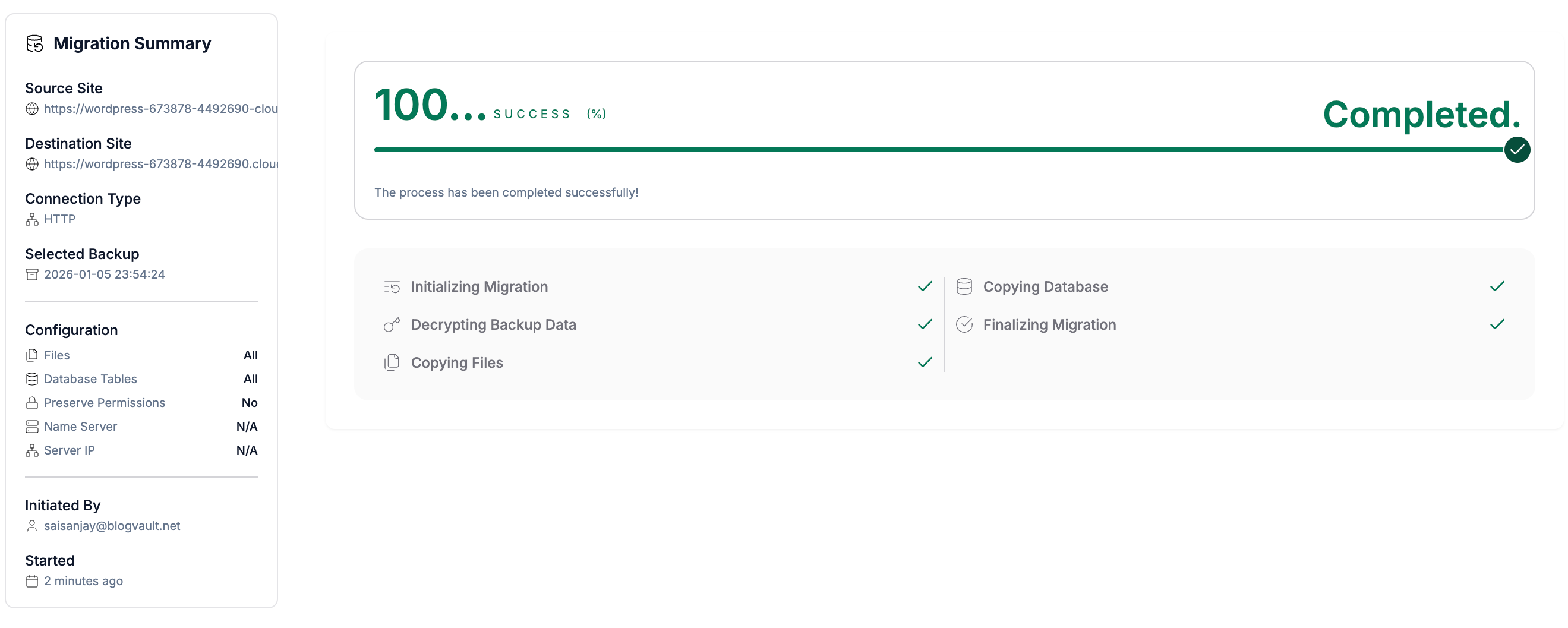
Step 14 of 14
Migration completes.
You can view the migration process in realtime and once it is complete(100%), you can view the destination site.
Note: A status of SUCCESS confirms the site has been fully migrated. If errors appear, you can reach out to us.
Step 11 screenshot

Was this article helpful?

That’s Great!

Thank you for your feedback

Sorry! We couldn't be helpful

Thank you for your feedback

Let us know how can we improve this article!

Select at least one of the reasons

Feedback sent

We appreciate your effort and will try to fix the article