How Do I Migrate My Website to a New Domain?

Created by Sai Sanjay G, Modified on Tue, 6 Jan at 12:32 AM by Sai Sanjay G

Step 1 of 11
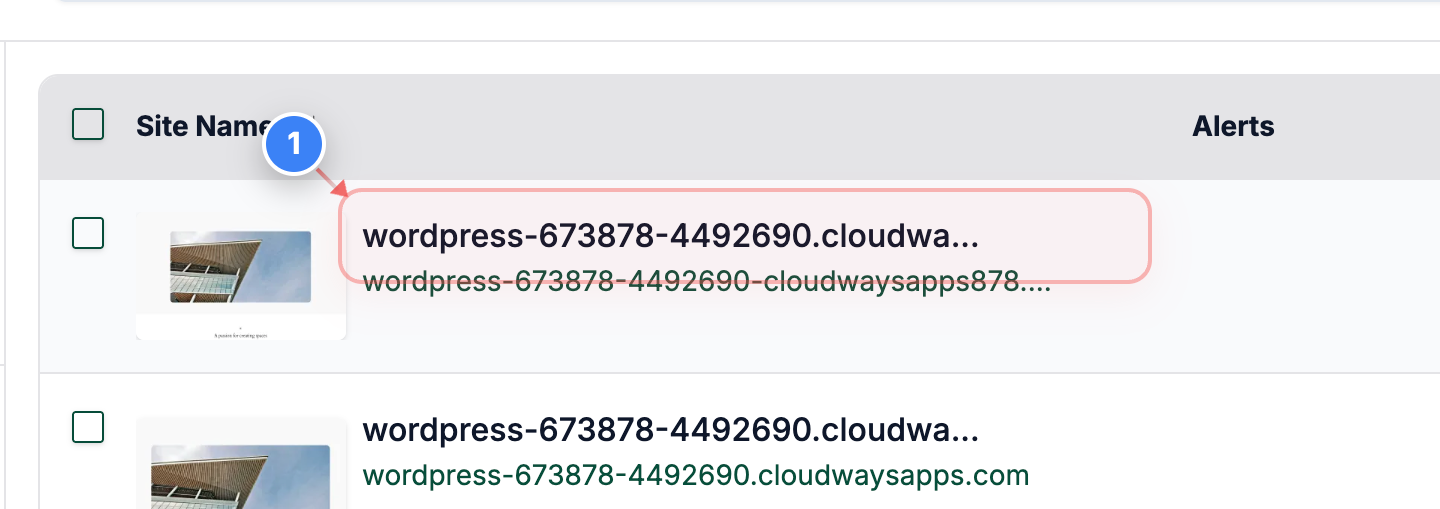
Open Site Dashboard
Click on your site name in the Sites list to open its management dashboard.
Note: Ensure you select the correct site if you manage multiple sites.
Step 1 screenshot
Step 2 of 11
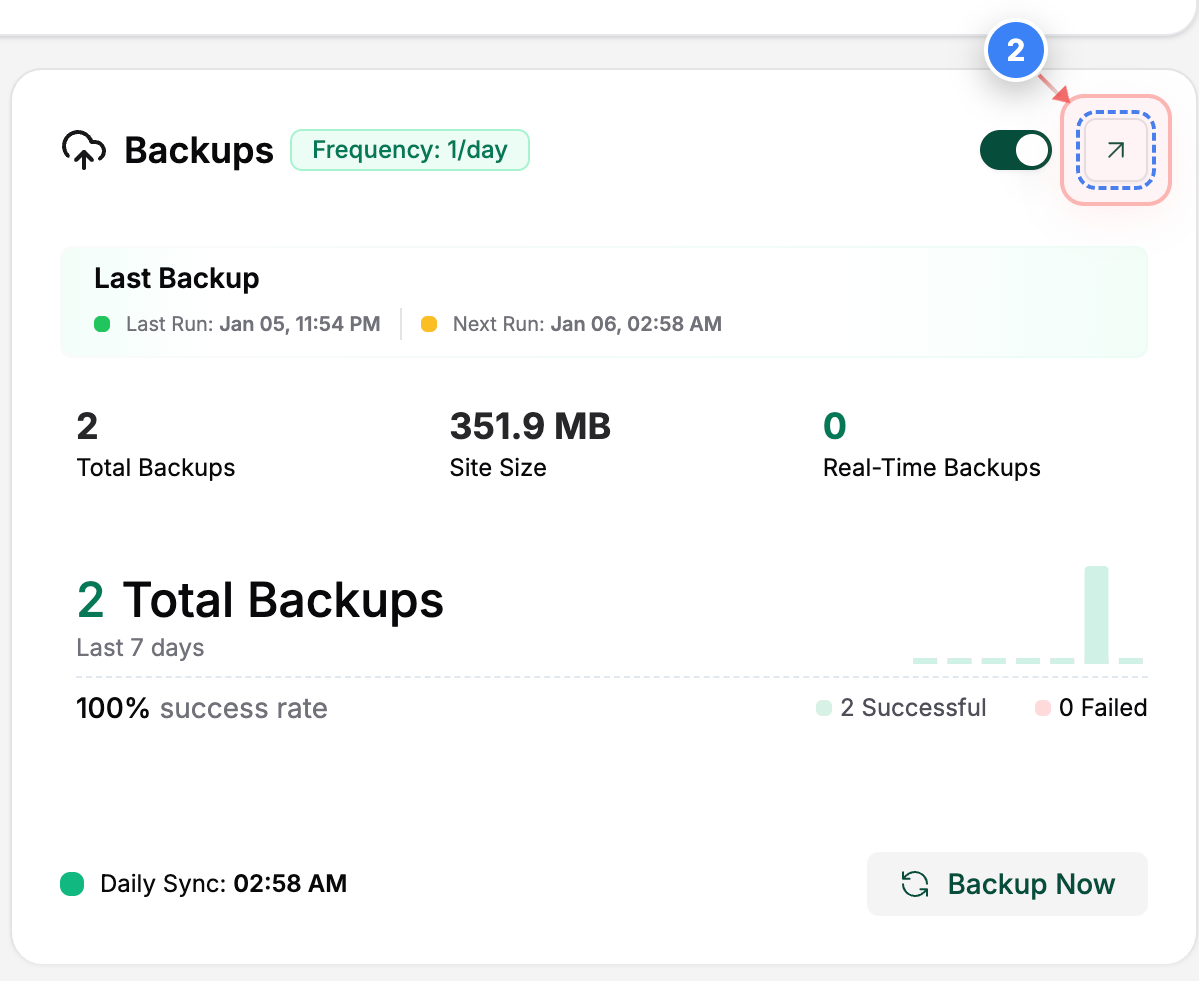
Open Backup Options
Click the arrow button in the Backups section to access backup-related actions for this site.
Note: This menu contains actions like uploading backups or starting a migration.
Step 2 screenshot
Step 3 & 4 of 11
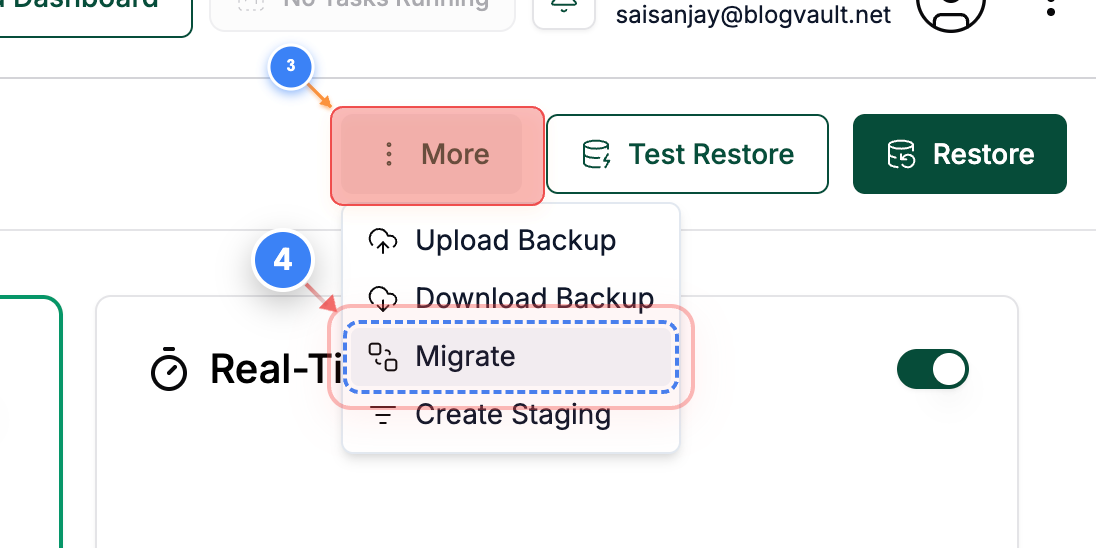
Start Migration Setup
Use the three-dot button and click on Migrate in the top area to begin migrating this site to a new destination.
Note: Migration uses an existing backup as the source.
Step 4 screenshot
Step 5 of 11
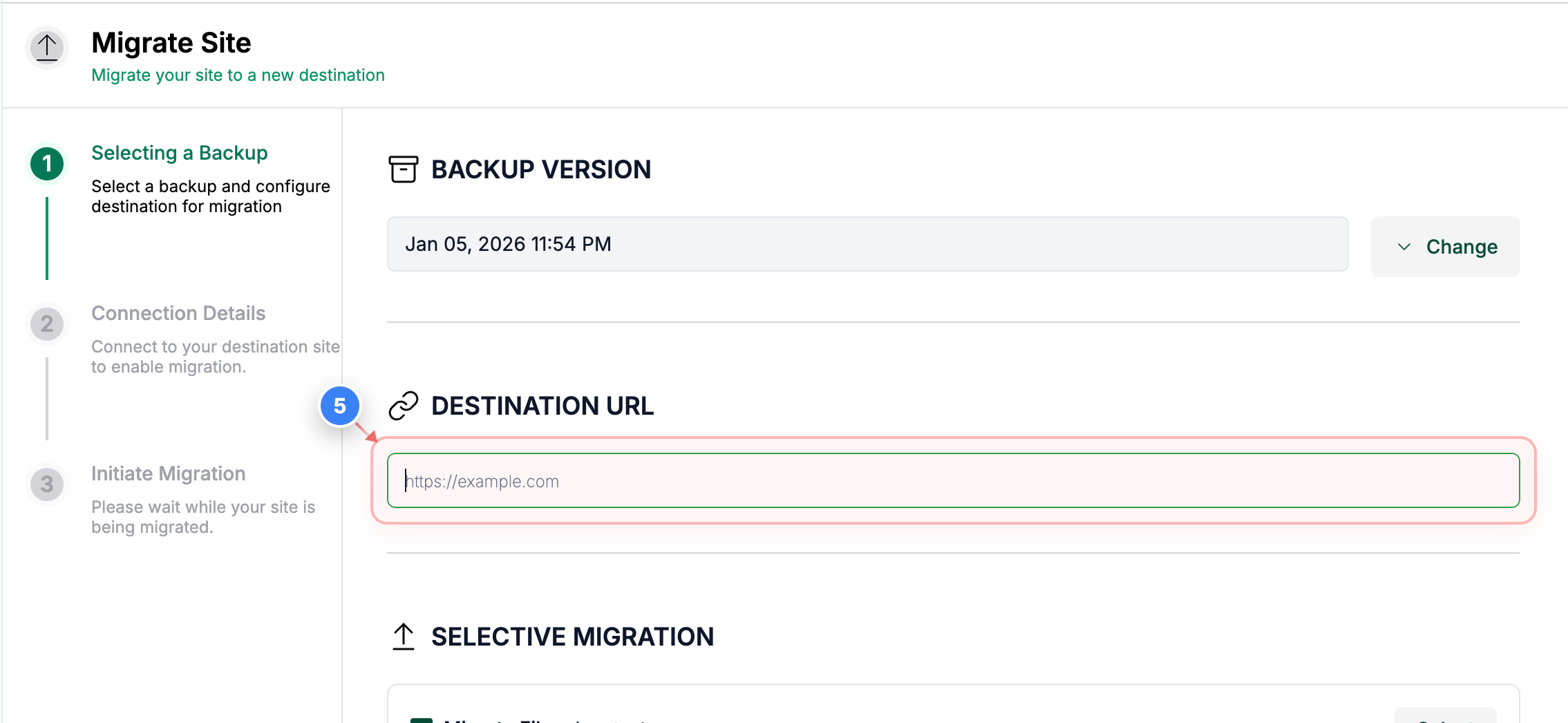
Enter Destination URL
Click inside the Destination URL field and enter the URL of the destination site where the site should be migrated.
Note: Use the full URL, including https://, and ensure the destination site is reachable.
Step 5 screenshot
Step 6 of 11
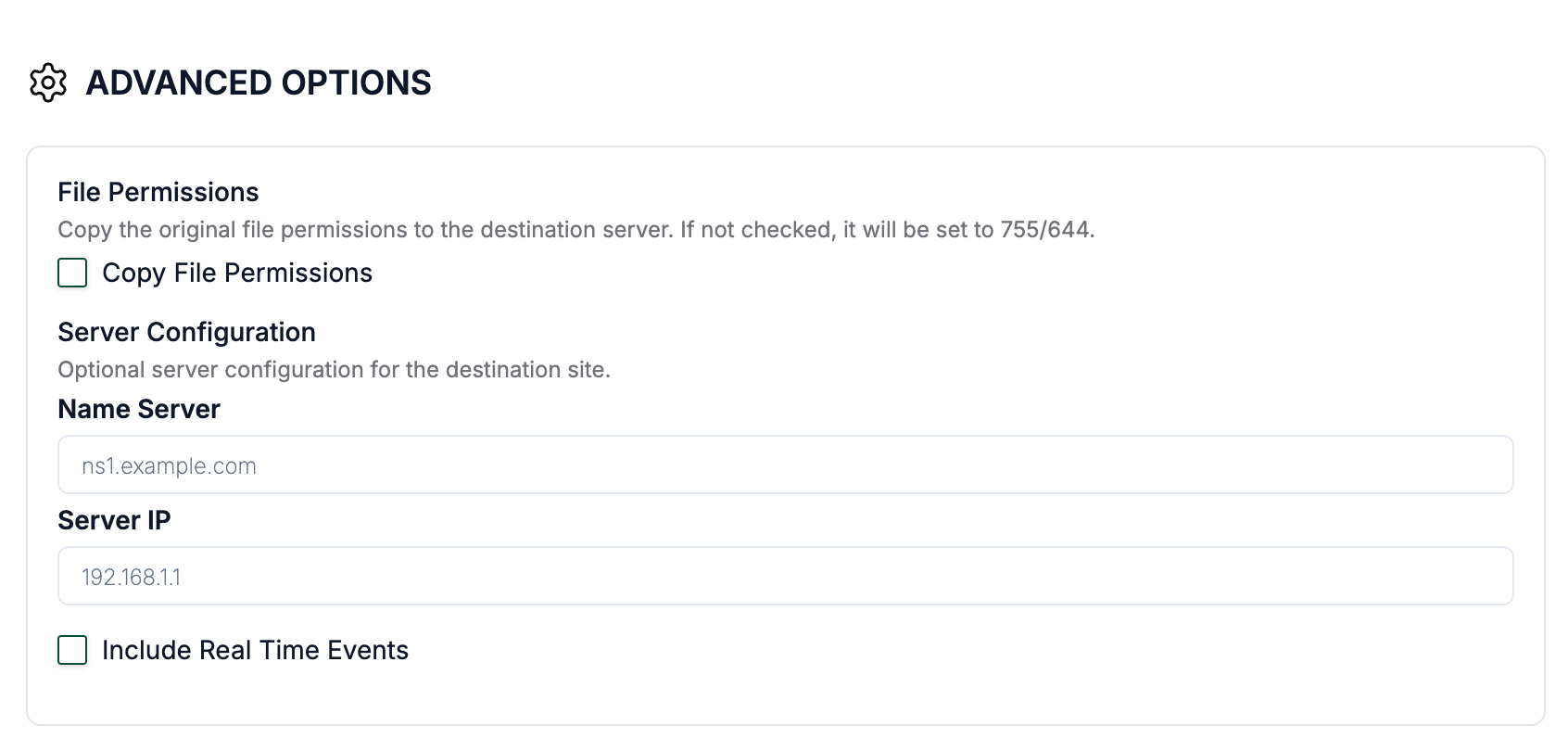
Advanced Options
If you are migrating over the same URL(to different hosts), you can enter the new server IP or nameserver here, and our servers will connect to the new server,r skipping the existing DNS settings.
Note: Ensure the server IP address is correct.
Step 6 screenshot
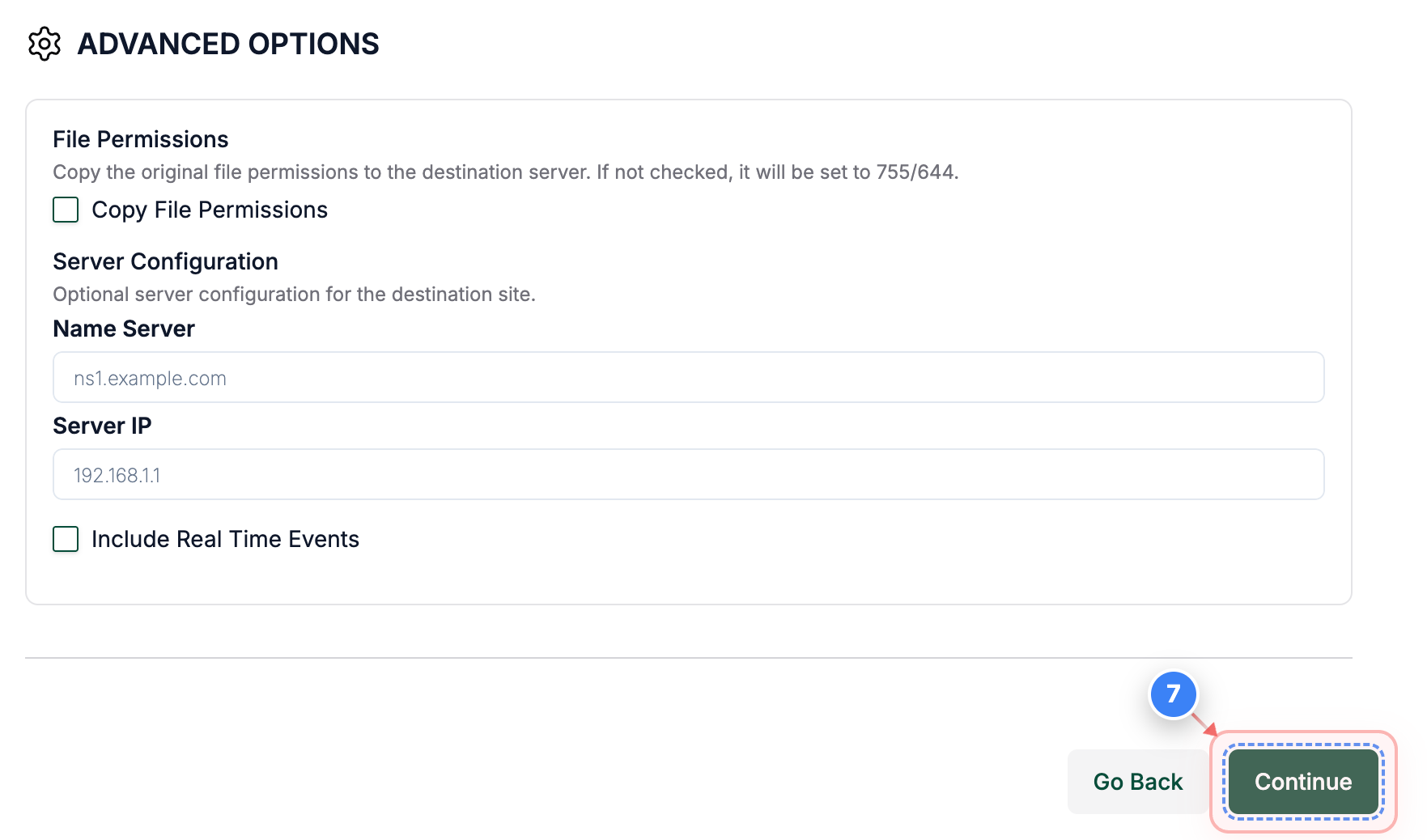
Step 7 of 11
Confirm Backup Selection
Click the Continue button at the bottom-right to confirm the selected backup and proceed to connection validation.
Note: The selected backup date should match the version you want to migrate.
Step 7 screenshot
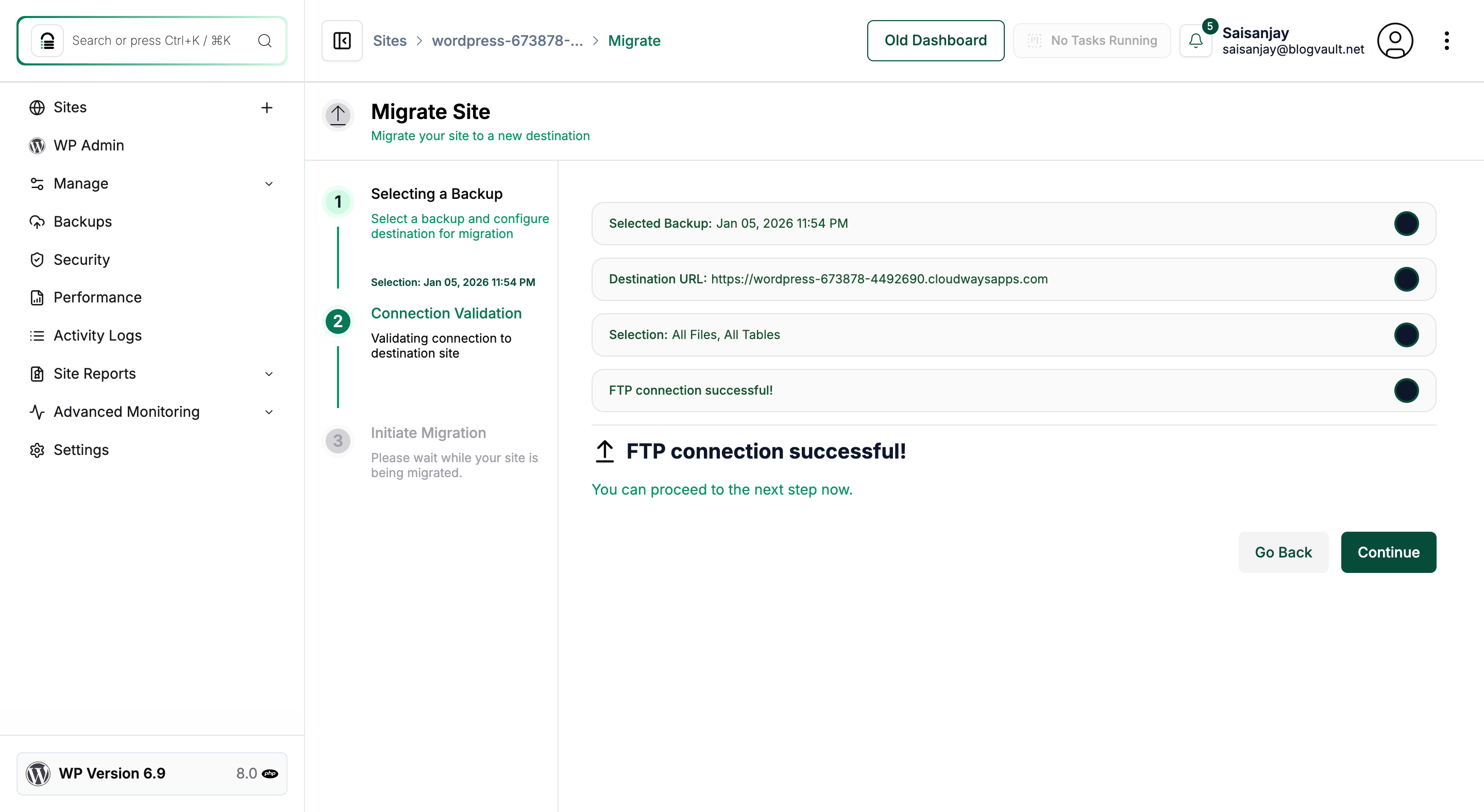
Step 8 of 11
Verify Connection Status
Our systems will automatically try to connect to our plugin on the destination site. If it is not present/active, we will request you to enter the FTP credentials.
Note: Look for successful connection messages indicating you can proceed safely.
Step 8 screenshot
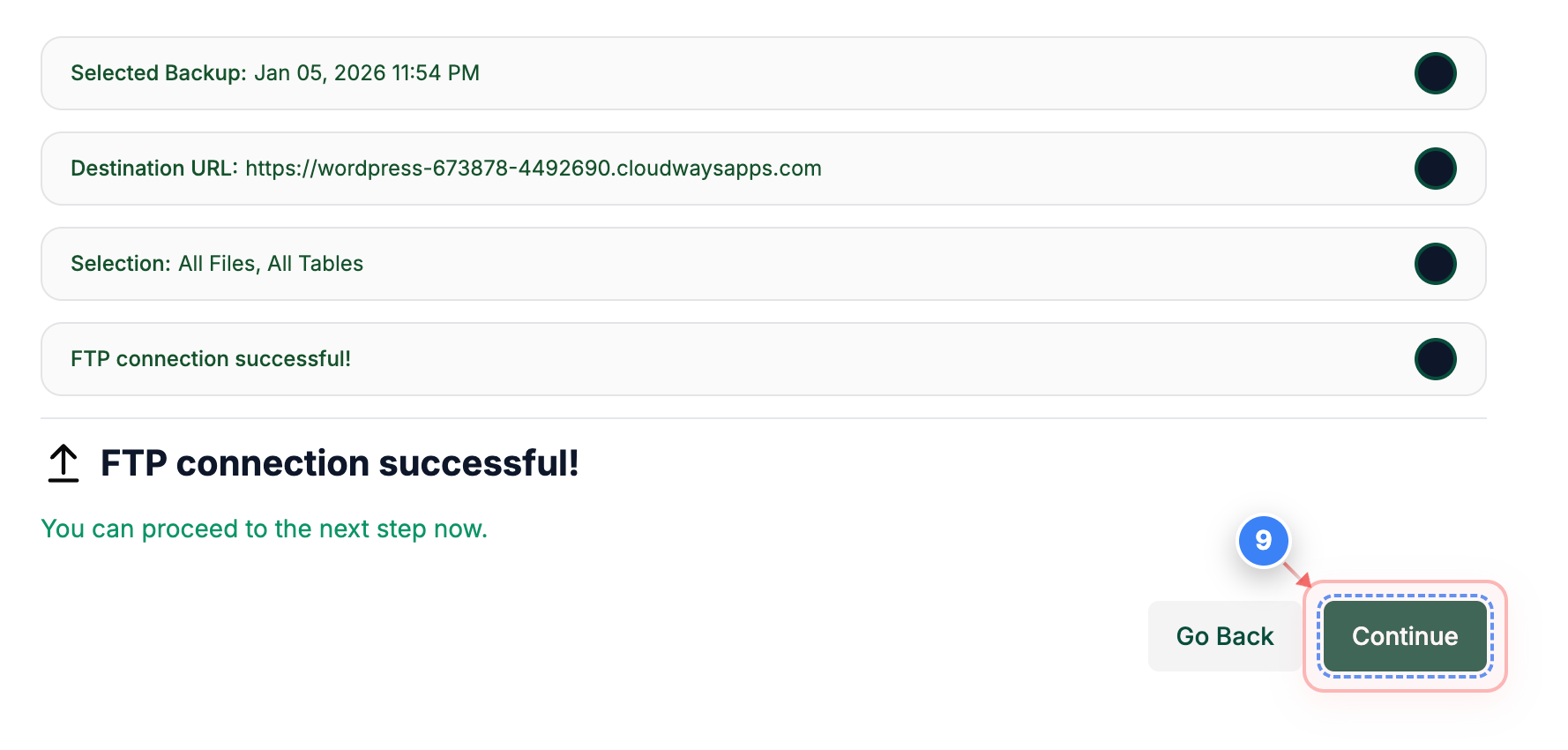
Step 9 of 11
Proceed to Migration Summary
Click the Continue button on the right to move from connection validation to the migration summary.
Note: If connection validation fails, recheck destination credentials before continuing.
Step 9 screenshot
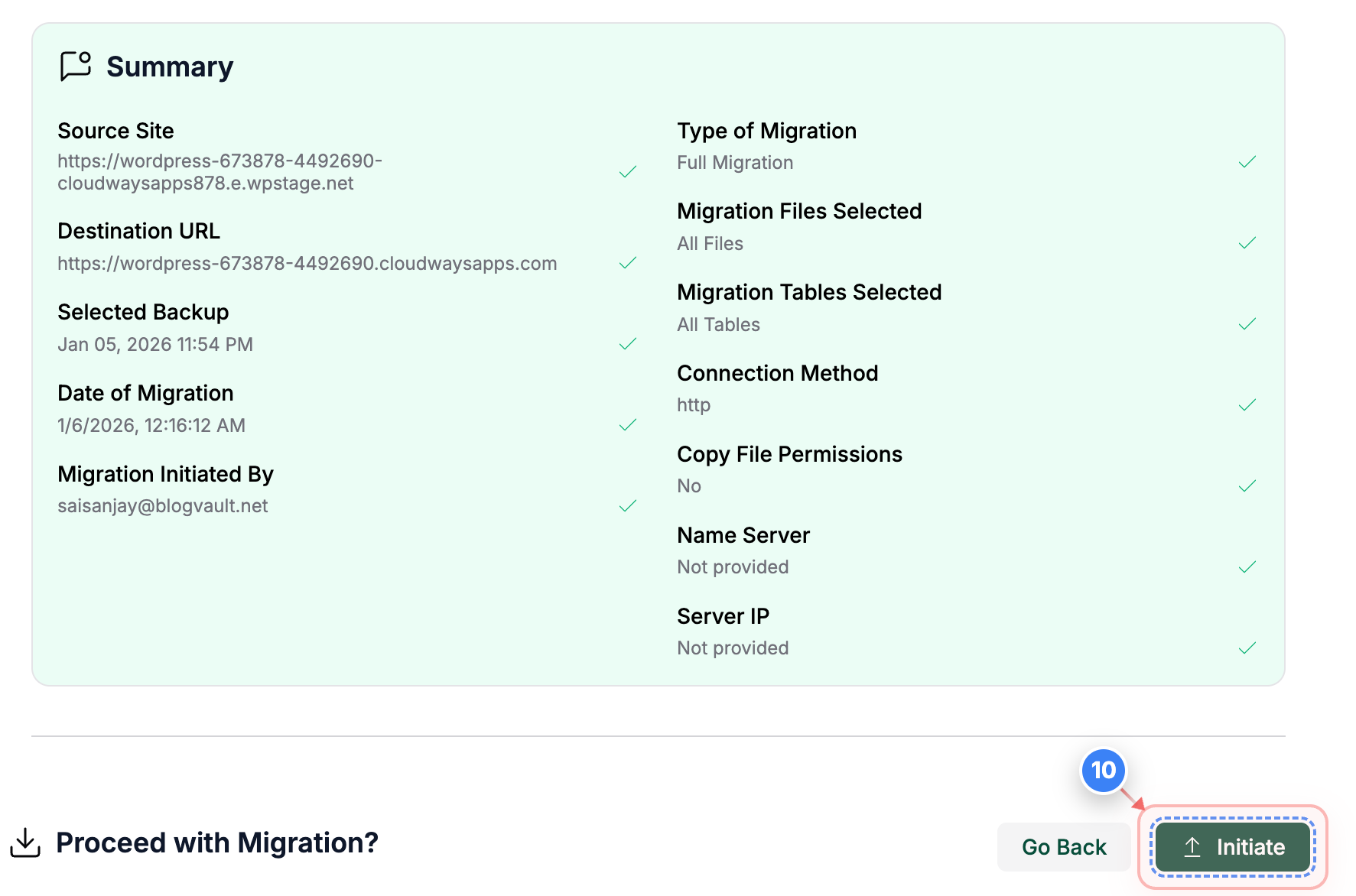
Step 10 of 11
Initiate Migration
Click the Initiate button to start migrating your site to the destination URL.
Note: Once started, the migration process cannot be paused or stopped.
Step 10 screenshot
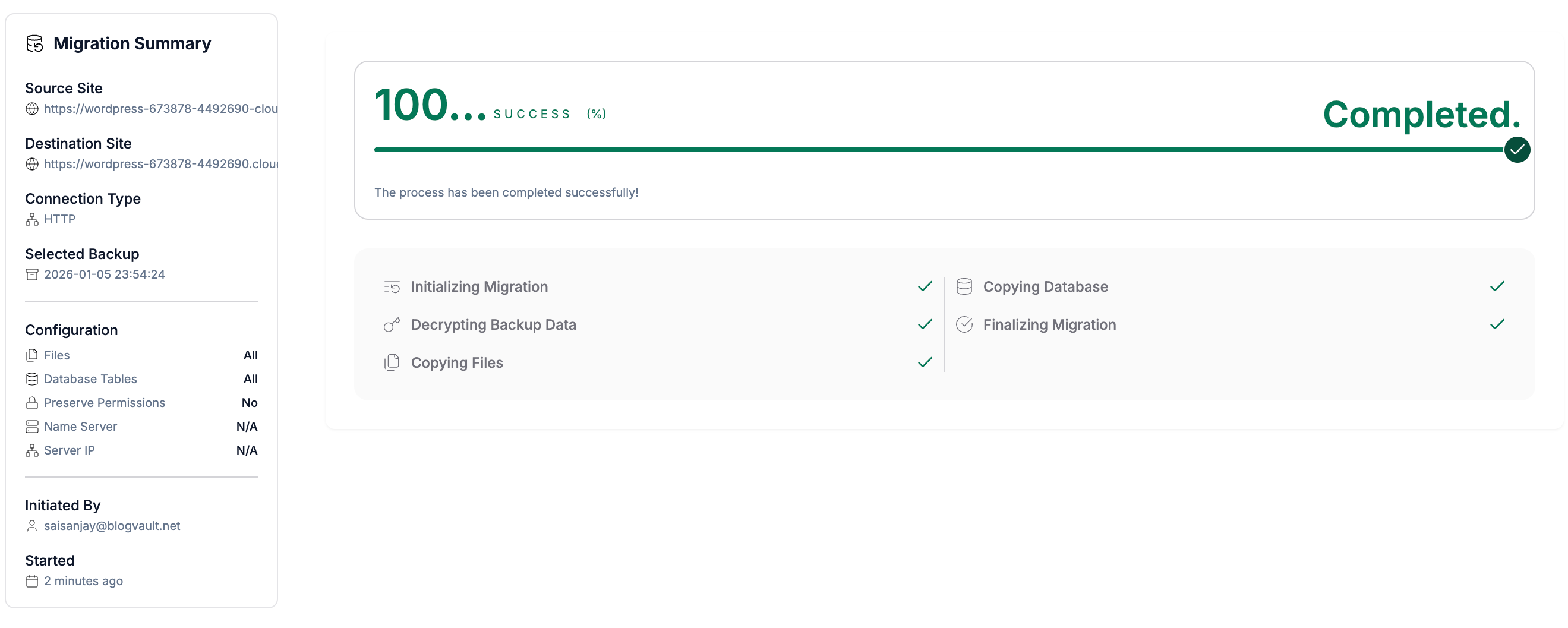
Step 11 of 11
Migration completes.
You can view the migration process in realtime and once it is complete(100%), you can view the destination site.
Note: A status of SUCCESS confirms the site has been fully migrated. If errors appear, you can reach out to us.
Step 11 screenshot

Was this article helpful?

That’s Great!

Thank you for your feedback

Sorry! We couldn't be helpful

Thank you for your feedback

Let us know how can we improve this article!

Select at least one of the reasons

Feedback sent

We appreciate your effort and will try to fix the article