How Do I Exclude Certain folders from Backups?

Created by Bharath K, Modified on Thu, 11 Dec at 10:24 AM by Bharath K

Step 1 of 6
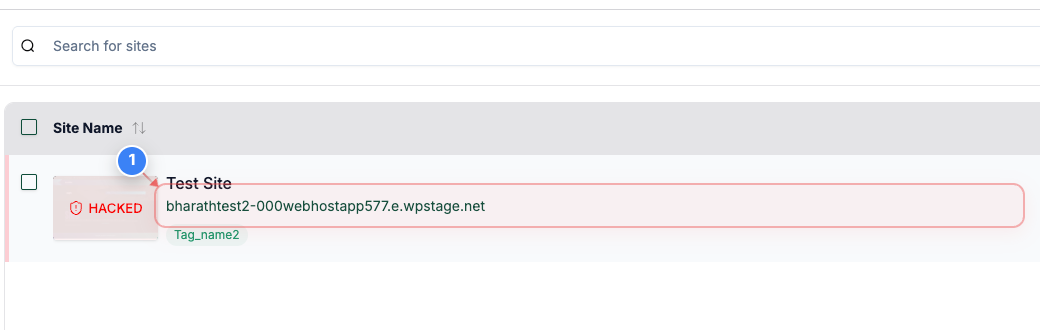
Open Site Management
Click on the site name in the middle area to open site management options
Note: The site name is highlighted and located in the center of the page
Step 1 screenshot
Step 2 of 6
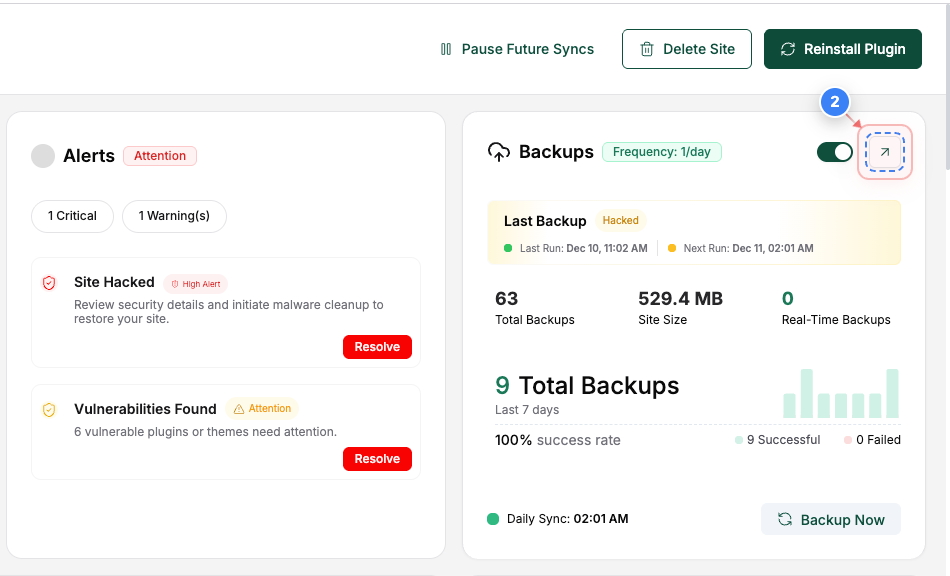
Access Backup Options
Click on the icon button in the Backup section (right side of the page) to manage backup settings.
Note: This button allows you to adjust backup frequency and settings
Step 2 screenshot
Step 3 of 6
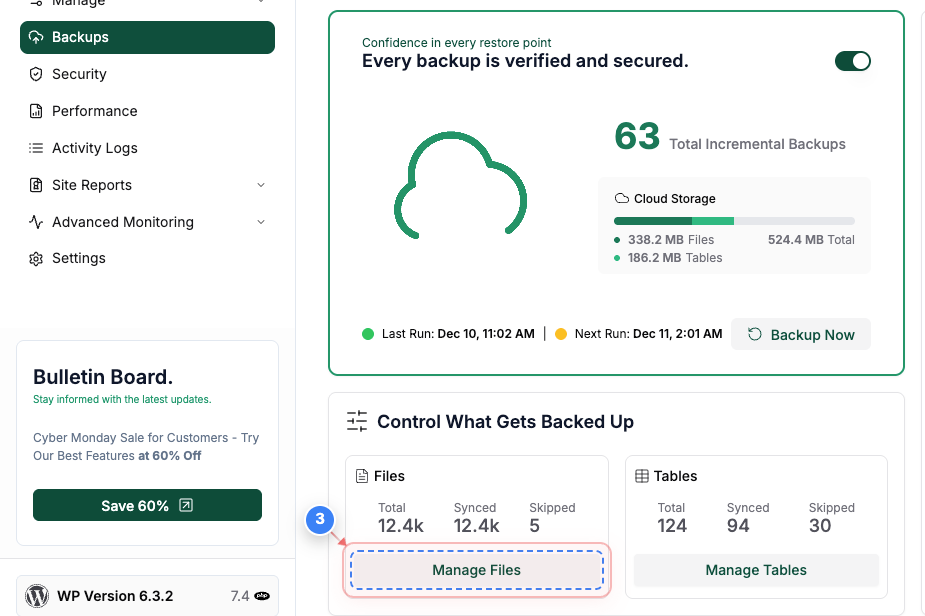
Manage Backup Files
Click on the 'Manage Files' button in the lower-left area to view and manage backup files
Note: This will allow you to see the synced files and make changes as needed
Step 3 screenshot
Step 4 of 6
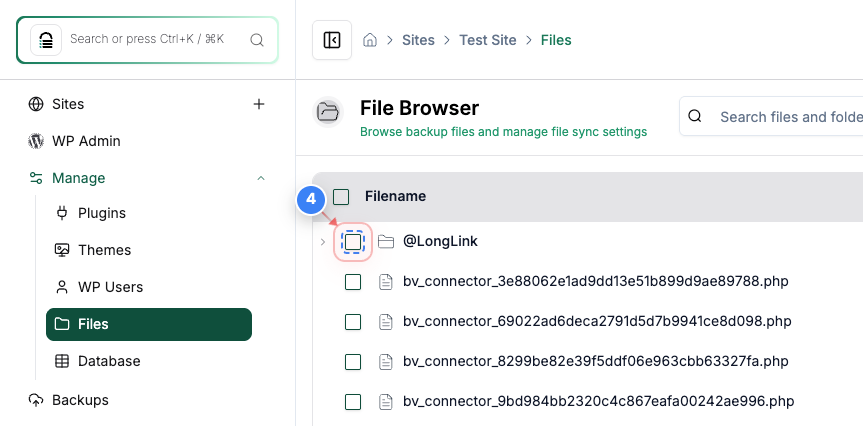
Select Folder
Click on the 'on' button in the left side of the page to enable folder sync
Note: Please note that you can skip only the folders from the sync list. Skipping the specific file is not supported.
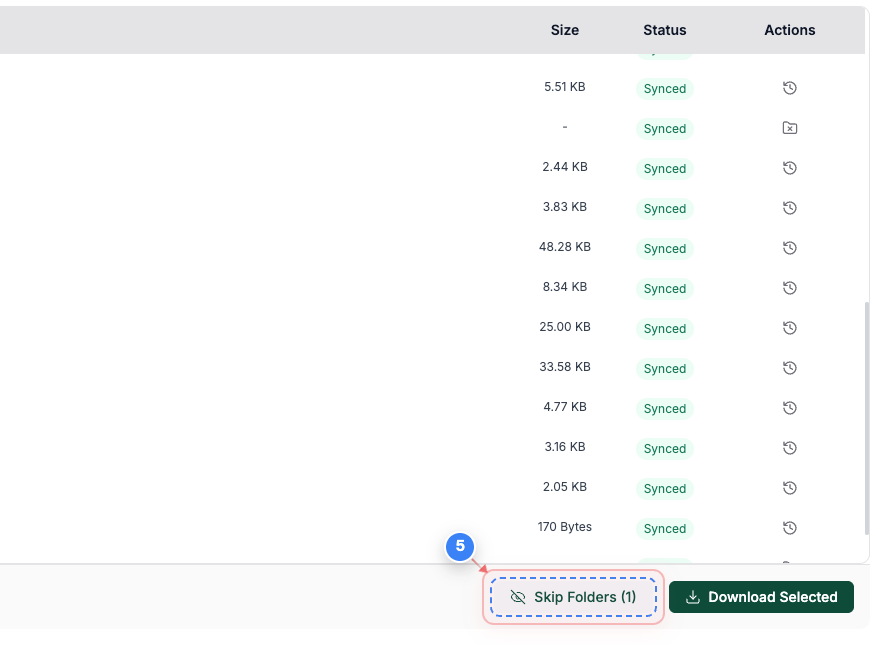
Step 5 of 6
Skip Folder Option
Click on the 'Skip Folders (1)' button in the bottom-right area to skip syncing specific folders
Note: This will allow you to exclude selected folders from the backup process
Step 5 screenshot
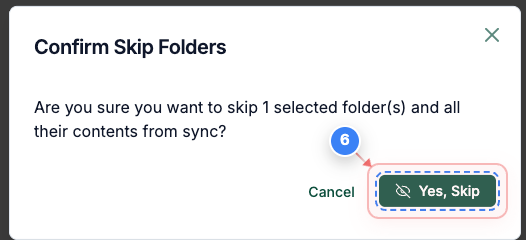
Step 6 of 6
Confirm Skip Action
Click the 'Yes, Skip' button in the center of the page to confirm skipping the selected folder(s)
Note: This step ensures that the folder(s) will not be included in the sync process
Step 6 screenshot

Was this article helpful?

That’s Great!

Thank you for your feedback

Sorry! We couldn't be helpful

Thank you for your feedback

Let us know how can we improve this article!

Select at least one of the reasons

Feedback sent

We appreciate your effort and will try to fix the article