How Do I Clean My Website Using the Auto Cleaner?

Created by Kousik M, Modified on Wed, 10 Dec at 1:10 AM by Kousik M

Step 1 of 6
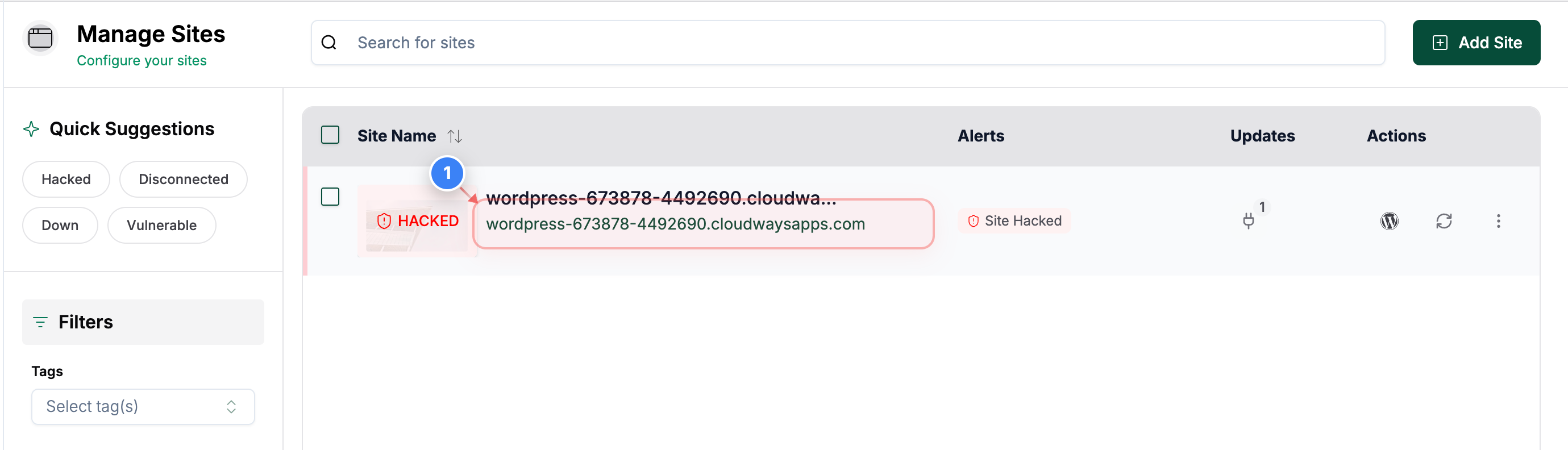
Open Your Site Dashboard
Click on your site in the Sites list to open its management dashboard.


Step 1 screenshot
Step 2 of 6
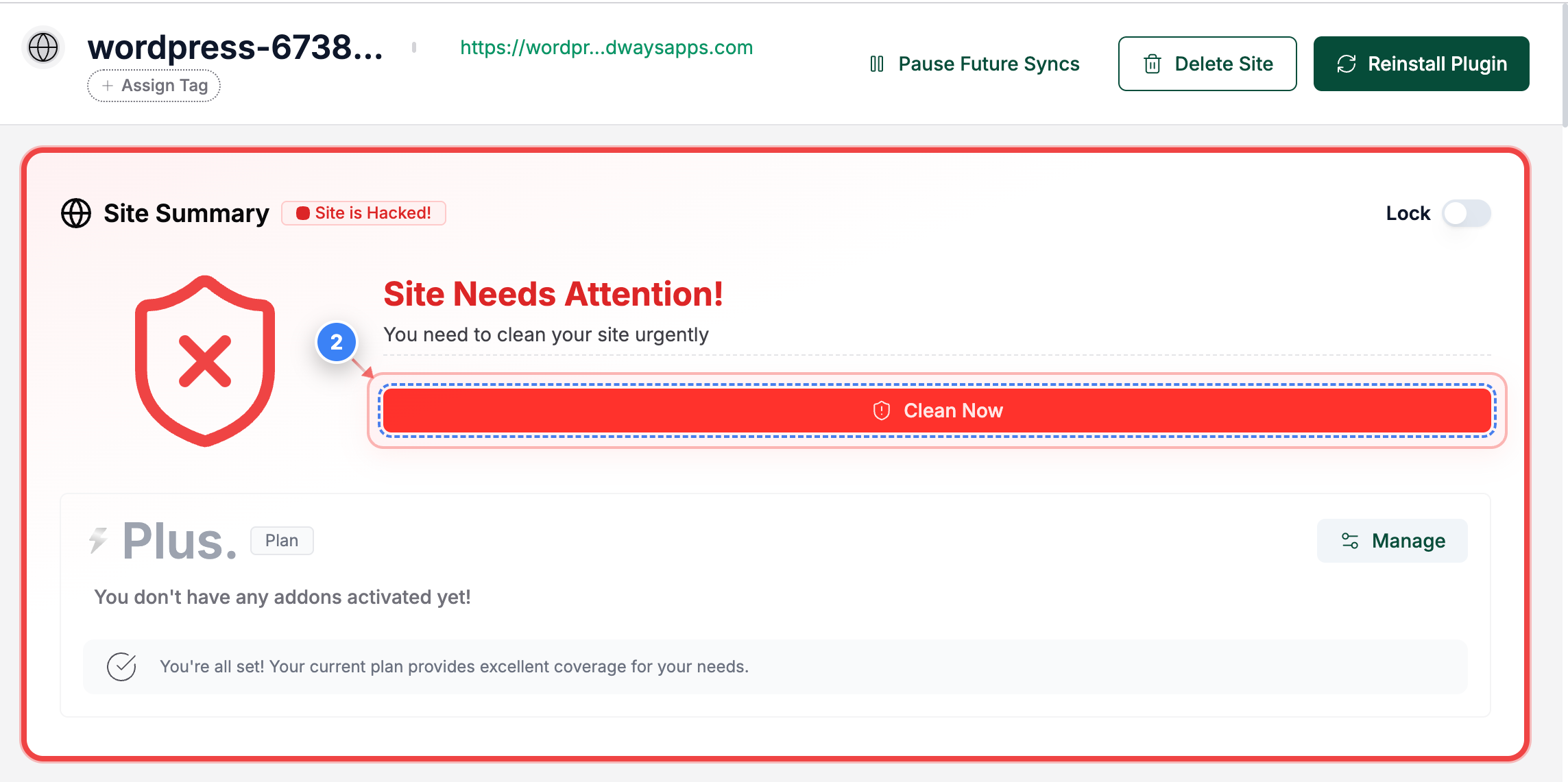
Start Malware Cleanup
Click the Clean Now button in the site overview page to begin the malware removal process.


Step 2 screenshot
Step 3 of 6
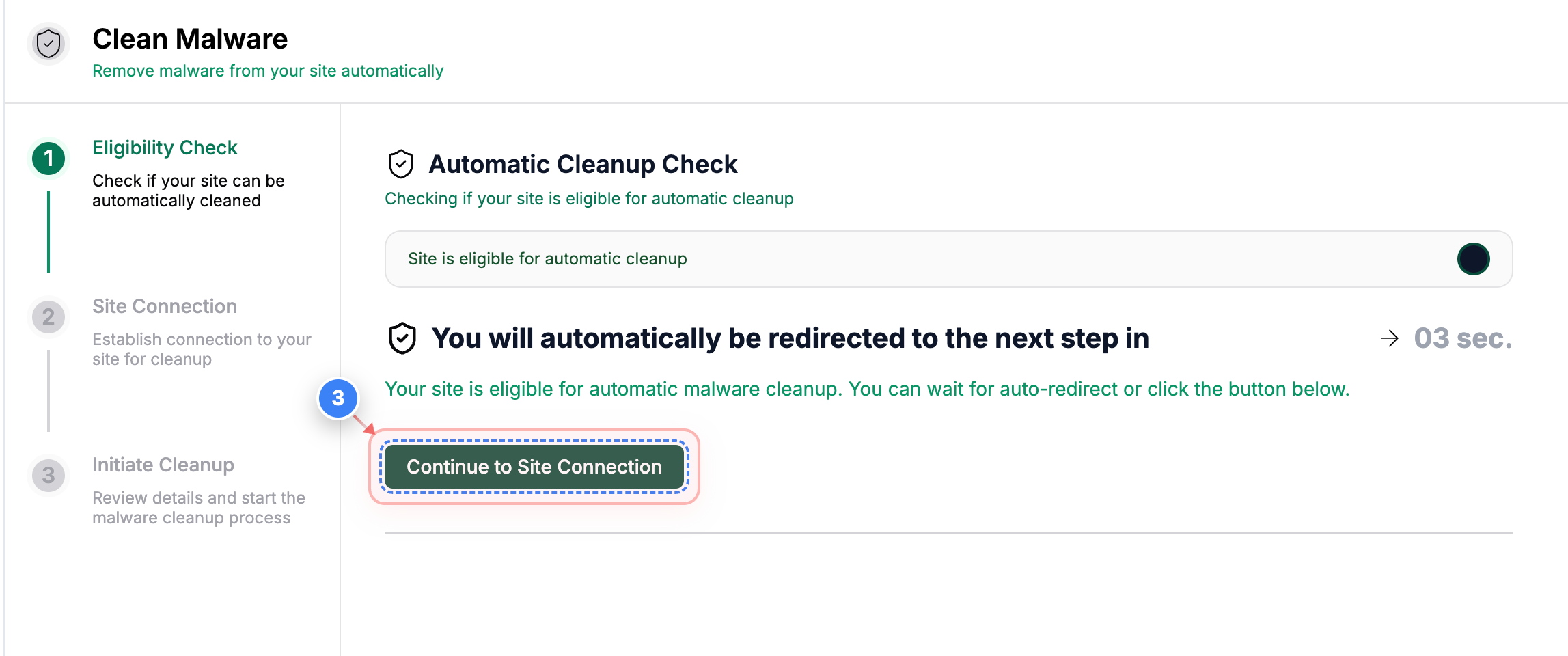
Proceed to Connection Check
Click the Continue to Site Connection button to move to the automatic connection verification step.


Step 3 screenshot
Step 4 of 6
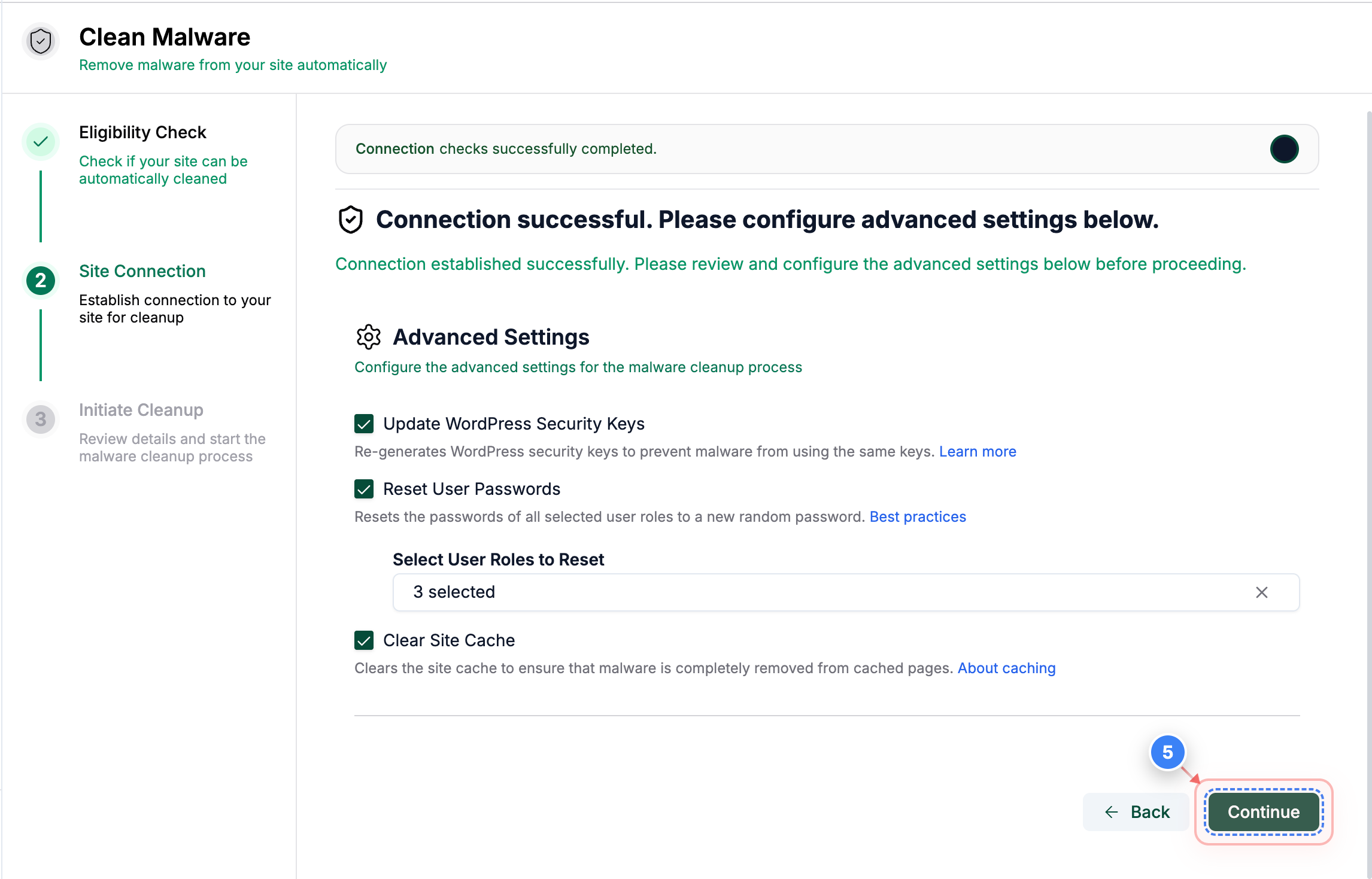
Continue After Connection Checks
Click the Continue button at the bottom of the page to move forward after your site successfully passes all connection checks.


Step 4 screenshot
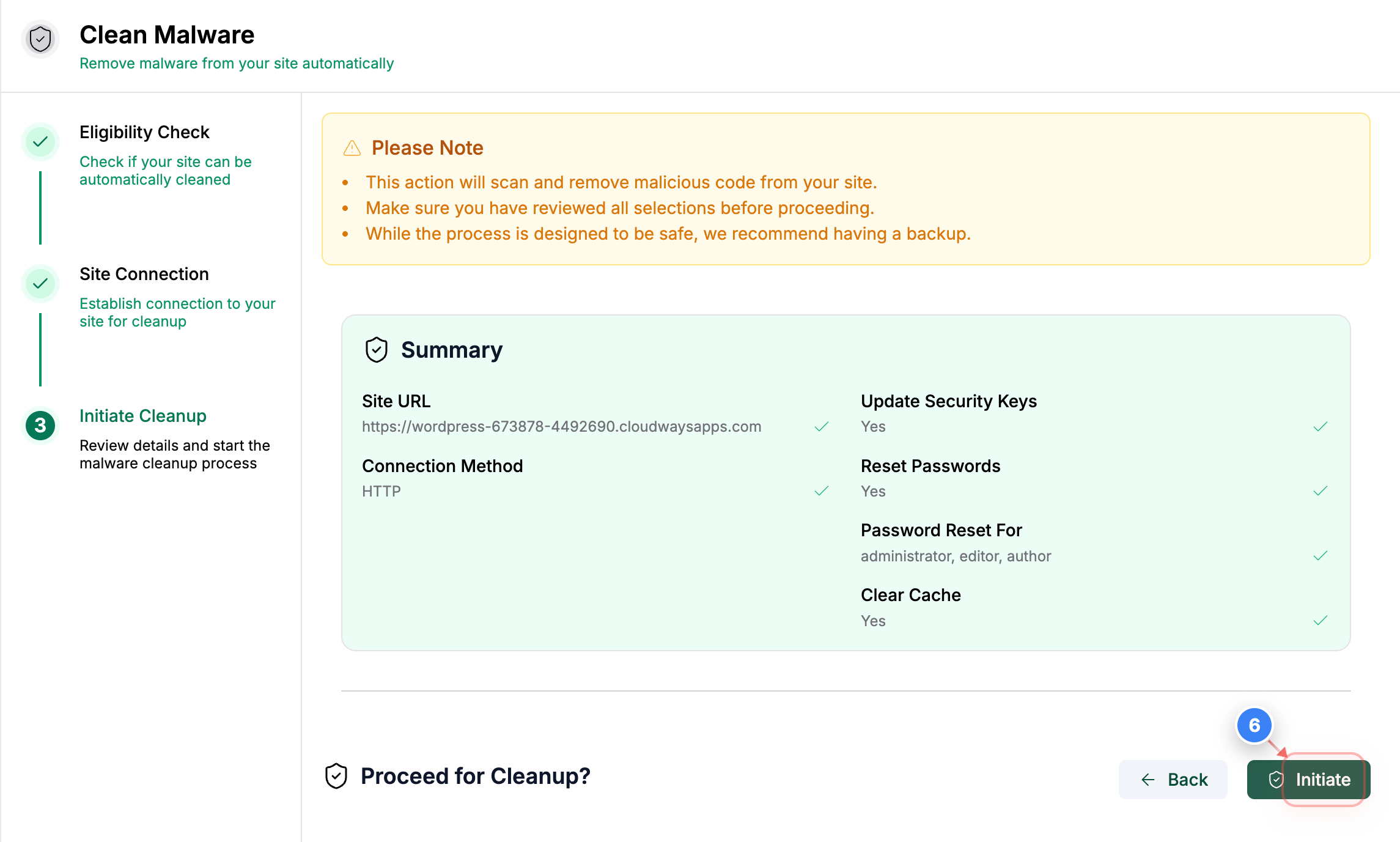
Step 5 of 6
Initiate Malware Removal
Click the Initiate button to begin scanning and cleaning malware from your site based on the selected options.


Step 5 screenshot
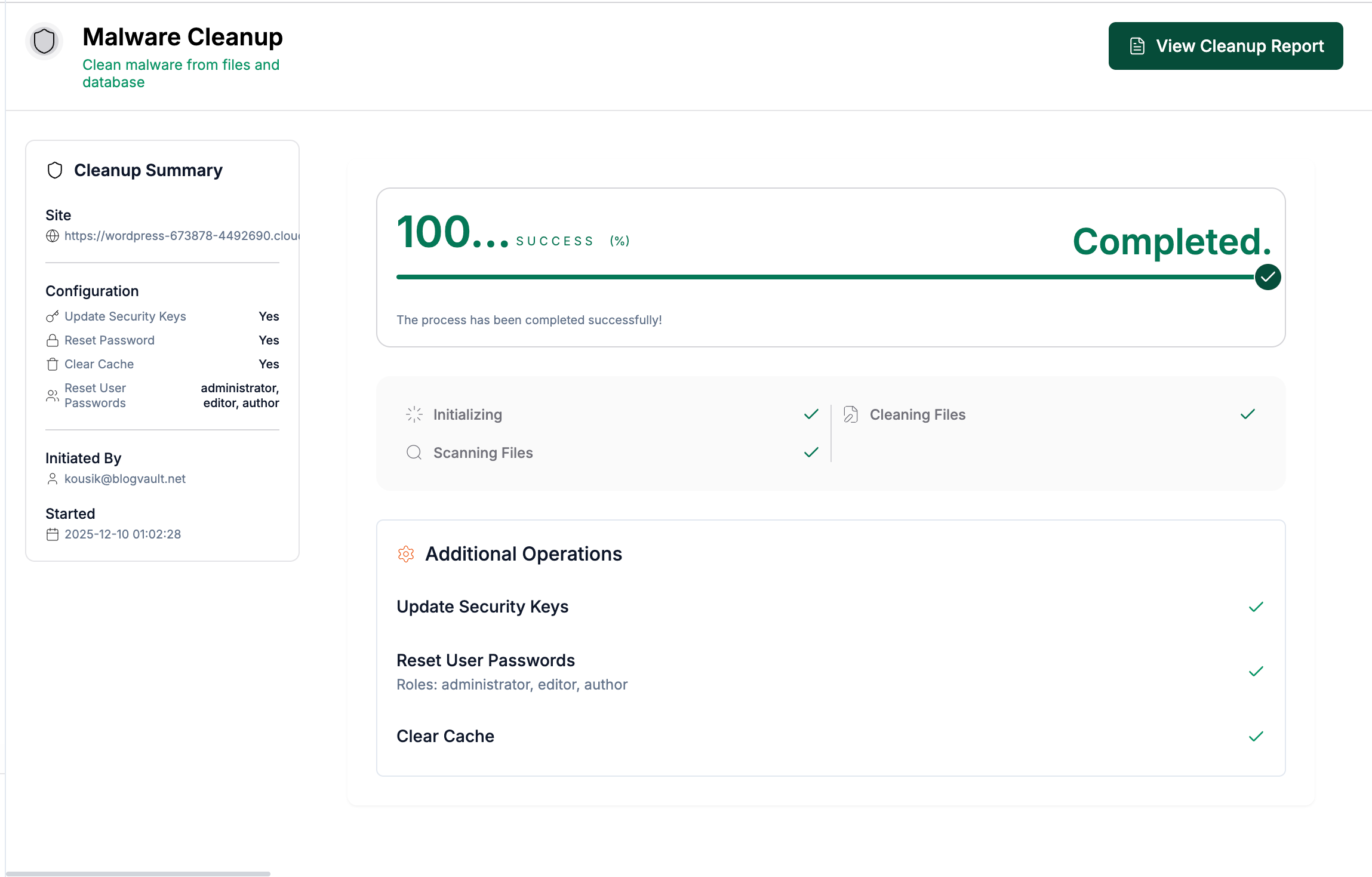
Step 6 of 6
Review Cleanup Summary
Review the final malware cleanup summary, which shows the cleanup status, completed cleanup actions, updated security keys, reset passwords, cache clear results, and cleanup report.


Step 6 screenshot

Was this article helpful?

That’s Great!

Thank you for your feedback

Sorry! We couldn't be helpful

Thank you for your feedback

Let us know how can we improve this article!

Select at least one of the reasons

Feedback sent

We appreciate your effort and will try to fix the article