How Do I Use Two-Factor Authentication for My Account?

Created by Sachin B, Modified on Tue, 18 Nov at 4:06 PM by Sachin B

Step 1 of 6
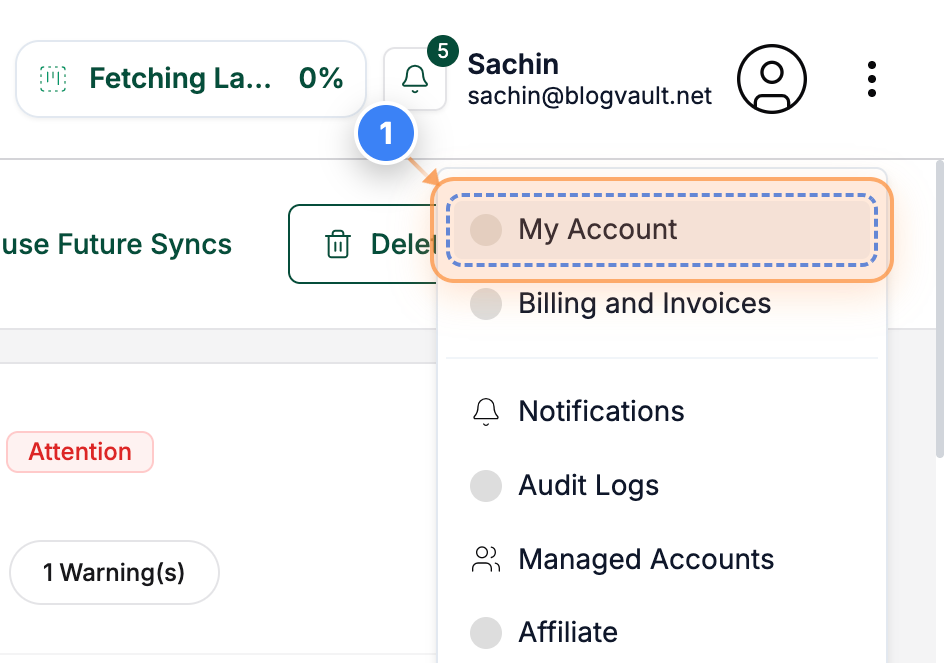
Open Account Settings
Click the "My Account" link in the top-right navigation to open your account settings.
Step 1 screenshot
Step 2 of 6
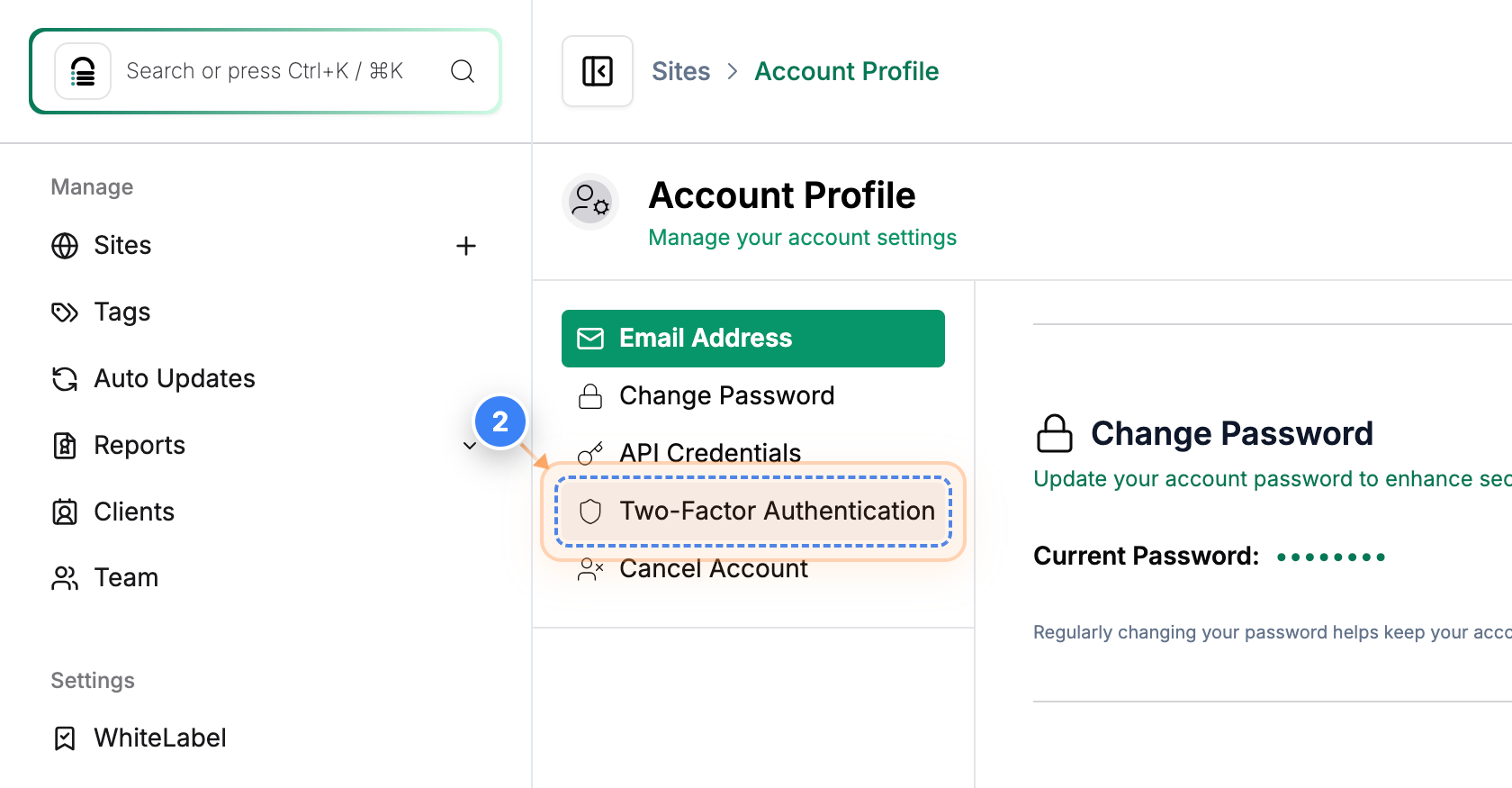
Open Two-Factor Settings
In the left-hand settings panel, select the option that opens your security and two-factor authentication settings.
Step 2 screenshot
Step 3 of 6
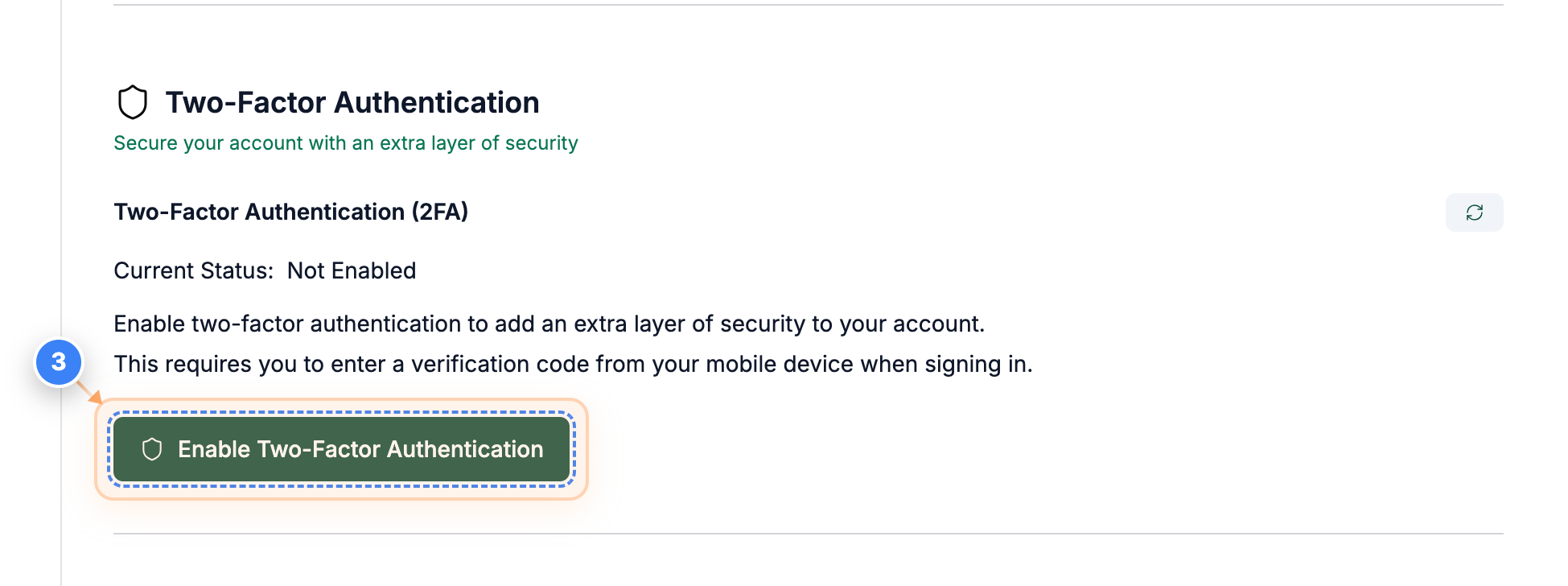
Enabling 2FA
Click the "Enable Two-Factor Authentication" button in the security section to begin setting up 2FA for your account.
Step 3 screenshot
Step 4 of 6
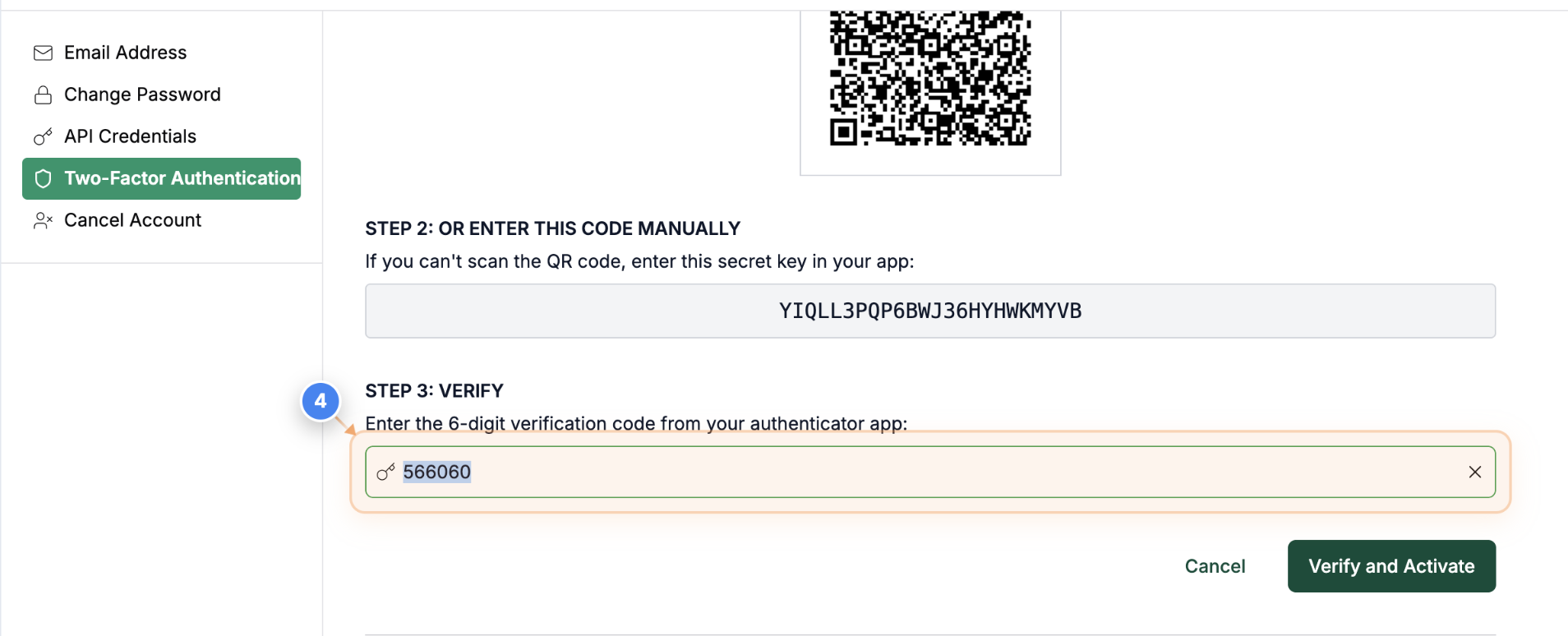
Enter Verification Code
Scan the QR Code to your authenticator app & Enter the 6-digit code from your app into the verification field in the center of the page.
Note: Make sure to use the code from the authenticator app you just linked.
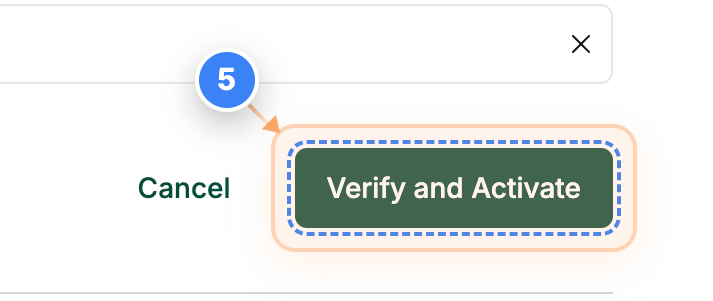
Step 5 of 6
Verify and Activate 2FA
Click the "Verify and Activate" button on the right side of the page to complete two-factor authentication setup.
Step 5 screenshot
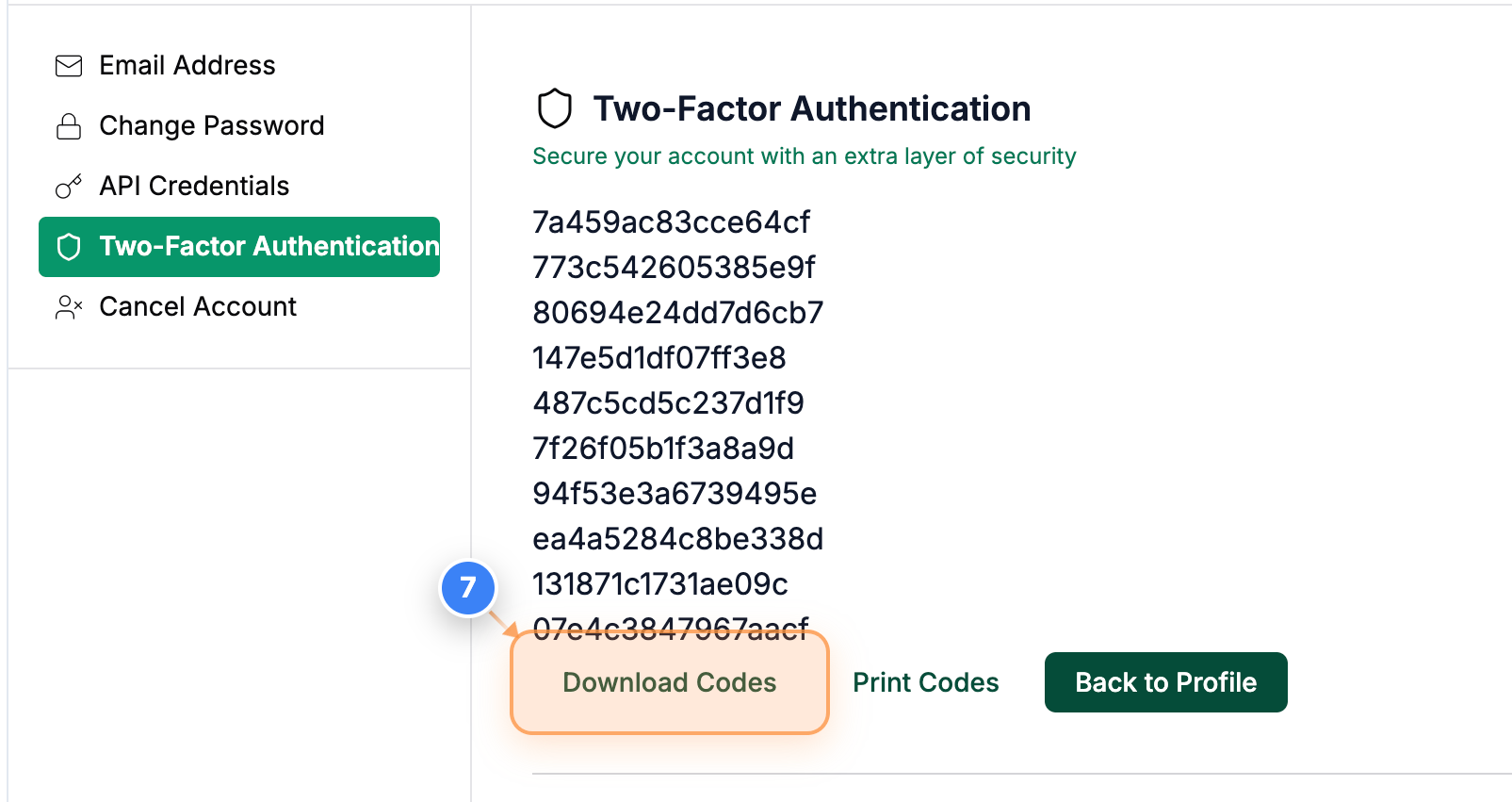
Step 6 of 6
Download Backup Codes
Click the "Download Codes" button in the backup codes section to save your recovery codes for future access.
Note: Store these codes somewhere secure; they can help you log in if you lose access to your authenticator app.
Step 6 screenshot


>> To Disable Two-Factor authentication, follow the steps below. 


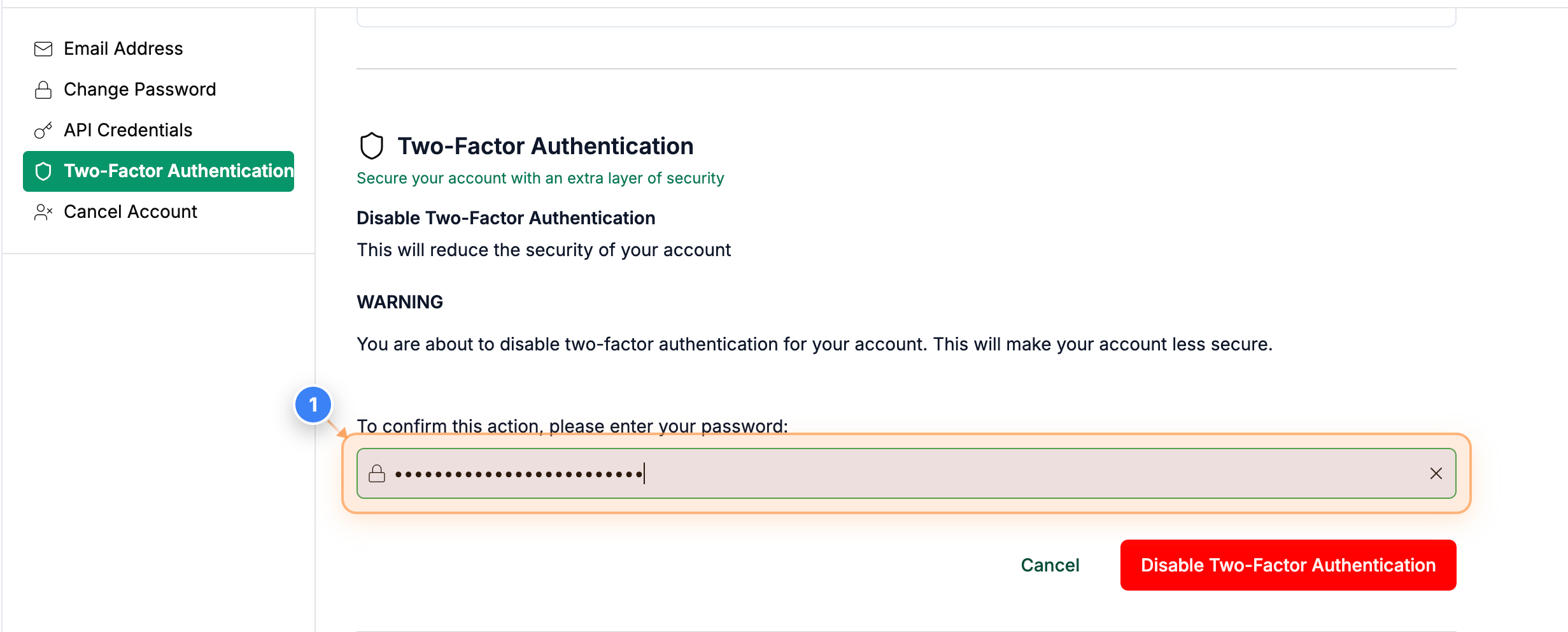
Step 1 of 2
Confirm Action With Password
Enter your account password in the confirmation field in the center of the page to proceed with disabling two-factor authentication.
Note: This step verifies that you are authorized to make security changes.
Step 1 screenshot
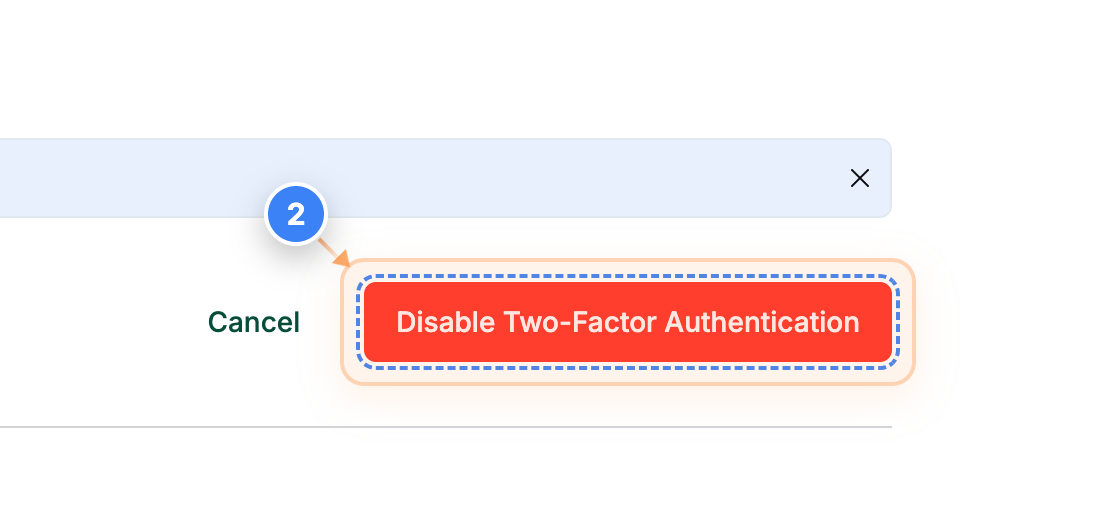
Step 2 of 2
Disable Two-Factor Authentication
Click the "Disable Two-Factor Authentication" button in the lower-right area to turn off two-factor protection for your account.
Note: Your account will no longer require a verification code during login after this action.
Step 2 screenshot

Was this article helpful?

That’s Great!

Thank you for your feedback

Sorry! We couldn't be helpful

Thank you for your feedback

Let us know how can we improve this article!

Select at least one of the reasons

Feedback sent

We appreciate your effort and will try to fix the article