How Do I Cancel My Account?

Created by Kousik M, Modified on Fri, 14 Nov at 7:30 PM by Kousik M

Step 1 of 5
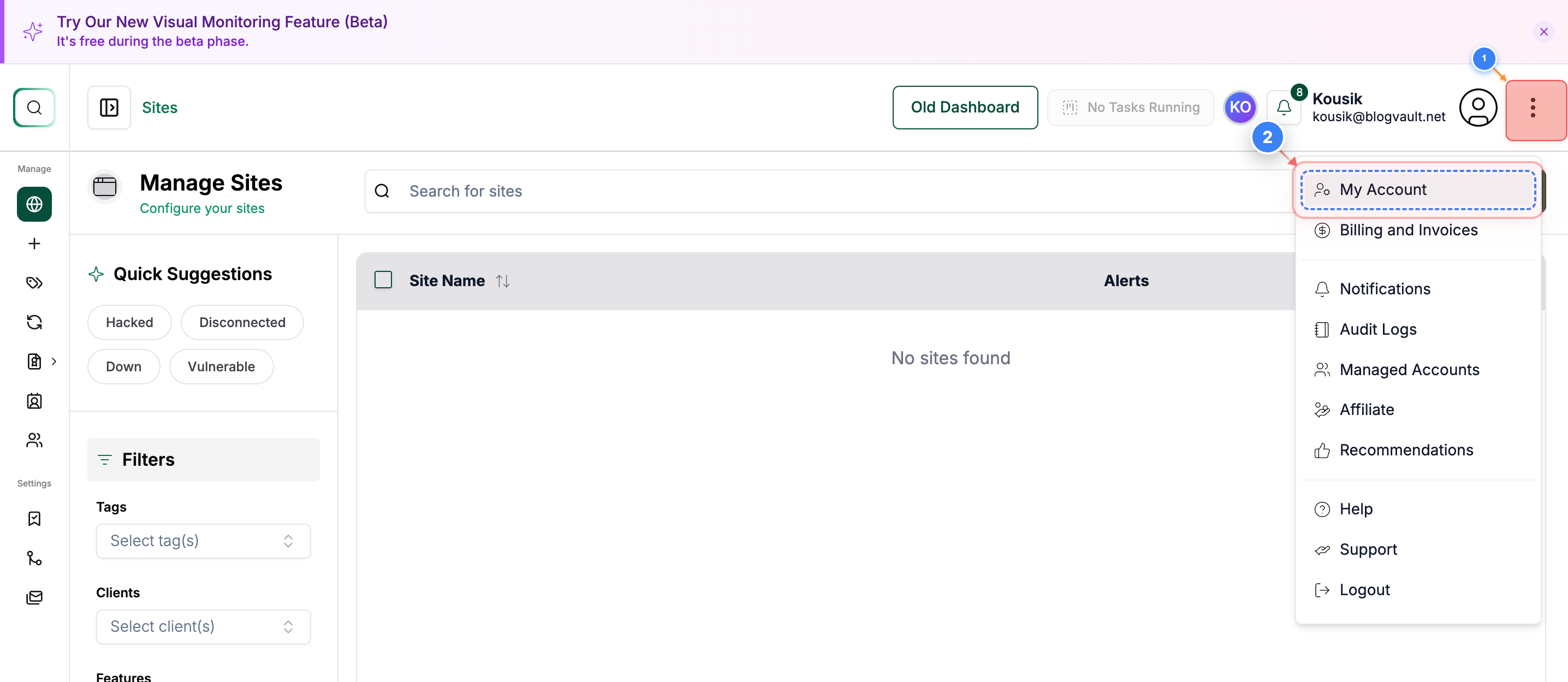
Open Account Settings
Click the Menu button on the right side of your dashboard, then select My Account from the top-right navigation to access your account settings.
Note: Use this section whenever you need to update your profile email, change your password, manage account 2FA, or cancel your account.
Step 1 screenshot
Step 2 of 5
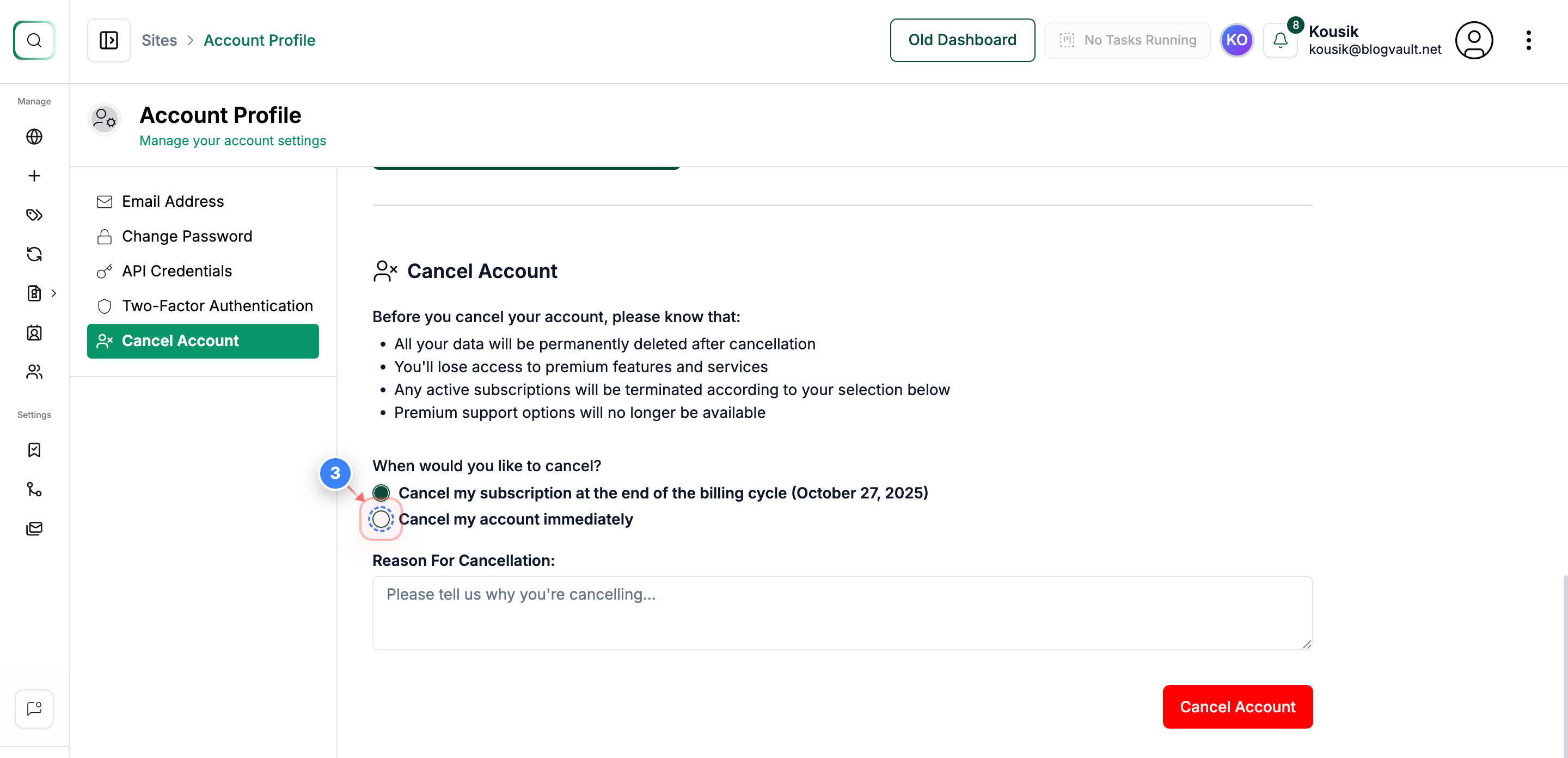
Select Immediate Cancellation
Choose the immediate cancellation option in the Cancel Account section to end your subscription right away.
Note: This option removes access instantly rather than waiting until the billing cycle ends.
Step 2 screenshot
Step 3 of 5
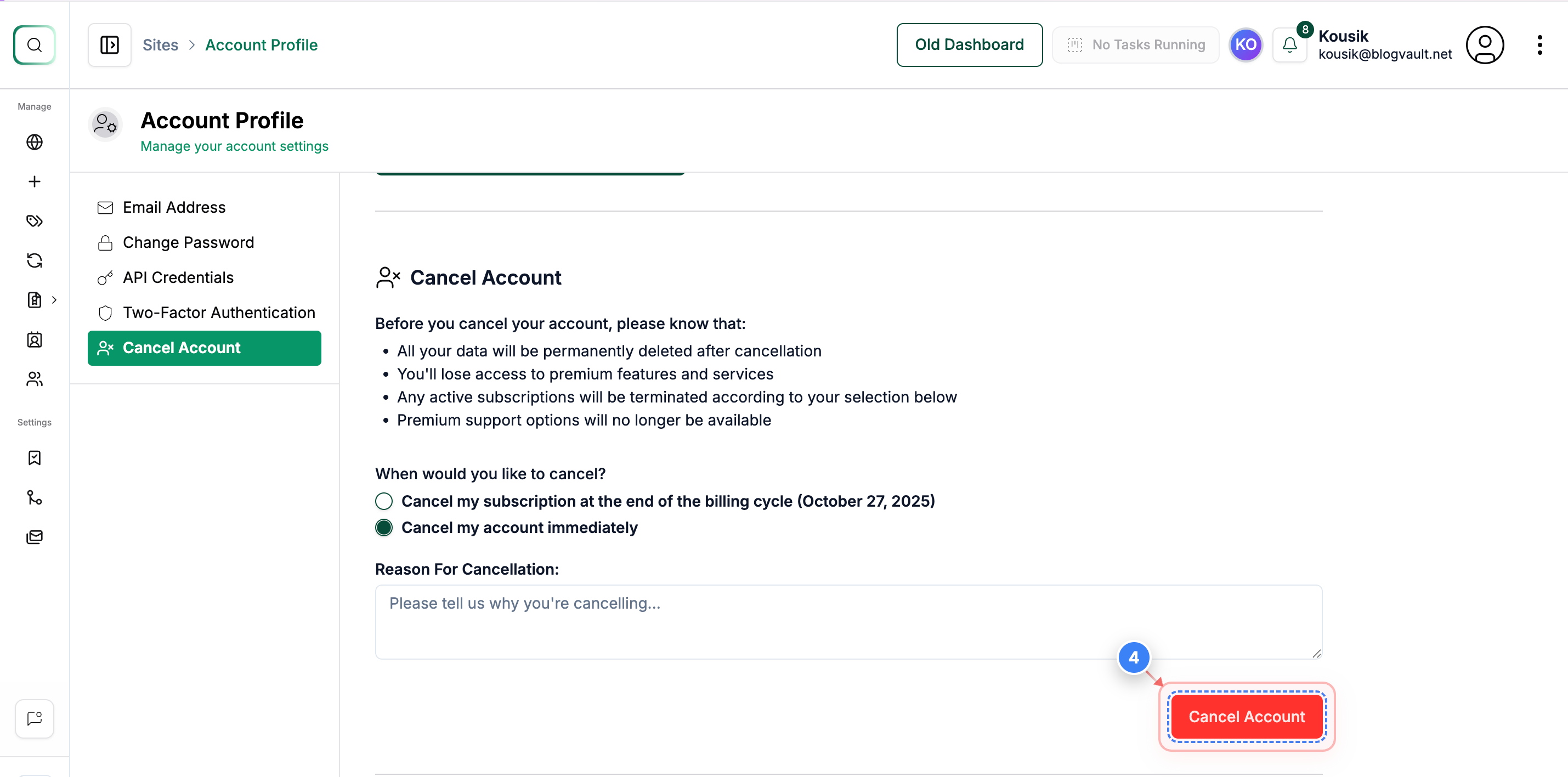
Proceed to Cancel Account
Click the Cancel Account button at the bottom of the page to continue with the cancellation request.
Note: You can enter the reason for cancellation in the text box provided.
Step 3 screenshot
Step 4 of 5
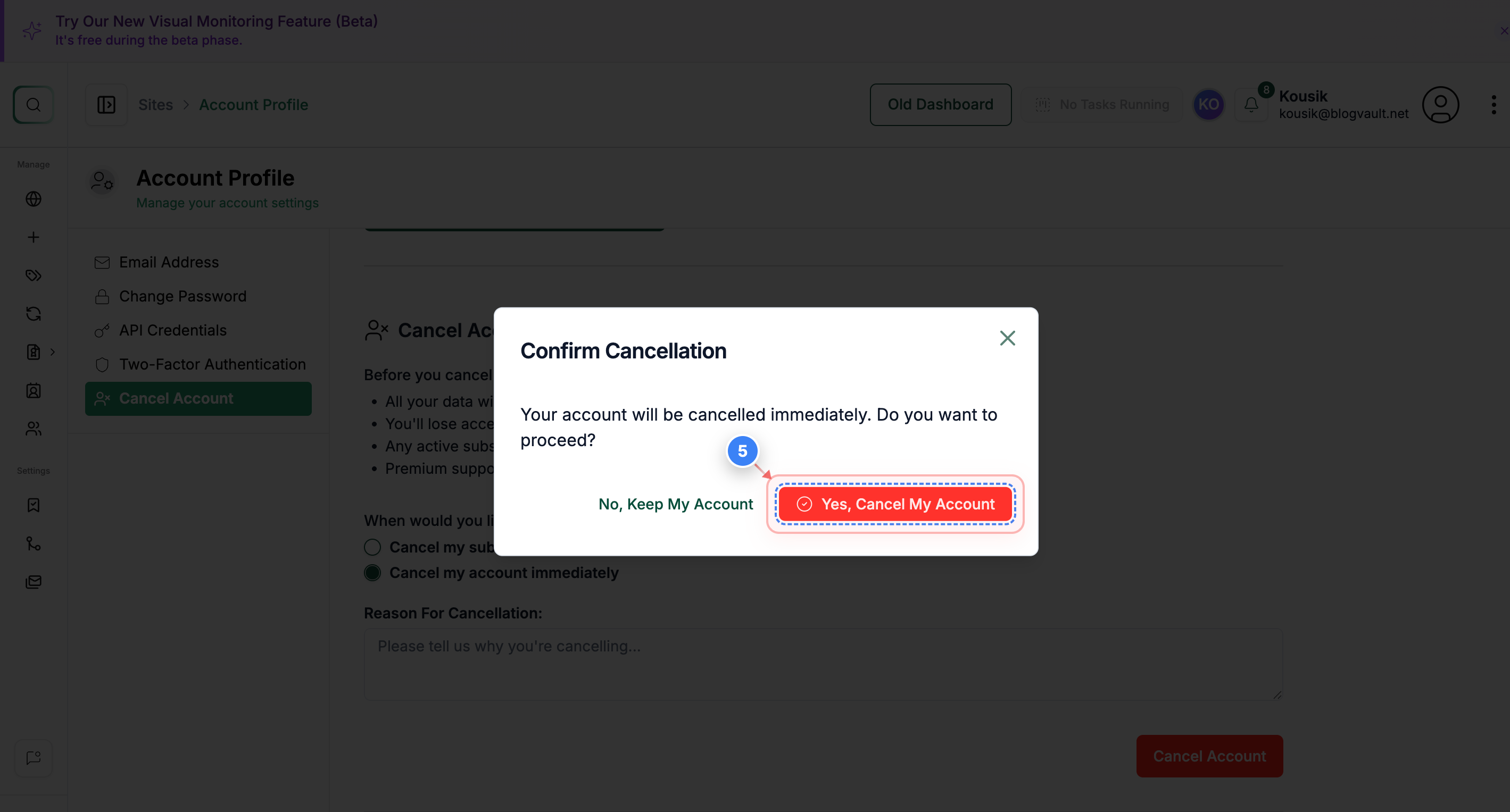
Confirm Cancellation
Click the Yes, Cancel My Account button in the confirmation window to finalize the cancellation.
Note: Once confirmed, access to all premium features and data will be permanently removed.
Step 4 screenshot
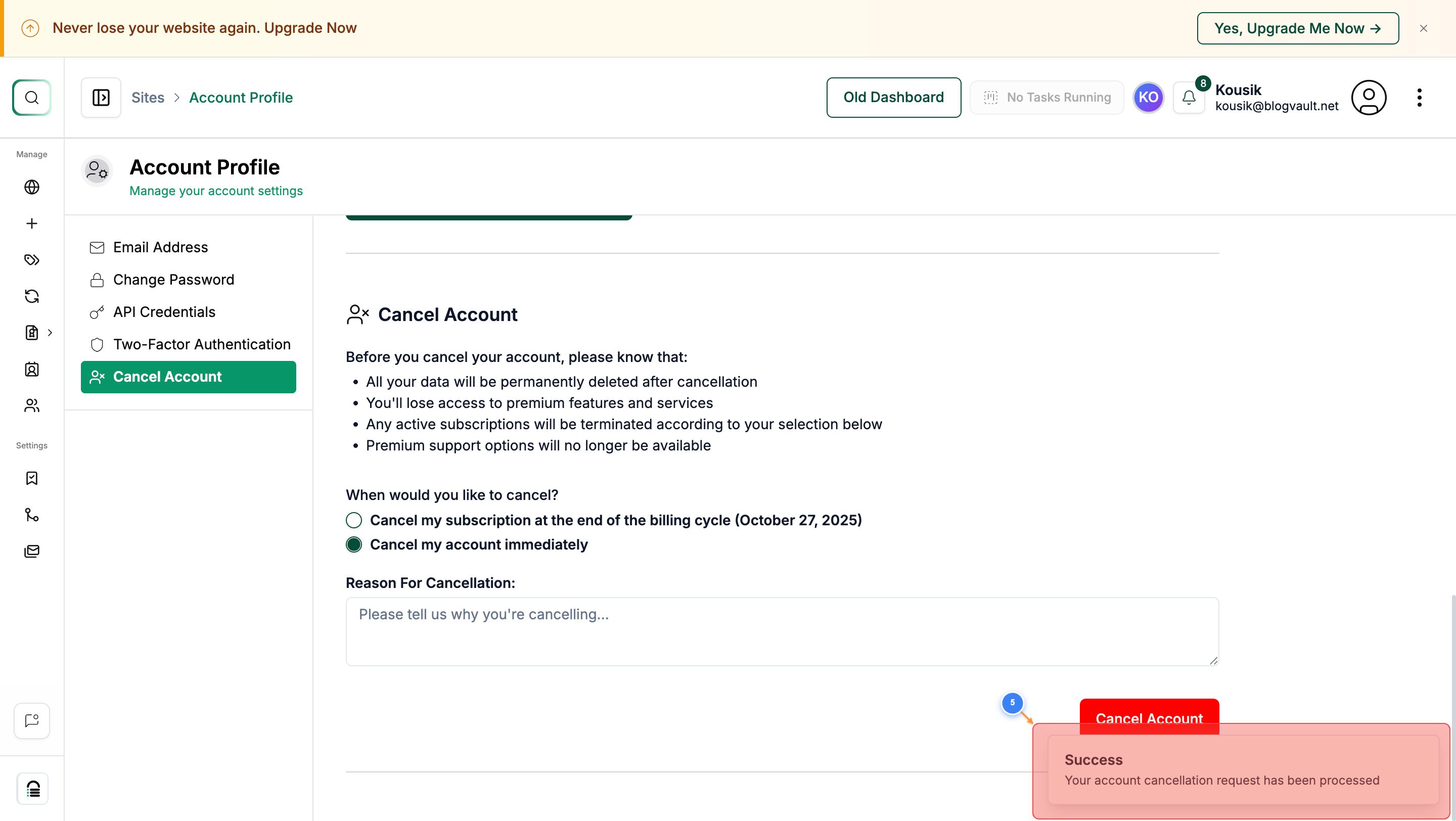
Step 5 of 5
Review Account Status
A success pop-up will appear in the bottom-right corner, indicating that the account cancellation process has begun.
Note: When you reload the page, you can see the message "Your account has been cancelled." All the data related to your account will be removed shortly.
Step 5 screenshot

Was this article helpful?

That’s Great!

Thank you for your feedback

Sorry! We couldn't be helpful

Thank you for your feedback

Let us know how can we improve this article!

Select at least one of the reasons

Feedback sent

We appreciate your effort and will try to fix the article