
Export Your Theme List in CSV Format

Created by Kousik M, Modified on Tue, 6 Jan at 1:48 AM by Kousik M

Step 1 of 7
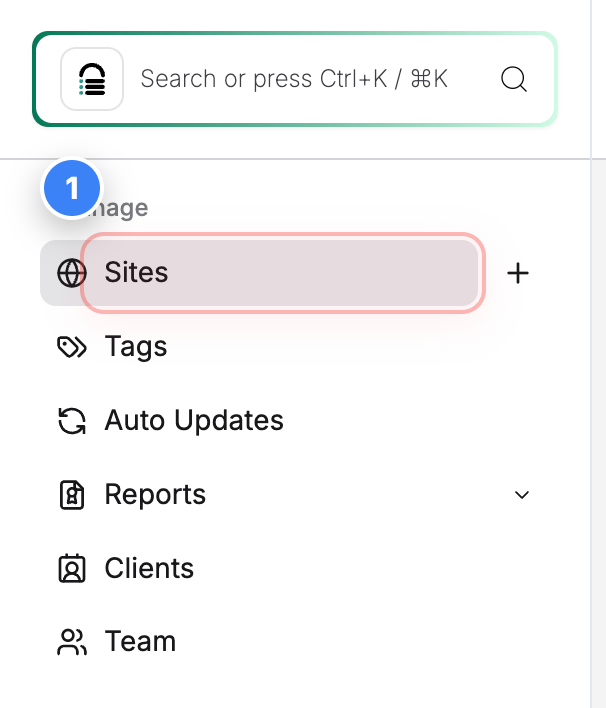
Open Site Listing Page

Click on Sites in the top-left navigation to view all websites present in the account.


Step 1 screenshot
Step 2 of 7
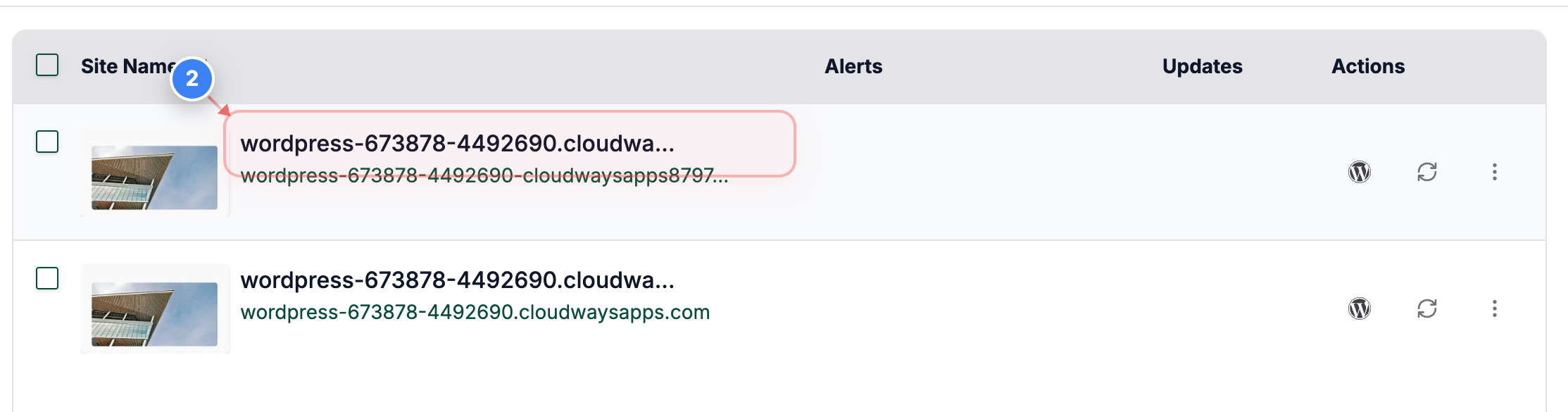
Select Your Site

Click on your site name to open its management options.


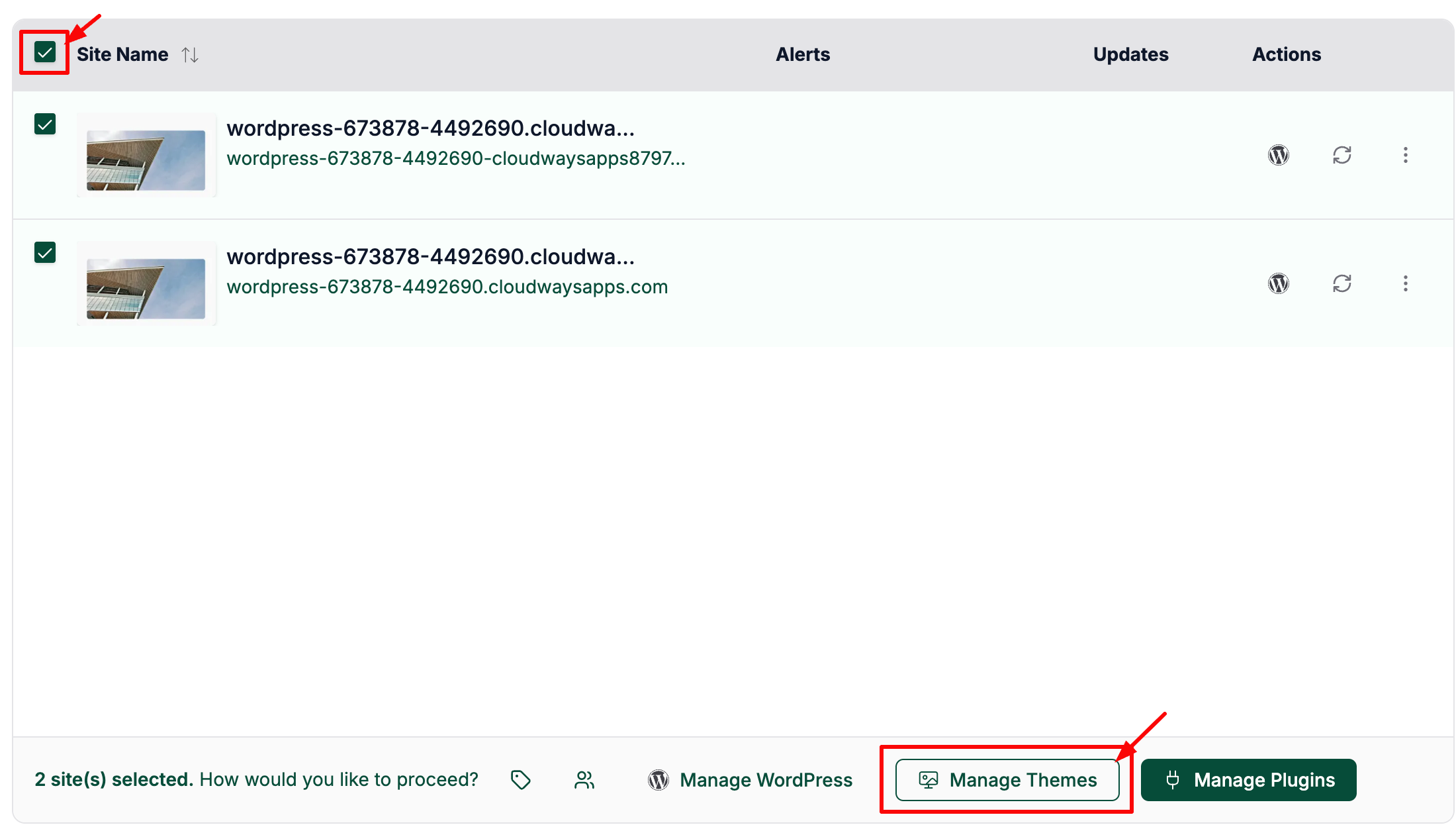
Note: You can select multiple sites to export all the themes for your sites
Step 2 screenshot


Otherwise, select single/multiple sites and click on the "Manage Themes" button as shown below to export all the plugins for the selected sites:


Step 3 of 7
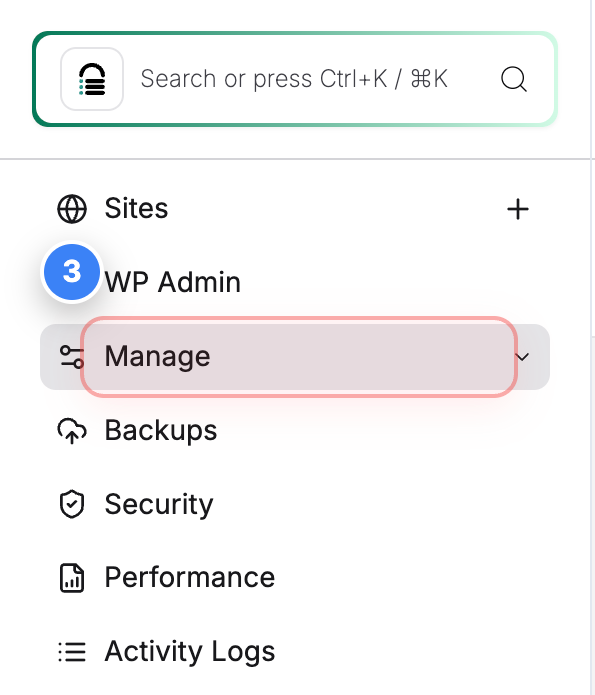
Open Manage Options
Click Manage in the left sidebar to access the theme management page for the selected site.


Step 3 screenshot
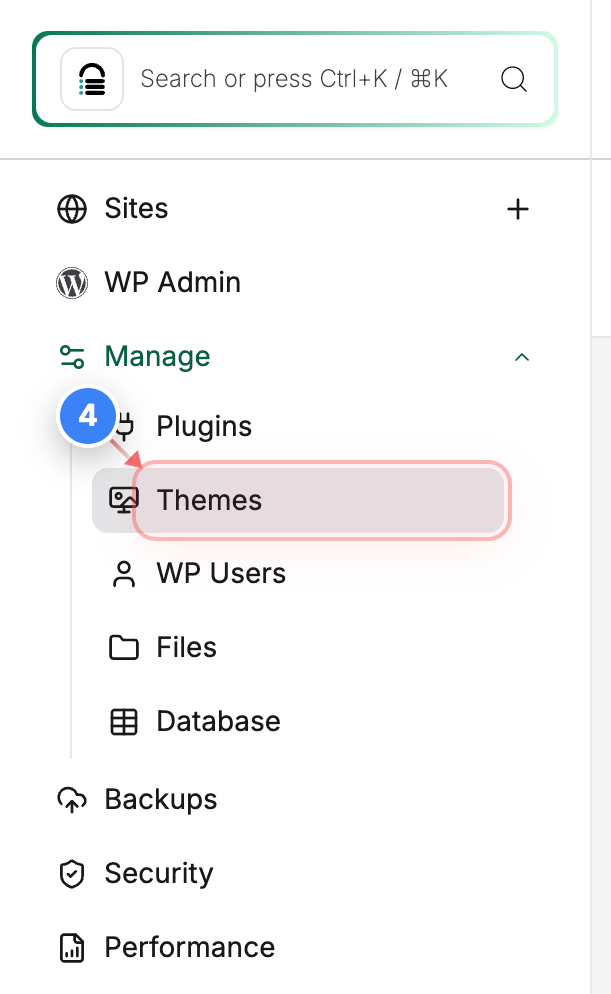
Step 4 of 7
Go to Theme Management
Click on Themes in the Manage section to view and manage all themes installed on the site.


Step 4 screenshot
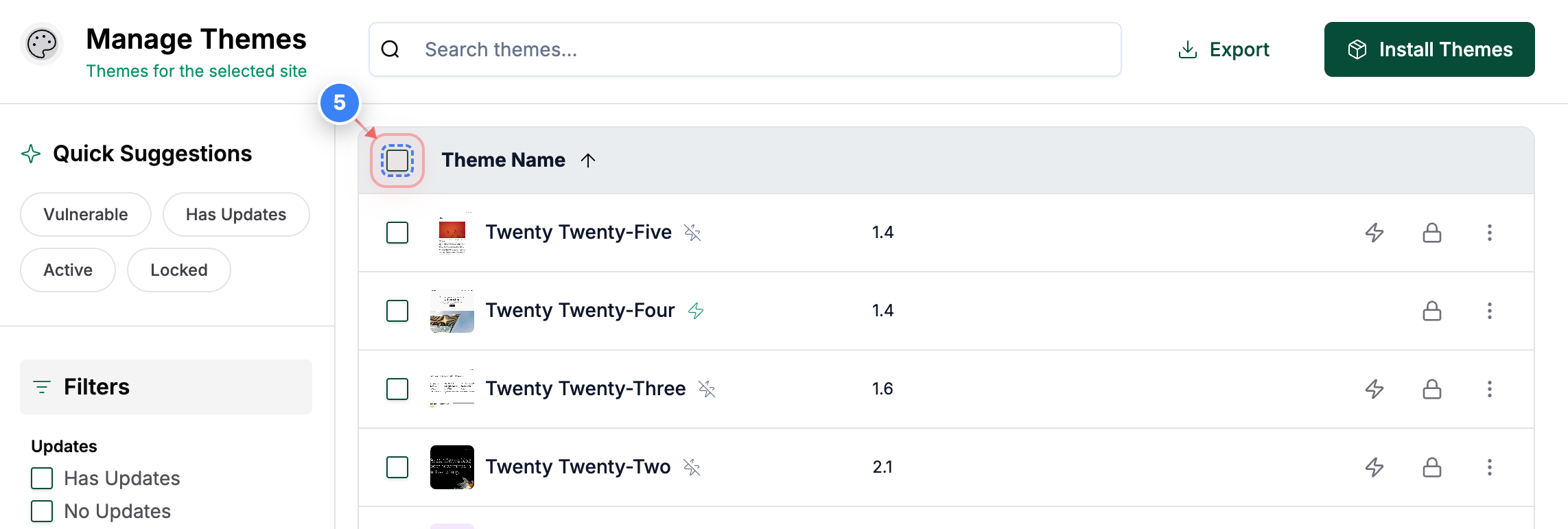
Step 5 of 7
Select Themes
Click the select-all checkbox at the top of the themes table to choose all listed themes.
Note: Selecting all themes ensures the full themes list is included in the export. You may select the specific themes or a filtered list. 
Step 5 screenshot
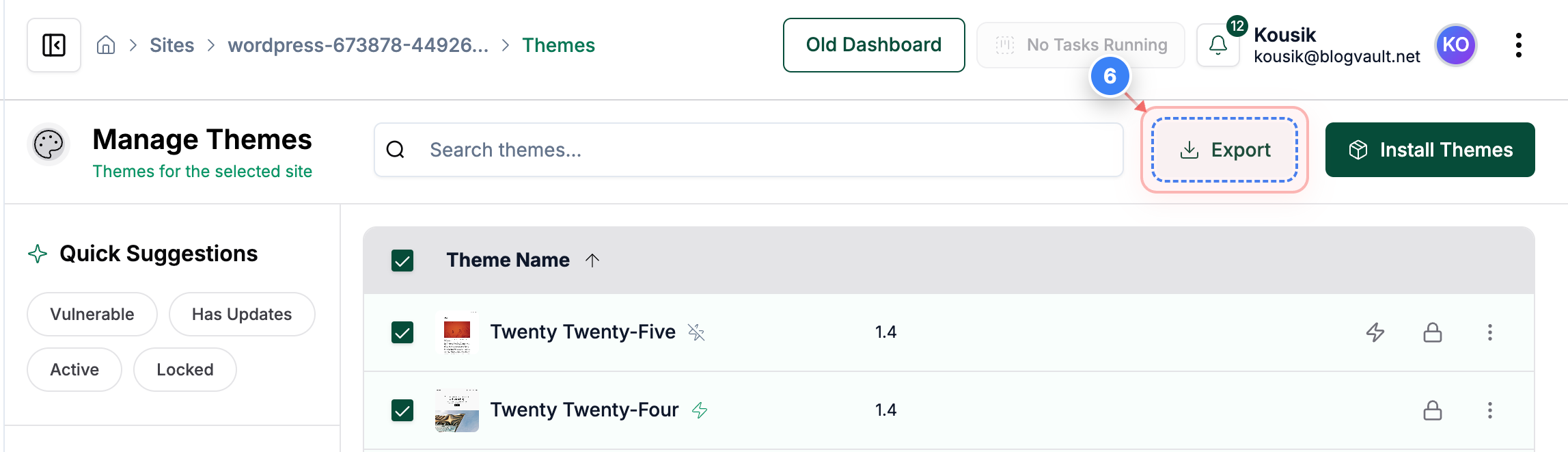
Step 6 of 7
Export Themes Data
Click the Export option in the top-right area to download the selected themes information.
Note: The export includes site URL, theme name, current version, available new version, status (active or inactive), theme lock status, site lock status, and vulnerability status.
Step 6 screenshot
Step 7 of 7
Successful Export Data Message
Clicking the export button will download the file to your computer, and a successful message will appear.
Note: The file is downloaded in CSV format and can be opened in spreadsheet tools.
Step 7 screenshot

Was this article helpful?

That’s Great!

Thank you for your feedback

Sorry! We couldn't be helpful

Thank you for your feedback

Let us know how can we improve this article!

Select at least one of the reasons

Feedback sent

We appreciate your effort and will try to fix the article