How Do I Update an Existing Website URL on the Dashboard?

Created by Sachin B, Modified on Tue, 25 Nov at 4:04 PM by Sachin B

Step 1 of 7
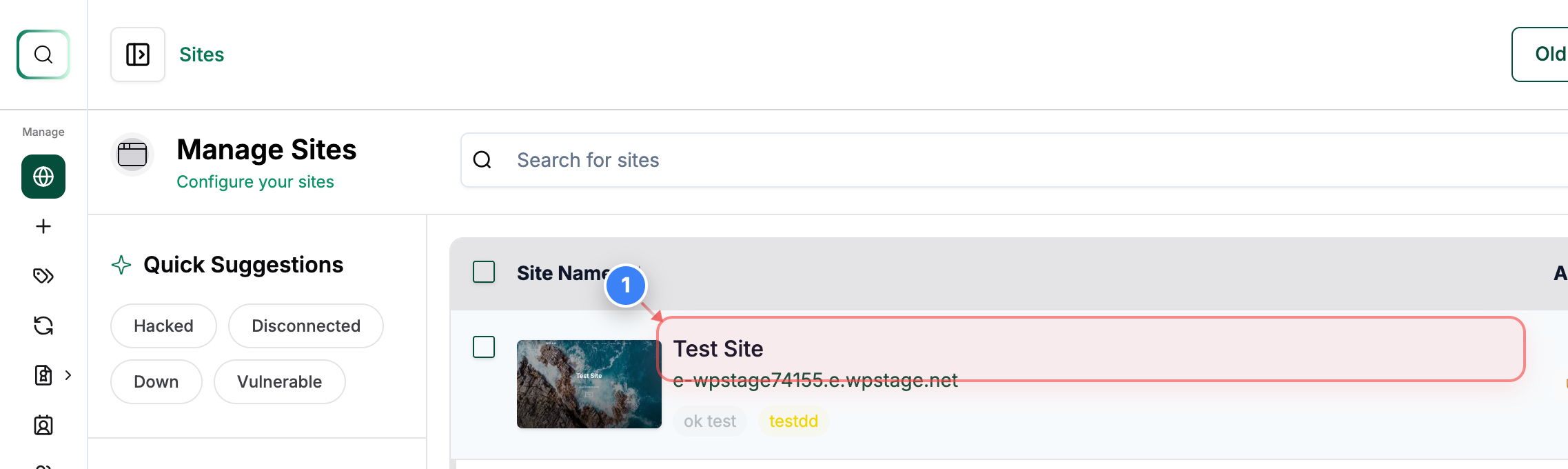
Open Your Site
Click on your site name in the Sites list to open its management dashboard.
Step 1 screenshot
Step 2 of 7
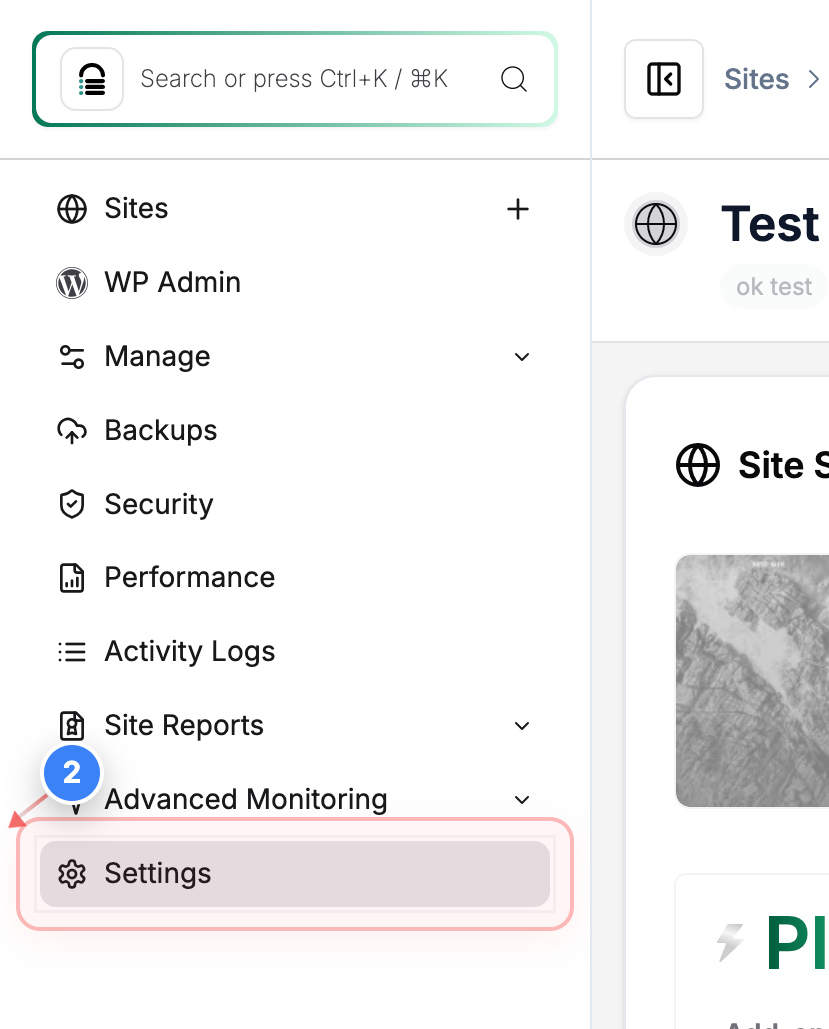
Access Site Settings
Select the Settings option from the left sidebar to manage configuration options for your site.
Step 2 screenshot
Step 3 of 7
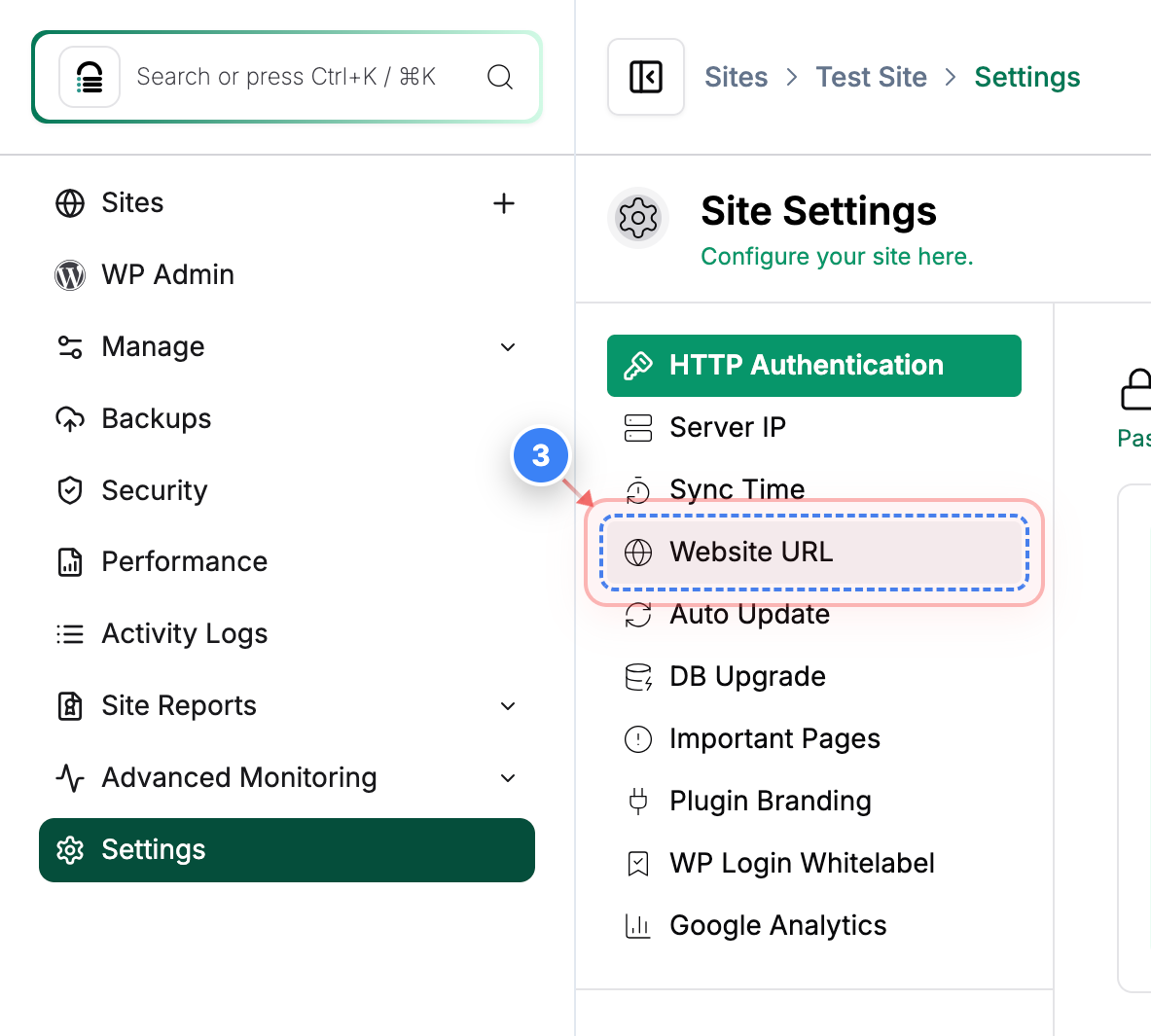
Open URL Settings
Click the Website URL option in the Settings panel to view and edit your site's URL.
Step 3 screenshot
Step 4 of 7
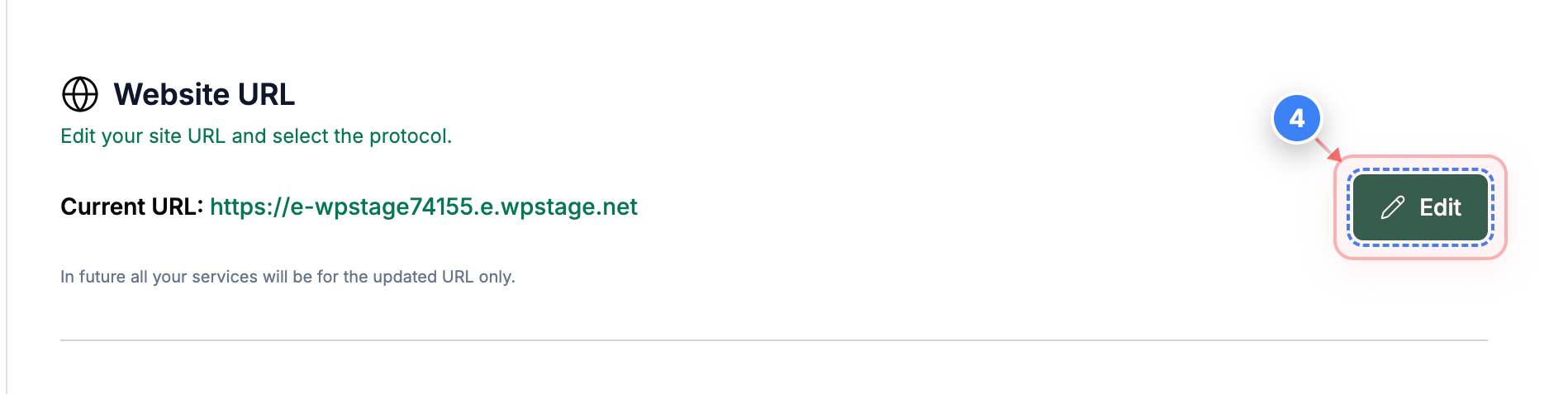
The URL Edit
Click the Edit button next to the Current URL to start updating your site's address.
Step 4 screenshot
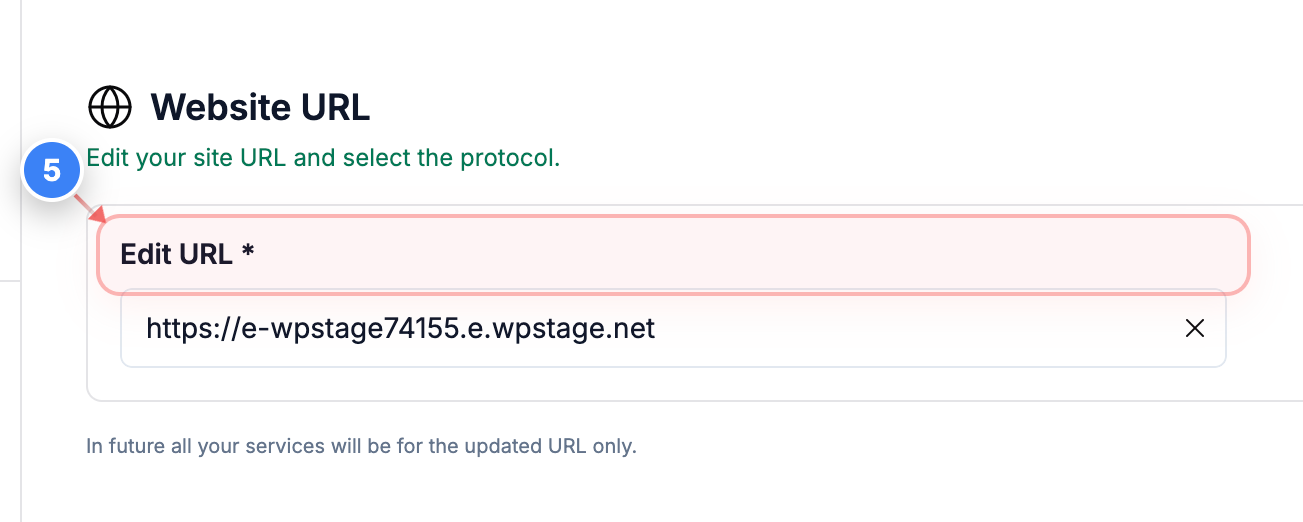
Step 5 of 7
Update the URL
Enter the new site URL in the Edit URL field to change the primary address for your site.
Step 5 screenshot
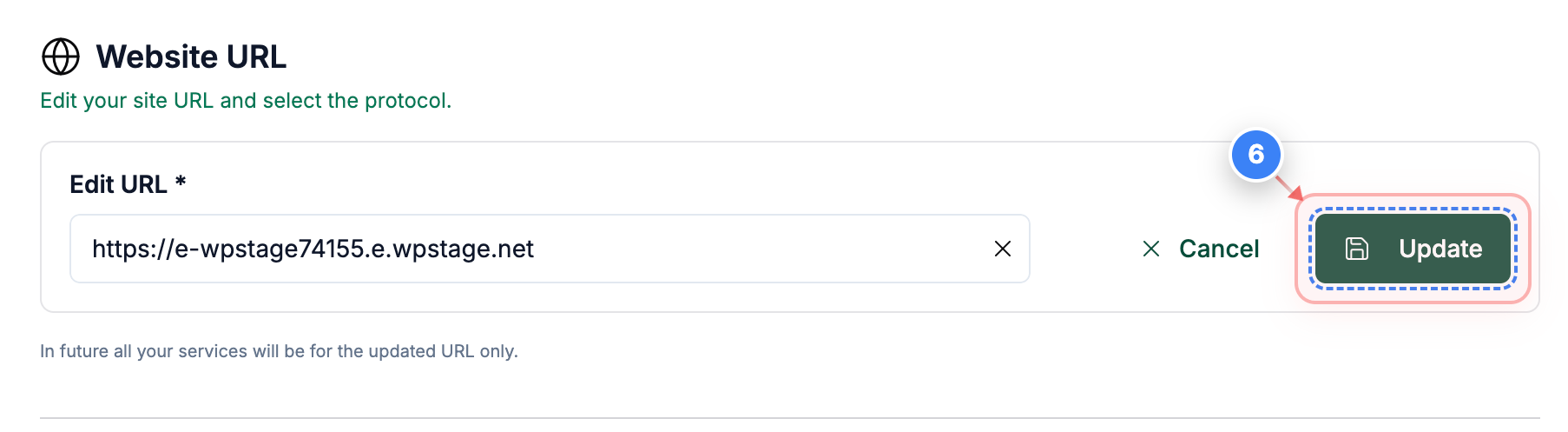
Step 6 of 7
Save URL Changes
Click the Update button to apply the new URL and save your changes.
Step 6 screenshot
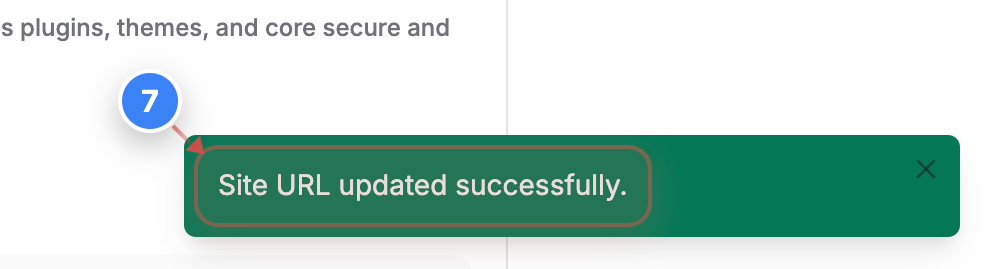
Step 7 of 7
Confirm Successful Update
Check the confirmation message indicating that your site URL was updated successfully.
Step 7 screenshot

Was this article helpful?

That’s Great!

Thank you for your feedback

Sorry! We couldn't be helpful

Thank you for your feedback

Let us know how can we improve this article!

Select at least one of the reasons

Feedback sent

We appreciate your effort and will try to fix the article