How Do I Schedule Auto Updates for Multiple Sites?

Created by Likhith Salian, Modified on Mon, 24 Nov at 9:23 PM by Likhith Salian

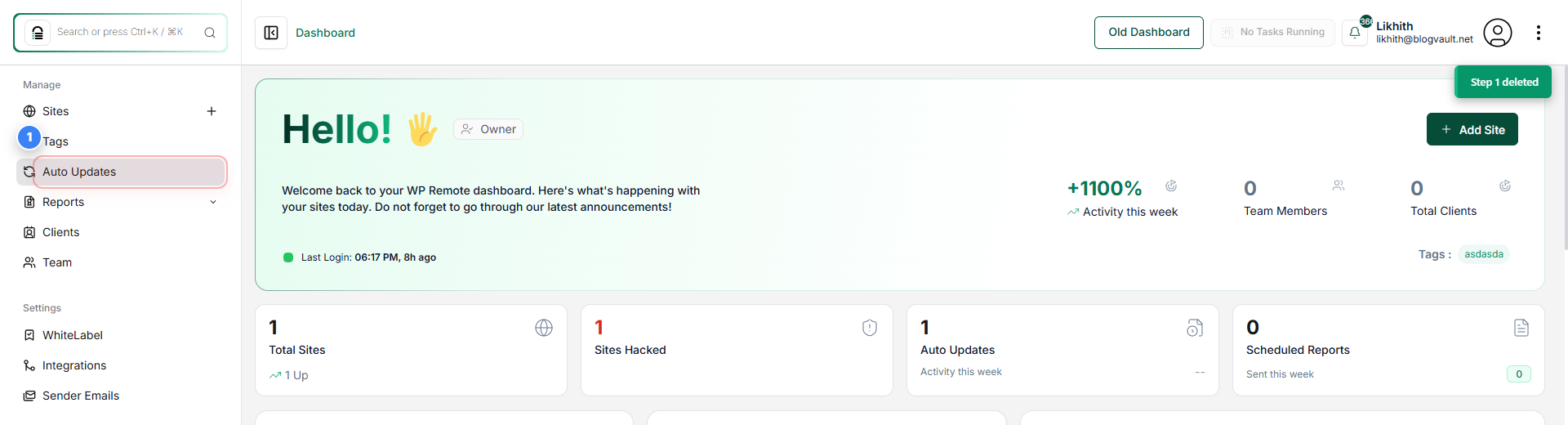
Step 1 of 8
Open Dashboard
Click Dashboard in the top-left navigation to return to the main control panel for your account.
Step 1 screenshot
Step 2 of 8
Open Auto Updates
Click Auto Updates in the left-side menu to open the Auto Update Schedules area, where you manage update schedules.
Step 2 screenshot
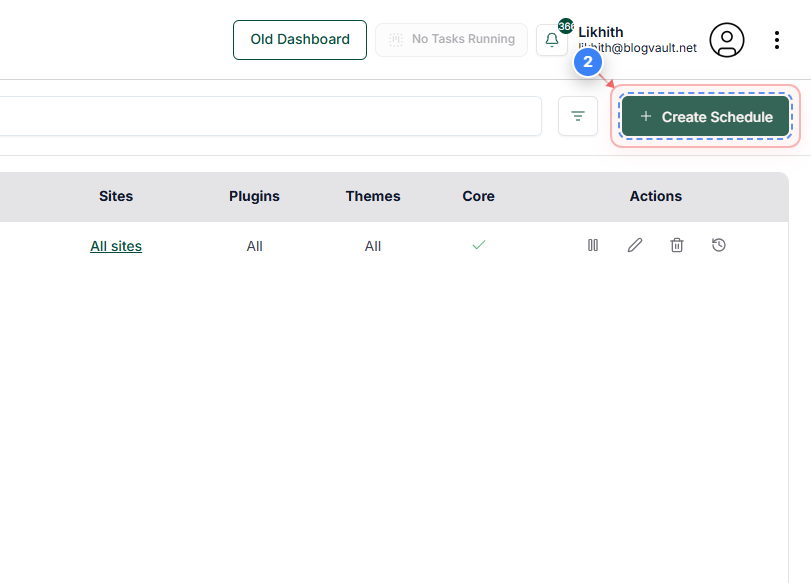
Step 3 of 8
Create New Schedule
Click Create Schedule (top-right) on the Auto Update Schedules page to start a new update schedule.
Step 3 screenshot
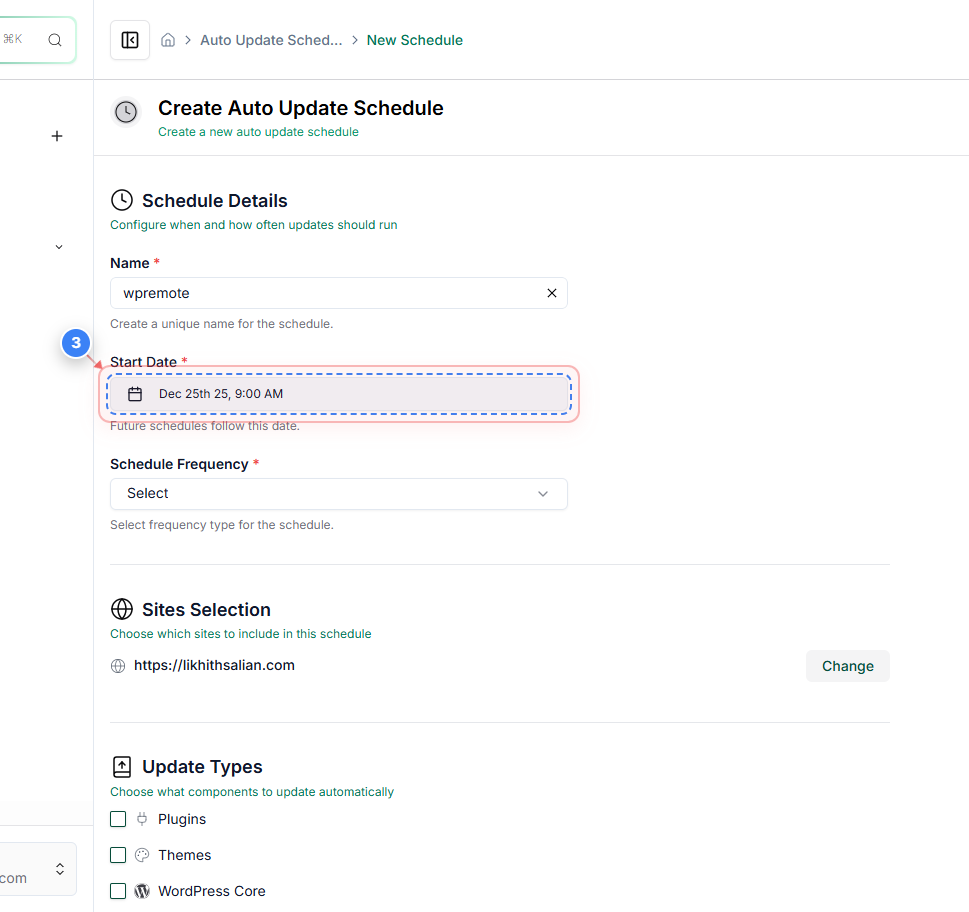
Step 4 of 8
Choose Sites to Assign
Click the Sites selector (for example, the '2 sites' button) in the Site Selection section to choose which websites the schedule will apply to.
Step 4 screenshot
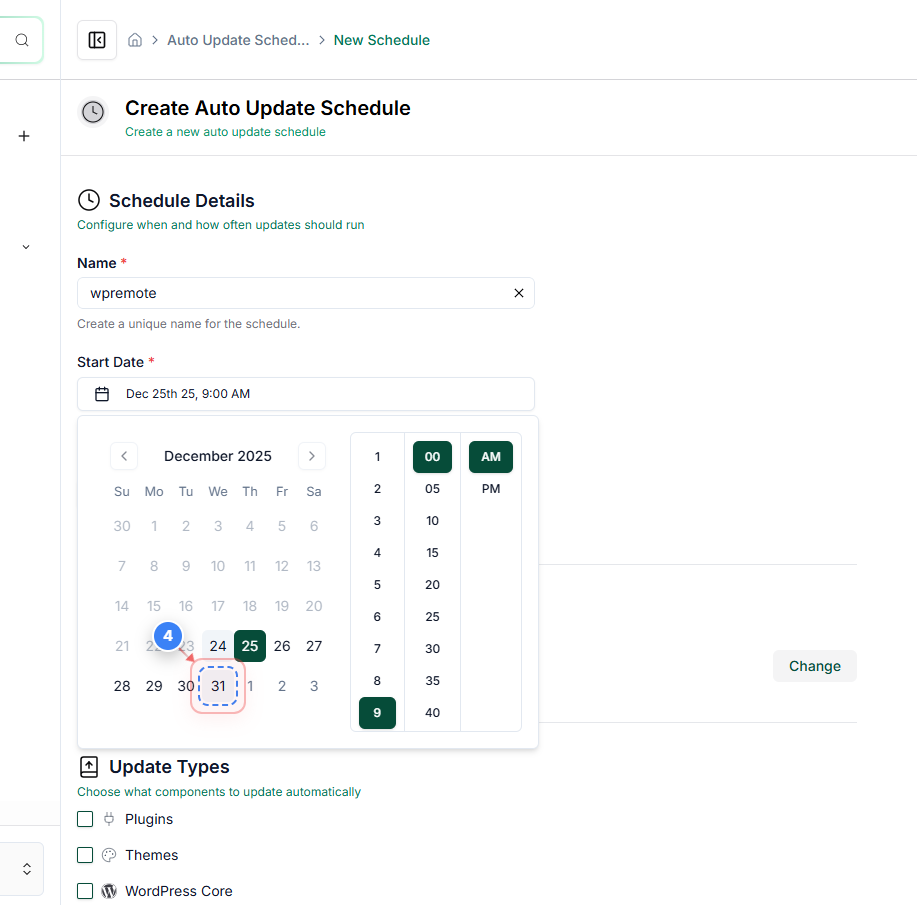
Step 5 of 8
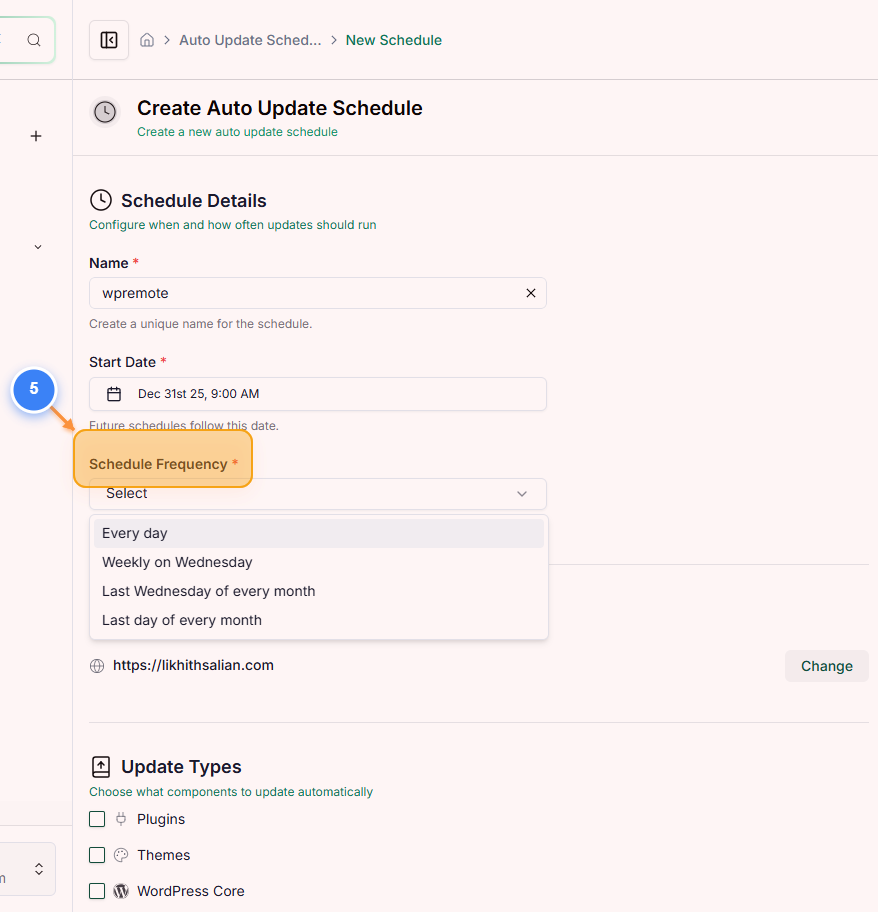
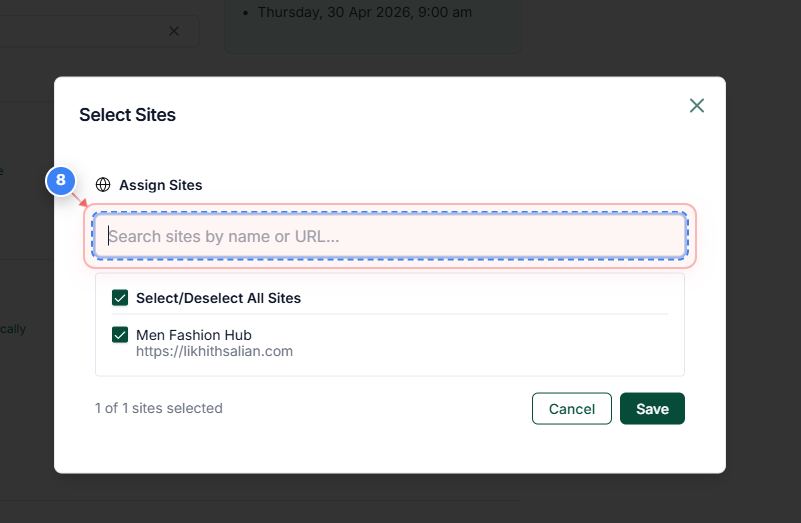
Find Specific Sites
Click the Search sites by name or URL field and type a site name or URL to quickly find and select sites for this schedule.
Note: Typing part of the site name or domain filters the list so you can select sites faster.
Step 5 screenshot
Step 6 of 8
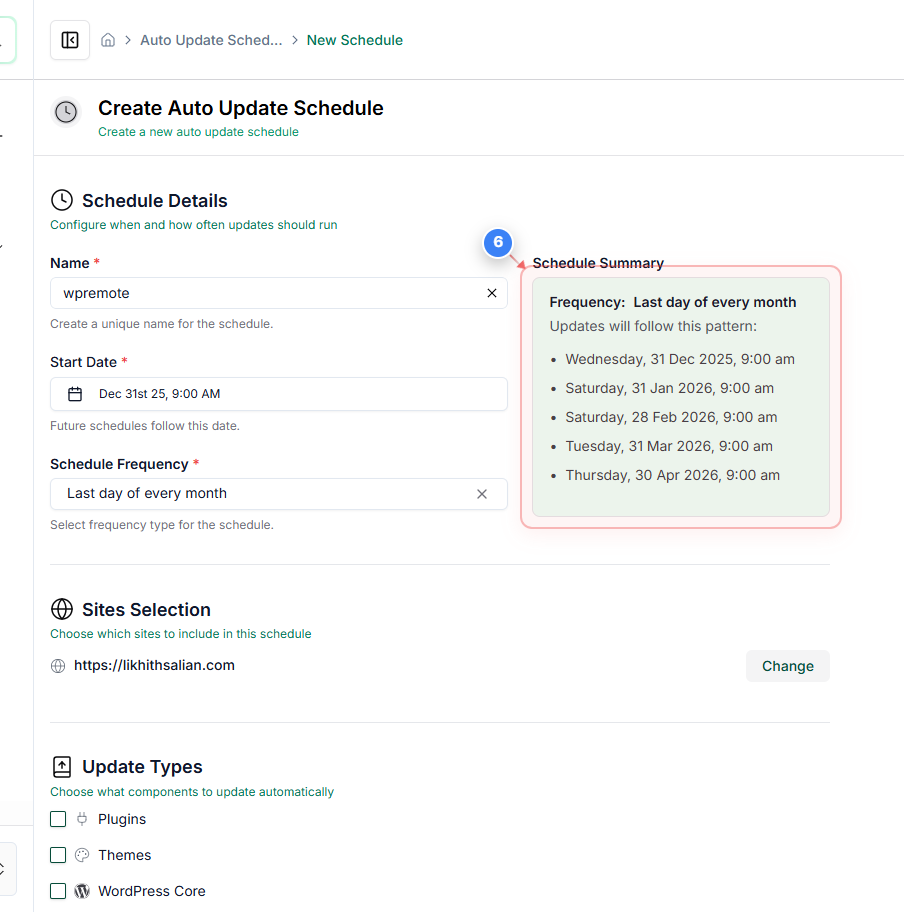
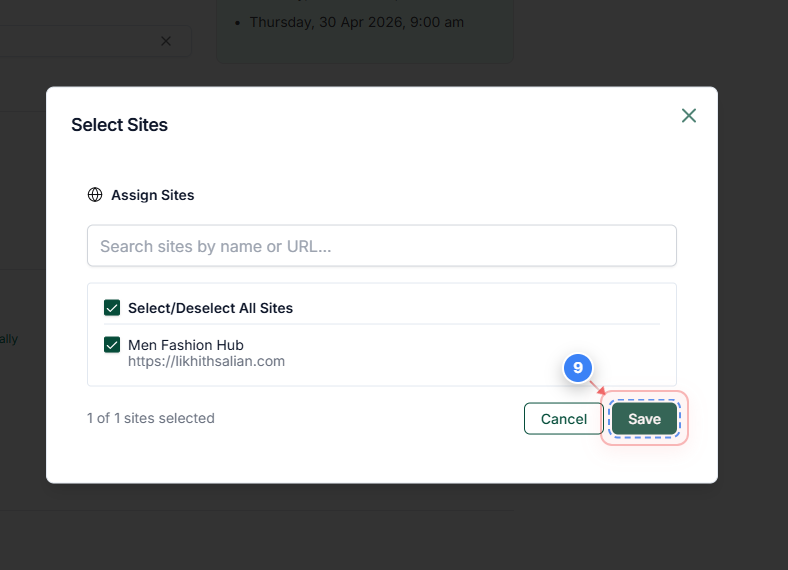
Save Site Assignment
Click Save after selecting sites to confirm which sites are assigned to the schedule and return to the schedule configuration.
Step 6 screenshot
Step 7 of 8
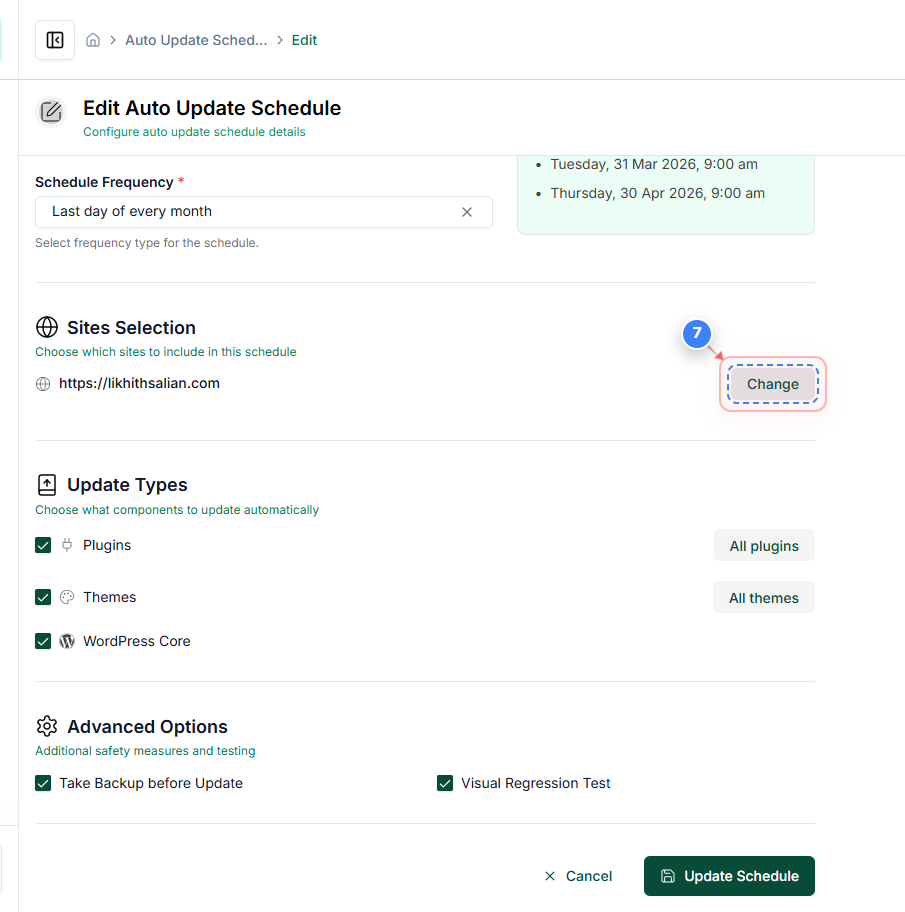
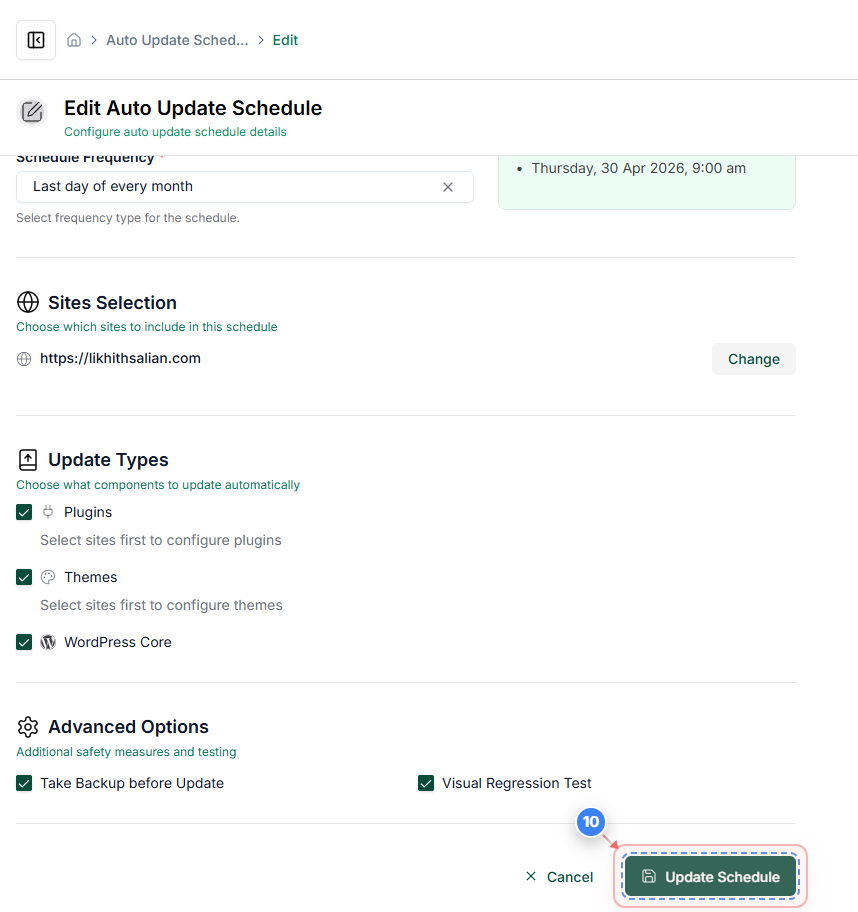
Click on the "Publish Schedule" button in the lower area (located bottom centre of the page)
Step 7 screenshot
Step 8 of 8
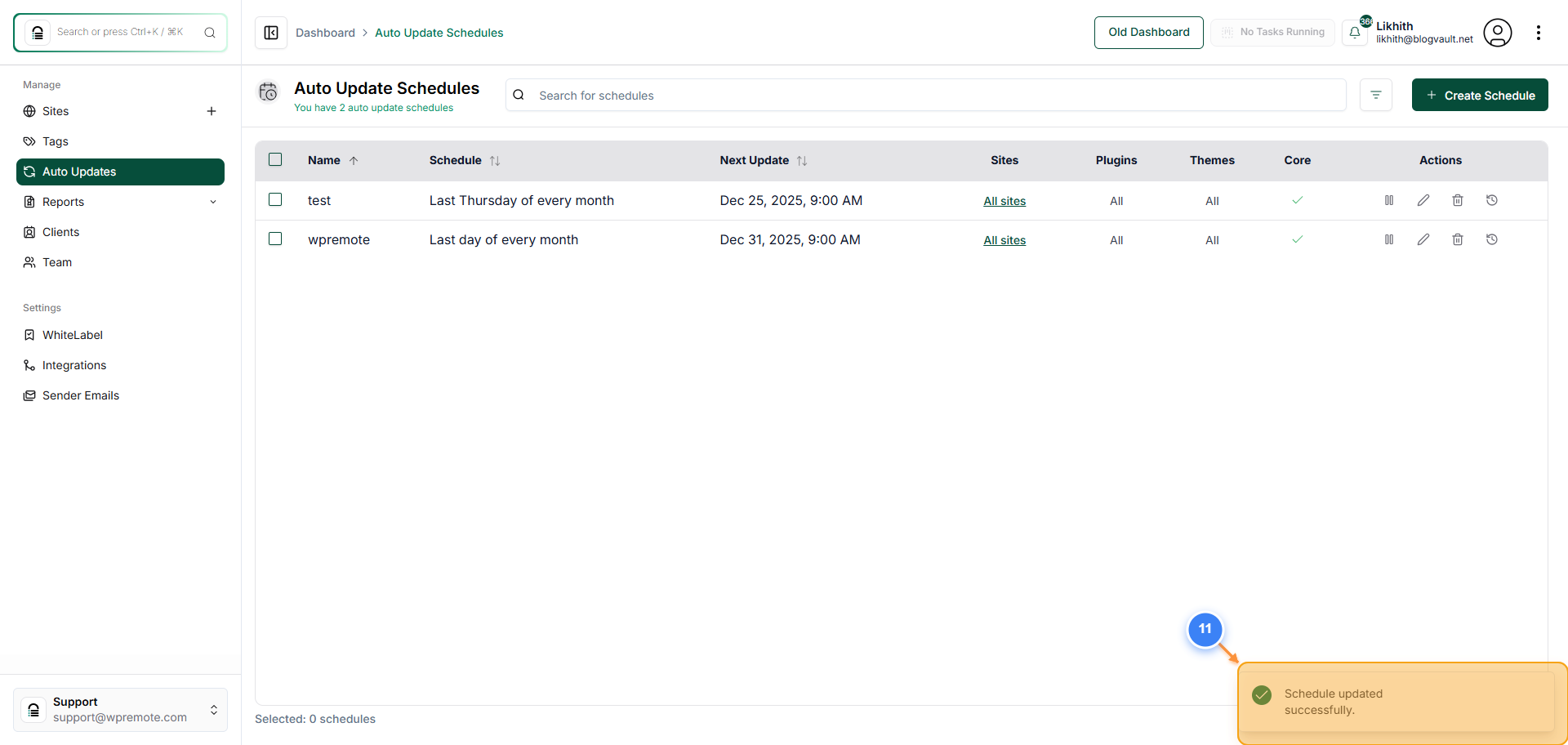
Final page overview showing the result of all completed steps
Step 8 screenshot

Was this article helpful?

That’s Great!

Thank you for your feedback

Sorry! We couldn't be helpful

Thank you for your feedback

Let us know how can we improve this article!

Select at least one of the reasons

Feedback sent

We appreciate your effort and will try to fix the article