
How Do I Delete, or Edit an Existing Scheduled Update?

Created by Likhith Salian, Modified on Thu, 20 Nov at 12:47 AM by Likhith Salian

Step 1 of 4
Open the Dashboard
Click "Dashboard" in the top-left navigation to return to the main overview area.
Note: Use this when you need to navigate back to the central workspace.
Step 1 screenshot
Step 2 of 4
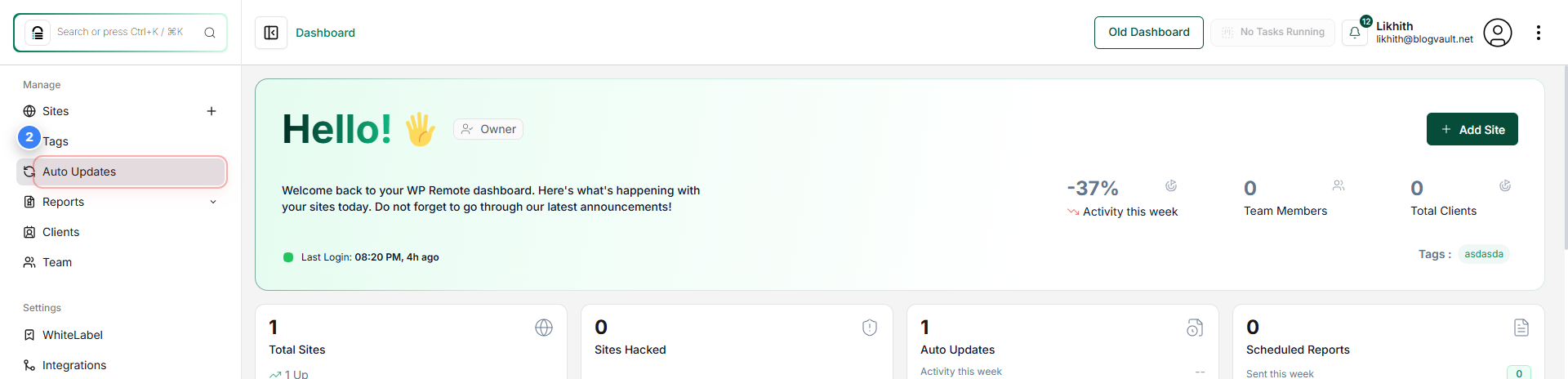
Open Auto Updates
Click "Auto Updates" in the left sidebar to access your site's automatic update settings.
Note: This section lets you manage update automation for plugins, themes, and translations.
Step 2 screenshot
Step 3 of 4
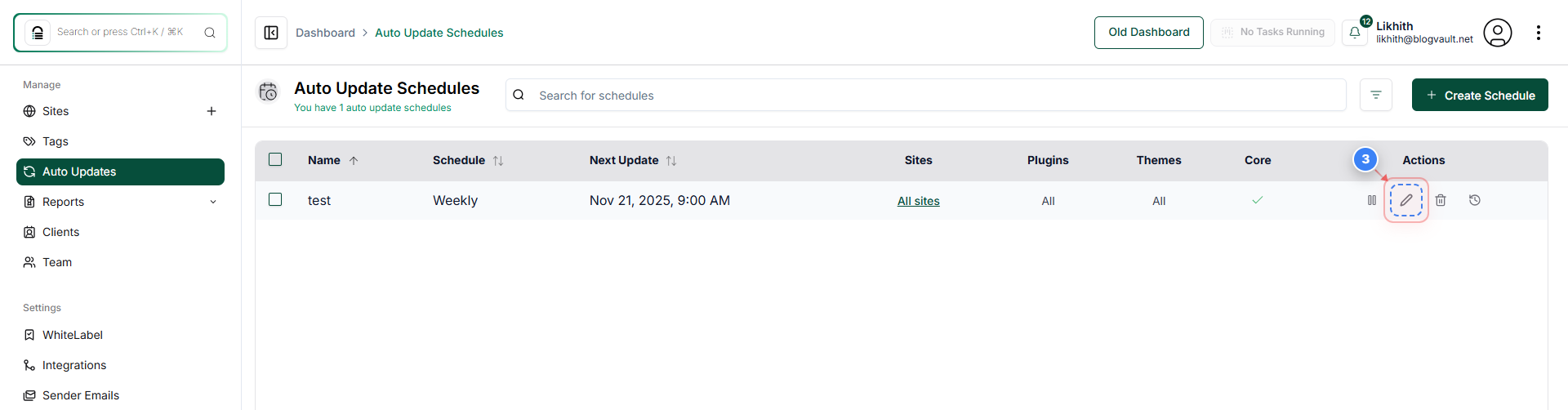
Open Schedule Controls
Click on the Pen icon. This will open the Scheduled Update Details
Note: Use this option to view or modify an existing auto update schedule.
Step 3 screenshot
Step 4 of 4
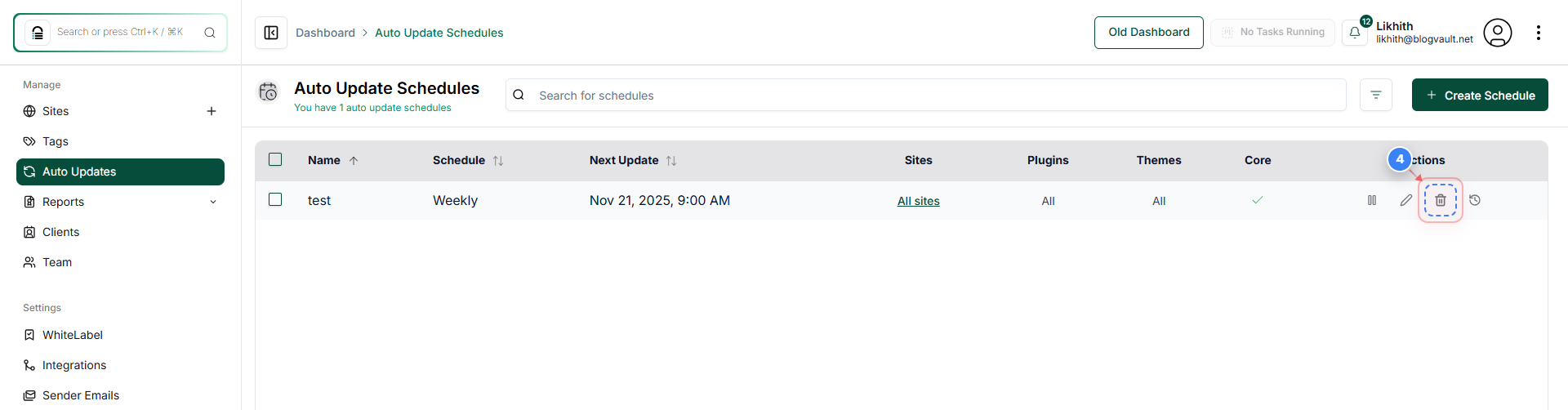
Delete the Scheduled auto updates
Click on the Bin icon, and a pop-up will appear to confirm the deletion of the scheduled update.
Note: Click on Confirm to delete the scheduled Auto update.
Step 4 screenshot

Was this article helpful?

That’s Great!

Thank you for your feedback

Sorry! We couldn't be helpful

Thank you for your feedback

Let us know how can we improve this article!

Select at least one of the reasons

Feedback sent

We appreciate your effort and will try to fix the article